A temporary exemption application can be made on any property that currently does not have a valid licence.
In this guide you’ll learn how to:
- Advise customers on how to complete the temporary exemption form
- Assess temporary exemption forms submitted by customers
- Create a formal decision to grant a Temporary Exemption Notice (TEN) or refuse a TEN
- Send Temporary Exemption Notice letters
- Extend a Temporary Exemption Notice
1. Temporary Exemption Form
A temporary exemption can be requested by a customer via an online form for any property they believe is exempt from the requirement to licence.
The form is located on the customer front end portal:
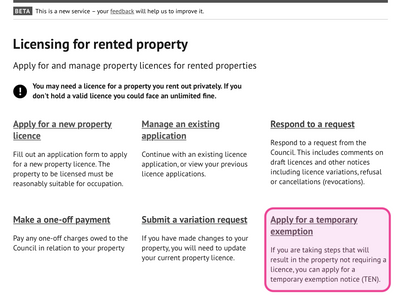
Customers can use this form to advise of the reasons for the exemption as well as attach evidence to support their application.
2. Assessing submitted temporary exemption forms
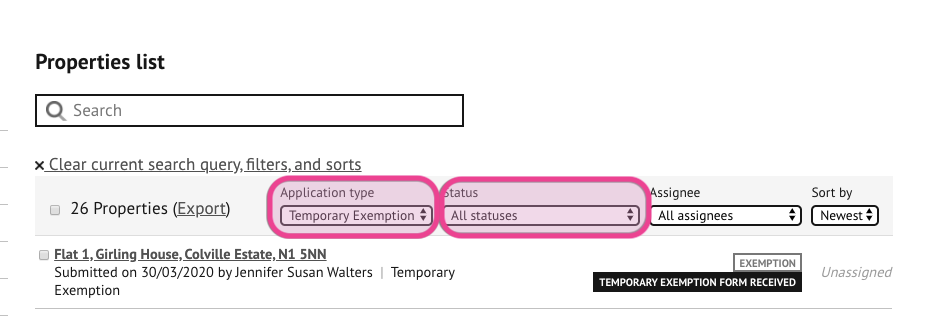
All submitted variation forms will appear in the property list and can be filtered by application type and status:
A task is generated to assess the variation:
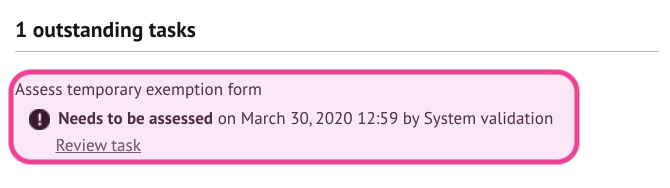
- Accept the temporary exemption request if you wish to take further action i.e. grant a TEN or refuse to grant a TEN.
- Using the information provided on the form, the council user will need to determine if the application relates to an HMO or single occupancy property in order for the correct notice to be issued.
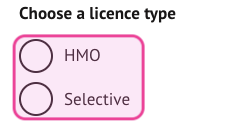
Complete all the task fields and update the task status to `Assessment completed` and save.
3. Creating a formal decision to grant / refuse to grant a Temporary Exemption Notice (TEN)
A council officer will be prompted to complete a decision to grant (or refuse to grant) after assessing Temporary Exemption form via a task.

The task will direct the user to make a temporary exemption decision.
The relevant decision type should then be selected:
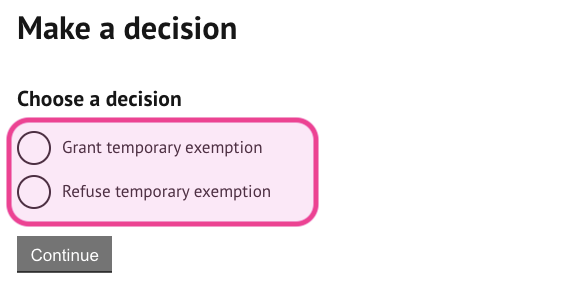
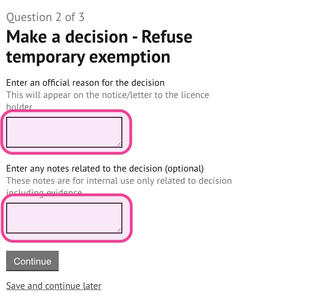
Insert the formal reason for the decision if the TEN is refused. Enter any optional notes for both refused or granted TENs.
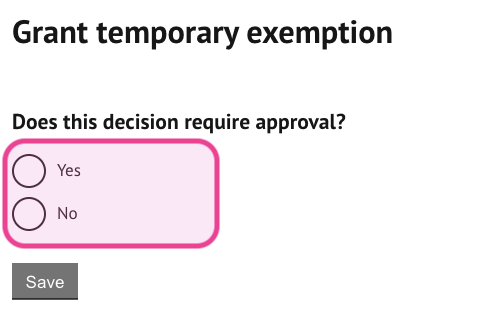
Identify if the decision requires senior officer or manager's approval. If yes, the user should `save and continue later` and advise the senior officer to retrieve the property record to complete the approval decision:
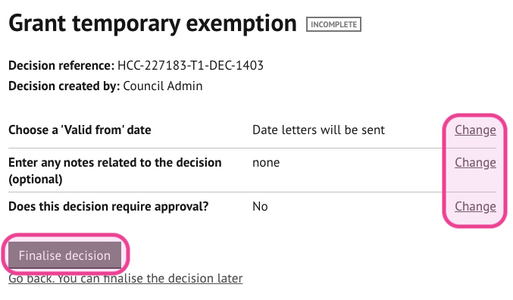
Review and finalise the decision by selecting `finalise decision`. All parts can be changed by selecting `change` against the relevant section
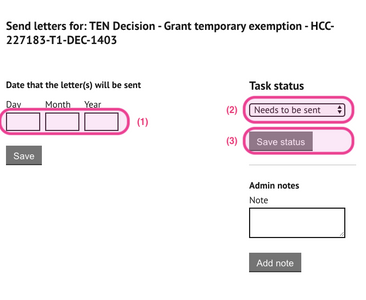
4. Send Temporary Exemption Notice letters
The TEN letters will be ready to send. A task will prompt the creation of the letters.
- Enter the dates the letter will be sent then save to generate the documents.
- Update the task status to `letters sent` once this action has been performed.
5. Extending a Temporary Exemption Notice
The temporary exemption can be extended at any point while the temporary exemption notice is valid. This must be actioned before the TEN expires.
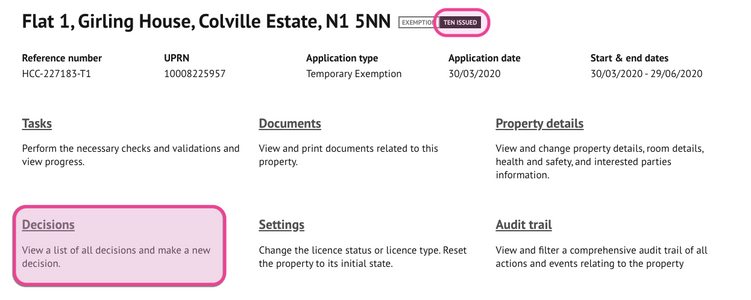
- To extend a TEN, retrieve the property with a valid and unexpired TEN in place.
- Select `decisions`:
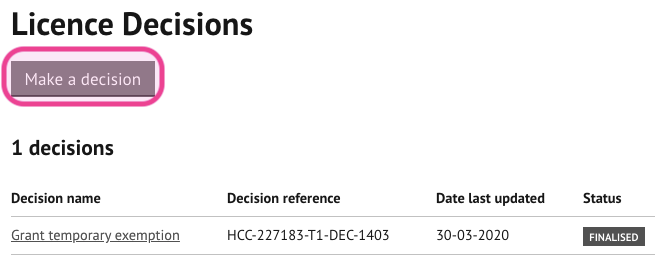
Click on `Make a decision`:
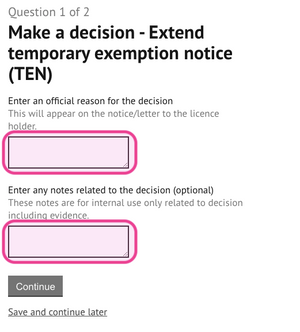
- Choose the `Temporary exemption` decision type and then `Extend temporary exemption notice (TEN) `
- Enter the reasons for the extension and press `continue`
- Identify if the decision requires senior officer or manager's approval. If yes, the user should `save and continue later` and advise the senior officer to enter the record to complete the approval decision.
- Review and finalise the decision by selecting `finalise decision`. All parts can be changed by selecting `change` against the relevant section
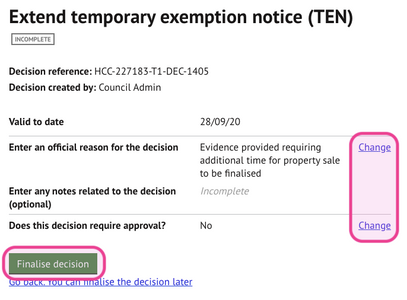
Repeat all steps in section 4 to send new TENs letters.
Was this article helpful?
That’s Great!
Thank you for your feedback
Sorry! We couldn't be helpful
Thank you for your feedback
Feedback sent
We appreciate your effort and will try to fix the article