This guide will cover the following functions
- Retrieving applications
- Assigning an officer
- Processing tasks
- Make a decision
- Send draft letters
- Representations
- Issue final licences
1. RETRIEVING APPLICATIONS
The homepage displays sections and functions that are available to the logged in user. The role a user is assigned to will determine the sections the user is permitted to access.
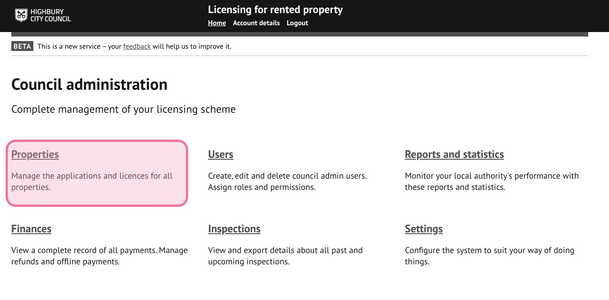
Go to ‘Properties’ to view all applications and licences.
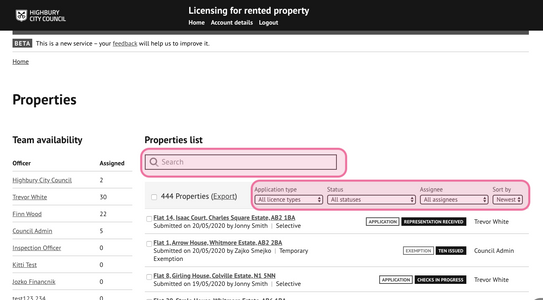
1.1. - Applications can be retrieved by
- Searching for address / postcode
- Using the filters to refine the list of applications on display by application type, assigned user and/or record status
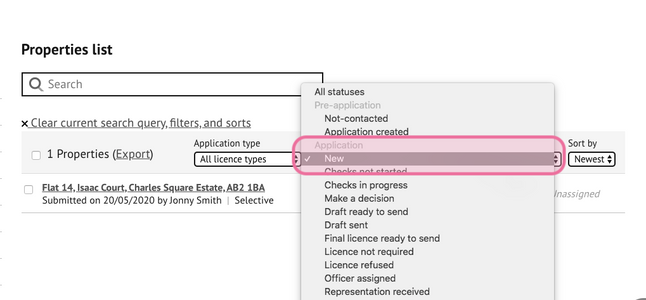
1.2 - To view new applications, use the ‘status’ filter and select ‘New’
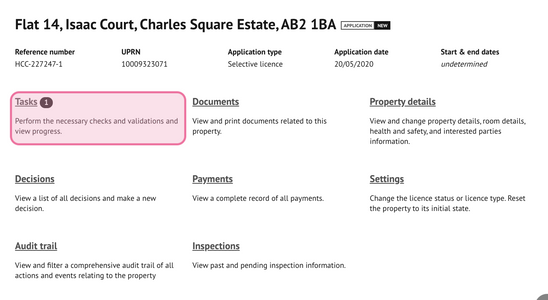
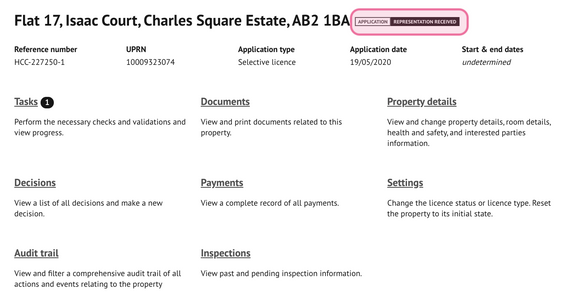
1.3 - The application landing page will be displayed and all available sections
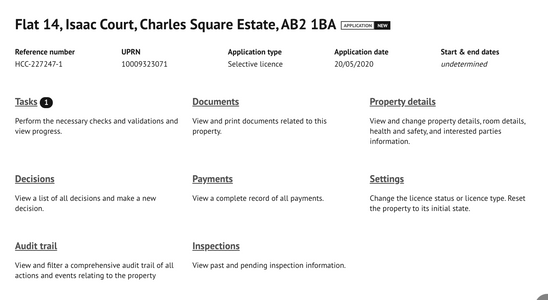
1.4 - Sections and descriptions
Tasks – Prompts steps required to progress the application or licence
Documents – the document store contains the initial application form as a PDF and any documents submitted along with the licence application. Further documents generated by the system will be automatically uploaded here. Manual upload of documents can also be performed within this section.
Property details – Displays information contained within the application form including property details, interested parties, health and safety, room details and licence conditions. Editing of this data is available for most sections.
For section 257 HMOs, the rooms section will be replaced by 'Units' which functions in the same way as 'rooms'. The `licence conditions` section will also not appear for s257s due to not being applicable.
Decisions – Make decisions related to the licence or application including granting a licence, refusing to grant a licence, revocation and variation.
Payments – View any payments made and due, apply refunds or create additional requests for payments
Settings – Make adjustments to the licence status, licence type or reset the property to it’s initial state (removes ALL data)
Audit trail – view a summary of actions and data changes made on the record
Inspections – view scheduled or completed inspections for a property
2. Assign an officer
2.1 - Select ‘Tasks’
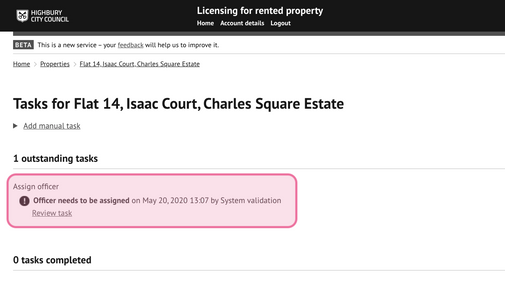
2.2 - Select `Review task` from the Assign officer task
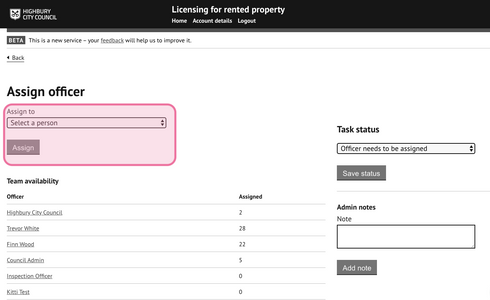
- Select the council officer to be assigned to this application for processing from the dropdown list.
- Press ‘assign’
2.3 - Update the task status to `Officer assigned` to indicate completion
Change the task status from 'Officer needs to be assigned' to 'Officer assigned'. The application will now be assigned to the user selected. This record will appear on the list of applications assigned to this user for processing.
3. Processing tasks
3.1 - Processing tasks are split into two categories
i. Completed tasks
Automated tasks validated by the system that have been satisfied will appear here.
As a processing officer completes task, these will also be added here.
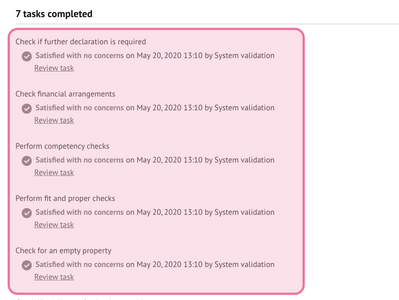
By selecting ’review task’ against any listed task, you can view the completed task and add notes if required.
ii. Outstanding tasks
Select ‘review task’ against the relevant outstanding task to view and update the task
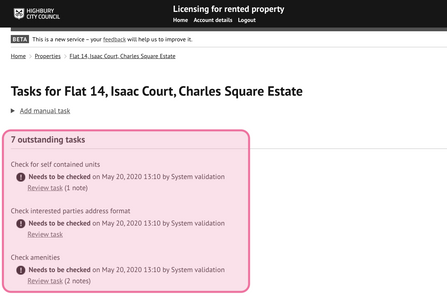
All incomplete tasks need to be completed before a licence can be issued.
3.2 - All tasks have similar features. You can add notes and upload/view a document (where relevant)
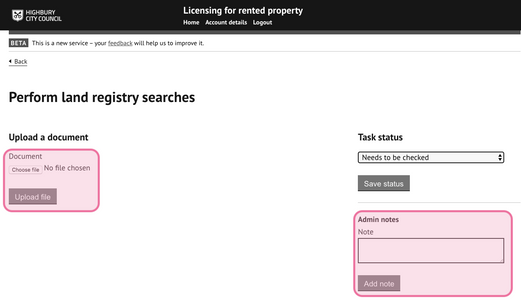
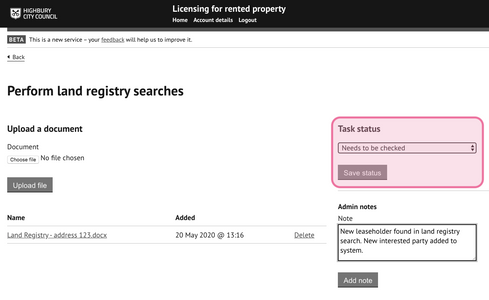
Once the task has been completed the ‘Task status’ should be updated to one of the following:
- Satisfied with no conditions – no concerns were found when assessing this task and related information
- Satisfied with conditions – the task has been satisfied however some minor concerns remain.
- Review required – where additional or senior officer review is required before a decision can be made
- Unsatisfactory – Serious concerns or discrepancies remain. Unsatisfied tasks may lead to a decision to issue a licence with a shorter duration, refusal to grant a licence decision, or inform risk assessments.
3.3 Check uploaded documents and certificates task
If documents were required to be submitted as part of the application, they will appear within this task.
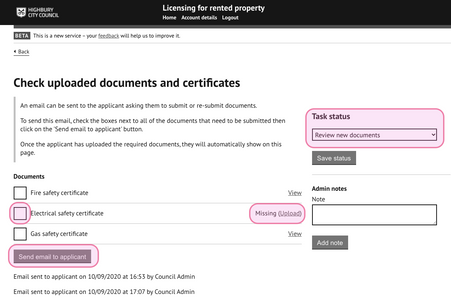
If you require further copies or missing documents to be (re)submitted you can select the documents you want submitted by checking the tick-box against the document name and pressing the 'send email to applicant' button.
An email will be sent to the applicant requesting the documents including instructions for submission. A summary of the email history will appear within the task and a copy of the email will be saved to the document store.
The task status will auto update following the email requesting additional documents:
- Awaiting applicant response - after an email request is sent to the applicant for further documents
- Review new documents - when the applicant has (re)submitted new documents
Once documents have been (re)submitted, assess and determine is the task is satisfied (see 3.2)
NOTE: Only the most recently uploaded/submitted documents will appear within the task. All documents can be found in the document store.3.4 Section 257 specific tasks
An additional task will appear when processing s257 applications:
Determine if the property meets the requirement of being a s257 HMO
Determine if the property meets the criteria for a s257 according to the council's definition and update the task status as appropriate.
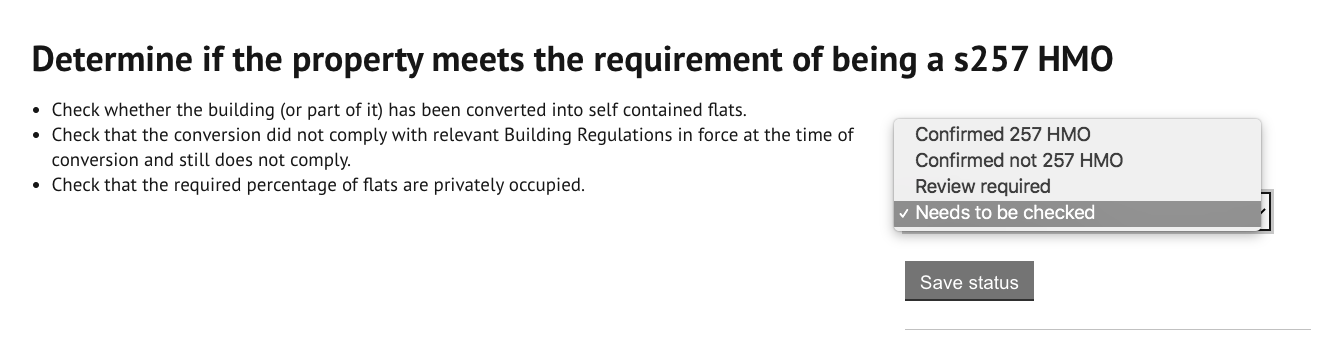
Where the criteria is not met, users should then 'Make a decision' to withdraw or refuse to grant the licence and issue a refund where required.
Some standard tasks found on other licence types will not appear for s257 due to not being relevant, such as the empty property and amenties tasks.
4. Make a decision
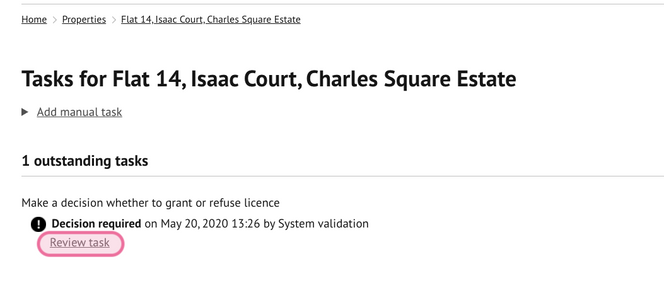
4.1 - Once all processing tasks have been completed, a further task will be generated to make a decision for issuing the licence.
A refusal of a licence can also be performed here, see the `Refusing to grant a licence' guide for details4.2 The status of the application is changed to ‘Make a decision’ -
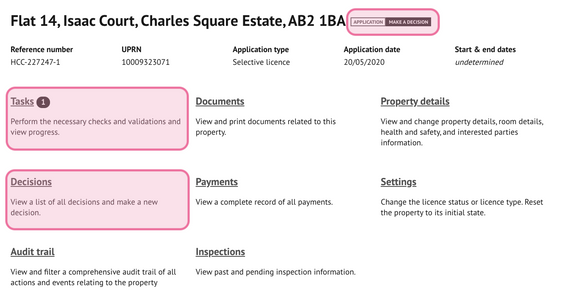
4.3 - A decision can be made via the task or by selecting ‘Decisions’ from the menu.
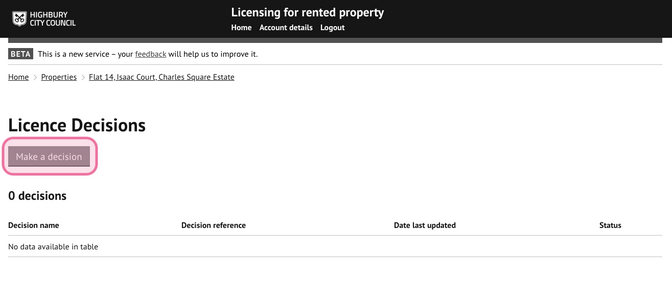
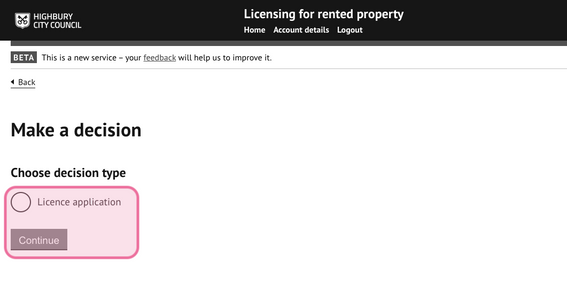
4.4 Select `Make a decision`
4.5 Select ‘Licence application’ and press ‘continue’
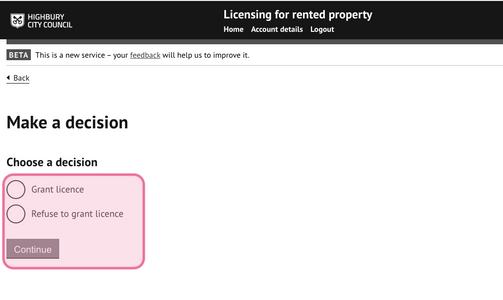
4.6 Select ‘Grant licence’ to issue the licence
4.7 Select the date the licence will commence
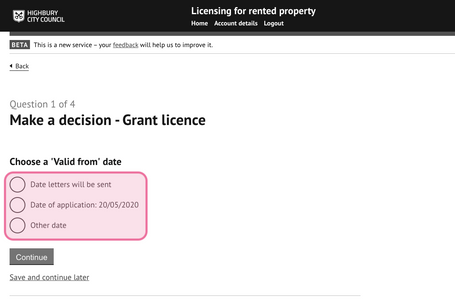
- Date letters will be sent – This is the date the licence letter and related notices will be posted (this can be specified in the next section)
- Date of application – the licence will be valid from the date the application was submitted
- Other date – specify an alternative date
4.8 Choose the licence duration
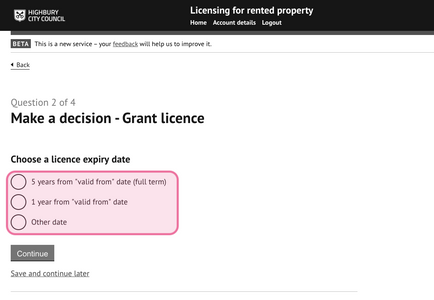
A full term licence will be valid for 5 years from the start date specified in the previous step.
A reduced term licence can be for 1 year or other specified period using the ‘other date’ option.
4.9 - Decision reason
A decision reason must be entered for licences that are not full term (i.e. not 5 years). The statement of reasons will be placed on the notice granting the licence.
Notes can be entered in the second text box; these notes will not be published and are for internal use only.
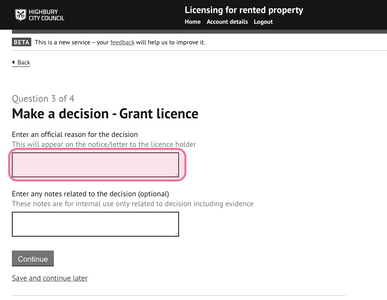
4.10 Determine if any custom conditions are required for insertion
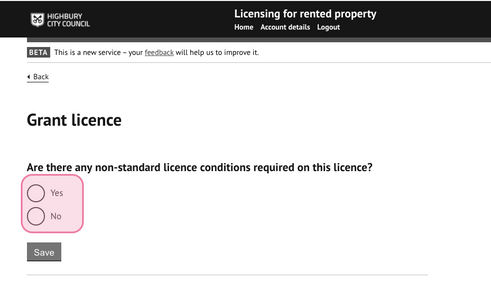
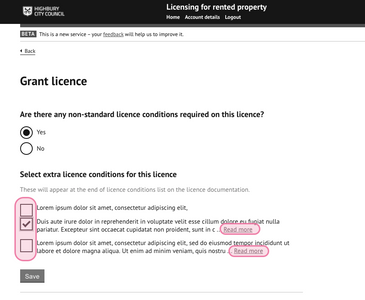
Selecting 'yes' will display all customer conditions available for that licence type:
4.11 - Decision approval
Select if the decision requires approval.
If yes, advise the approving officer to review the record and decision entry and to enter their approval decision.
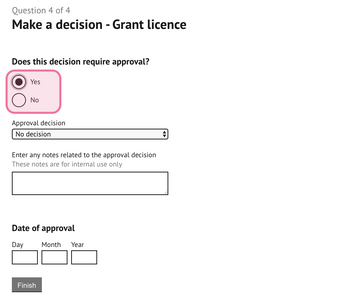
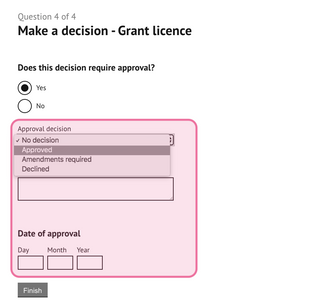
4.12 - Finalise the decision entry.
4.13 - Recover Final payment (if split fees is applied).
A task will be generated at this stage to recover the second part of the licence fee payment if the fee has been split into two parts.
This task may appear later in the process depending on when the council has decided to recovery this fee.
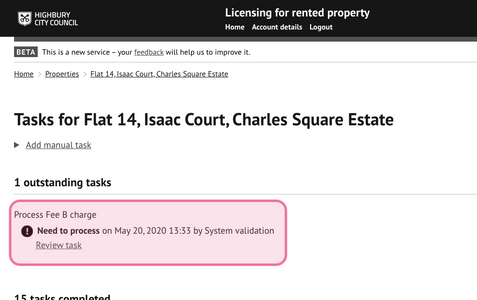
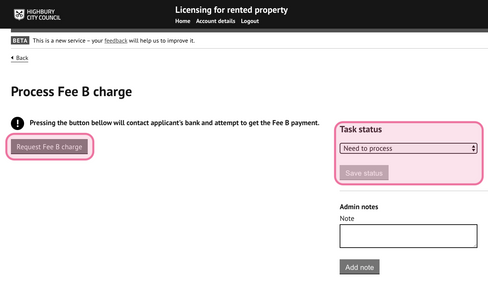
Process the payment by pressing the `Process Fee B charge` to automatically recovery the payment.
This option will not be available if the payment was made outside of the system as no payment details are stored and will need to be updated manually in the payments section.
5. Send draft licence letters
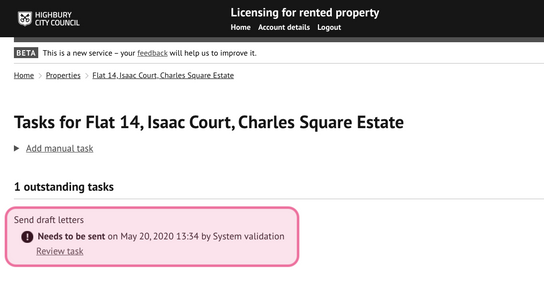
5.1 - Draft letters task
When the draft letters are ready to be produced, a new task will be generated to indicate this.
The record status will also indicate this required action.
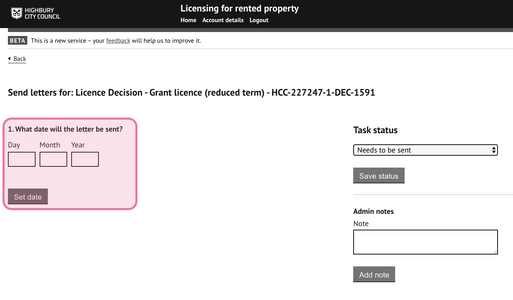
5.2 - Enter the date the letter is to be posted
5.3 - Emailing options
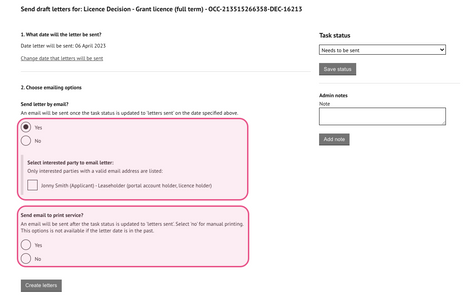
EMAIL TO INTERESTED PARTIES:
Select whether to send the letters via email and the recipients. All interested parties with a valid email address will be listed. Select all those that apply.
SEND TO PRINT SERVICES:
If the print service email feature is activated a further option will be displayed to indicate whether an email containing the letters should be sent to a designated print service for sending the letters via post. If printing manually, yourself select 'no'.
Note: no emails will be sent until the task status has been updated to 'letters sent'Press 'Create letters' after the emailing and print options have been completed to generate the letters to all interested parties.
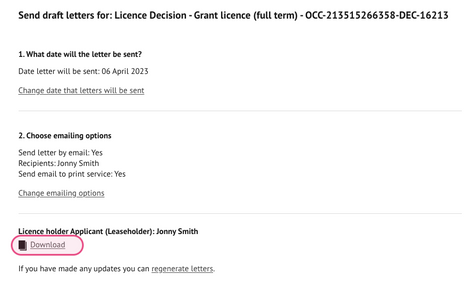
5.4 - View letters
Click 'download' to view each letter.
UPDATE TASK STATUS
Select the appropriate method of service for the letters and 'Save status':
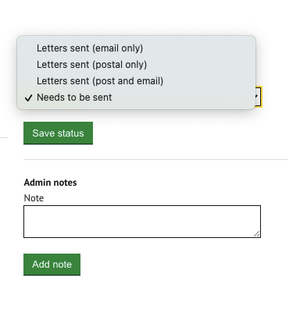
Updating the task to 'Letters sent' will finalise the dates for the letters and send emails to the applicant and print service if selected to do so.
6. Representations
6.1 New representation received
The draft letters contains a PIN for recipients to use to make representations online.
A new representation received will be indicated by the change in the status of the application to 'representation received'
6.2 Representation task
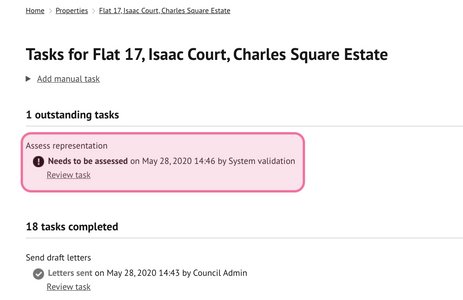
A task will be generated to view the representation received and make an assessment. A copy of the actual representation form will also be saved to the document store.
6.3 - Review representation
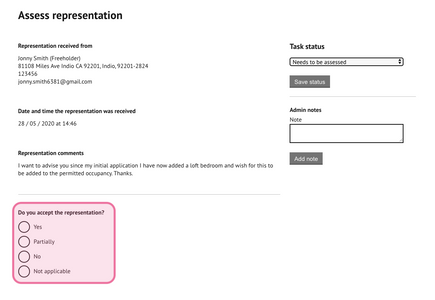
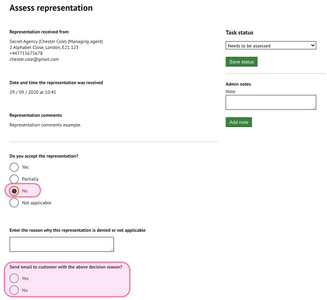
Review the representation form submitted within the task and make a decision to accept or reject the comments.
6.4 - Assess representation
Accept / partially accept -
Apply any changes related to the representation (e.g. room changes or interested party updated etc) and specify the changes you have made:
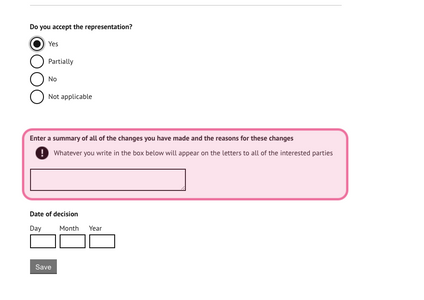
A further draft licence will be required to be issued. These notes will appear on the new version generated.
Not applicable - Enter a reason and save. No further action is required.
No (Rejecting representation)- If you do not accept the comments. Enter a reason and determine if an email to the consultee is required containing the reasons for the rejection. An email will automatically be sent once all fields have been completed and the task has been updated. A copy of the email will be saved to the document store.
6.5 - Update the status
Update the task status to the match the decision made:
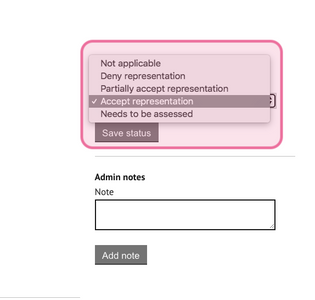
6.6 New draft licences
If the representation was accepted a new draft licence is required to be issued.
A new task will appear for this action. Repeat all actions specified in section 5.
The representation period will be reset from when the new draft licence is issued.
7. Issue final licences
Once the representation period has expired, the final licence letters will be ready to be issued.
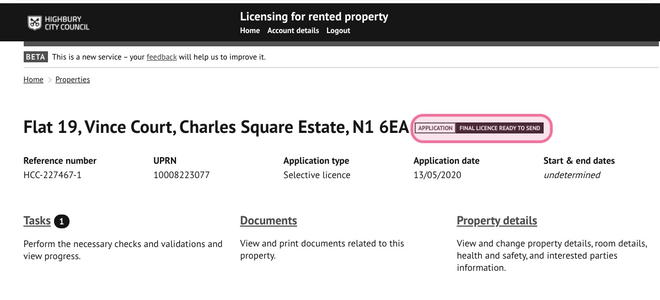
A new task will be generated to send the final letters.
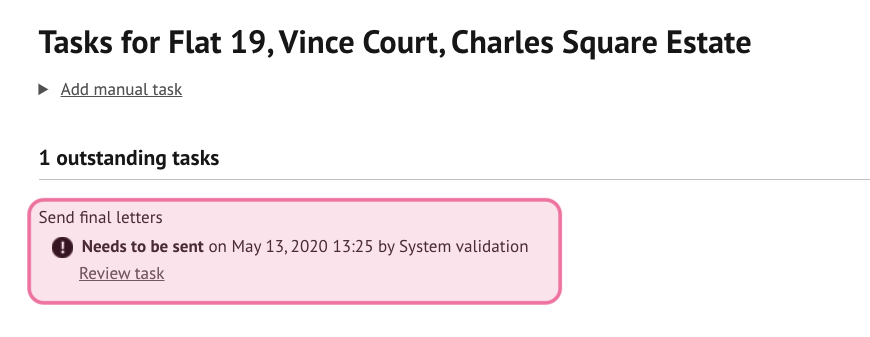
Repeat all actions specified in section 5.
Was this article helpful?
That’s Great!
Thank you for your feedback
Sorry! We couldn't be helpful
Thank you for your feedback
Feedback sent
We appreciate your effort and will try to fix the article