There are two type of custom conditions that can be created:
- Pre-set custom conditions for optional selection and insertion into letters where required
- Adhoc custom conditions conditions that are unique to a single property
Guide contents
- Create pre-set custom conditions
- Manage pre-set custom conditions
- Insert pre-set custom conditions into licence letters
- Creating adhoc custom conditions
Create pre-set custom conditions
Pre-set custom conditions need to be created by a system administrator before these can be made available to general users to insert into letters.
You can create different lists of conditions for each licence type:
Go to 'Settings' > 'Custom licence conditions'1. Select the licence type to create customer conditions for:
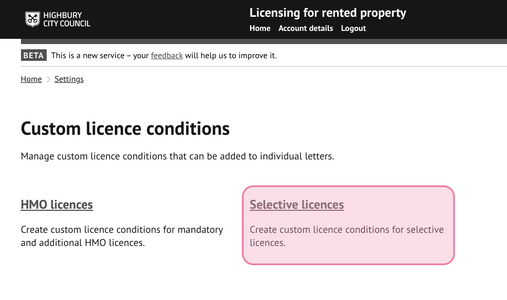
The main settings page for Custom Licence Conditions
2. Select 'create licence conditions:
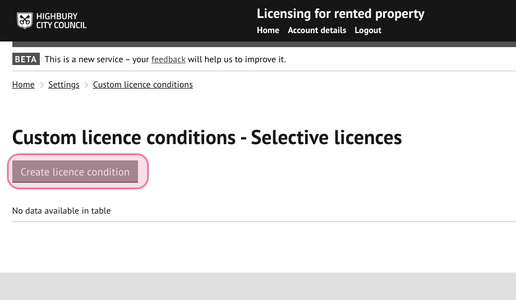
The Selective Licences sub-menu within the Custom Licence Conditions settings
3. Enter the text for the new licence condition and press 'save':
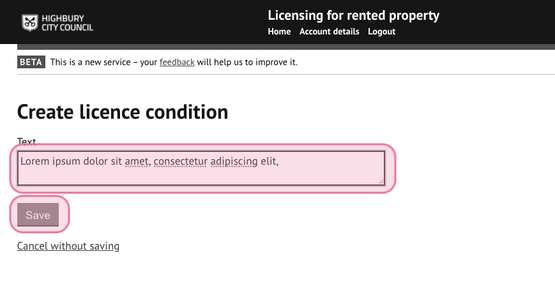
The text entry interface for creating a new licence condition
4. Continue to add as many conditions as required.
Manage pre-set custom conditions
Custom conditions can be can be changed or removed entirely after they have been created. Use the setting against each conditions to perform the required action:
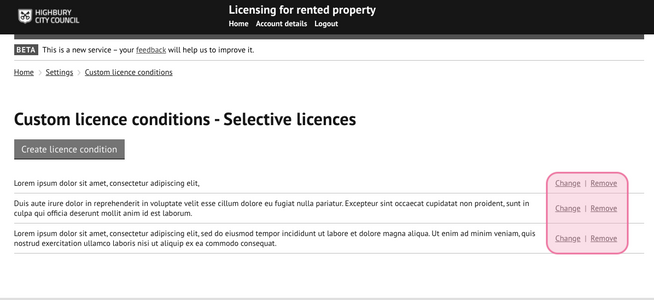
The management interface for pre-set conditions
- Select `change` to edit the condition entry
- Select `remove` to delete condition entry
Removal of a condition cannot be undone. Be sure before committing this action.
Insert pre-set custom conditions into licence letters
Pre-set custom conditions can be inserted into letters via the grant licence decision function used to issue licences.
For full details on the grant licence decision and generating licence letters, see our guide on Application processing & issuing licencesThe following page will appear after the entering the licence dates and licence decision reason:
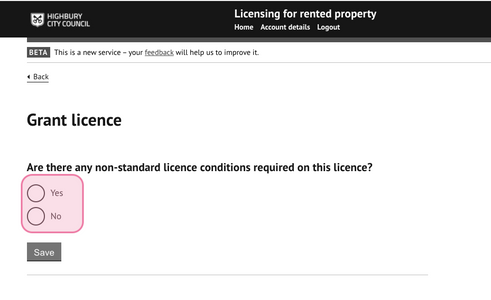
The 'Grant licence' decision screen
Selecting 'yes' will display all customer conditions available for that licence type:
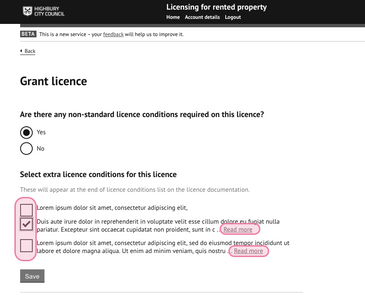
The expanded 'Select extra licence conditions' view
- Check the tick box to select the condition for insertion in the licence letter
- Click on 'read more' to view the full text of the condition.
- Finalise the licence decision.
- Generate the draft licence letters.
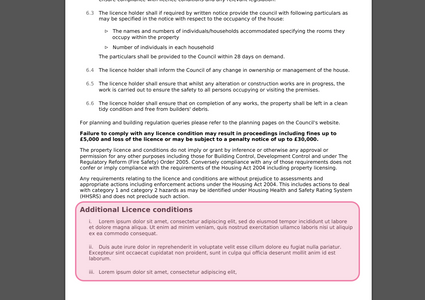
The final licence letter output
The custom conditions will be added to the end of the licence letter.
When applying any changes to licence conditions, consider when these are applied to ensure draft licences already issued and are awaiting a final licences to be sent have the same licence conditions on both versions.Creating adhoc custom conditions
Adhoc custom conditions can be created by any officer on the page following the pre-set licence conditions when creating the licence decision.
The officer will be presented with a question to add additional non-standard licence conditions. Selecting 'No' allows the user to progress with completing the decision without adding any new conditions.
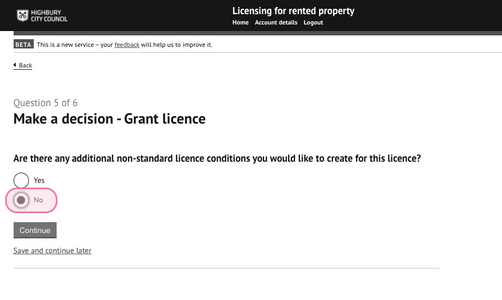
Prompt for additional non-standard conditions.
Selecting yes will display options to create a new bespoke licence condition:
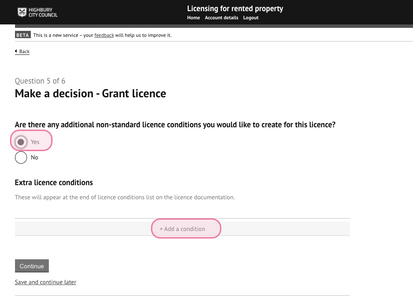
The '+ Add a condition' button used to enter bespoke text for adhoc licence conditions.
Text can then be entered as required:
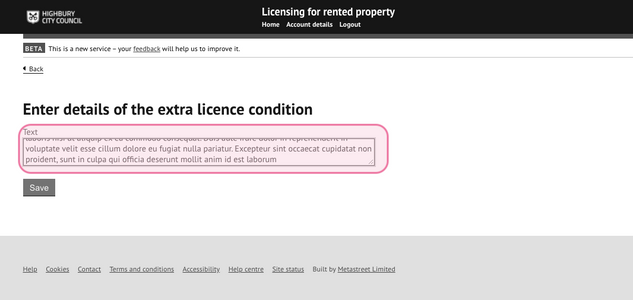
Text entry field for specific adhoc condition details.
Press 'save' to commit the text entry.
The custom licence condition will then be created.
Further unlimited entries can be added by selecting 'Add a condition'.
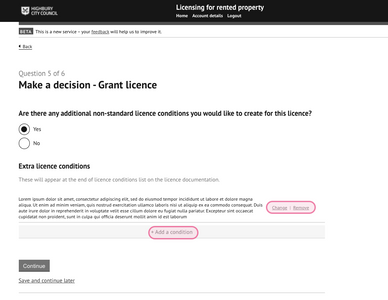
Summary of adhoc conditions before continuing.
Created conditions can be edited or removed by selecting
the appropriate option against the created entry.
Once all adhoc custom conditions have been added,
click on 'Continue' to progress with finalising the decision entry.
These conditions will appear at the end of the licence conditions on the licence issued.
Was this article helpful?
That’s Great!
Thank you for your feedback
Sorry! We couldn't be helpful
Thank you for your feedback
Feedback sent
We appreciate your effort and will try to fix the article