The variation of property licences can be performed on any licence that is currently valid.
In this guide you’ll learn how to:
- Advise customers on how to complete the variation form
- Assess variation forms submitted by customers
- Create a formal decision to vary / refuse to vary a licence
- Send variation letters
- Manage representations
1. Variation Form
Variations can be instigated by the customer or by the council. Customers can advise the council of changes to their property or it's management via an online form.
The form is located on the customer front end portal where a variety of licensing activities can be performed:
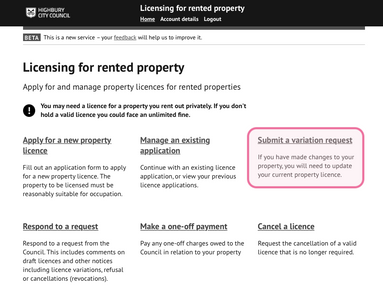
The form can be used to advise and update the council of the following changes:
- Change contact details of Licence Holder (LH)
- Change managing agent or other part (not LH)
- Property alterations, extensions or amenity changes
- Occupancy number changes
2. Assessing submitted variation forms
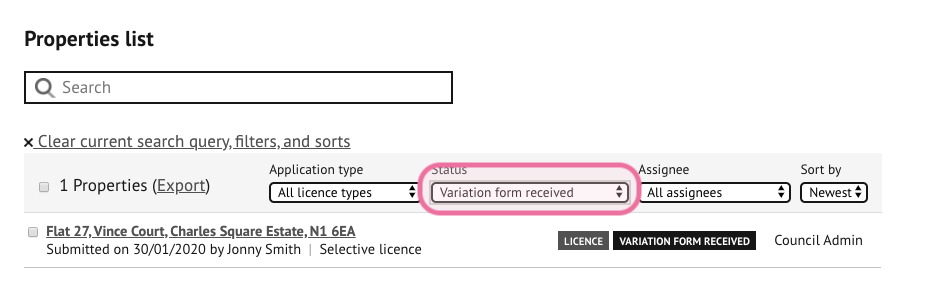
All submitted variation forms will appear in the property list and can be filtered by status type:
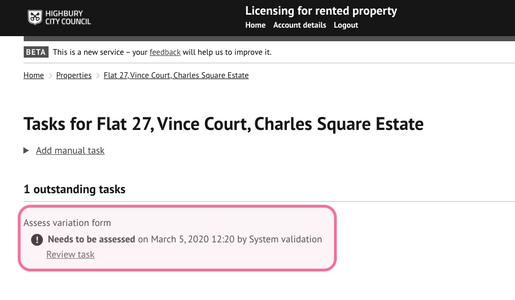
A task is generated to assess the variation
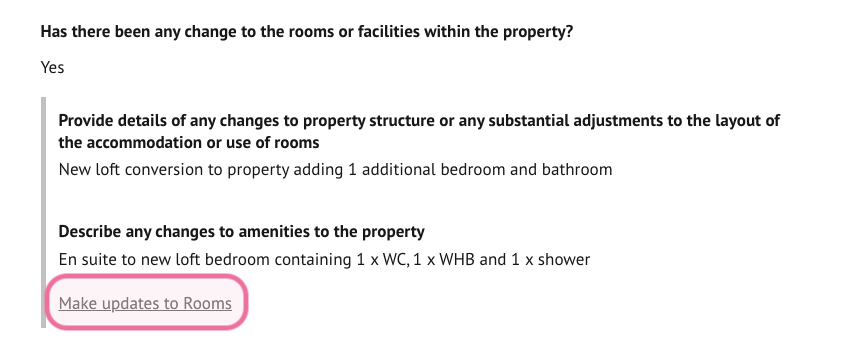
When assessing the task the council user will need to determine if the changes require updates to the information held on the system which can easily be applied via links contained within the task for each section.
The council officer will also need to determine if the variation changes submitted require a notice to be issued. This is usually required for material changes.
Complete all the task fields and update the task status. If the council officer has identified that changes are required, a further task will be generated to create a formal licence variation decision.
3. Creating a formal decision to vary / refuse to vary a licence
3.1 Creating a decision
A council officer can instigate a decision to vary (or refuse to vary) a licence at any time, or be prompted to make a decision when assessing a customer submitted variation form.
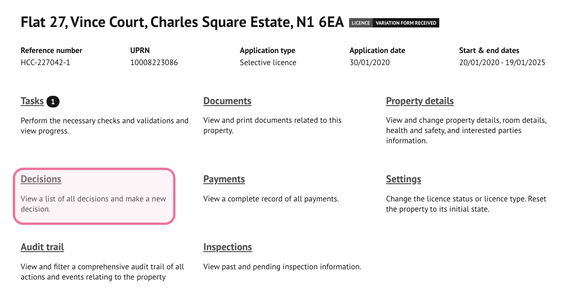
- Select the property
- Go to 'Decisions'
Select the relevant variation decision:
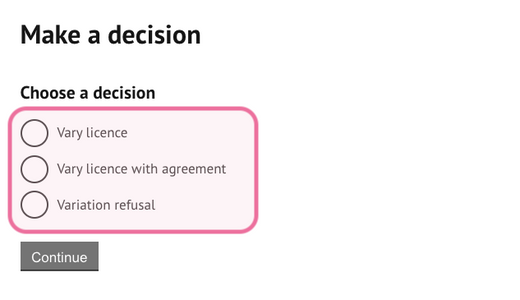
NOTE: A variation decision can only be instigated on an issued and active licence.3.3 Variation decision reason
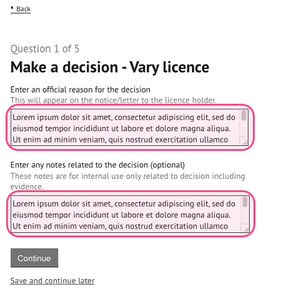
Insert the formal reason for the decision which will appear on the variation notice. You can also include any optional notes for internal use:
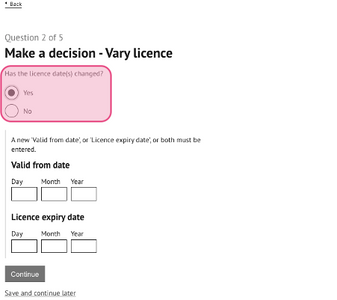
3.4 Determine if licence dates require adjusting
Licence dates usually require adjusting when the licence term is extended or reduced or if the licence dates were previously issued incorrectly.
Enter a new start and/or expiry date for the licence, if required.
3.5 Non-standard licence conditions
Select from a list of additional pre-set licence conditions to add to the existing regular licence conditions. Your system administrator is responsible for maintaining this list and should be contacted if adjustments are required.
Select all that apply for inclusion.
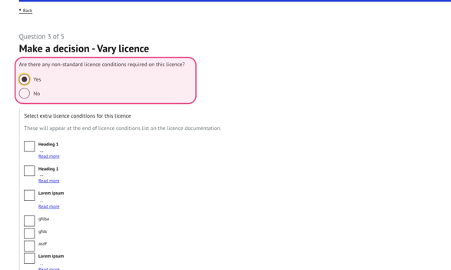
3.6 Bespoke licence conditions
Create and add any bespoke licence conditions specific to the is property.
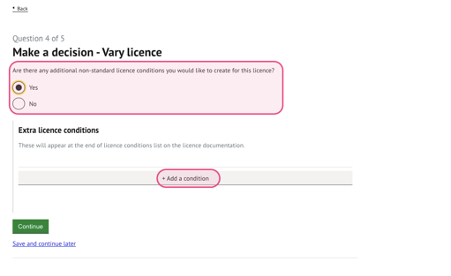
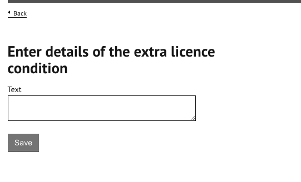
Add bespoke text as required:
Once added these can be adjusted by selecting ‘change’ or ‘remove’
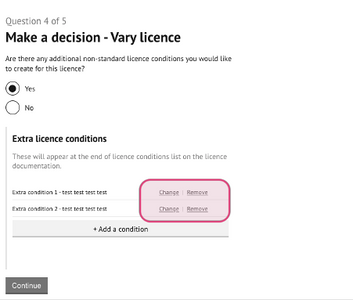
3.7 Decision approval
Identify if the decision requires senior officer or manager's approval. If yes, the user should `save and continue later` and advise the senior officer to enter the record to complete the approval decision:
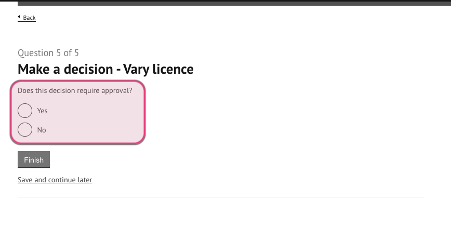
Review and finalise the decision by selecting `finalise decision`. All parts can be changed by selecting `change` against the relevant section
4. Send variation letters
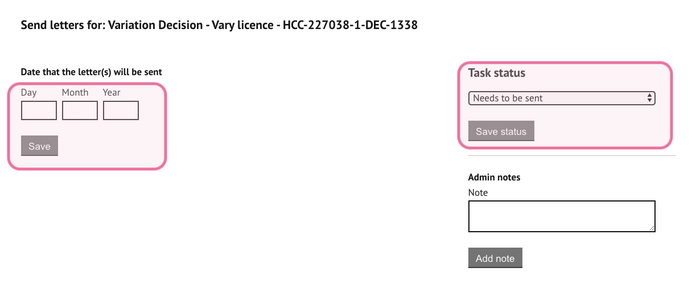
The draft variation letters will be ready to send. A task will prompt the creation of the letters.
- Enter the dates the letter will be sent then save to generate the documents.
- Update the task status to `letters sent` once this action has been performed.
5. Representations
If representations are received during the consultation phase of the variation notice, these will appear on the main property list page as `Representation received for licence variation`.
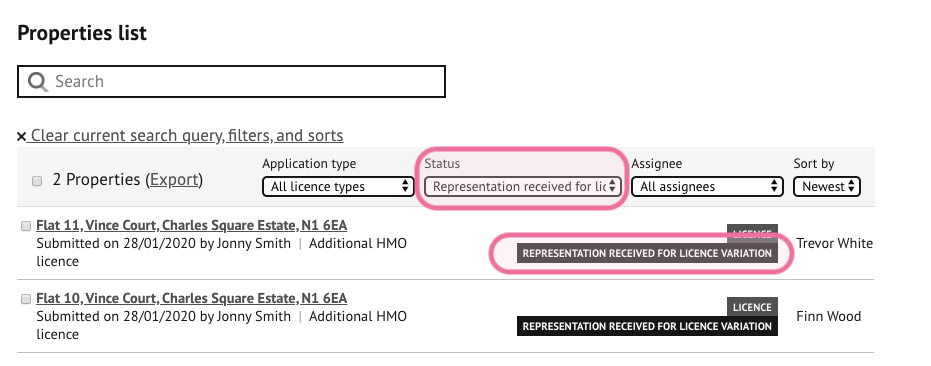
A new task will be available to complete the assessment of the representation.
You can choose to:
a) decline the representation and continue with the representation period (you can contact the consultee to advise of this decision where required), or
b) accept the representation and either
- cancel the variation notice or
- reissue a further draft notice with specified changes.
6. Send final letters
Once the representation period has expired (21 days), the final revocation letters will be ready to send.
A new task will appear to send these letters which should be completed as detailed in step 4 above.
Was this article helpful?
That’s Great!
Thank you for your feedback
Sorry! We couldn't be helpful
Thank you for your feedback
Feedback sent
We appreciate your effort and will try to fix the article