1.Create a licence audit
2.Set audit items
3.Send email
4.Licence audit form
5.Sending reminders or repeat requests
6.Assessing a customer response
7.Audit compliance assessment
Licence audits can be performed on valid licence records to request documents and information to assess compliance with licence conditions.
1. Create a licence audit case
To perform a licence audit, retrieve the relevant licence record and click on `Licence Audit` on the licence overview page:
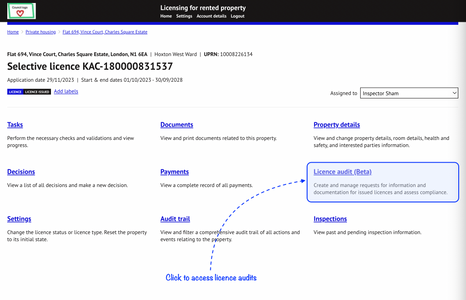
NOTE: This feature will not be available on expired licences or in progress applications.
1.1 Click on ‘Create licence audit’ to start a new audit for the licence
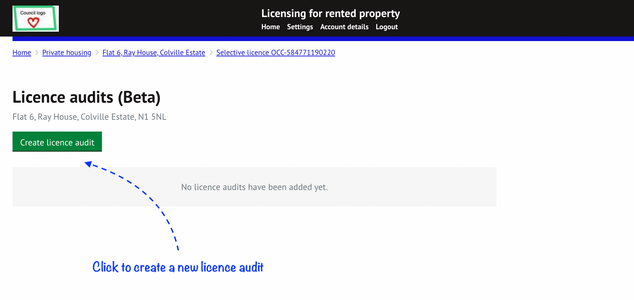
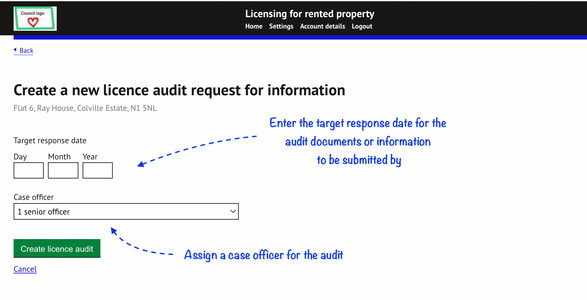
1.2 Set details for the audit
- Enter a target response date for the audit items to be submitted by. This will be available for insertion in the email later and will help identify overdue responses.
- Select case officer from the available list
- Press ‘Create licence audit’ to generate the audit case
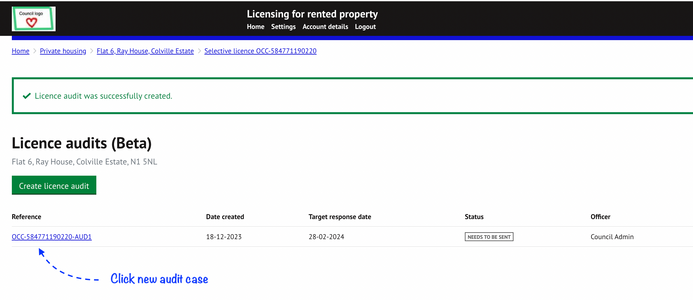
1.3. The audit will be created and available on the audit list page. Any subsequent audits created will also be listed here.
Click on the audit reference number to set audit requirements and send email requests:
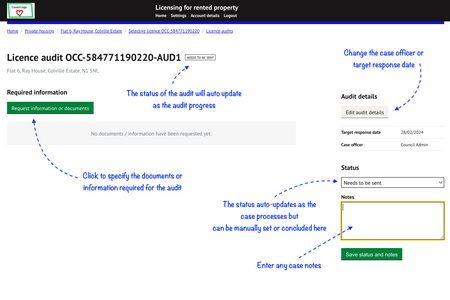
1.4 View and manage details of the audit
- Change case officer or target response date for the audit case
- View or update the status of the audit (including closure status)
- Enter any notes in relation to the audit
- Request audit items
1.5 Statuses
- The status of the audit case will automatically update as actions are completed and documents/information is requested/submitted.
- The status can also be manually set but may be overwritten where certain auto-updates apply (unless in a concluding state where a final decision on compliance has been made).
| Status | Description |
| Needs to be sent | Audit case has been creation; Required audit items have not been set or emails sent. |
| Awaiting portal holder response | Emails sent requesting audit items. Portal Account Holder (PAH) has yet to respond. |
| Response overdue | Target response date has passed and a response has not yet been received. |
| Assessment | Portal account holder has submitted the form. Documents or information is ready for assessment. |
| DECISION: Satisfied with no concerns | Decision on audit compliance. PAH has fully complied with audit request. All documents are satisfactory. |
| DECISION: Satisfied with concerns | Decision on audit compliance. PAH has mostly complied with audit request. This status may help identify if a further audit is required on the licence during the same licence term. |
| DECISION: No longer required | Audit is no longer applicable or required. No further action is needed. |
| DECISION: Failed audit* | PAH has failed to respond or failed to provide a satisfactory response. This may result in enforcement action being taken. |
*This status is currently unavailable but will be added soon.
2. Set audit items
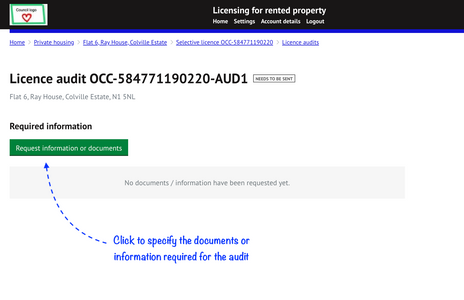
2.1 Click on the ‘Request information or documents’ button
Select the items required for submission. Select all or as many that apply:
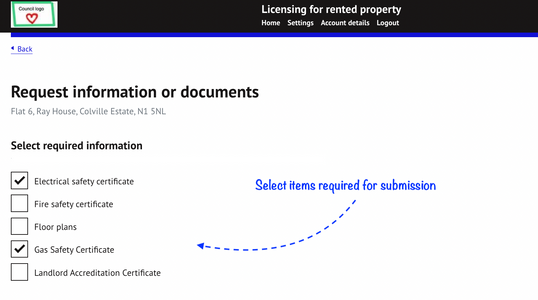
This list is manageable by the administrator of the system for the council. Please refer to guide `Audit - Licence Audit Settings` for instructions on how an administrator can create audit items.
3. Send email
Emails will be sent to the registered Portal Account Holder (PAH) for the licence, who should ideally be the licence holder.
For details on how to change the PAH to a different party, please see the guide `Managing Interested Parties` in the help centre.
3.1 Tokens
Tokens act as placeholders that auto insert live data within the email once sent.
The available tokens can be found by clicking on 'List of available tokens'.
The text next to each token provides a description of the data that will populate in its place once the email is sent.
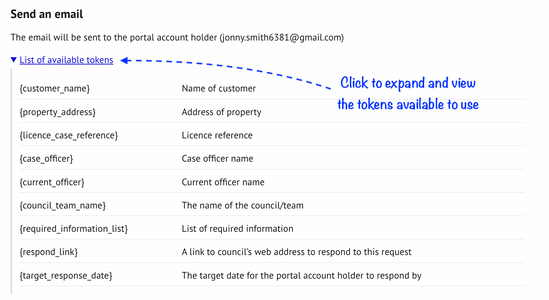
e.g.
{property_address_service_case} is the full property address the notice will relate to
{notice_reference} is the reference of the notice
{respond_link} is a unique link a customer can use to submit the specified information. The case officer will receive a notification by email when a response is received if this completed.
Inserting a token:
Copy the token required (in full, including the brackets) and insert this within the body of text in the specific position on the email you want this data to appear.
The following demonstrates how the tokens used (see image to left) will populate in the email sent (image to right) with the corresponding data for that record:
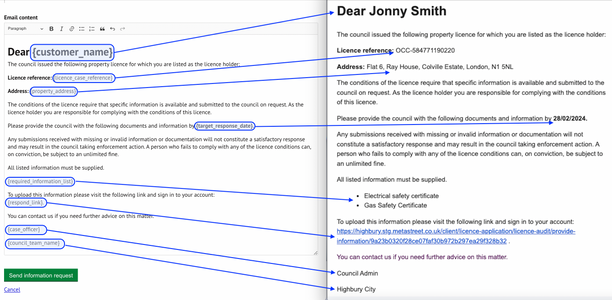
3.2 - Prepare and send the email
Click on the ‘Send information request’ once the email is ready to be sent.
Once the email has been sent, the following will occur:
- A copy of the email will be stored in the email history for the audit
- The status of the audit will change to ‘Awaiting portal holder response’
- The items requested will be listed (including the current submission status - this will be ‘Not yet submitted’ for newly requested items).
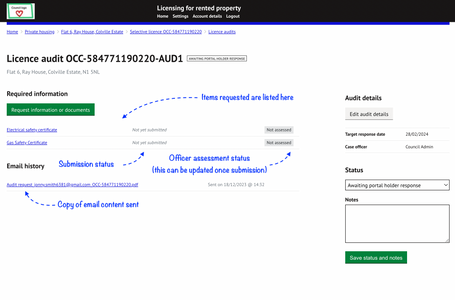
4. Licence audit form
The portal account holder will receive an email link that will direct them to complete the online audit form:
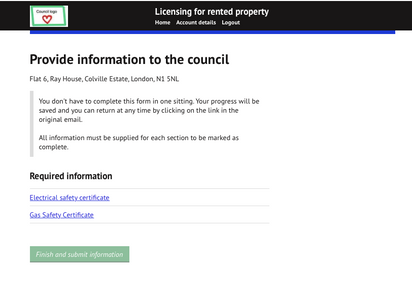
Each item requested will be listed for completion. The form can be submitted once all fields for each audit item is completed.
The fields that are required for completion will be what the council administrator for the council has set for each item.
5. Sending reminders or repeat request
If the documents provided were not satisfactory, invalid or missing you can send a further email for these items by clicking on the `Request information or documents` button.
If the customer fails to make a submission, the status of the record will change to `RESPONSE OVERDUE` after the target response date has passed. A further (or final) reminder can be sent in the same way, by clicking on the `Request information or documents` button.
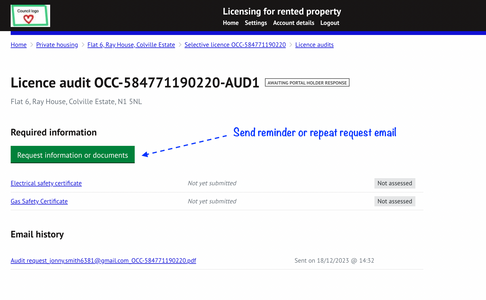
5.1 Send another email
After clicking on ‘Request information or documents’ select the items required for submission / re-submission:
- Any items that have been assessed and marked as satisfactory will not appear on the list
- Items previously requested will be identified as not being assessed or assessed as unsatisfactory and will also include the date of the last request
- Items not previously requested will not have any additional text against the item name
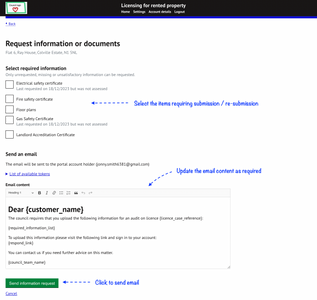
- Select the items requiring submission / resubmission
- Update the email content as required
- Click ‘Send information request’ to send
- The status of the audit will change back to ‘Awaiting portal holder response’ once sent
- The email sent will be logged in the email history
6. Assessing a customer response
6.1 The case officer will receive a notification by email when a completed audit form is received
- The status of the audit case will change to `ASSESSMENT` to indicate that an assessment is required of the submitted items
- The number of items submitted will be listed
- A copy of the email confirmation sent to the customer and officer will be saved to the email history
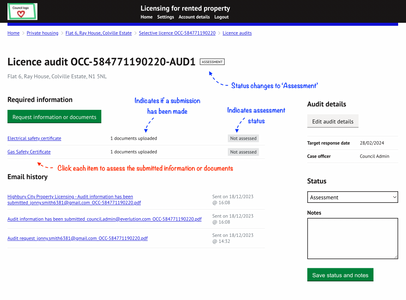
6.2 Click each audit item to complete the compliance assessment for that item
- All uploaded documents, including multiple documents will be listed.
- All other requested information for that item will also be displayed.
- If subsequent requests/submissions for the same audit item is made, these will be listed separately but with a unique date and time.
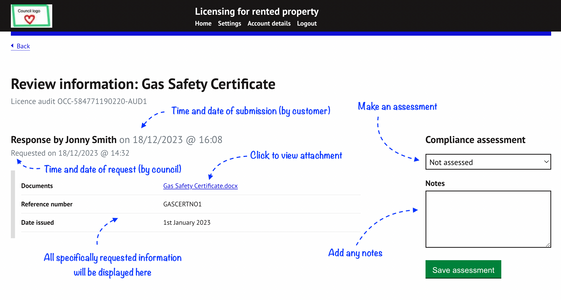
6.3 Make an assessment
Review the submitted information / documentation and make a judgement on the compliance status:
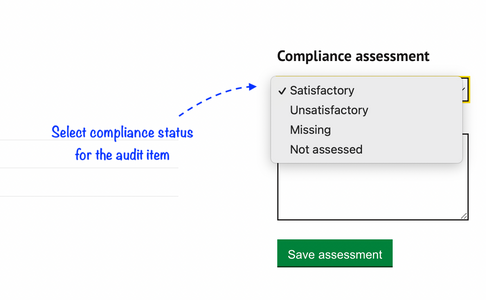
Choose the applicable status for the item and click on ‘Save assessment’.
Statuses to choose from:
- Satisfactory
- Unsatisfactory
- Missing
- Not assessed
Repeat step 5 for unsatisfactory or missing items if required.
7. Audit compliance assessment
Once all items have been satisfied, or the recommended number of requests exhausted, make a judgement on the overall compliance of the audit:
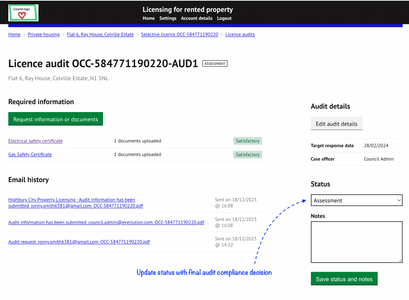
| DECISION: Satisfied with no concerns | Decision on audit compliance. PAH has fully complied with audit request. All documents are satisfactory. |
| DECISION: Satisfied with concerns | Decision on audit compliance. PAH has mostly complied with audit request. This status may help identify if a further audit is required on the licence during the licence term. |
| DECISION: No longer required | Audit is no longer applicable or required. No further action is needed. |
| DECISION: Failed audit* | PAH has failed to respond or failed to provide a satisfactory response. This may result in enforcement action being taken. |
*This status is currently unavailable but will be added soon.
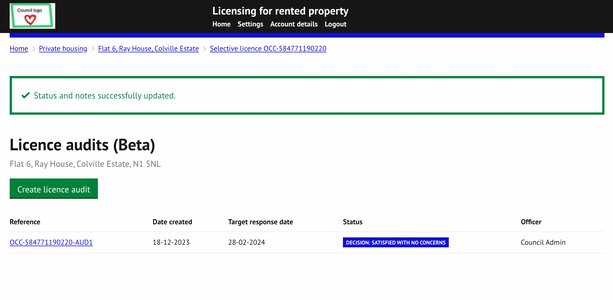
Select the applicable status and click on ‘Save status and notes’ to commit the status update.
The status will be updated. Further audits can be conducting during the licence term if required by creating a new audit. Repeat from step 1.1 of the guide.
Was this article helpful?
That’s Great!
Thank you for your feedback
Sorry! We couldn't be helpful
Thank you for your feedback
Feedback sent
We appreciate your effort and will try to fix the article