This guide explains the main new parts of the updated system. It shows how to use the homepage, the properties list, inactive-case settings, and the reminders tab. The aim is to help you understand the new layout, use the new tools, and manage your work more easily.
Homepage
This page is used to get a clear overview of all your current work. It shows how many licence, service, and inspection cases are assigned, and what their status is. It helps to understand what needs attention and what has recently changed.
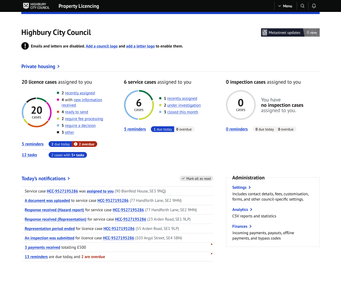
Highbury City Council landing page featuring personalized task donuts for assigned license and service cases, along with a live notifications feed.
Checking your cases
- Viewing the number of cases assigned in each category.
- Opening the coloured status labels to see recently assigned cases, new information received, cases ready to send, or those waiting for a decision.
- Noticing categories with higher workload and checking what to prioritise.
Managing reminders and tasks
- Reviewing reminders linked to your cases.
- Seeing items due today or overdue, highlighted in red.
- Opening the task list to see what needs to be completed next.
Using today’s notifications
- Checking all recent updates, such as new documents, received responses, payments, or inspection activity.
- Following the links to open the case directly from the notification.
- Marking notifications as read once reviewed.
Using administration tools
- Opening settings to update council details, fees, forms, and other configuration options.
- Using analytics to download reports and statistics.
- Checking finances to review payments, payouts, offline payments, and bypass codes.
Private housing
This page is used to view and manage all properties and their related cases. It offers new tools to help organise your work, find information quickly, and track outstanding actions.
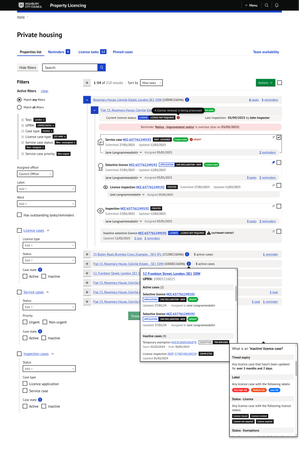
Advanced 'Private housing' view showing detailed case hierarchies, including service cases, license inspections, and status pop-overs for inactive records.
Using the new tabs
- Switching between the properties list, reminders, licence tasks, and pinned cases.
- Using each tab to focus on a specific type of work without losing your place.
- Staying organised by moving between lists that show what is active, overdue, or needs review.
Pinning important cases
- Pinning cases that you need to return to later.
- Creating your own list of priority cases, separate from all other filters.
- Opening the pinned cases tab to quickly access cases you are actively working on.
Viewing reminders and outstanding tasks
- Opening the reminders tab to see all reminders linked to your cases.
- Checking the licence tasks tab to view all outstanding tasks across all properties.
- Noticing urgent or overdue items highlighted in red and dealing with them first.
Filtering and searching
- Using filters to narrow down cases by status, type, label, priority, or assigned officer.
- Searching for a specific property, case, or UPRN.
- Clearing filters at any time to return to the full list.
Inactive cases
This page is used to set your own rules for what should be treated as an inactive case. Each council can decide when a case becomes inactive, based on time, labels, or case status.
Although the example here shows licence cases, the same options will also be available for service cases and inspection cases.
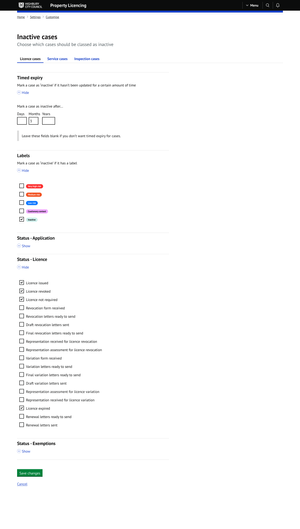
System settings page for 'Inactive cases', allowing administrators to define rules for when a record is marked as inactive based on timed expiry, specific labels, or license status.
Setting timed expiry
- Marking a case as inactive if it has not been updated for a certain amount of time.
- Entering days, months, or years to define when a case should become inactive.
- Leaving the fields blank if you do not want to use timed expiry.
Using labels to mark cases as inactive
- Choosing which labels should automatically class a case as inactive.
- Including high-risk or low-risk labels if needed.
- Applying multiple labels to make the rules more flexible.
Using case status
You can choose to mark a case as inactive based on its status.
Examples include:
- Licence issued
- Licence revoked
- Licence not required
You can select as many statuses as you need, depending on your council’s workflow.
Reminders
This page is used to view, create, and manage all reminders linked to your work. It helps you keep track of what is overdue, what is due today, and what is coming up soon. You can also see reminders that have already been completed or dismissed.
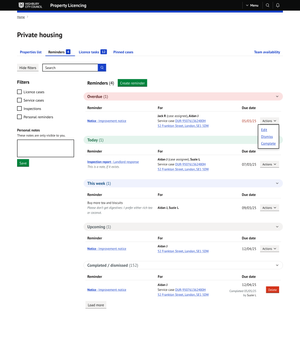
The 'Reminders' dashboard in the Private Housing portal, displaying a categorized list of overdue, current, and upcoming tasks for assigned officers.
Viewing your reminders
- Checking reminders grouped by time: Overdue, Today, This week, Upcoming, and Completed / dismissed.
- Opening each group to see the full list of reminders.
- Seeing who the reminder is for, what case it relates to, and when it is due.
Creating reminders
- Using the Create reminder button to add a new reminder from this tab.
- Choosing who the reminder is for and setting a due date.
- Adding notes if needed.
Using personal reminders
- Creating reminders just for yourself by selecting Personal reminders.
- Adding personal notes that are only visible to you.
- Saving your notes to keep track of your own tasks or ideas.
Creating reminders from cases
You can create reminders not only here, but also directly from any case:
- Licence cases
- Service cases
- Inspection cases
This allows you to add reminders while working on a specific case, without returning to the main reminders tab.
Managing existing reminders
- Editing reminders to update the text or due date.
- Dismissing reminders that are no longer needed.
- Marking reminders as completed once the task is finished.
Conclusion
These pages show the main improvements, but there are also many smaller features that help with everyday work.
More updates will appear across licence cases, service cases, and inspection cases to help keep your work simple and well organised.
Was this article helpful?
That’s Great!
Thank you for your feedback
Sorry! We couldn't be helpful
Thank you for your feedback
Feedback sent
We appreciate your effort and will try to fix the article