The letter template editing feature allows council admin users to edit and manage content of certain letters including cover letter text, notice content, notes and conditions.
Guide content
- Settings
- Editable sections
- Formatting features
- Tokens
- Save and preview changes
Settings
This feature has restricted access. Only council admin users can use this feature.
Go to 'Settings' > 'Correspondence' > 'Letters' > 'Letter templates'.
All templates available for editing will be listed here.
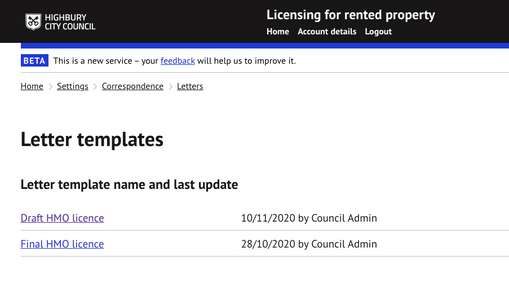
Web portal view showing the 'Letter templates' section
The following templates can currently be edited using this feature:
- Draft HMO Licence
- Final HMO Licence
- Draft Selective Licence
- Final Selective Licence
Further templates will be made available for editing in the future.
Editable sections
The following sections of the licence cover letter, notice and conditions text can be edited.
Any text or formatting changes required outside of areas should be raised as a change
request (via the service desk manager which can be accessed via the help centre).
- Covering letter title (including cover letter after representation)
- Covering letter (including cover letter after representation)
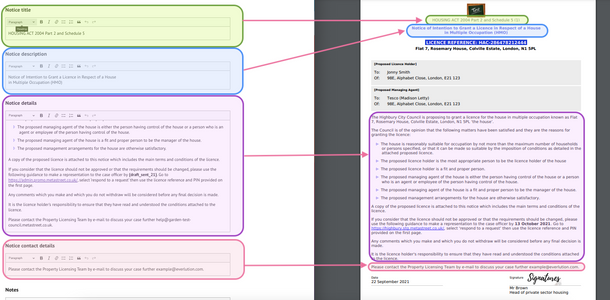
- Notice title
- Notice description
- Notice details
- Notice contact details
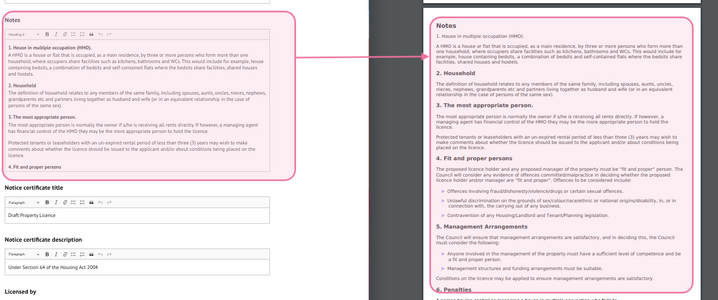
- Notes
- Notice certificate title
- Notice certificate description
- Licensed by
- Notice occupation summary
- Certificate footer
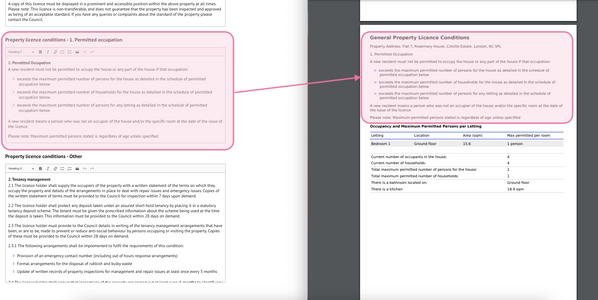
- Property licence conditions - Permitted occupation
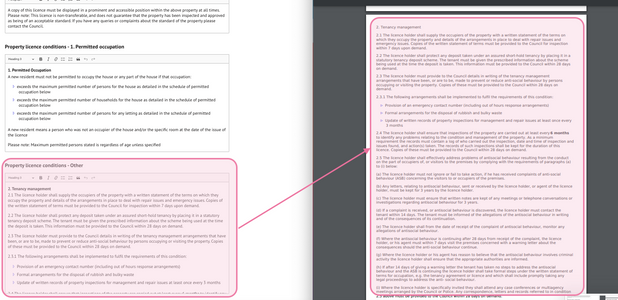
- Property licence conditions - Other
Covering Letter
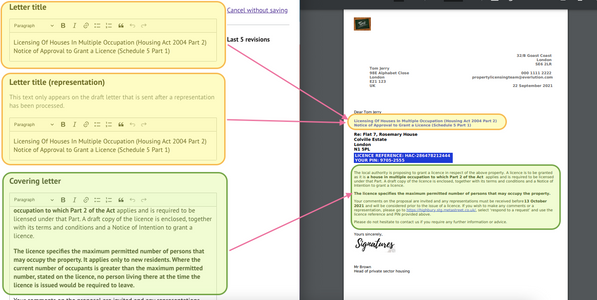
Notice
Notes
Licence Conditions
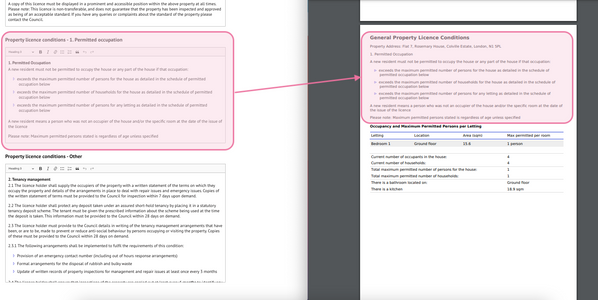
Property licence conditions - Permitted occupation
Leave this section blank if not applicable.
Property licence conditions - Other
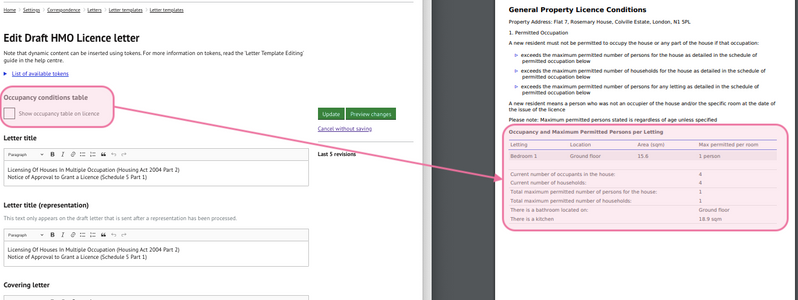
Occupancy Table
Hide or show the occupancy table by using the checkbox
Formatting features
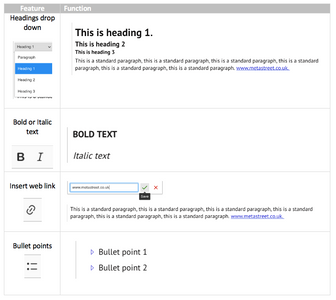
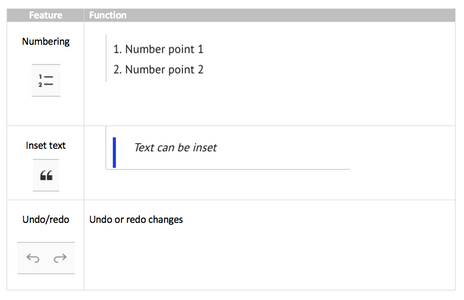
Each section can have formatting applied using the formatting toolbar.
The toolbar can be found on the top of each section.

Tokens
Tokens allow the insertion of live data for a specific record within the letter.
The available tokens can be found by clicking on 'List of available tokens'.
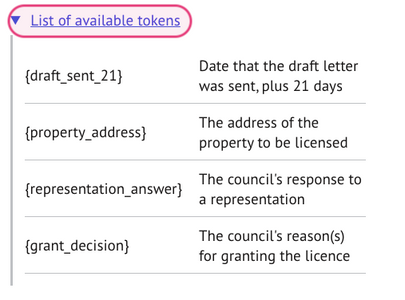
The text next to each token name will provides a description of the data.
e.g. {draft_sent_21} is the end of the consultation period.
{representation_answer} is the representation acceptance decision reason taken from the
representation task.
Inserting a token
Copy the token required (in full) and insert this within the body of text
where you want this data to appear:
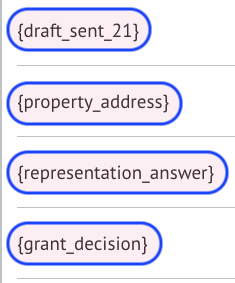
e.g.
Insert token within text:

Data displayed on generated document:

Close-up of a generated letter showing the automatic date population for representation deadlines.
Save and preview changes
To view changes made, click on 'Preview changes'.
This will create and download a file containing all content in the editing tool.
Changes will not be stored until these have been saved.
To commit changes to the live template, click on 'Update' .
This will also create an entry on the history log containing details of the 5 most recent saved versions.
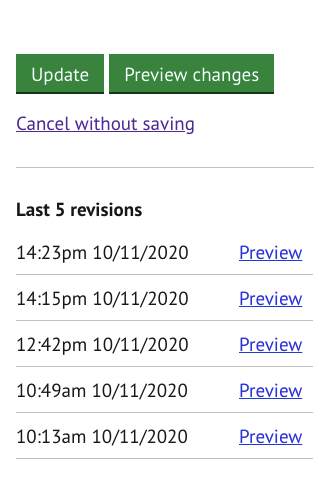
Template revision history showing a log of the last five updates, allowing users to preview previous versions of a letter.
TIP:
Make sure changes are made to both draft and final notices (where applicable)
Was this article helpful?
That’s Great!
Thank you for your feedback
Sorry! We couldn't be helpful
Thank you for your feedback
Feedback sent
We appreciate your effort and will try to fix the article