A council admin user can create notice templates and accompanying letters that can be used within the Service Case module to generate and issue enforcement notices (and orders).
These template should contain standardised text that can be further edited for a particular case or investigation by officers when generating notices for serving. Tokens can also be applied to auto-populate case related data into specific locations within the letter or notice to reduce the number of manual updates required to a notice by a serving officer.
- Create notice template
- Tokens
- Save and preview template and changes
1. Create a notice template
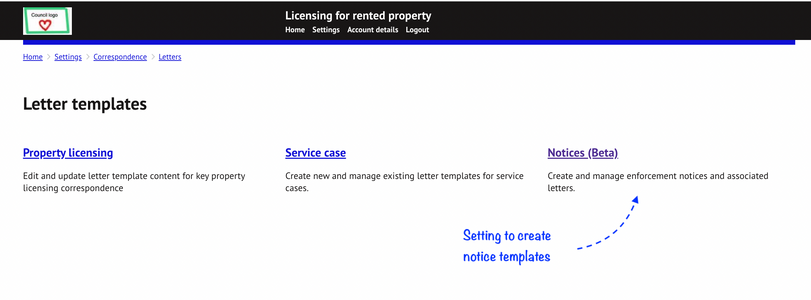
Home > Settings > Correspondence > Letters > Letters & Notice template > Notices
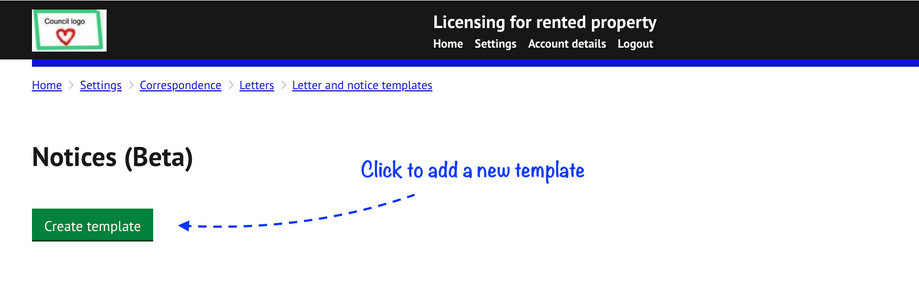
1.2 Click on ‘Create template’ to add a new template
1.3 A number of components need to be set for each notice template
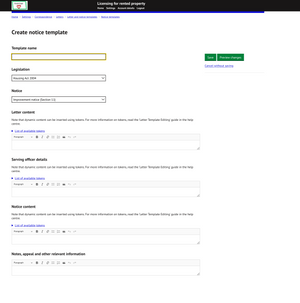
| Template name | This can be an informal name for the notice that will only be visible internally |
| Legislation* | Select the legislation from the available list of Acts* |
| Notice* | Choose the notice (including section/schedule) from the list of available notices under the selected legislation |
| Letter Content | This is the default letter content that will accompany the notice. The standard text contained in this section can later be edited by an officer to be specific to a particular service case. |
| Serving officer details | Officer details to be shown on the letter and notice. This will be managed by tokens. See section 2 on tokens. Choose between the officer that is currently logged in and generating the notice or the case officer that is assigned to the service case. |
| Notice content | The formal wording to be contained within the notice. The text contained in this section can later be edited by an officer to be specific to a particular service case. |
| Notes, appeal and other relevant information | Insert any guidance notes, right of appeal and other relevant information such as glossary of terms etc |
*These lists can be managed in the settings by an administrator. See guide - ‘Enforcement Notice and Prosecution Settings’
Schedules can be added during the notice creation stage by the serving officer. See the guide on `Create, send and manage enforcement notices`.1.4 Default notice templates
The following default templates are available to help you get started.
These can also be edited to include bespoke content for your authority.
LEGISLATION: Housing Act 2004
NOTICES:
- Improvement Notice (Section 12)
- Improvement Notice (Section 11)
- Notice Requiring Documents to be Produced (Section 235)
- Notice of Demand for Payment of a Charge for Enforcement Action (Section 49)
LEGISLATION: Public Health Act 1936
NOTICE:
- Notice to Cleanse Filfthy or Verminous Premises {Section 83 - Amended by Sec. 35 of the Public Health Act 1961)
LEGISLATION: Building Act 1984
NOTICE:
- Notice by Local Authority Requiring Execution of Works of Drainage etc in Existing Buildings (Section 59)
LEGISLATION: Local Government (miscellaneous provisions) Act 1976
NOTICE:
- Requisition for Information (Section 16)
LEGISLATION: Prevention of Damage by Pests Act 1949
NOTICE:
- Notice Requiring Action Regarding Rats & Mice (section 4)
2. Tokens
Tokens act as placeholders that auto insert live data within the letter and notice once generated on a service case.
The available tokens for each section can be found by clicking on 'List of available tokens'.
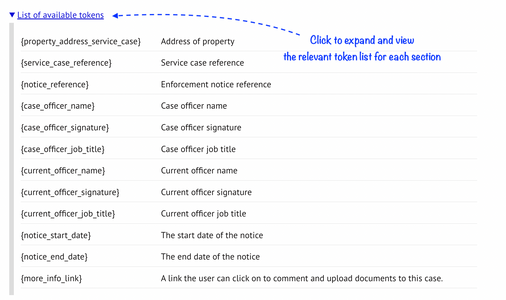
Tokens can vary between each sections. The text next to each token provides a description of the data that will populate in its place once a notice is created.
e.g.
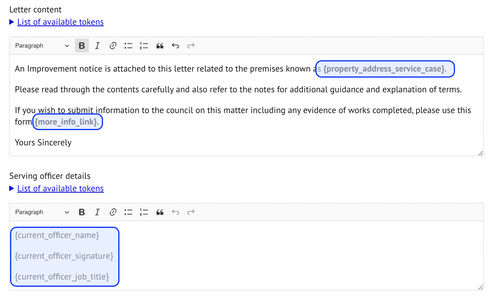
- {property_address_service_case} is the full property address the notice relates to
- {notice_reference} is the reference of the notice
- {more_info_link} is a unique link a customer can use to provide any comments on a notice including uploading of attachments as supporting evidence or information. The case officer will receive a notification by email when a response is received if this completed. See the guide `Create, send and manage enforcement notices` for further information.
Note - further tokens will be added in future including officer telephone number and email address so these can be automatically populated within a notice or letter should direct contact be necessary.Inserting a token
Copy the token required (in full, including the brackets) and insert this within the body of text in the specific position on the letter/notice you want this data to appear:
EXAMPLE tokens within template
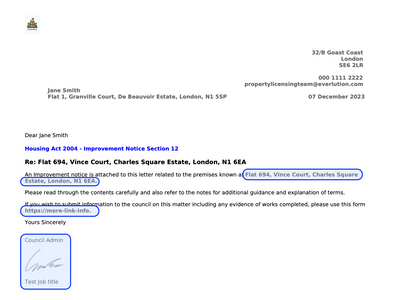
EXAMPLE Data displayed on generated document:
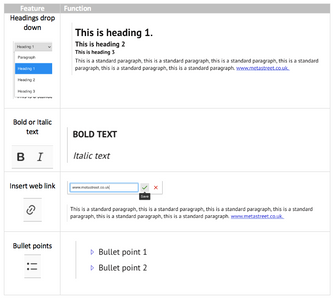
Formatting features
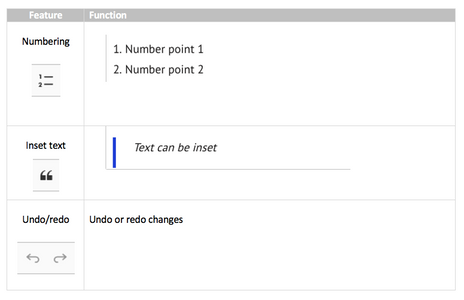
Each section can have formatting applied using the formatting toolbar. The toolbar can be found on the top of each section.

3. Save and preview template and changes
Content will not be stored until these have been saved. To commit content to the template, click on ‘Save’ (or click ‘Update’ if making changes to a previously saved template).
To view the letter and notice content in a letter format, click on Preview changes'. This will create and download a file containing all content in the notice template creation tool. Placeholder tokens will be replaced by dummy/test data in preview documents to demonstrate an example value.
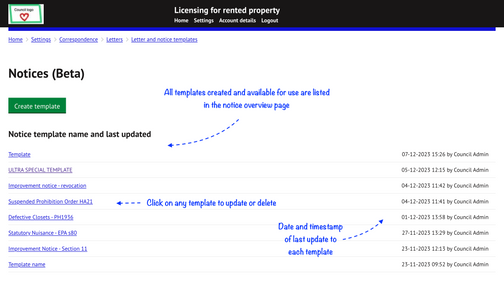
All saved templates will be viewable on the notice template overview page:
Template list
Was this article helpful?
That’s Great!
Thank you for your feedback
Sorry! We couldn't be helpful
Thank you for your feedback
Feedback sent
We appreciate your effort and will try to fix the article