Initial set-up of the following is required to ensure all functions of the Notices and Prosecutions features are available.
- Courts and tribunal
- Legislation and notices
Once this information is entered, it will be available for use in the Notices and Prosecutions features as selectable options (or tokens) without the need for repeated manual entry and ensure data quality.
1. Courts and Tribunals
Court and tribunal service details are required for appeal and court hearings related to enforcement notices served and prosecution action taken.
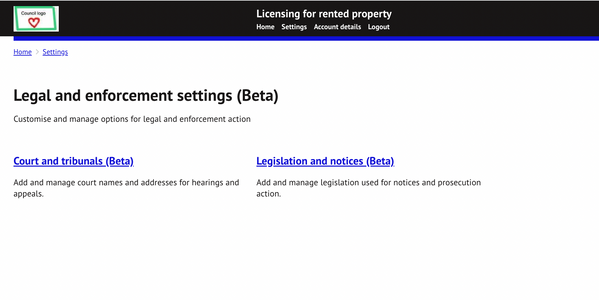
These can be added by a system administrator here: Home > Settings > Legal and enforcement notices > Courts and tribunals
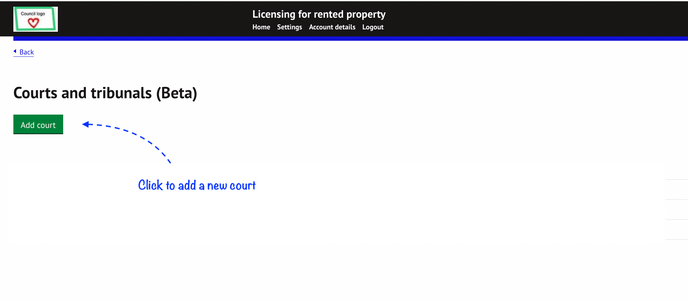
1.1 Add a new court
Add a new court by clicking the ‘Add court button’
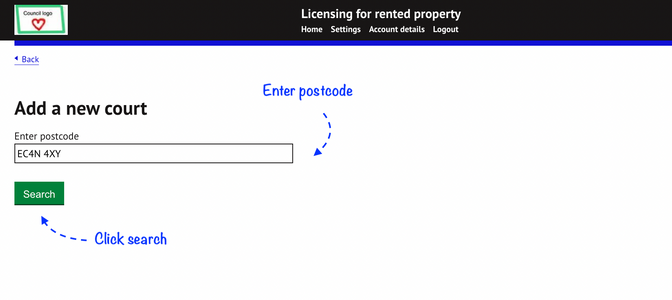
1.2 Enter the postcode for the court and click on ‘Search’
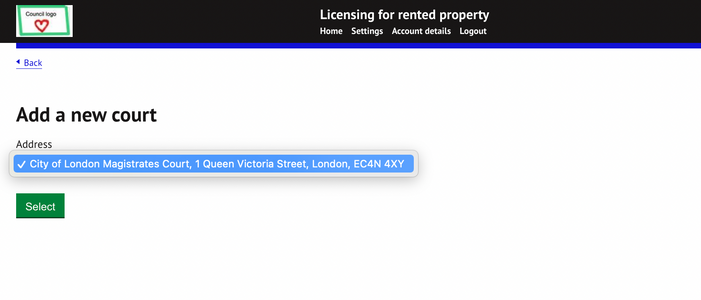
1.3 Choose court/tribunal address from list and press ‘Select'
1.4 Added courts/tribunals will be listed on the overview page.
- Address details can be amended by selecting ‘Edit’
- Court/tribunal entries can be deleted by selecting ‘Remove’. A prompt will appear to confirm the removal of the court before it is deleted.
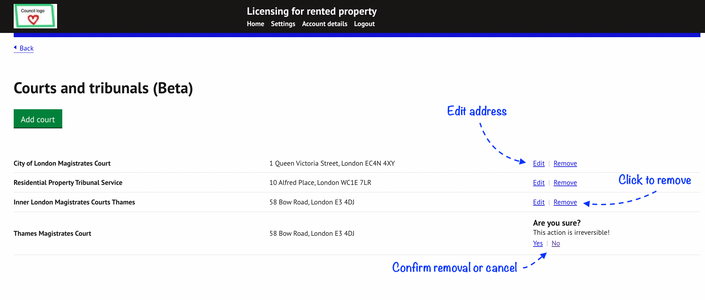
- Court details cannot be removed if it is assigned to at least one hearing related to an enforcement and prosecution case. To remove courts already in use, un-assign it from all Hearings.
2. Legislation & Notices
Legislation and related Notice (or Order) information is used for creating notice templates and recording offences for prosecution cases.
Creating these entries in the settings allows users to select relevant acts and sections without the need for manual entry for each offence and notice record and ensures data consistency and quality.
Legislation and related notices (or Orders) can be added by a system administrator here:
Home > Settings > Legal and enforcement notices > Legislation and notices
2.1 Add a new legislation
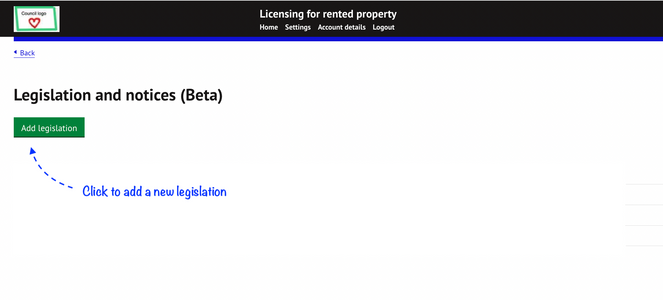
2.2 Enter the name of the legislation and then click on ’Add a new notice’ to create notices under that Act
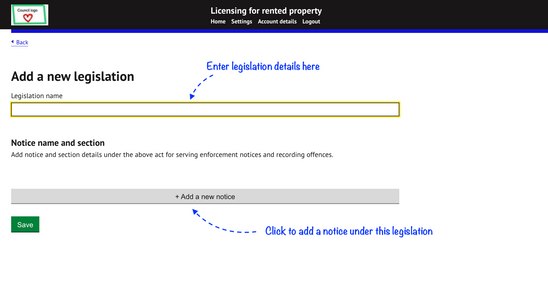
2.3 Add the notice details including the name of the notice and relevant subsection.
Specify the word ‘Section’ or ‘Schedule’ as appropriate e.g. Improvement Notice for the Notice and Section 11 for the section/schedule field.
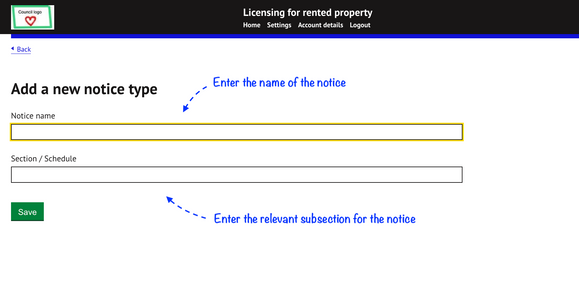
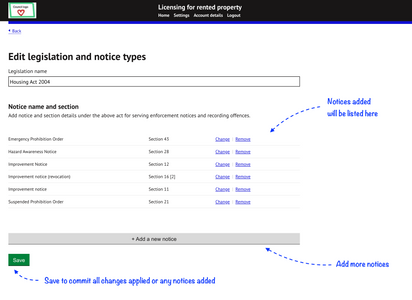
Click ‘save’ to return to the previous screen and repeat step 2.3 to add more notices under the same legislation:
2.4 Edit / Remove notice details
Added notices will be listed on the overview page for that legislation.
- Notice details can be amended by selecting ‘Change’
- Notice entries can be deleted by selecting ‘Remove’. A prompt will appear to confirm the removal of the notice details before it is deleted.
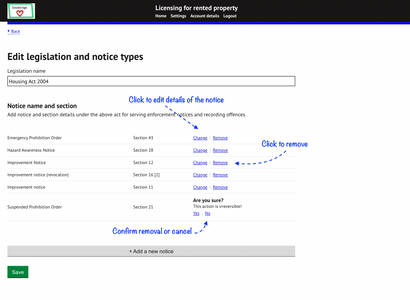
A notice cannot be removed if it is assigned to at least one offence related to a prosecution case. To remove notices already in use, un-assign it from all cases where the offence is listed.
RELATED GUIDE: ’Officer signatures and account settings’ - Officer signature and job titles can be added to notices and letters once they have been set up by a user. The guide provides instructions on how to perform these actions.
Was this article helpful?
That’s Great!
Thank you for your feedback
Sorry! We couldn't be helpful
Thank you for your feedback
Feedback sent
We appreciate your effort and will try to fix the article