1. Create a prosecution
- Location of prosecution feature
- Initial case information
- Key sections & information
2. Add a defendant
- Add a defendant
- Add an offence (including pleas and court decisions)
- Add cost outcome
3. Add a Witness
- Add witness notes
4. Add a court hearing
- Add court hearing and hearing outcomes
5. Add an appeal
- Add appellant, appeal decisions, hearings and outcomes
1. Create a prosecution
Location of prosecution feature
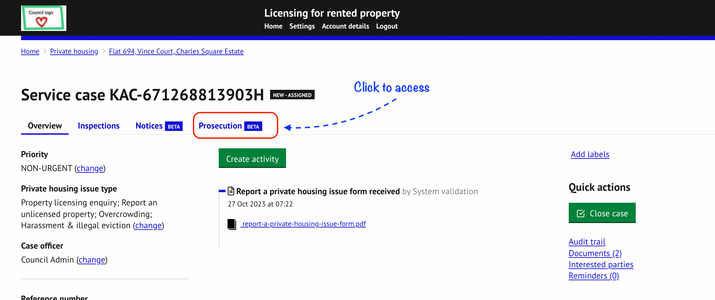
Prosecutions cases can be created on any service case record and can be accessed via the tabs to the top of the service case overview page:
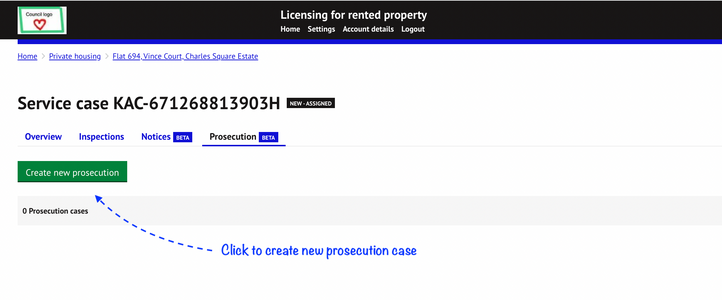
Create a new prosecution case by clicking the ‘Create new prosecution’ button
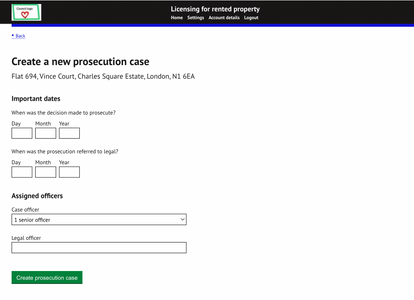
Initial case creation information
- Date decision to prosecute was made
- Date of referral to the legal team
- Prosecution case officer
- Legal officer
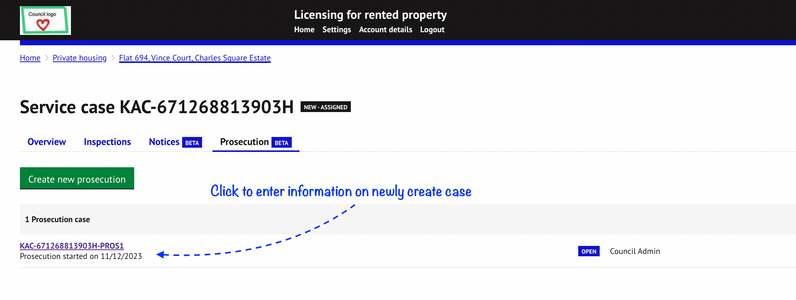
A new prosecution case record will be created. Click on the reference to start adding information to this prosecution case:
Key sections & information
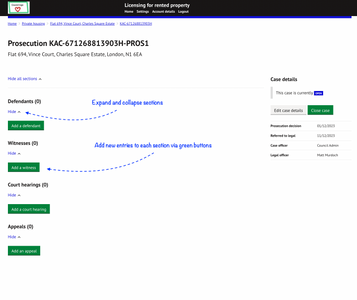
There are four sections where information can added:
- Defendant - Enter information on defendants and offences committed including any court decision and costs
- Witnesses - Add witnesses, statements and notes
- Court hearings - Add court hearings and reminders
- Appeals - Add appeal, appellant and outcome information
Click on the corresponding ‘Add’ button under each section to create a new entry for that category.
Use ‘Hide’ / ‘Show’ buttons to expanse and collapse sections.
2. Add a Defendant
Add a defendant
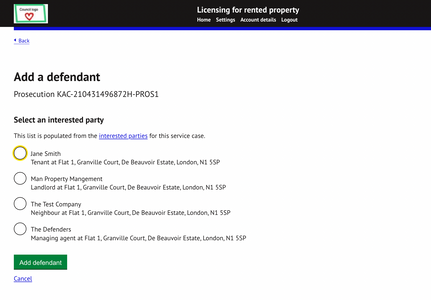
- Clicking on `Add a defendant` will display a list of all interested parties for the service case.
- Select a defendant to add from the list and click ‘Add defendant’
- If a party is not available or the information is not correct, click on the interested parties link on this page to update or add more interested parties.
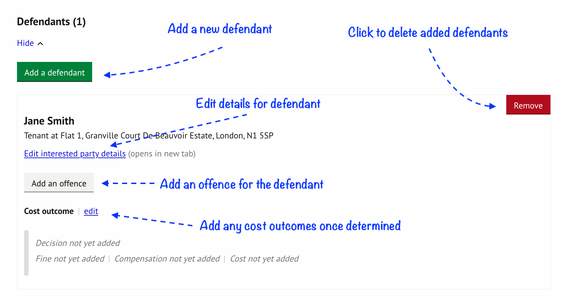
Once selected, the interested party will be added as a defendant on the prosecution case. Repeat this step to create multiple defendants.
Add an offence
Multiple offences can be recorded against each defendant on a prosecution case.
Click on `Add an offence` to add offence details for the defendant.
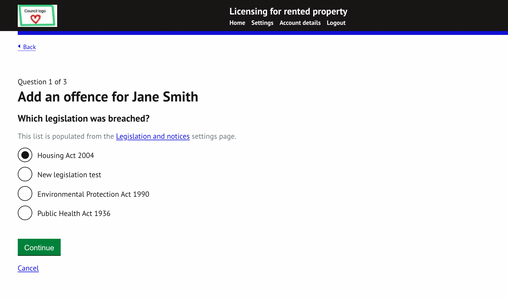
Then select from a list of available legislations:
Select the relevant part of that Act:
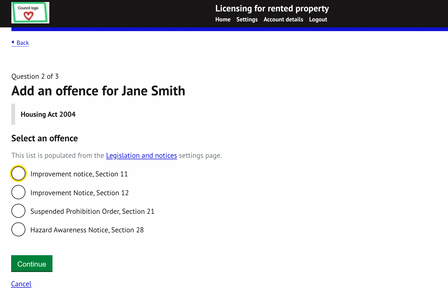
Note: This list can be managed by the admin user for the authority in the Legislation and notices settings page.- Enter the offence date
- Information on the plea and court verdict should be updated once this information is available:
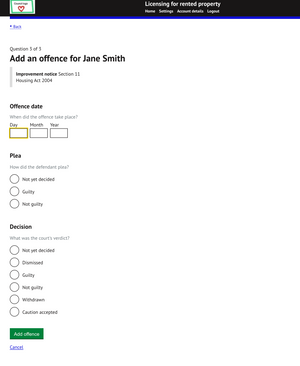
Press 'save' to record this information for the defendant.
Items determined as undecided should be updated once this information is available.
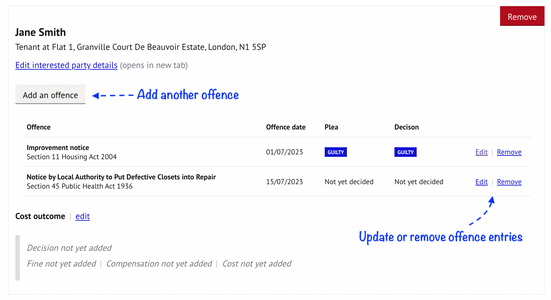
Multiple offences and related outcomes can be added for each defendant:
Repeat all the above steps if there are multiple defendants.
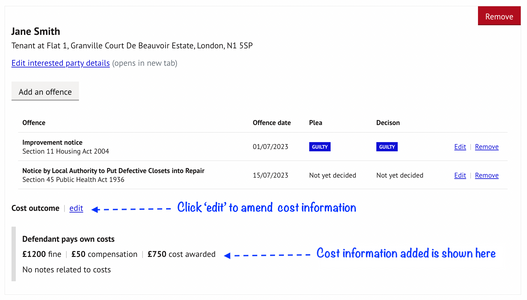
Add cost outcome
- Click on 'edit' against the `Cost outcome section’.
- Select the cost decision from the available options and then enter any costs awarded, fines imposed or compensation value.
- Add any relevant notes.
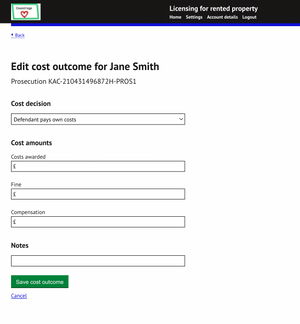
'Save' to record cost information for defendant.
Further edits can be made to information added:
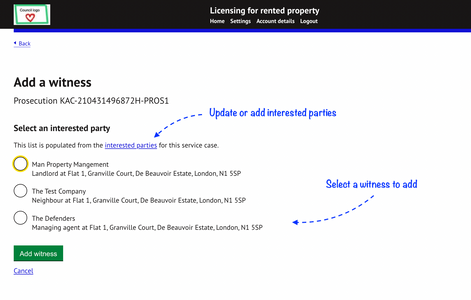
3. Add a witness
Click on ‘Add a witness’ under the 'Witness' section and then select from the list of available interested parties for that record:
The witness entry will be created where where witness statements and notes can be added:
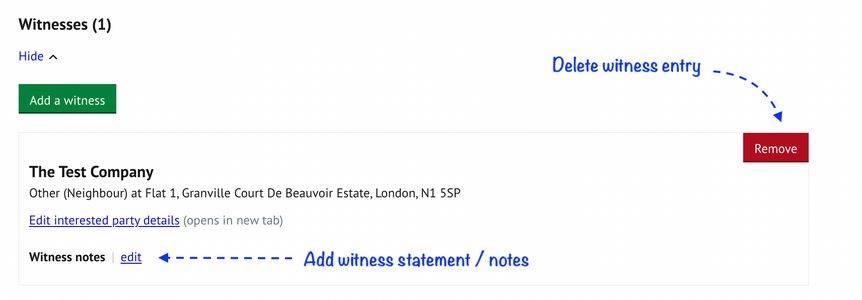
Select ‘edit’ against the witness notes to add a witness statement or note:
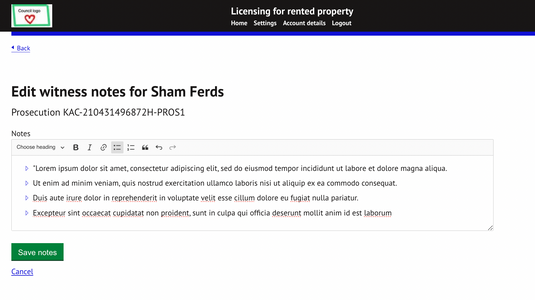
- Use formatting bar to add formatting to text.
- Save to add notes or statement for witness.
4. Add a Court hearing
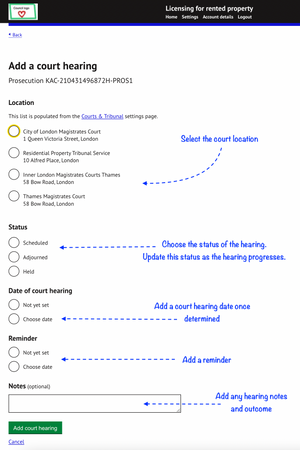
Click the ‘Add a court hearing’ button under the 'Court hearing section' to add a hearing and related information.
- Select the court location for the hearing
- Update the status of the hearing as it progresses
- Add a hearing date
- Add a reminder for the court hearing
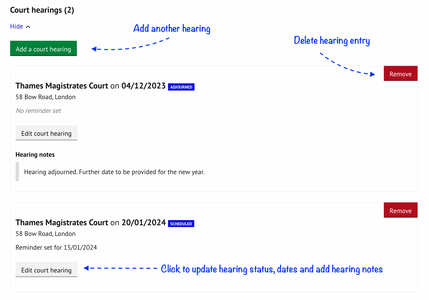
The hearing entry will be added to the list of hearings and further hearings can be added as required:
5. Add an appeal
Click the `Add an appeal` button under the 'Appeals' section to add any appeals made:
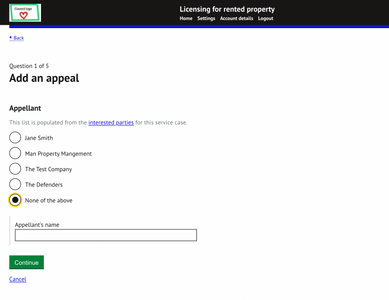
Select appellent from the available list of interested parties:
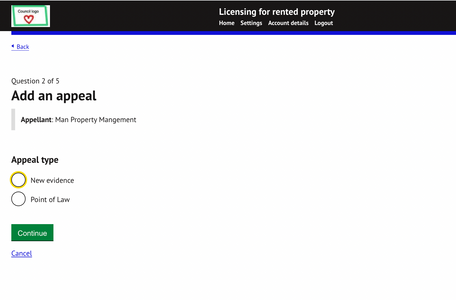
Select the type of appeal:
Enter the third party court reference number for the appeal (if available):
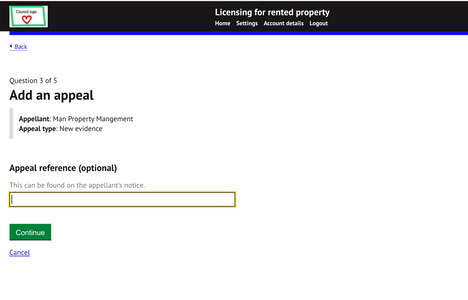
Enter the appeal date and any reminders:
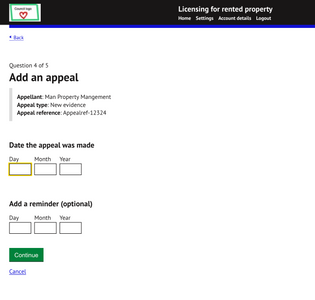
Detail the appeal grounds and press 'Add appeal' to save:
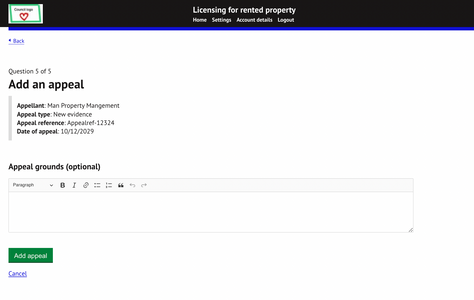
The appeal will then be recorded. Click on 'Edit appeal' to add further appeal information or outcomes once available:
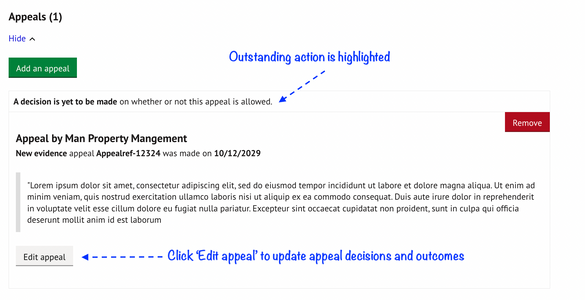
Edit appeal information to add or update:
- Appeal decisions
- Appeal outcomes
- Appeal hearings
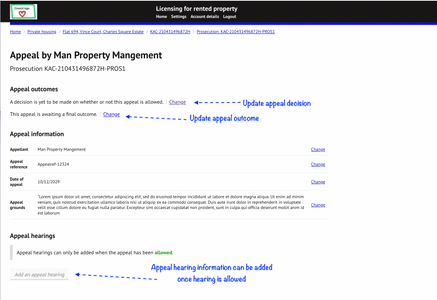
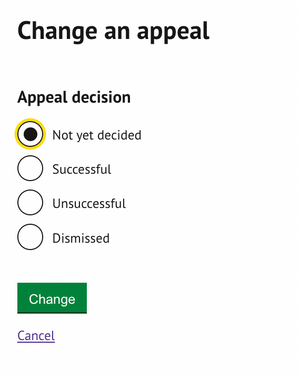
- Update appeal decision:
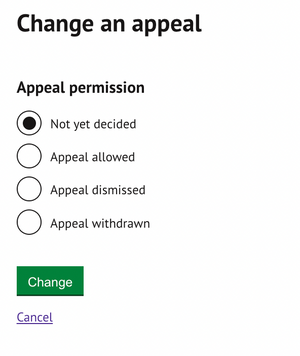
- Update appeal outcome:
- Add appeal hearing information:
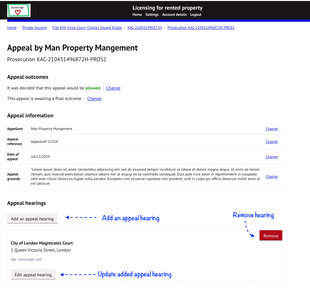
Use the breadcrumb links to the top of the page to return to the prosecution page. A button will be added for this action in the future.
Was this article helpful?
That’s Great!
Thank you for your feedback
Sorry! We couldn't be helpful
Thank you for your feedback
Feedback sent
We appreciate your effort and will try to fix the article