Notices can be served on any service case record. The feature can be accessed via the tabs to the top of the service case overview page:
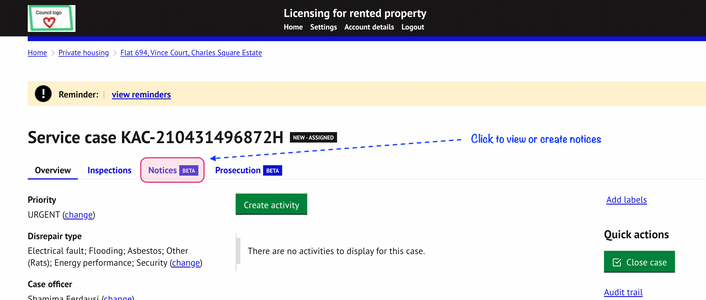
This guide covers the following functions related to this feature:
- Create, edit and preview a notice
- Notice sending
- Manage notice information
- Compliance monitoring
- Appeals
Related guide - `Officer Signatures & Account Settings` - officer signature and job titles should be set-up before using this feature.1. Create, edit and preview a notice
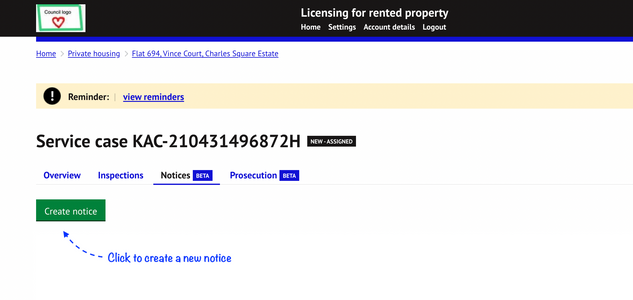
2.1 Click on ‘Create notice’ to generate a new notice from the notice list page:
2.2 Select a template to use or create your own notice and content.
A list of notice templates* available for use is shown if the template option is selected:
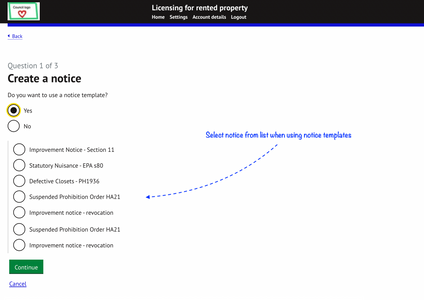
*This list can be managed in the settings by a council admin user. See guide - ‘Enforcement Notice and Prosecution Settings’ for details.
2.3 The following fields are available for completion:
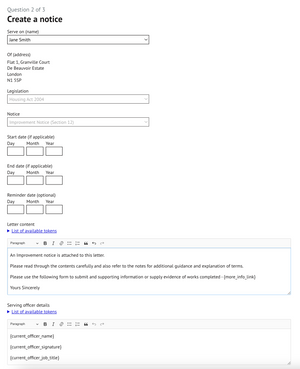
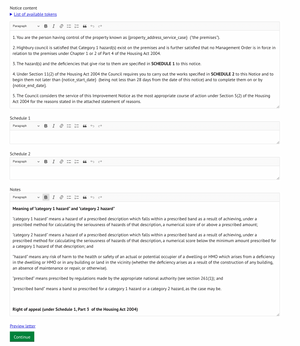
| Serve on (name) | Select the person from the list of interested parties for that service case to serve the notice on. If a party is not available, return to the service case main overview page to add or edit interested parties details. |
| Start date | Date notice commences. This is different to the date of service which is determined at a later step. Complete this field if applicable to the notice/order or leave blank. |
| End date | Date the notice ends/expires. Complete this field if applicable or leave blank. |
| Reminder date | This is a date for the officer to be reminded to review the notice or to chase-up on the requirements of notice with the landlord etc. |
| Letter content | This is the letter content that will accompany the notice. This will be pre-populated with content if a template has been selected and is fully editable. Use tokens to add auto-populated content. See section 2.5 of this guide on tokens. |
| Serving officer details | The officer details to be shown on the letter and notice. This is managed by tokens. See section 2.5 on tokens. Choose between the current officer that is logged in and generating the notice or the case officer that is assigned to the service case. Officers should update their account settings to ensure this information is populated correctly onto letters. See the guide `Officer Signatures & Account Settings` in the help centre. |
| Notice content | The formal wording to be contained within the notice. This will be pre-populated with content if a template has been selected and is fully editable. Use tokens to add auto-populated content. See section 2.5 on tokens. |
| Schedule 1 | Insert relevant content specific to the property / case. |
| Schedule 2 | Insert relevant content specific to the property / case. |
| Notes, appeal and other relevant information | Guidance notes, right of appeal and other relevant information such as glossary of terms etc. |
IMPORTANT TIP - Please update all interested party details BEFORE commencing the notice creation process to ensure the correct postal and email addresses are available.
2.4 Preview and save
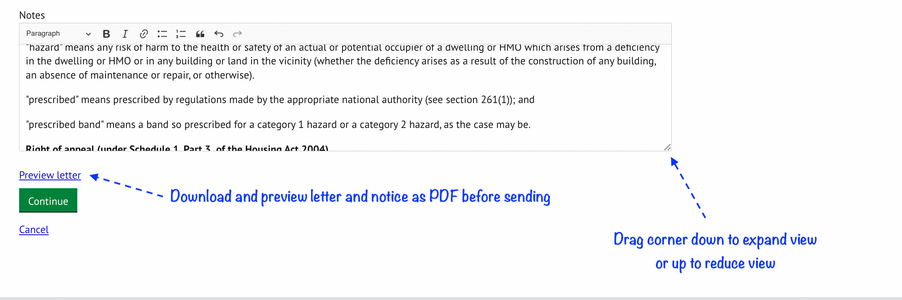
- Expand or reduce the view of a field by dragging the corner up/down
- Click on ‘Preview letter’ at the bottom of the page to download and preview the letter and notice before serving. Further edits may be made to the content and unlimited previews can be performed.
- Pressing ‘cancel’ will stop the notice creation process. Any content created or updated will not be saved.
- Press ‘Continue’ to move to the final step of the notice creation process
2.5 Tokens
Tokens act as placeholders that auto insert live data within the letter and notice once this has been created.
The available tokens for each section can be found by clicking on 'List of available tokens'.
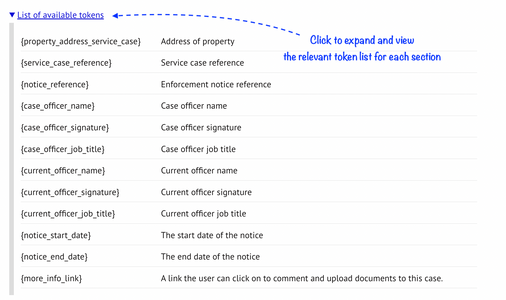
Tokens can vary between each sections. The text next to each token provides a description of the data that will populate in its place once a notice is created.
e.g.
- {property_address_service_case} is the full property address the notice will relate to
- {notice_reference} is the reference of the notice
- {more_info_link} is a unique link the customer can use to provide any comments on a notice including uploading of attachments as supporting evidence or information. The case officer will receive a notification by email when a response is received if this completed.
Note - further tokens will be added in future including officer telephone number and email address so these can be automatically populated within a notice or letter should direct contact be necessary.
Inserting a token
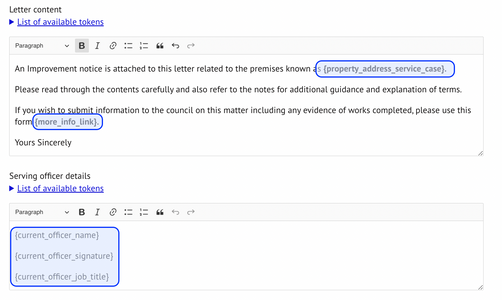
Copy the token required (in full, including the brackets) and insert this within the body of text in the specific position on the letter/notice you want this data to appear:
EXAMPLE tokens within template:
EXAMPLE Data displayed on generated document:
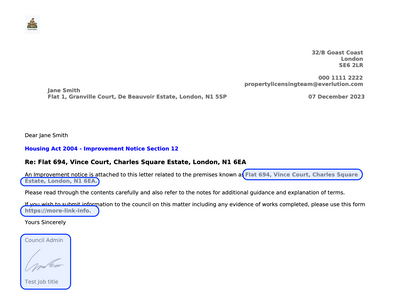
Notice reference -
<<<image>>>
The notice reference number contains the service case reference number up to the last hyphen so that notices can easily be linked to service case records for reporting purposes and for located cases.
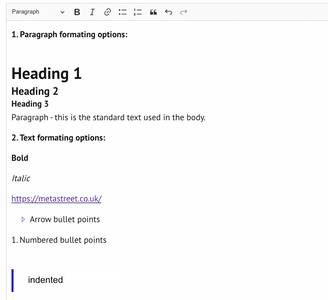
Formatting features
Each section can have formatting applied using the formatting toolbar. The toolbar can be found on the top of each section.

3. Notice sending
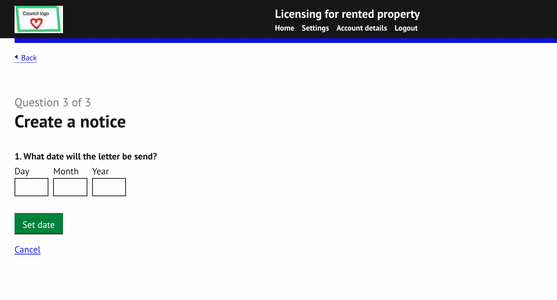
3.1 Determine the date of service. This will appear on the letter header and notice signature:
3.2 - Manage notice sending options:
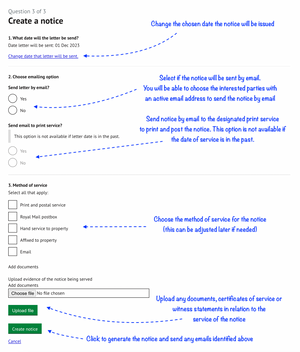
- Letter date - Adjust the date of service entered in the previous step if required.
CHOOSE EMAILING OPTIONS:
- Send letter by email - Select if the notice will issued by email. If selected, all interested parties with an email address will be listed. Choose from the list the person(s) to send the notice to via email. This email will be sent on the date selected as the ‘Letter Date’.
- Send email to print service - Send copies of the notice to a designated print service to manage the print and postage of the letter and notice. If the ‘letter date’ is in the past this option will not be available. A council admin user can manage the settings for this feature via Home > Settings > Correspondence > Letters > Letter settings.
- Method of postage - Choose the intended method of service. If this changes, this can be updated at a later stage. See section 4.2.3.
- Add documents - upload any evidence of service e.g. a picture of a notice affixed to the property; certificates of postage etc
Select ‘Create notice’ for the letters to be generated. This will also send/queue any emails if specified.
4. Manage notice information
4.1 Notice overview page
- Once a notice is created it will be listed on the Notice overview page.
- If more notices are added, the most recently served notice will be listed at the top.
- A summary of each notice served is displayed.
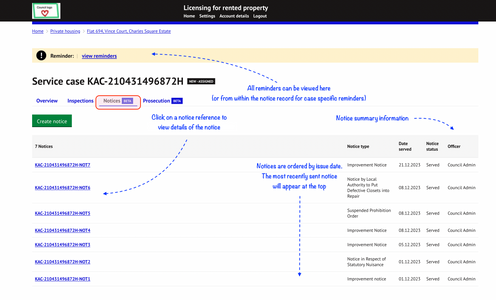
4.2 - Click on the notice reference from the notice overview page to view the full details of the notice:
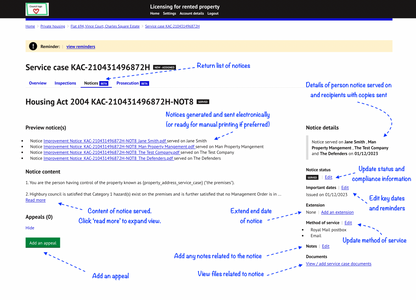
NOTE: Currently information populated for Schedule 1 & 2 on the notice is not available to view on this screen but can be accessed via the PDF of the notices. This will be updated soon to include this information.
The following information can be edited on this page
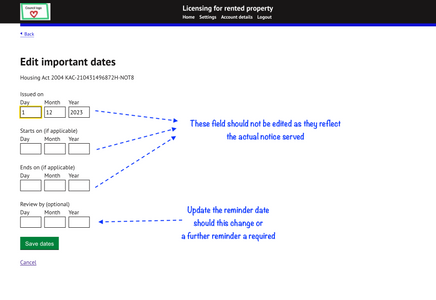
4.2.1 - Important dates:
- Displays the key dates included on the notice served and should not be altered (although they currently can be changed).
- Update the `Review by` date to change the date of the reminder to review this notice.
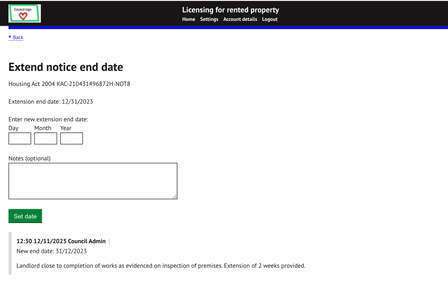
4.2.2 - Extension of notice
If a notice has an agreed extension date to what was served on the notice, this can be noted and updated under ‘Extension’.
Multiple extensions can be recorded so that all opportunities and allowances that have been arranged can be captured.
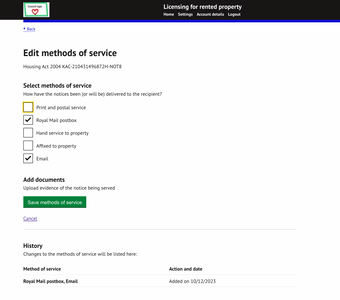
4.2.3 - Method of service
The method of service can be updated post notice service should the intended method change.
NOTE: Currently the file upload function via this page is not working however will be fixed soon.
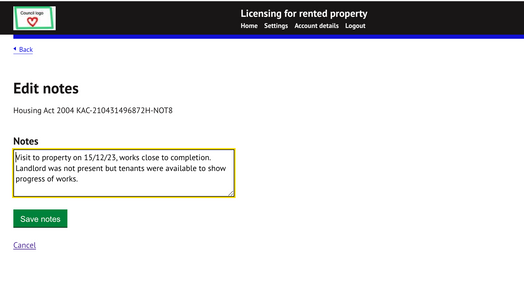
4.2.4 - Notes
Add any helpful notes related to the notice:
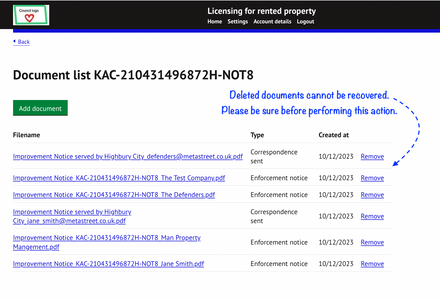
4.3.5 - View documents
View and manage all documents sent and received.
Deleted documents cannot be recovered. Please be sure before completing this action.
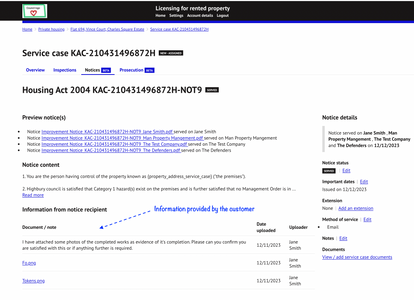
4.4 - Customer submitted information
If a customer has responded to a request for information as requested in the notice letter, this will be added to the bottom of the notice overview page and will display any attachments or evidences provided. The case officer will also be notified via email of this submission:
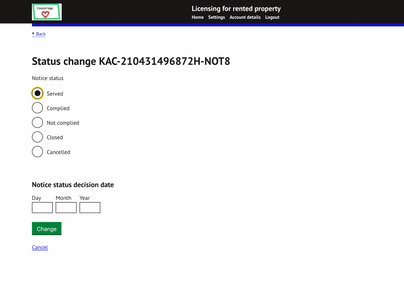
4.5 - Notice status
Record any status updates of the notice including any compliance information:
- Served - default status when notice record is created
- Complied - where the officer is satisfied that the notice has been complied with
- Not complied - landlord has failed to comply with the requirements of the notice
- Closed - when nothing further is required
- Cancelled - when notice is withdrawn (this would include scenarios where a revocation may also be required)
5. Appeals
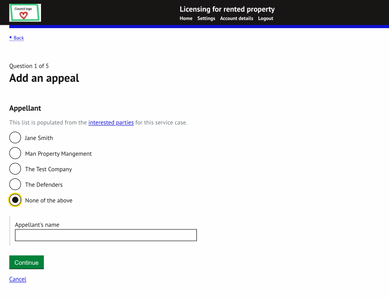
Click the `Add an appeal` button under the 'Appeals' section to add any appeals made:
Select appellent from the available list of interested parties:
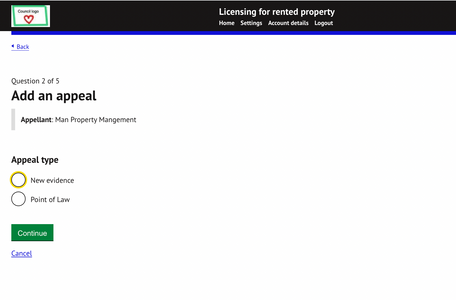
Select the type of appeal:
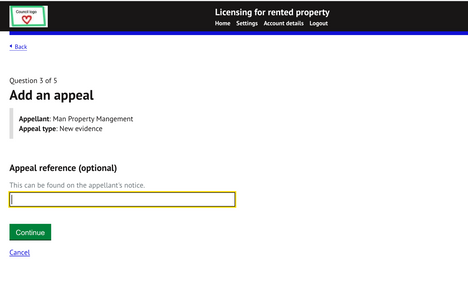
Enter the third party court reference number for the appeal (if available):
Enter the appeal date and any reminders:
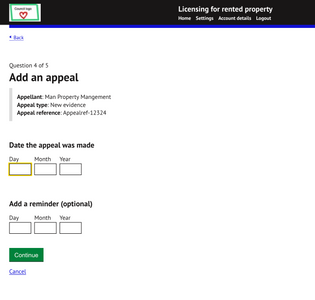
Select the appeal grounds (optional):
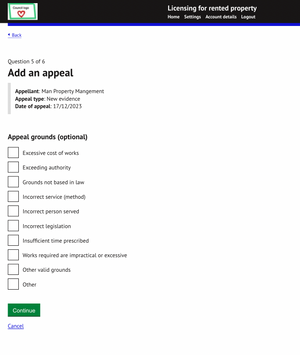
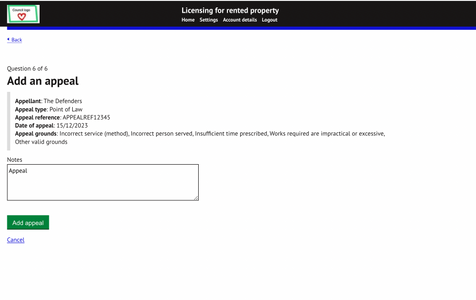
Detail the appeal grounds and press 'Add appeal' to save:
The appeal will then be recorded. Click on 'Edit appeal' to add further appeal information or outcomes once available:
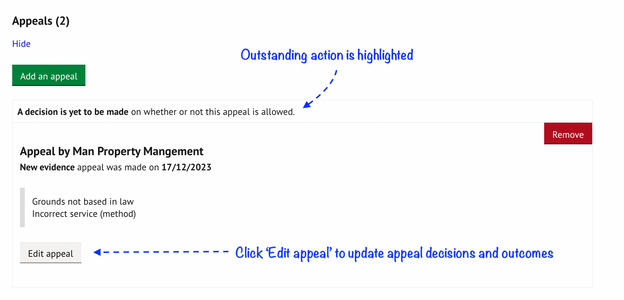
Click 'Edit appeal' to add or update:
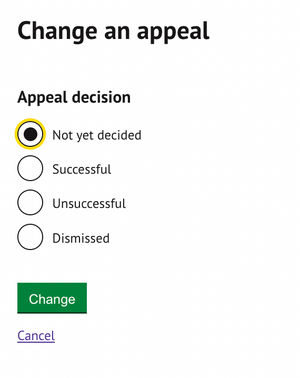
- Appeal decisions
- Appeal outcomes
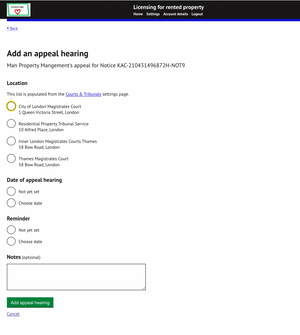
- Appeal hearings
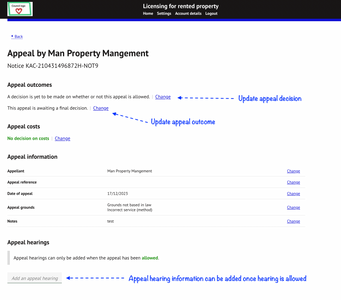
- Update appeal decision:
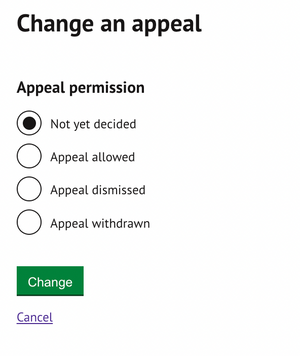
- Update appeal outcome:
- Add appeal hearing information:
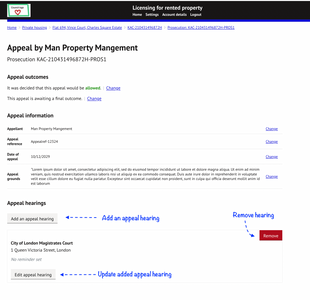
Use the breadcrumb links to the top of the page to return to the prosecution page. A button will be added for this action in the future.
Was this article helpful?
That’s Great!
Thank you for your feedback
Sorry! We couldn't be helpful
Thank you for your feedback
Feedback sent
We appreciate your effort and will try to fix the article