Disrepair Hazard Assessment Guide
- Creating and importing inspections
- Create a disrepair inspection
- Import a property licensing inspection
- Viewing hazards
- Performing a hazard assessment
- Create and sent hazard reports
- Landlord response form
- Assessing landlord responses
- Reminders
- Close inspection
1. Creating & Importing Inspection
Creating A Disrepair Inspection
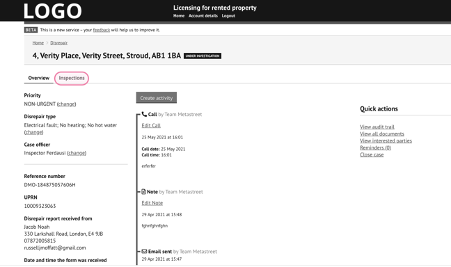
1.1 The inspection section can be located from within a disrepair record.
1.2 Click on the ‘Inspection’ tab to the top left of the page:
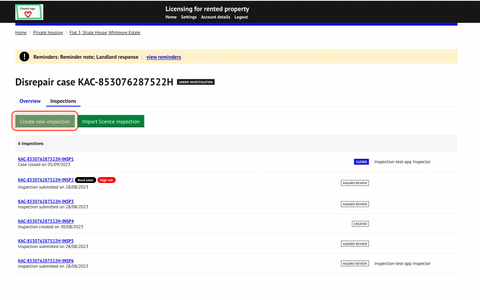
1.3 Select ‘Create inspection’ and assign an inspection officer:
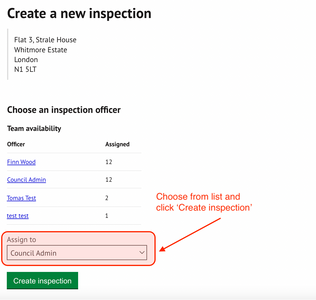
1.4 Choose officer name from list and press ‘Create inspection’
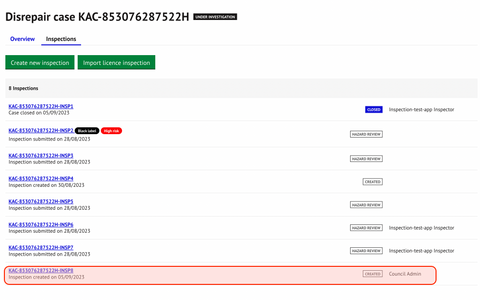
1.5 New inspections will be listed at the bottom of this page once created and will also appear on the inspection officer’s app profile. Officers can then book and complete the inspection form as required via the app.
1.6 Inspections in progress on the inspection app can be identified by the ‘In progress’ status:

1.7 Once the inspection form has been successfully completed and submitted via the app, the inspection status will change to `Hazard review`.

For details on completing the inspection form via the metastreet inspector app, please see the inspection guide in the help centre.Importing A Property Licensing Inspection
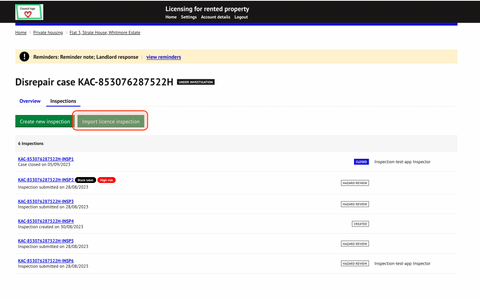
1.8 You can import a completed property licensing inspection in order to complete a hazard assessment.
Click on `Import licence inspection` on the inspection tab of a disrepair case record:
1.9 Select the licence inspection to import.
Click on the button next to the reference number of the licence to import.
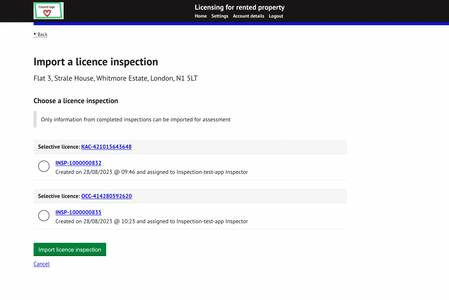
NOTE: Only completed and submitted property licensing inspections will be available for import.
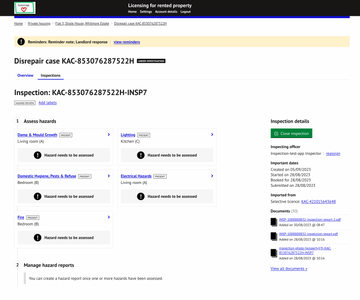
1.10 The licence inspection will import ready for assessing hazards.
2. Viewing Hazards
2.1 The inspection status `hazard review` indicates that the inspection has been completed on the app and is ready to be reviewed and assessment of HHSRS performed.
2.2 Click on the inspection REFERENCE NUMBER to access the hazard assessment feature:

TIP: The inspection reference number contains the disrepair reference number up to the last hyphen so that inspections can easily be linked to disrepair records for reporting purposes. 
NOTE - This is not the same for property licensing inspection reference numbers which contain no inspection numbers at the end of the reference.
2.3 Hazard summary
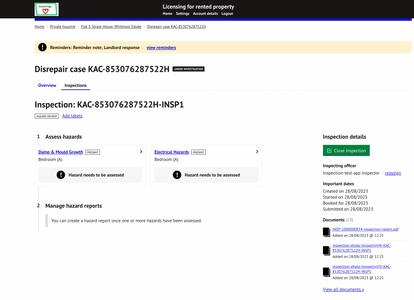
The summary page for the hazard inspection is split into two sections
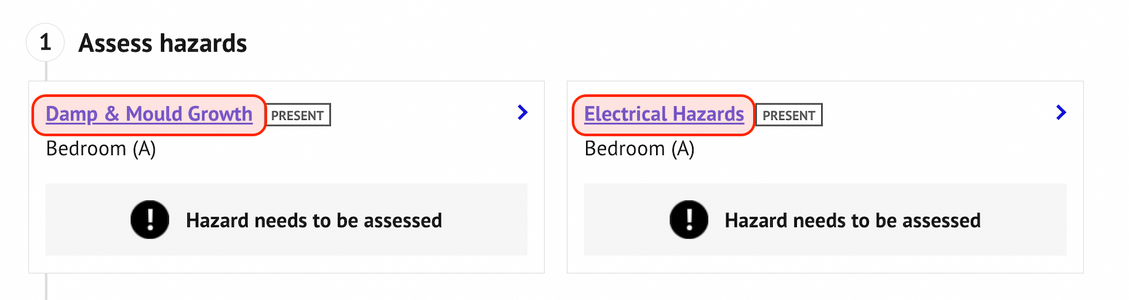
1 - Assess hazards - lists all hazards identified during the inspection and the status of the assessment. The HHSRS rating is displayed once the HHSRS assessment is completed. The presence or removal of any hazard is also identified.
2 - Manage hazard reports - Review and send hazard reports for landlord response. This will only be available once at least one hazard has been fully assessed and rating calculated.
Status of hazard assessment report: there are a number of stages of the hazard assessment report process. Each stage is determined by the progress of the report and landlord response.
- Hazard review – Inspection submitted, record awaiting HHSRS assessment
- Report not sent – Assessment completed and user has created a report that is ready to send.
- Report sent – Report has been issued to the landlord for review and action
- Landlord response overdue - Landlord has not responded within the target response time
- Review landlord response – Landlord has provided response to the report including evidence to be reviewed by officer
- Response unsatisfactory issue new report – Officer assessment determines response is not satisfactory. Report can be re-issued for further response.
- No further action required – No further action is needed and inspection can be closed
- Enforcement action is required – Formal action is now required.
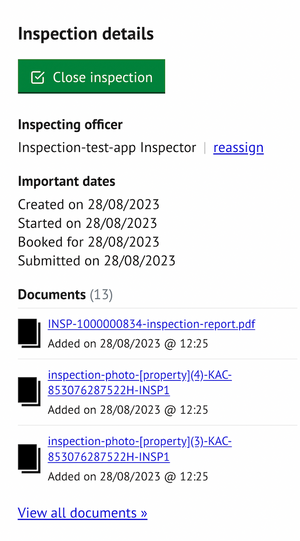
To the right of the page you can view or perform the following actions -
- View or change the inspection officer (select 'reassign')
- View key inspection start and completion dates
- View submitted inspection report and related pictures
3. Performing A Hazard Assessment
3.1 View hazard details
Click on any available hazard to view the HHSRS assessment screen for that hazard:
3.2 Hazard overview
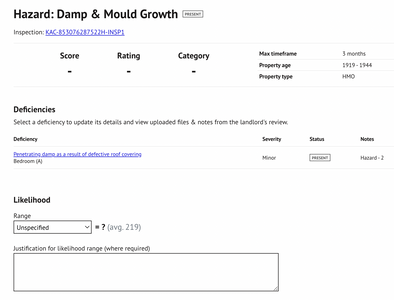
- Hazard timeframe – This is the earliest timeframe for the landlord to respond from the deficiencies listed.
- Hazard scoring – The hazard score is populated once the HHSRS assessment is completed for the hazard. Click on ‘change’ from this screen to update the likelihood and outcomes for the hazard.
- Deficiencies – There may be multiple deficiencies listed for a hazard. This should be reviewed to help inform the scoring and severity.
3.3 Hazard deficiencies
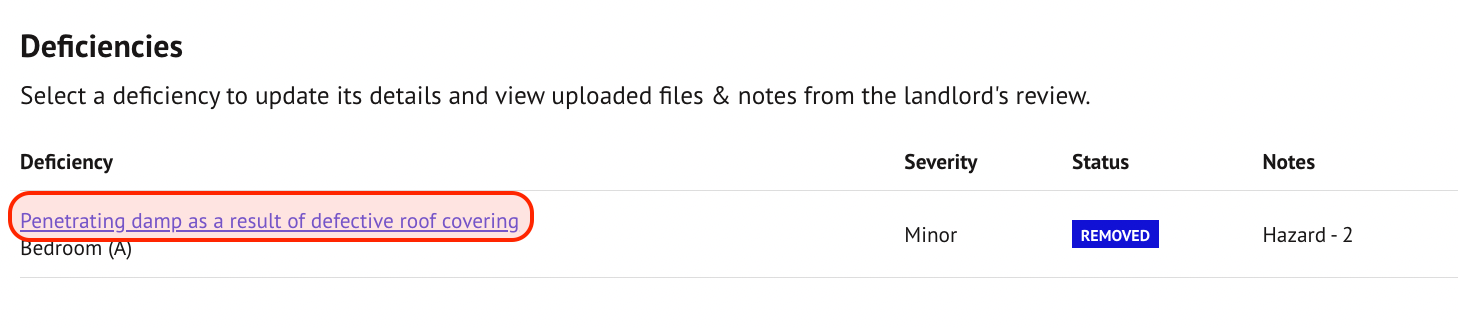
Click on the deficiency view details of each listed deficiency:
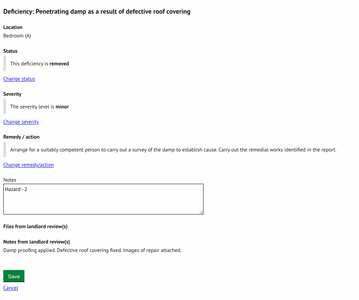
3.4 Hazard deficiency details
The details of the deficiency as entered on the inspection app are displayed on this screen and can be updated if required before a report is generated and also after the landlord has responded to the hazard report provided.
- Status – displays the current status of the hazard deficiency. This can be updated to ‘removed’ or ‘No longer applicable’.
- Severity – The severity replicates the option on the inspection app and includes ‘Minor’, ‘Moderate’ and ‘Severe’
- Remedy / actions – The actions identified to suitable remove or reduce the deficiency
- Notes – Notes and additional information related to the deficiency
- Files from landlord review(s) – Any files provided by the landlord via the online response form in response to the hazards report issued
- Notes from landlord review(s) - Any notes provided by the landlord via the online response form in response to the hazards report issued
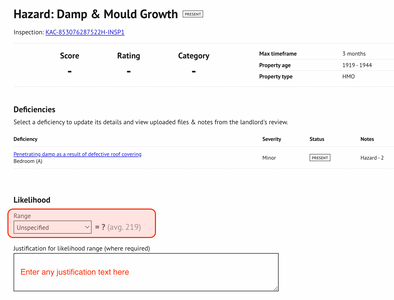
3.5 Hazard scoring – Likelihood
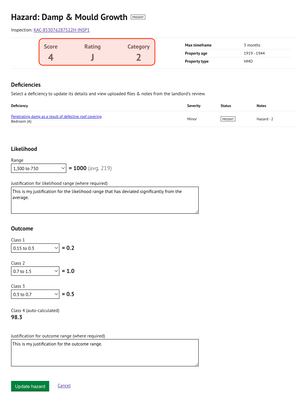
Select likelihood range from the drop-down list and enter any justification text if required. Once selected the score and average will be shown.
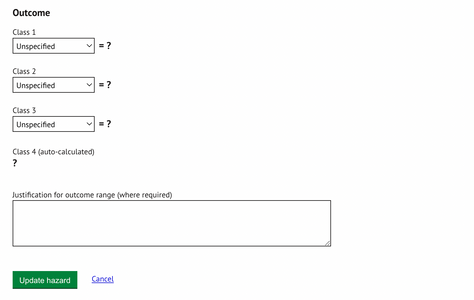
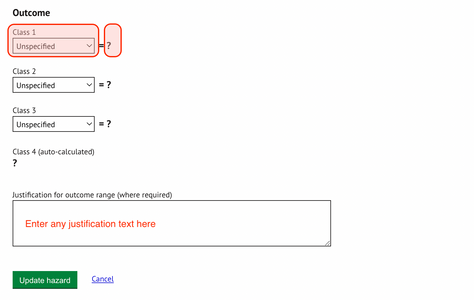
Select Outcome range from the drop-down list and enter any justification text if required. Once selected the score and average will be shown.
Once all ranges have been selected and populated, the score, rating and category of the hazard will be calculated and displayed to the top of the page:
4. Create & Send Hazard Reports:
4.1 Hazard report types
There are two types of hazard reports that can be generated:
- Create a full hazard report - this is a report that includes hazard score
- Create a report without scores - this is a report that excludes hazard scores
The `Create a full hazard report` button will be de-activated until at least one hazard has been fully assessed.
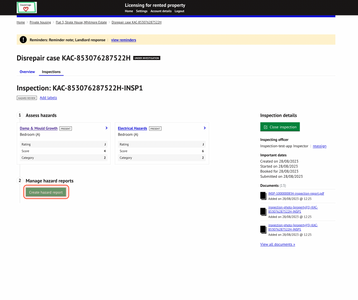
4.2 Click on ‘Create report’ to generate the hazard report for the landlord.
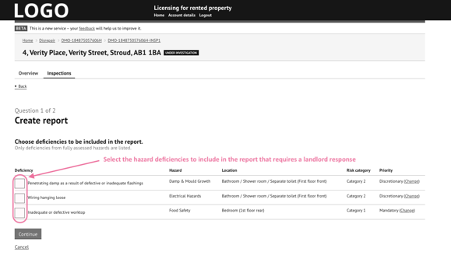
- The list of deficiencies and hazards are listed for the property.
- Select the hazard deficiencies to include in the report that requires a landlord response.
- Tick the checkbox to select all that apply and press ‘continue’
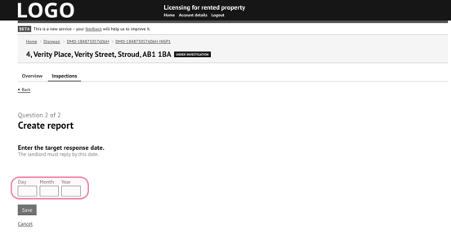
4.3 Provide the landlord with an overall target response date to respond to the hazard report and required actions:
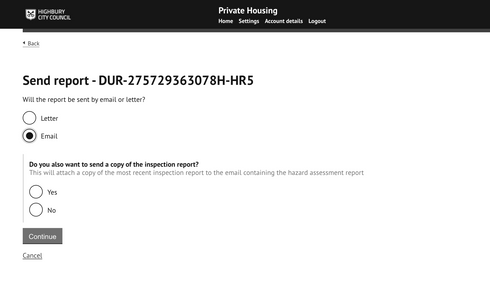
4.4 Select the method of sending.
If sending by email, you will also have the option of attaching the most recent inspection report to the hazard report email:
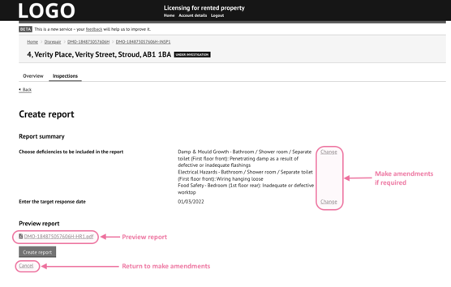
4.4 Review report summary:
- Review summary information from the report and make amendments if required
- Preview the report generated
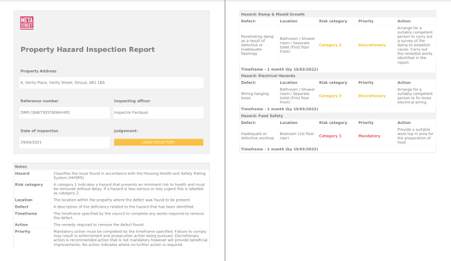
4.5 Report preview:
FULL HAZARD REPORT
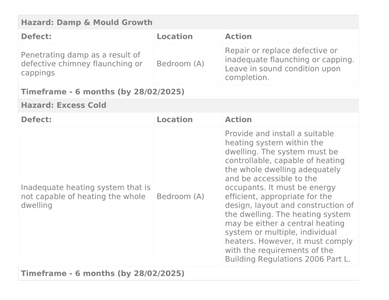
HAZARD REPORT WITHOUT SCORES
Contains all the same information as the full report but excludes the 'Risk category' and 'Priority' columns:
4.6 Once satisfied that the report is ready to send, select `Create report` to generate the report ready for sending to the landlord
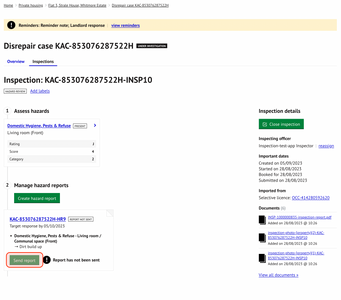
4.7 Press ‘send report’ to issue the report to the landlord:
4.8 Determine the method for sending the report:
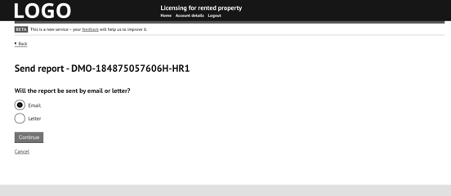
4.9 Choose a template
- a pre-existing email or letter template containing pre-set text (this can still be edited in the next step).
- a blank email/letter template for entirely bespoke text entry
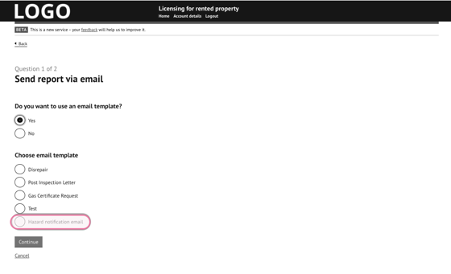
4.10 If using a template, select as appropriate from the list of available templates:
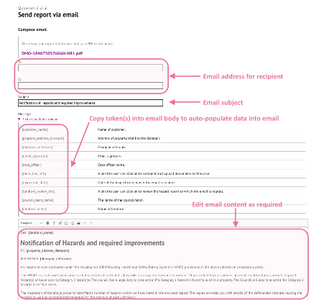
4.11 Edit or update email or letter content as required.
4.12 Copy any relevant tokens into the body of the email / letter to populate the data into the body of the email or letter:
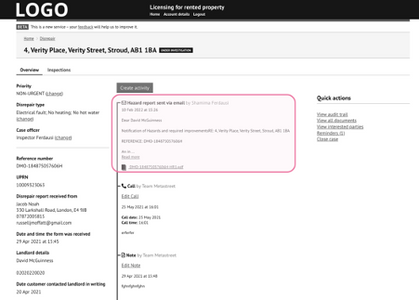
4.13 The activity is added to the disrepair timeline for the record and a copy of the correspondence will be saved to the document store.
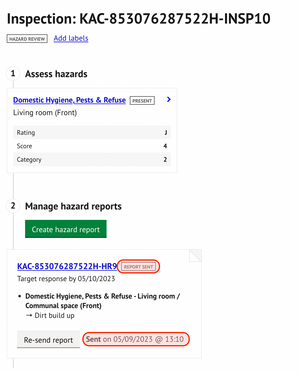
4.14. The status of the hazard report is updated to ‘Report sent’ and details of time and date sent is recorded:
4.15 To send another report via a different correspondence method click on ‘Send another’ and repeat all steps in section 4 again.
5. Landlord Response Form
5.1 Using the unique link provided on the email or letter, the landlord can respond to report and provide evidence of the removal of any hazards.
5.2 Landlord information verification
The following screens will be shown for the landlord to complete:
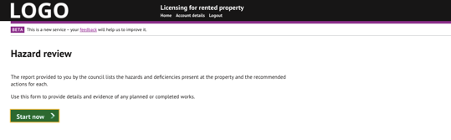
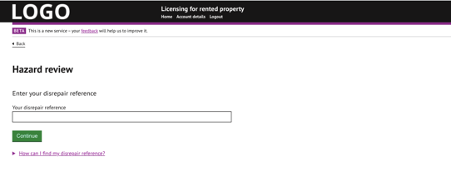
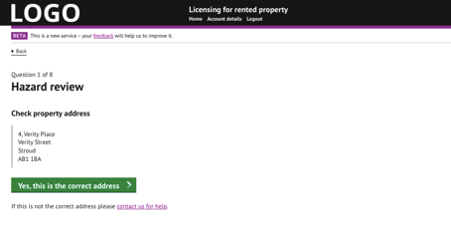
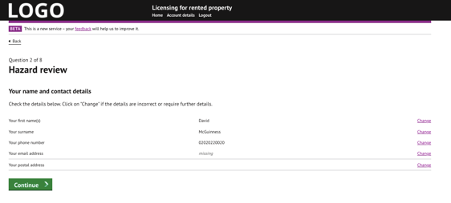
5.3 The landlord will be shown the following page for each hazard deficiency identified. Each will require details of the status of the hazard, date of removal (if complete), any notes on the hazard and then upload any documents.
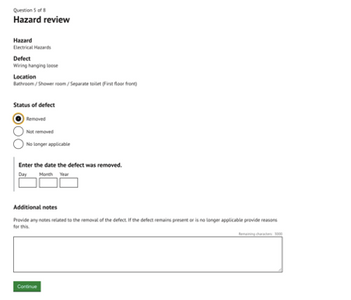
5.4 Once the form is fully completed and submitted the form will be saved to the document store (including any attachments provided), a timeline event created in the disrepair activity summary page and an email sent to the assigned officer.
6. Assessing Landlord Responses
6.1 Once the landlord has submitted the completed form, an email will be sent to the inspecting officer to advise that the submitted form is ready for assessment. An attachment of the submitted form will also be included in the email to the officer.
6.2 The status of the hazard report will be updated to `Review landlord response`
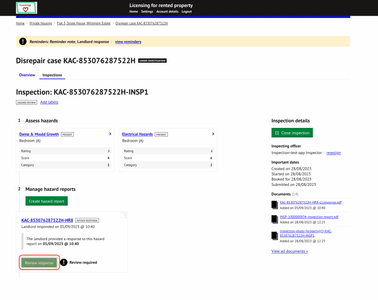
6.3 Click on ‘review response` to review the submitted form
6.4 Make a judgement for each hazard deficiency in terms of its status based on the evidence provided by the landlord. Repeat this step for each hazard deficiency.
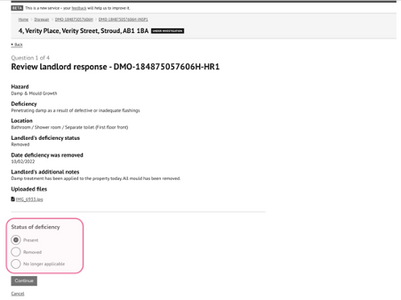
6.5 Make an judgement on the overall status of the landlord response and detail the next required steps.
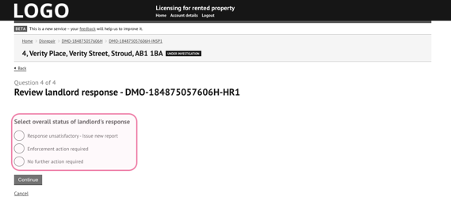
- Response unsatisfactory – Issue new report. This will require all steps in section 4 to be repeated again. This can be repeated as many times as required.
- Enforcement action required – The action taken by the landlord has not been satisfactory and formal action is now needed (this step would be performed using the council’s existing enforcement notice serving process)
- No further action required – Where no further action is required. This can be due to the council being satisfied with the removal of all hazards or for another reason the inspection record can now be closed.
7. Reminders
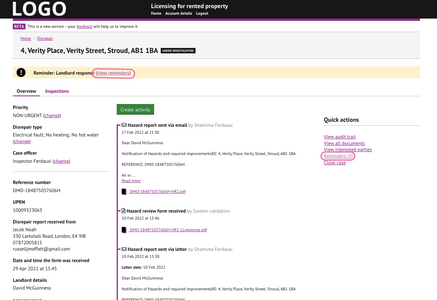
- A yellow banner is displayed on the main disrepair overview page and displays any reminders related an overview response from the landlord
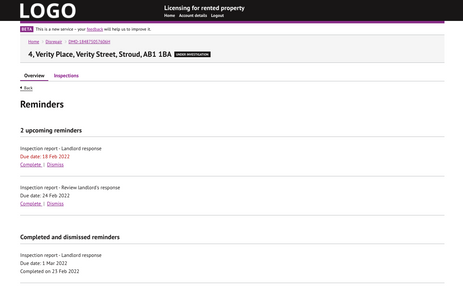
- Clicking on ‘view reminders’ will take the you to the new Reminders page.
- On the right-hand side there is also a secondary new link to the Reminders section. In brackets is the number of reminders that are outstanding (NOT JUST overdue).
8. Closing Inspection
8.1 If no further action is required to be taken for a particular inspection then this can be easily closed by clicking on ‘close inspection’ on the main inspection overview page
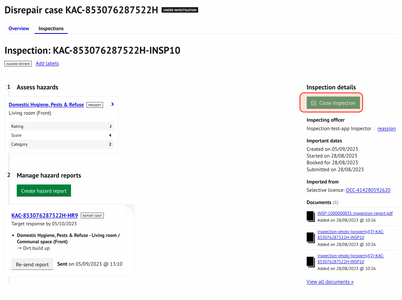
8.2 Inspections can be re-opened to include information that may have previously been omitted or if the inspection was closed in error.
8.3 Further inspections entries for a disrepair record can be created if a new or follow-up inspection of the property is required as part of the disrepair investigation.
Was this article helpful?
That’s Great!
Thank you for your feedback
Sorry! We couldn't be helpful
Thank you for your feedback
Feedback sent
We appreciate your effort and will try to fix the article