1.Create a service case
2.Service case list
3.Assign an officer
4.Navigating service case information
- Information panel
- Activity timeline
- Quick actions
1. Create Service Case
Service case records can be created in two ways:
- An external customer submits a `Report a private housing issue` form (front-end form)
- A council officer creates a service case (back-end office)
1.1 How to create a service case (customer)
The following URL will take users to the front-end form to report a private housing issue. The customer should complete all pages and submit the form on completion for a service case record to be generated.
The form link should be embedded to the relevant page of your council’s website: https://propertylicensing.[councilname].gov.uk/disrepair/start-page
Please ensure you replace [councilname] with the name of your council e.g. https://propertylicensing.highburycouncil.gov.uk/disrepair/start-page
You will also be provided with the correct URL for your council by your Metastreet account manager.
Elements of the form can be configured by a system admin user, including the introductory text and the categories of disrepair and private housing issues. See our guide on `Service case form configuration` in the help centre for instructions.
1.2 How to create a service case (council user)
a) Retrieve the relevant address in the private housing or service case module.
For information on how to search for and retrieve records see our Guide to navigating private housing 2.0 in the help centre (under 'Getting started`.
b) Click on `Create service case`
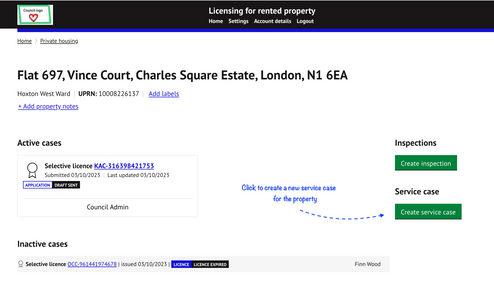
c) Select the record type for the service case:

d) Specify the category:
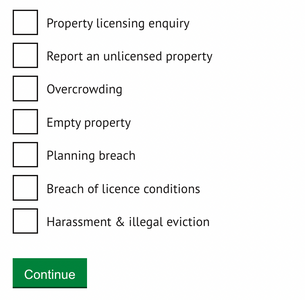
NOTE: This list can be managed by a system admin user. See our guide on `Service case form configuration` in the help centre for guidance on how to create and manage this list of service case categories.
e) Summarise the details for the case:
- Enter details of the service case to capture information on the nature of the reported issue (if reactive) or purpose of the case (if proactive).
- Click on `Create service case` to create the new record
2. Service Case List
Service cases records created by a council user will be automatically taken to step 3 (assign an officer).
For customer submitted forms, you will receive an email notification to the email address specified in the council admin settings.
2.1 Locate service cases
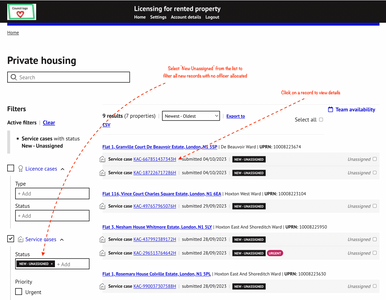
New and existing service case records can be located by filtering by status on the main property list page.
Service case records can have the following statuses:
| NEW - UNASSIGNED | Newly received / created service case with no officer allocated to the record |
| NEW - ASSIGNED | Newly received / created service case with officer allocated to the record but no actions taken |
| UNDER INVESTIGATION | Active service case with activity and action currently being undertaken |
| CLOSED | Service case has concluded or resolved |
2.2 Filter new service cases
- Click on the service case filter and select the status ‘NEW - UNASSIGNED` for new cases that have no officer assigned.
- Select the relevant record to view details
3. Assign an officer
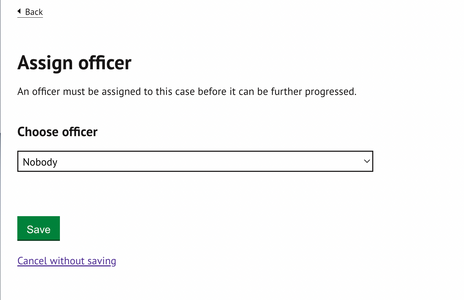
- All newly created or received service cases will be unassigned and will require an officer to be assigned before any action can be recorded.
- All fields will be greyed out and deactivated until this action is completed.
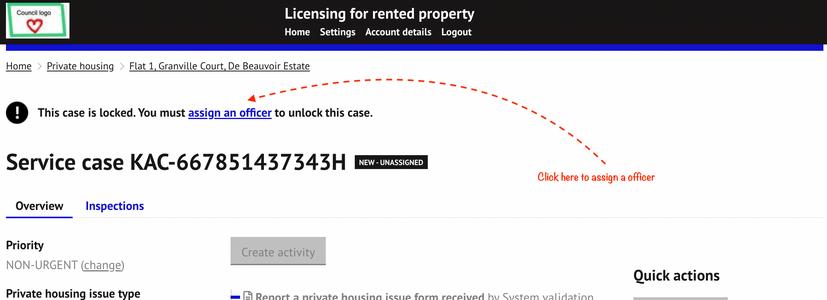
- Select an officer and press save:
4. Navigating service case information
The tabs located under the address details relate to features that are available to use within the service case module.
This guide focuses on the case details tab.
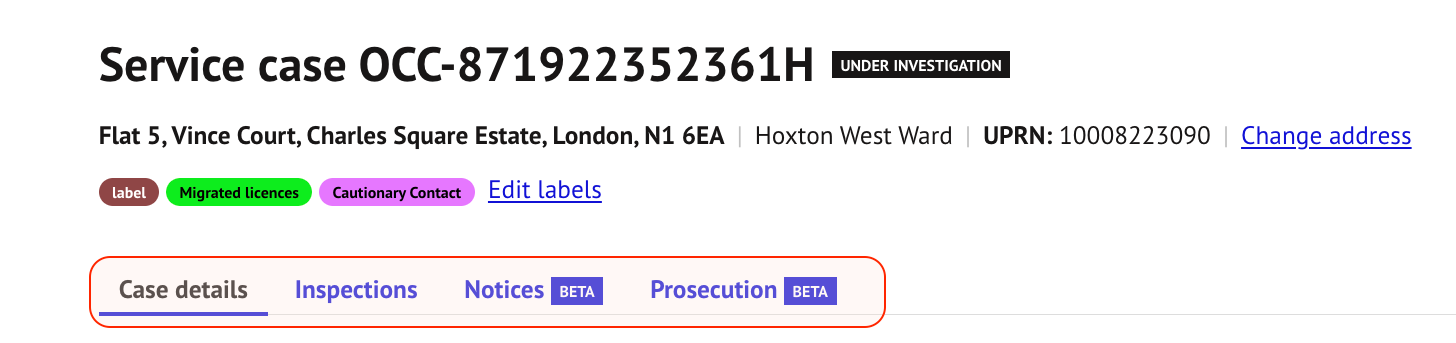
Separate user guides are available for the other tabs as follows:
- Inspections - 'Hazard Assessments'
- Notices - 'Enforcement - Create, send and manage notices'
- Prosecutions - 'Enforcement - Create and manage prosecution cases'
Case Details
New cases will need an officer to be assigned as the first action.
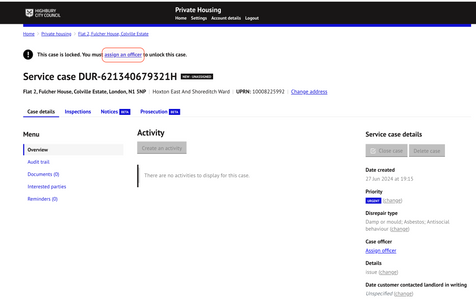
Assigning an officer will activate the record and enable all editable fields and links:
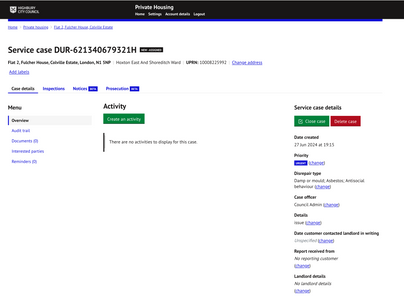
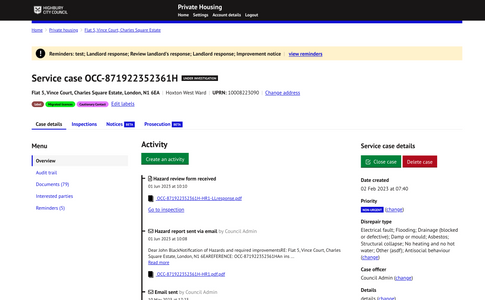
The page is organised in three key sections:
- Left-hand panel - Menu options for additional information
- Right-hand panel - Key case information
- Middle panel - Activity timeline
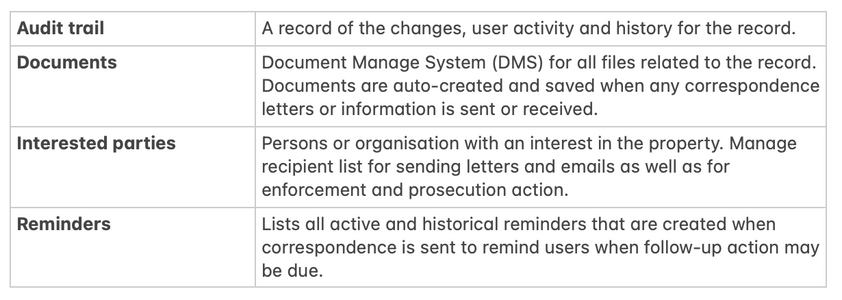
4.1 Menu (Left Panel)
Access related information to the case:
The following key information is displayed to the panel on the right-hand of the page.
Most of the information can be updated by clicking on the `Change` link next to each adjustable item.

| Field | Description |
| Date created | The date the record was created or the form was submitted by the customer |
| Priority | The priority can be either Urgent or Non-urgent. This is auto-determined based on the priority chosen for the category in the admin settings. This can be manually changed for specific records should any case deviate from the standard priority. If there are multiple categories with varying priorities, the highest (i.e. urgent) will be chosen by default. |
| Type | Lists the type of disrepair or private housing issue(s) the case relate to. This can be adjusted to add / remove / change categories should further categories be identified through investigation or removed if not applicable. |
| Case officer | The assigned officer for the case. |
| Details | A description of the service case issue |
| Date customer contacted landlord in writing | This field is specific to disrepair cases |
| Report received from | Details of the reporting customer (where applicable). |
| Landlord details | This is the details of the landlord for the property (where applicable). |
4.2. Activity Timeline (Middle)
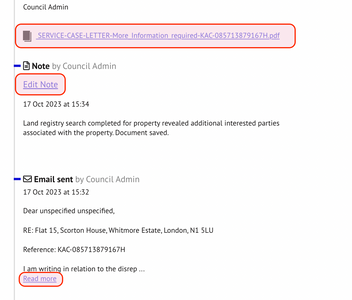
The activity timeline provides a quick overview of all actions and activities performed in relation to the service case.
Items are listed in chronological order with a brief summary. Click on the active link for each item to view further details or documents:
Section 5 details how to create activities.
5. Create Activity
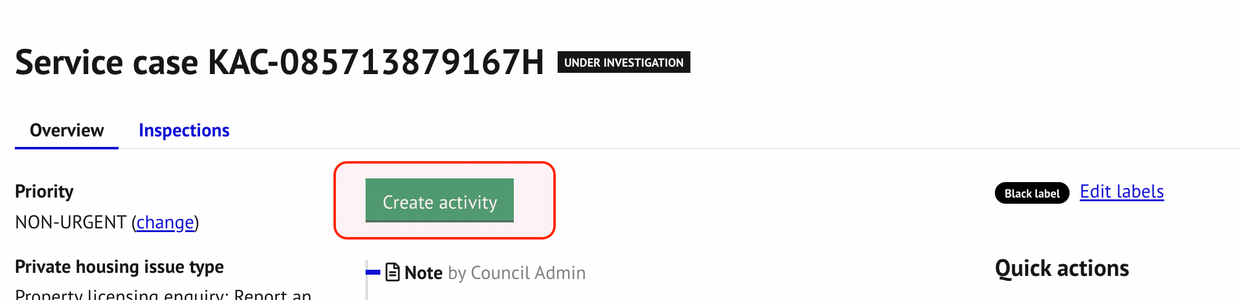
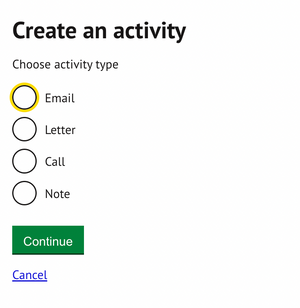
Click on create activity on top of the activity timeline to create a note, record a phone call or send email or letter correspondence:
Select the type of action to record:
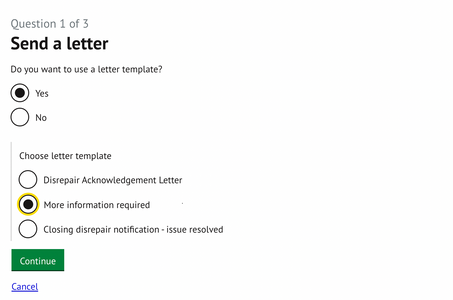
If choosing to send an email or letter, you can select from a set of pre-populated templates or create your own from a blank template:
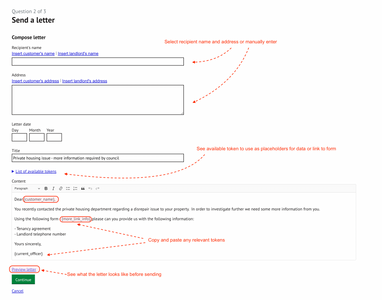
- Edit the template content as required including the recipient details and letter content.
- Insert tokens as placeholders for data that will be populated with the related information once the letter or email is generated.
- Preview letter feature is available for letter correspondence to view letter before posting
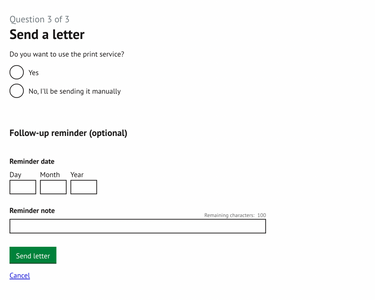
For letter correspondence, you can specify the method of service including sending the letter via email to a designated print service for postage.
You can also create a reminder for the letter to prompt any follow-up action.
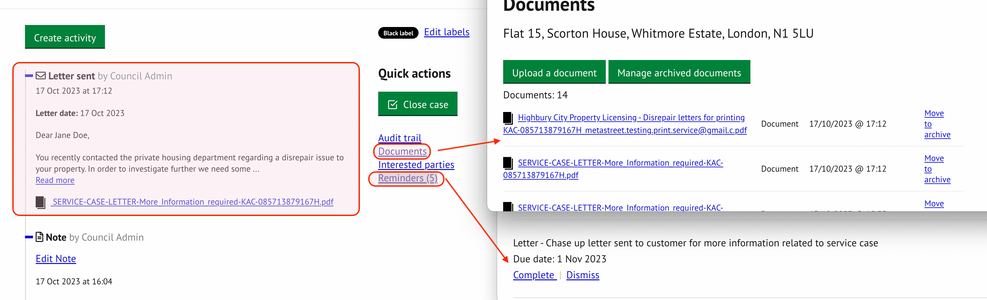
Once sent, the letter or email will be:
- Logged on the activity timeline
- Summary details will be visible
- A copy of the letter will be saved and also accessible from the action enter or via ‘Documents’ under ‘quick actions’.
- Reminder created (where specified)
Was this article helpful?
That’s Great!
Thank you for your feedback
Sorry! We couldn't be helpful
Thank you for your feedback
Feedback sent
We appreciate your effort and will try to fix the article