- Modules & sub-modules
- Navigating records
- a. Searching for properties
- b. Active & Inactive cases
- c. Sorting record view
- d. Exporting records
- e. Team Availability
- f. Reassigning users
- g. Filters
3. Managing labels
- Create a label
- Assign a label
- Edit a label
- Delete a label
1. Modules & sub-sections
The private housing main page lists the available modules on the left-hand side.
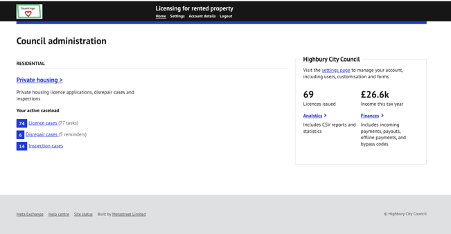
Council administration dashboard showing active caseloads for license cases, disrepair cases, and inspections.
The right-hand side displays summary statistics and links to the detailed analytics page,
the finance section and admin settings for managing and configuration of the system.
Clicking on any of the links to the left-hand side will take users to the property list of cases for the
record type selected.
Clicking on the licensing, disrepair or inspection module link will display all records for that
respectively module. Clicking on `Private housing` lists all records from across all available modules.
Property & case level
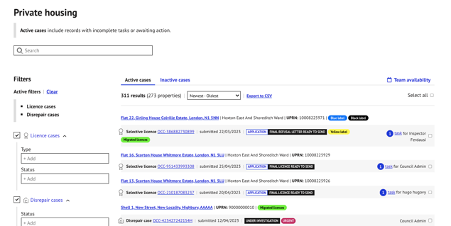
The 'Private housing' dashboard showing a filtered list of 311 active license and disrepair cases with status tags and assigned officers.
All records are grouped by property with associated records and cases for that
property listed beneath the property:
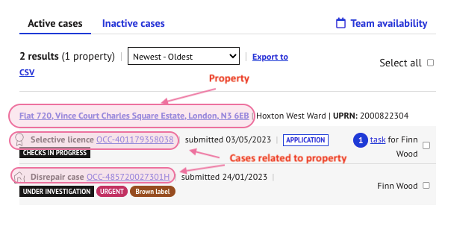
Clicking onto the case link, will take you to the main page for the case record selected:
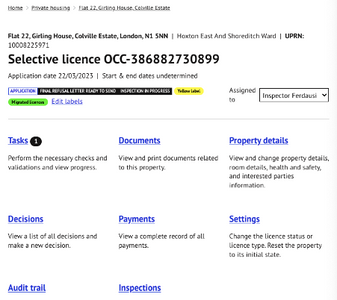
Clicking on the property will display further information on the property and associated records.
This includes a summary of all active and inactive cases associated with the property selected:
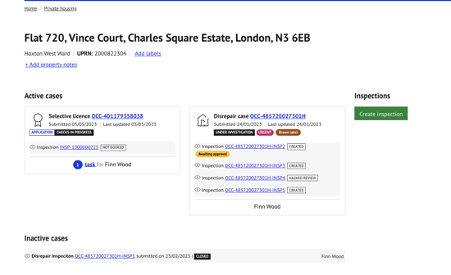
Property Notes
Property notes can be assigned to the property to provide vital summary information about
the premises.
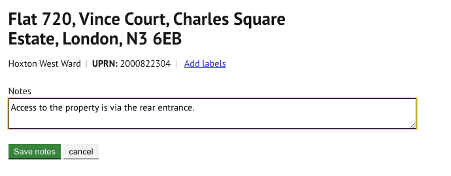
To add a click on `add property notes`

Enter notes as required:
Saving the notes will display the text under the property header:
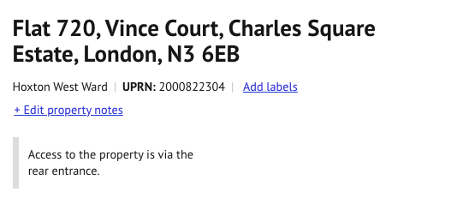
To edit, click on `Edit property notes` and repeat the above steps.
To add labels, see section 3 (managing labels) of this guide.
2. Navigating records
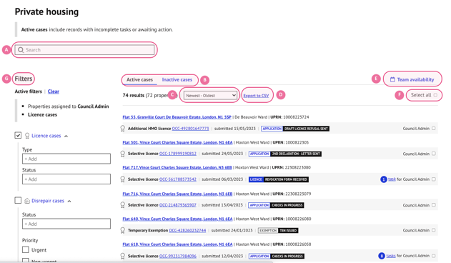
a) Searching records
Use the search bar on the top of the page to filter and search for records.

Searches can be done by entering either the:
- full or partial street name
- full or partial postcode
- UPRN
- case reference number
All records with matching data will be retrieved and displayed.
A summary total of the associated records will also be included:
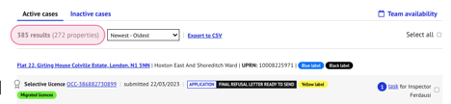
The total includes a count of all records retrieved and a unique property count is
contained in the adjacent brackets.
b) Active / Inactive cases
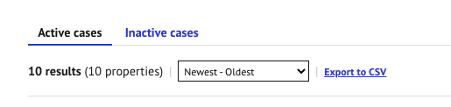
There are two tabs towards the top of the page that displays active and inactive cases.
Active cases include records with incomplete tasks or awaiting action.
Active cases:
This includes all new and in progress licence applications as well
as all live and operational licence records.
This includes licence records with active actions
(e.g. with incomplete tasks or within representation periods) as well as those without actions
(i.e. licence issued with no tasks or actions due) however this may be adjusted in future
to exclude the latter to better inform active caseloads.
Where activated, this also includes housing management cases and inspections that are
currently under investigation and remain open.
Inactive cases:
Clicking on the `Inactive cases` tab will display all records with completed workflows
and have no further actions due. This includes licences that have expired, been refused,
revoked as well as applications that have been withdrawn, completed temporary exemptions or
disrepair and inspection records that have been closed.
At present there is no combined view of active and inactive cases however this may be
adjusted in future.
c) Sorting
Records can be arranged using the following available sorting options:
- Newest to oldest – This will sort the list of properties by the most recently updated record
- Most tasks to least tasks - This will sort the list of properties with the most incomplete tasks
d) Exporting records
Data exports of the current view can be performed by clicking the `Export to CSV link`.
All records in the current filtered view will be included in the export. Applying filters will reduce
the number of records displayed to the restrictions applied and only the records in
the current view will be included in the export.
e) Team Availability
Clicking on the team availability will list the current number of active licences,
disrepair and inspections assigned to an officer.
This includes all records with active tasks and actions as well as live licences issued with
no tasks or actions due however this may be adjusted in future to better inform actual
active caseloads.
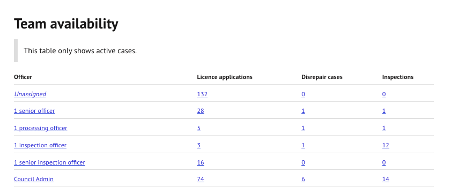
Clicking on any of the values or names will filter and display records in accordance with
the selected item.
f) Reassigning Users
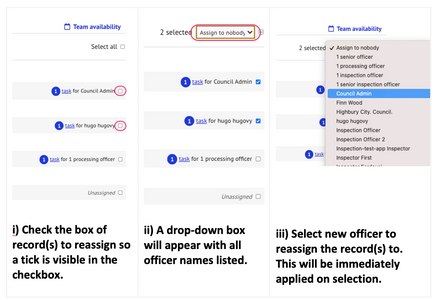
A number of checkboxes are visible to the right-hand side of the main property page against
each record.
You can reassign all cases by selecting records individually or `select all` to reassign all
records at once.
g) Filters
A number of filters are available on the left hand side of the page that you can apply
to organise records or restrict the records displayed.
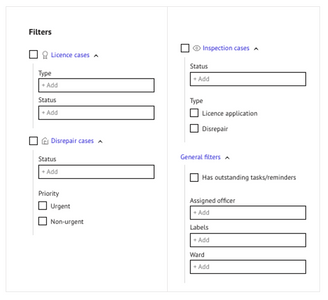
Filters can be applied for:
- Licences cases
- Licence type
- Licence status
- Inspection cases
- Assigned officer
- Outstanding tasks
- Labels
- Ward
If the disrepair module is activated additional filters include:
- Disrepair cases
- Status
- Priority
- Outstanding reminders
Filters are either checkboxes or drop-down lists.
DROP DOWN FILTERS
Where drop-down lists appear, multiple items can be selected.
Click within the filter field and select an option from the list to filter.
To add further items to the same filter field, repeat this action again.
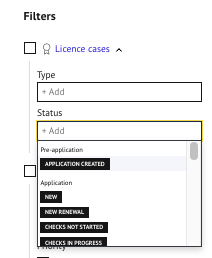
To remove a selected filter, click on the ‘x’ to remove this item.
Alternatively, enter your mouse cursor into the field and delete the item
using your keyboard delete button.
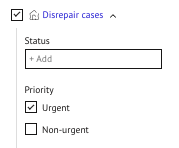
CHECK BOX FILTERS
Checkbox filters can be ticked to include the data within the records displayed
or unchecked exclude from the records displayed.
The filters applied to the current view are summarised at the top of the filter section:
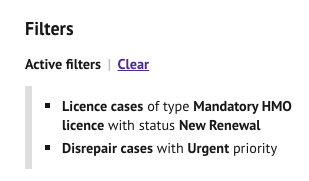
Filters will not clear unless removed individually or by selecting ‘Clear’ to remove all filters.
3. Labels
Labels can be created and managed in council admin. Once created,
labels can be assigned to records to categorise issues and work-streams
and for bespoke purposes relevant to your priorities.
i) Create a label
Admin users can access the settings to create a label by going to:
Home > Settings > Customise > Labels
All available labels are listed and can be renamed and recoloured as needed or new labels created.
A summary count of the number of records assigned to that label is also displayed.
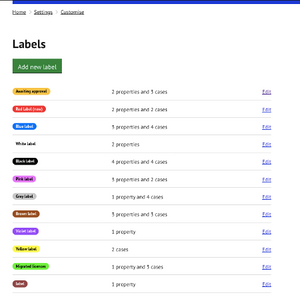
To create a new label, click on the green `Add a new label` button.
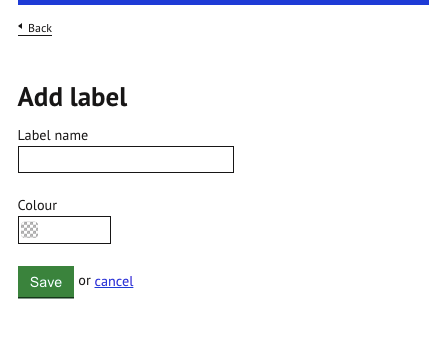
Give the label a suitable name by clicking into the label name field.
Select a colour for the label using the colour picker tool and one of the following methods.
Click the colour field and then either:
- Move the mouse cursor in the coloured box and click a colour.
- You can also click and drag the cursor along the box to view colours as you move the cursor.
- Moving the colour bar along
- Entering a specific hex number for a colour
Save once both the name and colour have been completed.
The new label will now appear on the label list.
ii) Assign a label
Labels can be assigned at the property level of case level (licensing, disrepair, inspection).
Property Level
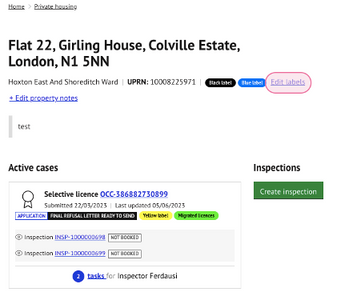
- Click on `Edit label`
- Click into the label field
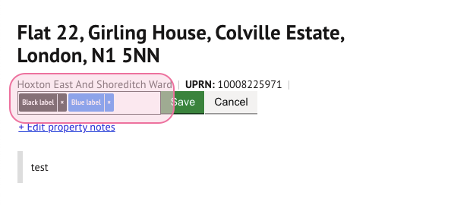
- Select label to apply from the drop-down list.
- This will be applied to the property record immediately on selection.
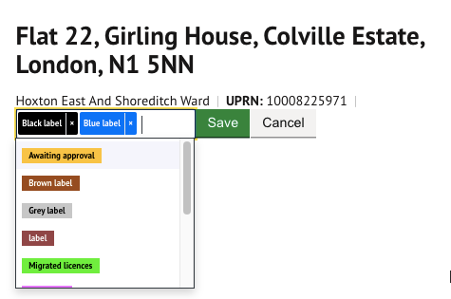
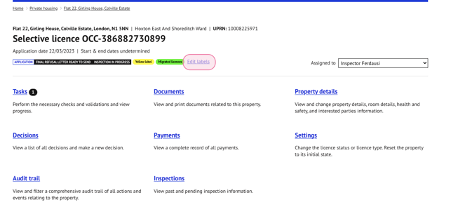
Assigning label at case level:
Retrieve the record to apply the label and repeat the above steps using the edit link:
iii) Edit a label
Labels can have the name and colour edited at any time. Select ‘edit’ to
change the label name or colour.
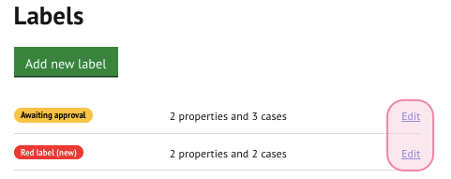
Changes made to existing labels will be applied to the labels that are
already assigned to records.
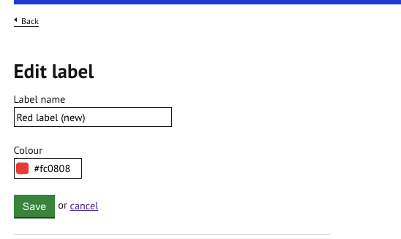
Rename the label by editing the existing text within the `Label name` field.
You can also adjust the colour using the colour picker tool.
Save to commit the changes applied.
iv) Delete a label
Deletion of labels can also be performed via the `edit` function.
The bottom section of this page contains instructions on how to perform this action.
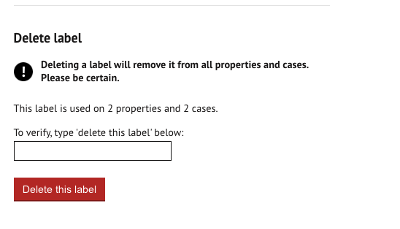
Type the text `delete this label` and click on the red `Delete this label` field.
Reports
Labels have also been added to key reports to help reflect the assigned categories in data exports.
- Officer Caseload Review
- Inspections
- Licence Decisions
Was this article helpful?
That’s Great!
Thank you for your feedback
Sorry! We couldn't be helpful
Thank you for your feedback
Feedback sent
We appreciate your effort and will try to fix the article