- Learn how to set-up your iPad or other Apple device: https://support.apple.com/en-gb/HT202033
- Download the Inspector App from the Apple App Store using an Apple (IOS) devicehttps://apps.apple.com/gb/app/metastreet/id1447528939
- Create an Inspection Officer user in the Metastreet Software. Ask your system admin user to go to: Setting > Users > Council users. Create new user and set the ‘role’ to ‘Inspection Officer’.
User can have one the following permissions levels
- Admin - Full access including settings
- Senior officer - Full access, no access to settings
- Processing officer - Only access to pages that facilitate the processing of an application or licence
- Inspection officer - Access to the mobile inspection app and pages relating to their inspection
- Use the login and password created above (see step 2) to login to the Inspection App.

If you are having difficulties, please contact your Metastreet account manager .How can I create an inspection for the app?
Login to the Metastreet Software (not the app) and either:
- Go to Inspections and 'Create inspection' and search for the property by using postcode; or
- Go to properties > select subject property > Tasks > Add manual task > Setup an inspection > Review task > Assign to (drop down and select Inspector) > Assign > Save status.
The requested inspection will be created automatically on the app and will appear in the inspection list (subject to internet connection):
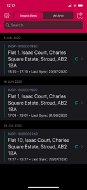
App screen showing synced inspection records.
It is recommended that no more than 50 inspections are loaded onto the app for a single user at any one time. This includes both new and in progress inspections. This will help maintain optimum performance.Saving progress
Inspection data should frequently be backed up in order for progress to be stored. Uncommitted changes will not be saved.
If an inspection is in progress (inspection started, but not completed and backed-up or synced), all data relating to the inspection will be lost.To backup inspection data in the inspection app go to `Settings` and select `Create Backup` and then select the inspection from the list to back-up:
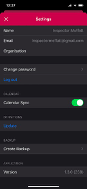
Mobile app settings screen showing user profile details, sync toggles, and the current software version.
This will create a Zip file including all the stored data for each inspection, including photos. This file should be saved to a folder on the IOS device.
Logging off the app before completing and syncing a finished inspection (or backing up an incomplete inspection) will lose all progress and data!How can I re-sync documents in the app document folder?
- It is recommended that the document folder in the app is updated on the day of the inspection so that any new documents can be viewed
- Documents can be updated by swiping each document to the left and pressing the Re-Sync button (see example below).

Mobile app 'Documents' screen showing a list of uploaded files, including images and PDF documents.
Please note: an internet connection is required to complete this process
How can I delete an inspection?
- Any inspection can be deleted
- Swipe the subject property to the left to reveal the delete button.
- The app provides a following warning before deletion.
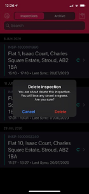
Mobile app interface showing a 'Delete Inspection' confirmation prompt for a synced record.
Please note: the inspection entry will not leave the inspection app until the inspection request is also deleted in the software.
Deleting inspections in the software
- If an inspection is deleted in the software and then deleted in app, all records of that inspection will be erased (subject to audit trail record).
- If an inspection is deleted in the software, it is not possible to sync the same inspection from the app (there is no record for it to return to in the software), therefore it’s important to manage the deletion of inspections carefully.
- If an inspection is deleted in the software, it will not be possible to sync ‘Documents’ to app.
How can I update the Inspector App?
- The Metastreet App is updated with new features from time to time, it is therefore important to ensure the device is using the latest version of the app.
- To check what version of the app is currently loaded on the device, go to settings and scroll down to the ‘Version’.
- To check for the most up to date version, please visit the Apple App store and update if a newer version is available https://apps.apple.com/gb/app/metastreet/id1447528939
What should I do if I recorded the inspection against the wrong property?
You will need to copy and paste any notes and other information over to the correct address, including uploading any images taken. Once this has been done, you can delete the incorrect inspection.
Always make sure you verify the address before starting an inspectionWas this article helpful?
That’s Great!
Thank you for your feedback
Sorry! We couldn't be helpful
Thank you for your feedback
Feedback sent
We appreciate your effort and will try to fix the article