This guide provides details on how to manage interested party records and cautionary contacts.
- Interested party - key system roles
- Create or edit an interested party
- Archive an interested party
- Portal account holders & linked applications
- Cautionary contacts
1. Interested party - key system roles
- Applicant - This is the party who submitted the application form and signed the initial declaration.
- Licence holder - this is the party identified as holding the licence. This can be changed during the application processing stage but will trigger the process for obtaining a declaration from this party to ensure they have agreed to be bound by the conditions of the licence. This party cannot be changed after the licence has been issued as a new licence is required if the LH is changed after this point.
- Portal account holder - This is the party who can view the initial application on their portal account including live status updates. They will also be the receiver of all system emails related to the property. This party is usually the applicant however this can be changed should the applicant no longer be associated with the property.
2. Create or edit an interested party
Interested parties are automatically created from the information supplied on the application or issue reporting form and can easily be viewed and managed on the system:
Property > property details > Interested parties.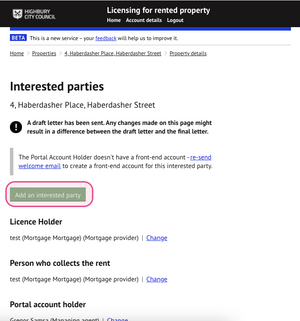
2.1 Add a new interested party
New parties can be added by clicking on `Add an interested party` and then selecting the method of creating the interested party:
- Create a new interested party - enter all interested party details manually
- Copy interested party from another record - Copy interested party details available on another service case or property licensing record for the same property address.
If copying interested party from another record, tick the interested party you wish to copy. One or all listed parties can be selected for copying:
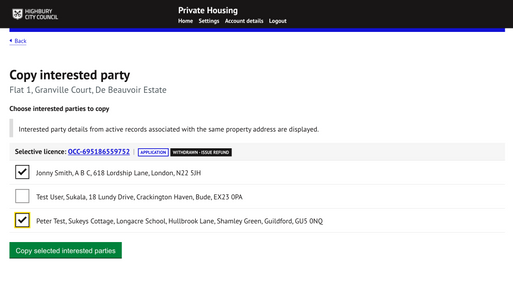
Confirm this action by clicking on ‘copy selected interested party’.
All selected parties will now be copied onto the current record. All key information related to the party name, address and contact details will be copied.
Interested parties with missing contact information, or if the same party already exists for the current record, cannot be selected for copying and will appear greyed out.2.2 Edit a new interested party
To edit the details of an interested party, locate the party from the list and click on `change` . You can update their contact information or add any notes related to this party.
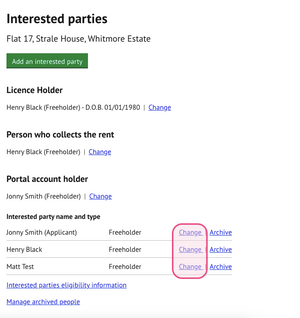
3. Remove an interested party
Interested parties may need to be removed if they no longer hold an interest in the property and it is no longer relevant for them to receive correspondence in relation to the licence.
You can archive the party so that their details are not used when generation new correspondence but their details are retained for auditing purposes.
Click on the `Archive` button to remove the party. The party can be reinstated by viewing `Manage archived people`.
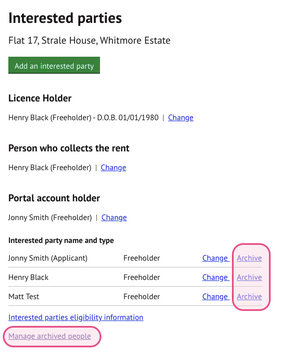
Certain parties cannot be archived such as the licence holder or the portal account holder. Reassigning the portal account holder role will allow archiving. See section x.
4. Portal account holder (PAH)
Updating the Portal Account Holder will change the address where all email correspondence is sent, including any pending payment receipts. It will also give this interested party access to the application/licence and all related activities via the online portal including being able to view live status updates for the record.
Only interested parties with a valid email address can be set as the Portal Account Holder.
To change the portal account holder, click on `Change` button next to the PAH name and select a new PAH from the list of parties with a valid email address:
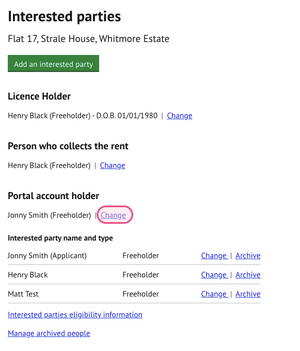
If the interested party has not yet created an account on the council's licensing portal, you can invite them to do this in the following step:
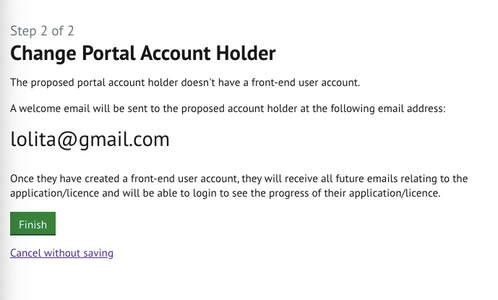
They will then be sent an invite inviting them to complete their account registration.
If the party is already an existing portal account holder, for other property licence applications, you can immediately assign the property to be associated with their portal account.
You can also view all property licence applications associated with this account holder.
Find the PAH name on the full list of interested parties and click on 'change':
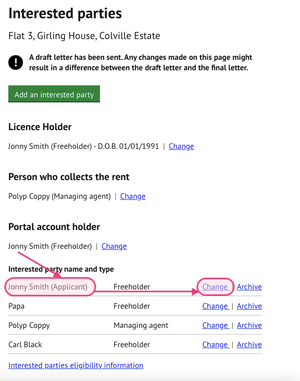
Then click to view the `Front-end user account` for this party:
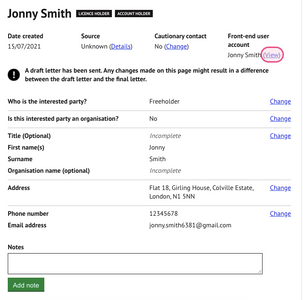
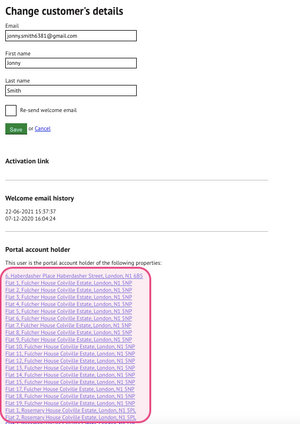
You can then see the customer account details as well as a list of all other property licence applications associated with this person:
5. Cautionary contacts
Any interested party can be assigned as a cautionary contact. Assigning a party as a cautionary contact, creates a visual flag to advise council users that caution, or appropriate action, may need to be taken when delivery services to that person.
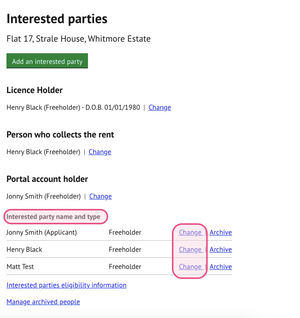
To assign a person as a cautionary contact, select the relevant party from the list and click on `change`:
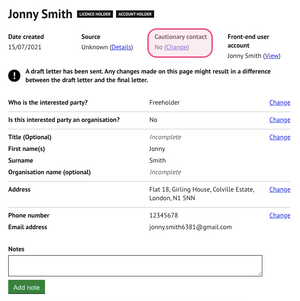
Click on `Change` under cautionary contact located towards the top of the screen:
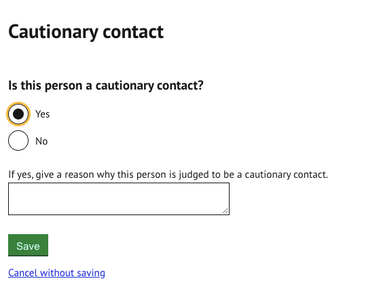
You will then be prompted to enter details of the cautionary contact:
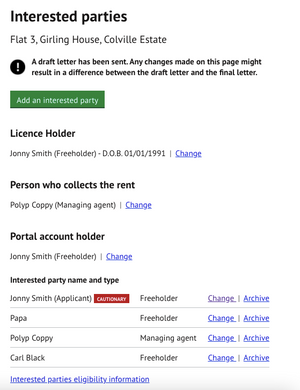
Saving this will then create a red `cautionary` flag against the person for that record:
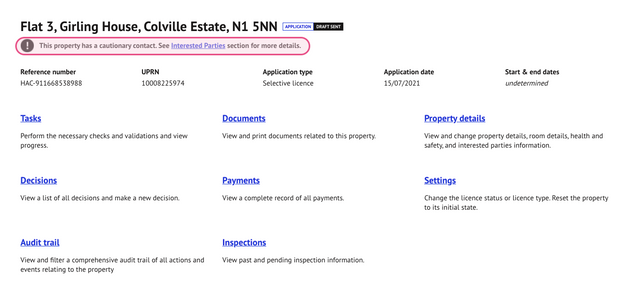
A note will also be displayed on the main property landing page to inform users that a cautionary contact is associated with the property:
Was this article helpful?
That’s Great!
Thank you for your feedback
Sorry! We couldn't be helpful
Thank you for your feedback
Feedback sent
We appreciate your effort and will try to fix the article