1. Penalties - Description
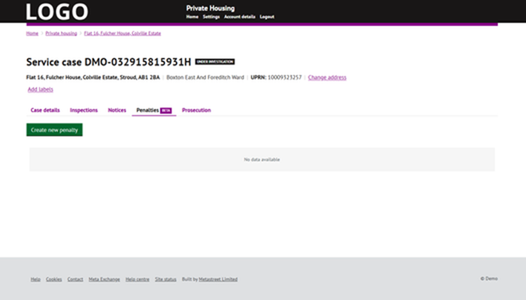
Penalties is a new module located under service cases.
Council officers can create new penalty cases there and serve penalties on interested parties in service cases.
2. Customisable settings
Before starting to use Penalties, the council should first configure penalty fine ranges and values, and set up offences with default fine bands.
This is located at: Settings > Legal, Enforcement and Penalties > Penalty Fines & Offences (Beta)
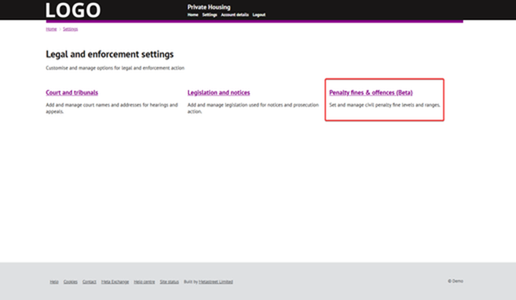
On the Penalty Fines & Offences (Beta) page, the following sections can be found:
- Penalty Variables
- Fine Levels and Values
- Offences
2.1 Penalty Variables
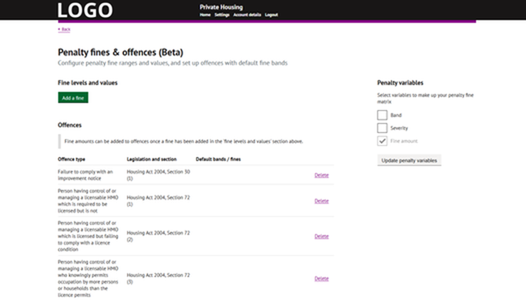
First, it is necessary to select variables to create the penalty fine matrix.
2.2 Fine Levels and Values
Fine levels and values must be added here. Once fine levels are added, offences can then be created and edited.
2.3 Offences
This section contains a list of offences, which will be offered for selection when creating penalty cases.
3. Creating a penalty case
A new penalty is created by clicking the Create new penalty button on the Service case page, under the Penalties tab.
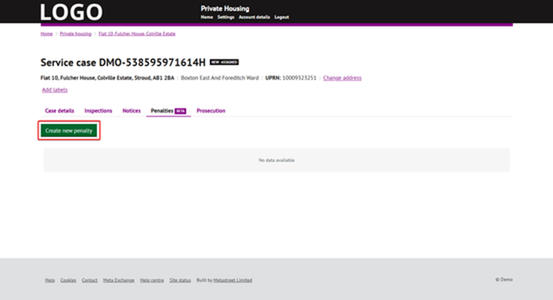
When creating a new penalty, four types of information must be entered or selected:
- Offence
- Offence date
- Assigned officer
- Serve on
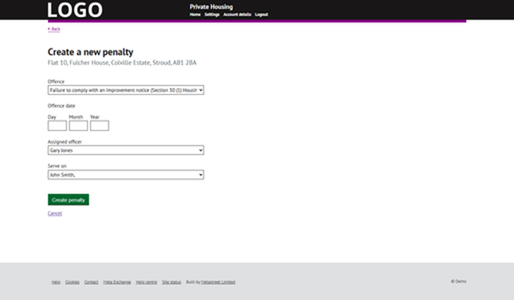
Offence is a drop down, where a value is selected. This list can be customised in Settings > Legal, Enforcement and Penalties > Penalty Fines & Offences (Beta).
Serve On is a drop down, where the interested party on whom the penalty is served is selected. Values for this dropdown come from Service Case > Case Details tab > Interested Parties.
4. Processing penalty case
4.1 Add fine
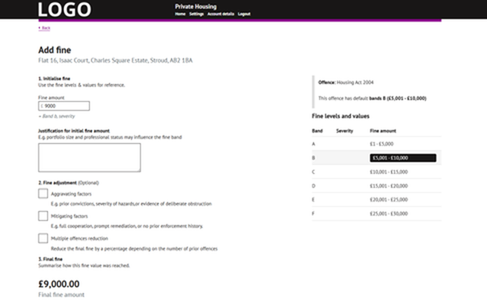
After creating a penalty case, the first step is to add a fine.
The council officer should add an initialise fine amount. On the right side, they can see the default range for the specific offence, which should help when selecting the initialise fine amount.
It is then possible to adjust the fine amount using three values:
- Aggravating factors
- Mitigating factors
- Multiple offences reduction
Based on these inputs, the system calculates the final fine.
4.2 Draft notice letter
After adding the fine amount for a penalty case, it is possible to create a draft notice letter.
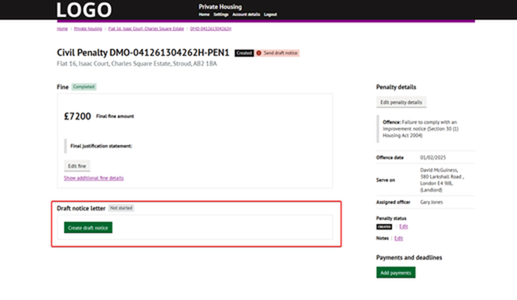
When creating a draft notice letter, the council officer will see a pre-filled template. This template can be edited at Settings > Correspondence > Letters > Letter and notice templates > Penalties (Beta) > Draft penalty notice and letter.
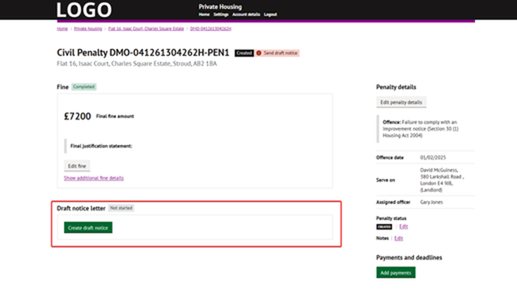
The council officer selects the date when the draft notice letter will be sent by adding a date to Date letter to be sent.
It is also possible to choose how long the representation period will last by adding a date to Representation end date (optional).
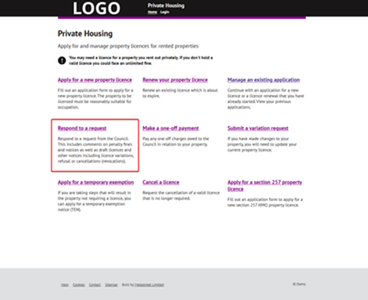
The offender can create a representation through the link Respond to a request.
4.3 Final notice letter
After creating a draft notice letter for a penalty case, it is possible to create a final notice letter.
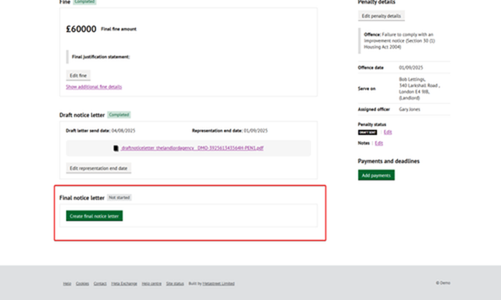
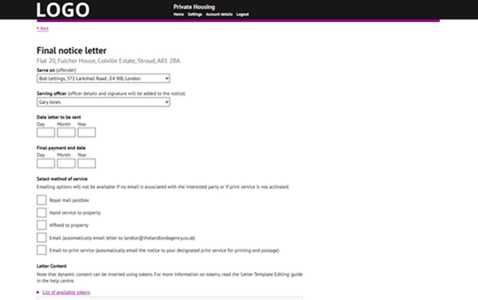
When creating a final notice letter, the council officer will see a pre-filled template. This template can be edited at Settings > Correspondence > Letters > Letter and notice templates > Penalties (Beta) > Final penalty notice and letter.
The council officer selects the date when the final notice letter will be sent by adding a date to "Date letter to be sent".
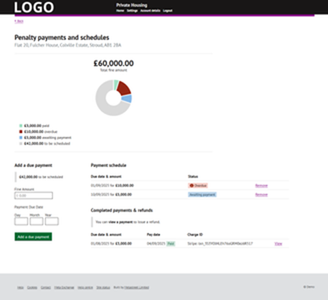
4.4 Payments and deadlines
This section is shown on the penalty overview page after clicking "Add payments".
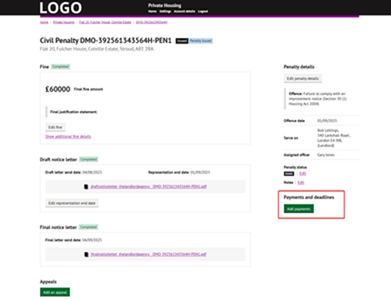
In this section, the council officer plans and adds payments, sets payment deadlines, and can see how much has already been paid and how much is still outstanding.
The chart shows the remaining amount to be paid, which payments are overdue, which are awaiting payment, and which are to be scheduled.
The council officer sets individual payments here, together with their due dates.
5. Making payments
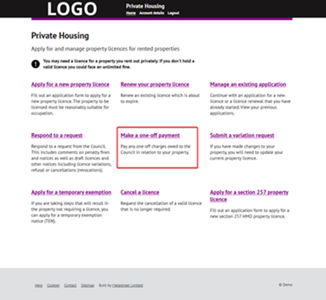
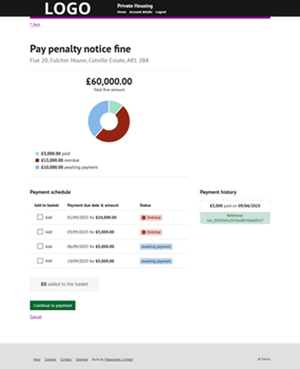
Offenders can pay through the link Make a one-off payment on the homepage. On this page, the assigned payments for the penalty case are shown together with their due dates.
When paying, it is possible to choose which payments to cover — either one payment or several at the same time.
Was this article helpful?
That’s Great!
Thank you for your feedback
Sorry! We couldn't be helpful
Thank you for your feedback
Feedback sent
We appreciate your effort and will try to fix the article