Approval requests allow officers to ask a colleague to review their work on a notice, prosecution, penalty or inspection before taking the next step. For example, an officer can request approval before serving a notice or sending a penalty letter.
An approval request is a communication tool only. It does not lock the case or change how the case works. The case behaves in exactly the same way whether a request is pending, approved, declined or cancelled.
In this guide you'll learn how to:
- Request approval on a notice, prosecution, penalty or inspection
- Approve or decline a request
- Cancel a pending request
- Review requests waiting for you from the home page
- View the full list of your approval requests
- Understand approval notifications
- Find approval history in the audit trail
1. Where approval requests appear
The approval request section is shown at the top of the following pages within a service case:
- Notices
- Prosecutions
- Penalties
- Inspections
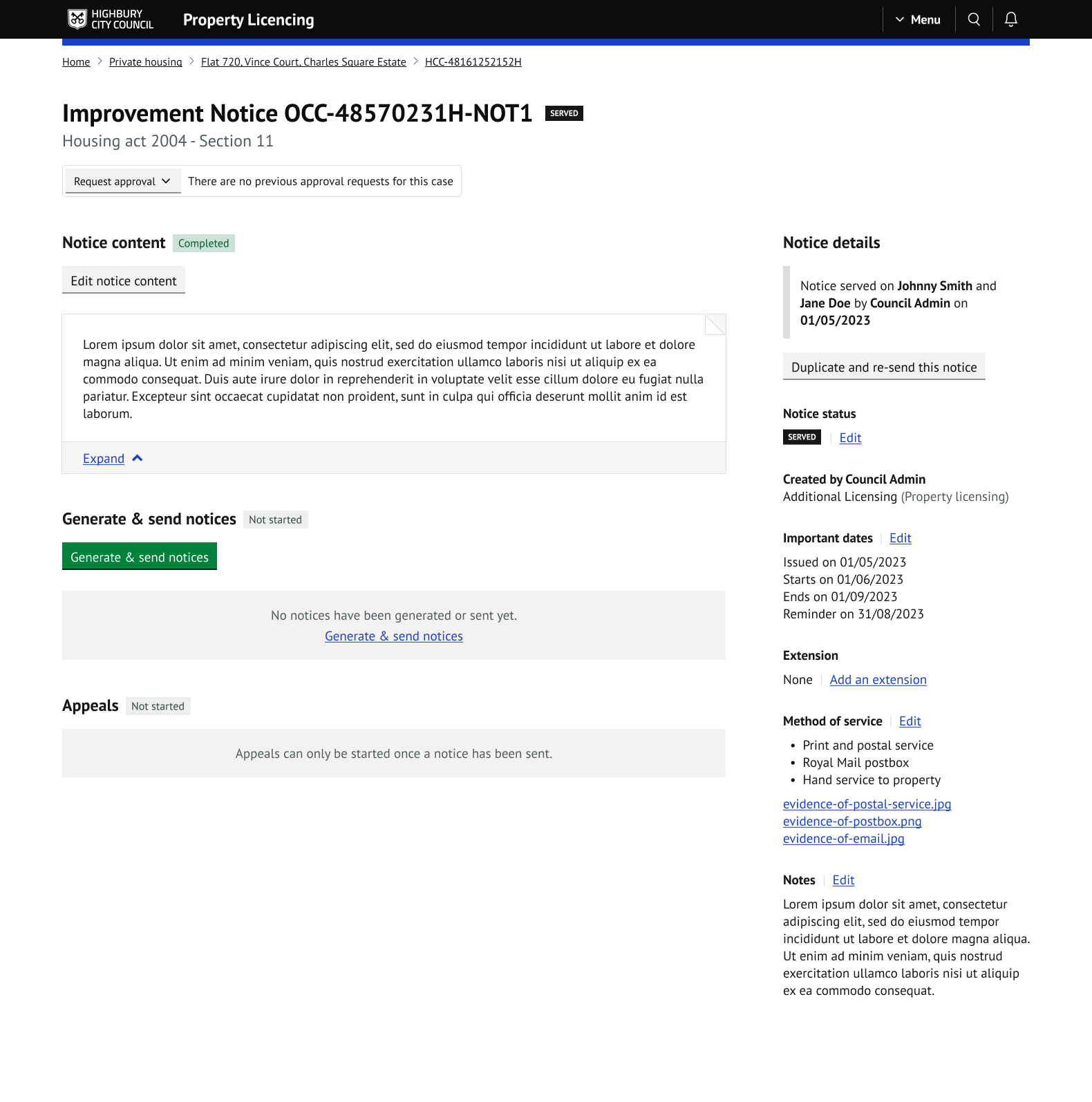
If no approval has ever been requested for the item, the section shows a Request approval dropdown with the message 'There are no previous approval requests for this case'.
2. How approval requests work
- Any officer can request approval from any other officer. Requests are not limited to junior officers asking senior officers.
- Only one request can be pending on an item at a time. Once a request has been approved, declined or cancelled, a new request can be created.
- The page shows the most recent request only. The full history is recorded in the service case audit trail.
- Approvals do not affect how the case is processed. They are a way for officers to ask a colleague to check their work.
3. Requesting approval
Open the notice, prosecution, penalty or inspection.
Select
Request approval. A panel will open.
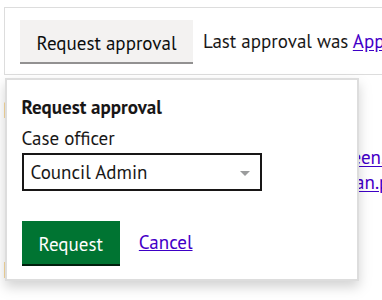
Choose the officer you would like to review your work from the dropdown.
Press
Request.
The request is now pending. A banner shows who requested approval, who it was requested from, and the date the request was made.

To close the panel without sending a request, select Cancel.
4. Approving or declining a request
If approval has been requested from you, the request is highlighted on the item page:

You can open the item from the notification, from the Approval requests section on your home page, or by navigating to it directly.
Review the case, then choose one of the following:
Approvemarks the request as approved.declinemarks the request as declined.
The requester is notified of the outcome either way.
TIP: The Review request link on your home page takes you straight to the relevant case and item, so you can review the work in context before deciding.
5. Cancelling a request
A pending request can be cancelled by any officer, not just the requester or the approver. This is useful if a request is no longer needed, or if the chosen approver is unavailable.
To cancel, select Cancel next to the pending request.
Cancelling removes the request without an outcome. A new request can then be created if approval is still required.
6. After a request is actioned
Once a request has been approved or declined, the page shows a summary of the most recent outcome:

- Selecting the 'approved' or 'declined' link opens the related entry in the audit trail.
- Dates show the date only. Hover over the date to see the full date and time.
A new request can be created at any point after the previous one has been actioned.
7. Approval requests on the home page
When at least one request is waiting for your approval, an 'Approval requests' section appears on your home page. The heading shows the total number of open requests, for example 'Approval requests (15)'.
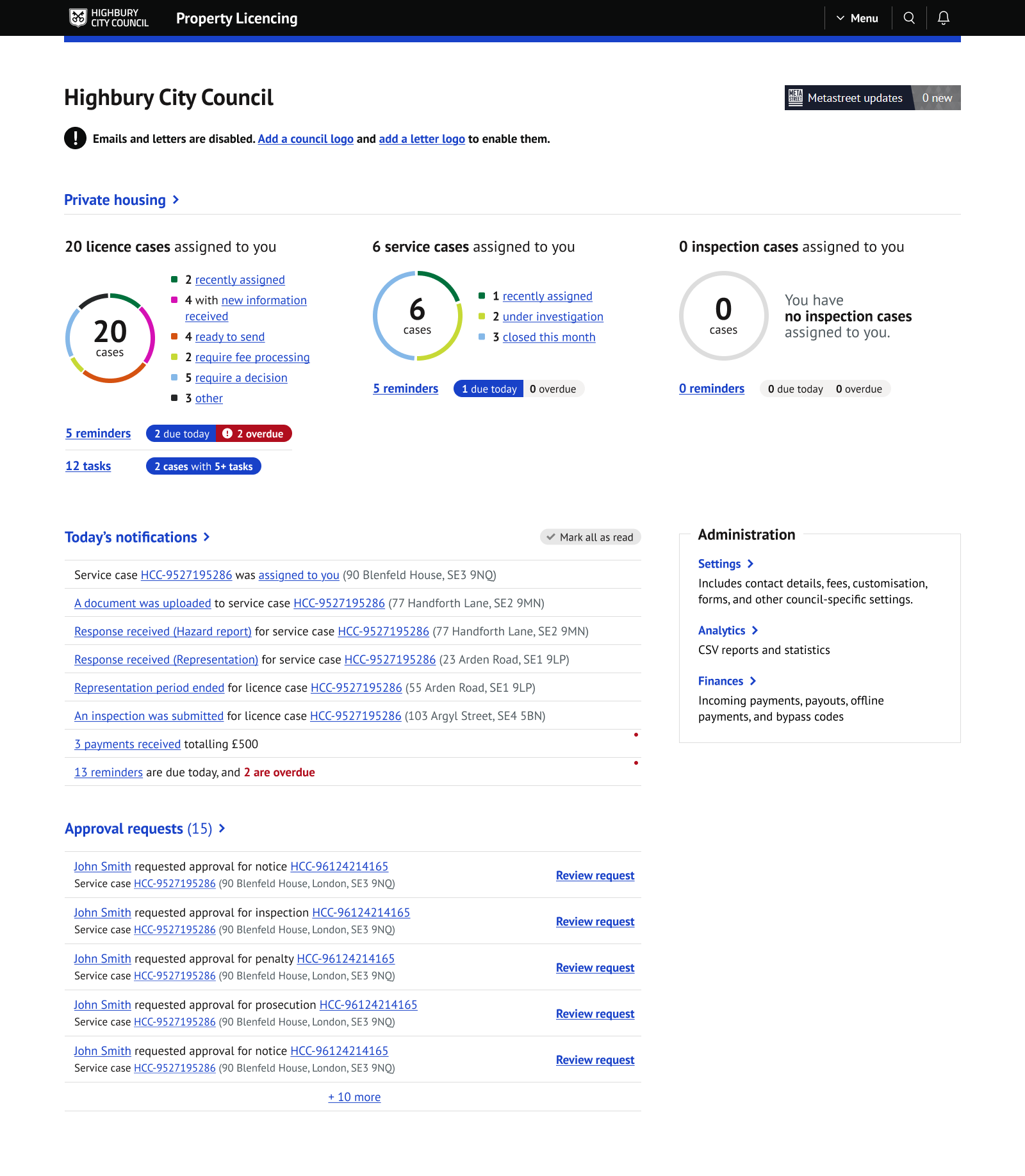
The section shows the five most recent requests, newest first. Each entry shows:
- The requesting officer
- The item type and reference (for example, notice HCC-96124214165)
- The service case reference and property address
- A
Review requestlink
Selecting Review request opens the relevant case and item so you can review the work before approving or declining.
Once you approve or decline a request, it is removed from the list and the requester is notified.
8. Full approval requests page
If you have more requests than the home page shows, select the 'Approval requests' heading or the '+ X more' link to open the full approval requests page.
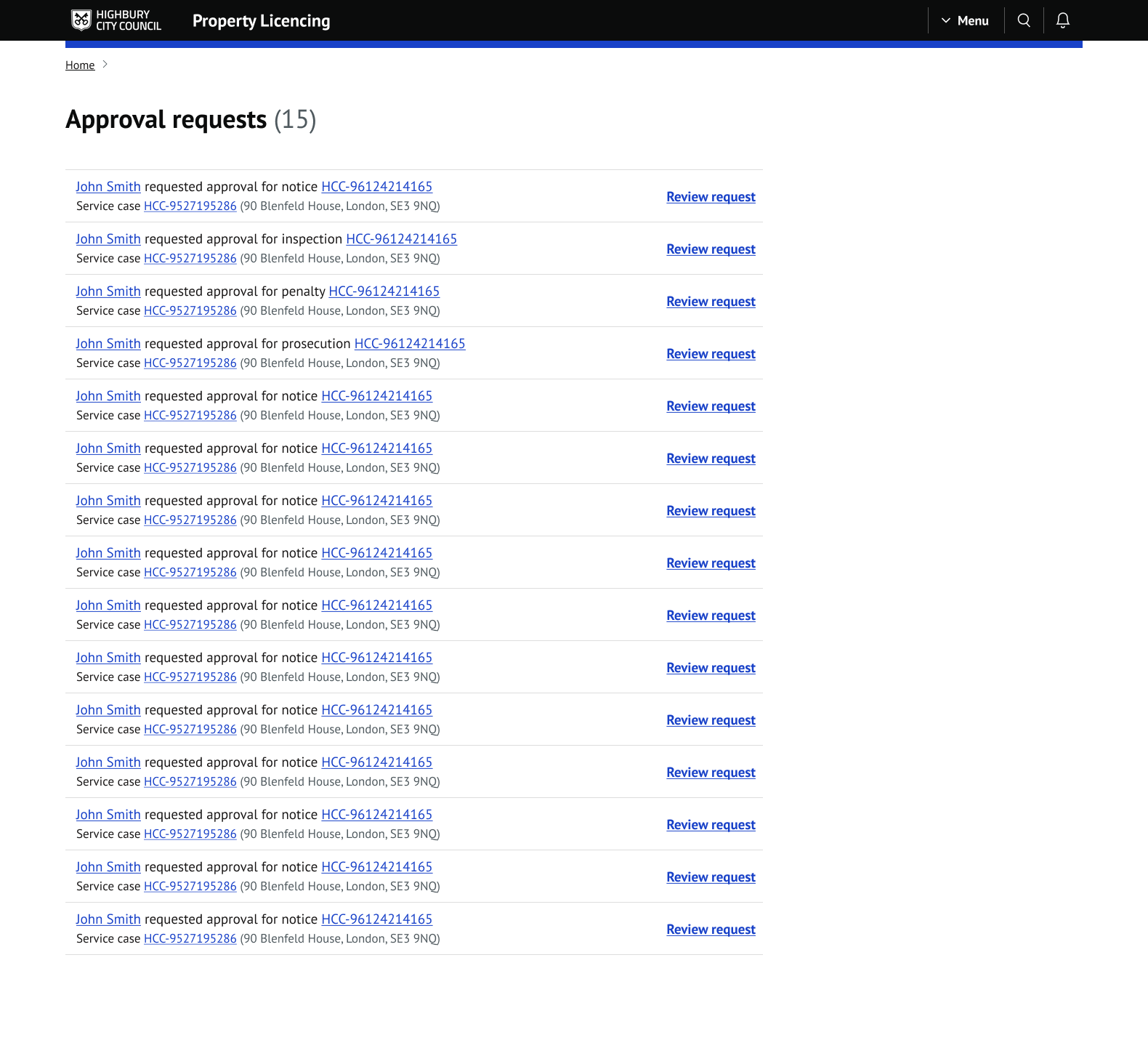
This page lists all pending requests waiting for you, with the same details as the home page. Select the load more link at the bottom of the list to show the next 10 requests.
9. Notifications
Approval requests use the standard notifications system:
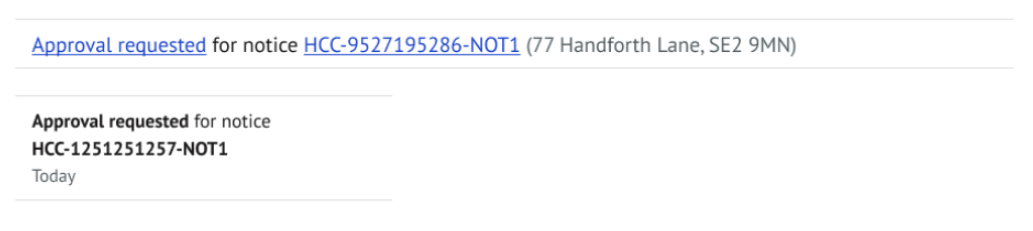
- When approval is requested from you, a notification appears in the notifications popup and in the notifications list on your home page. It shows the request type, the item reference, the case reference and the property address where available.
- Selecting the notification takes you to the relevant case and item.
- When your request is approved or declined, you receive a notification with the outcome.
- When a request is approved, declined or cancelled, the pending notification is removed for the approver.
10. Audit trail
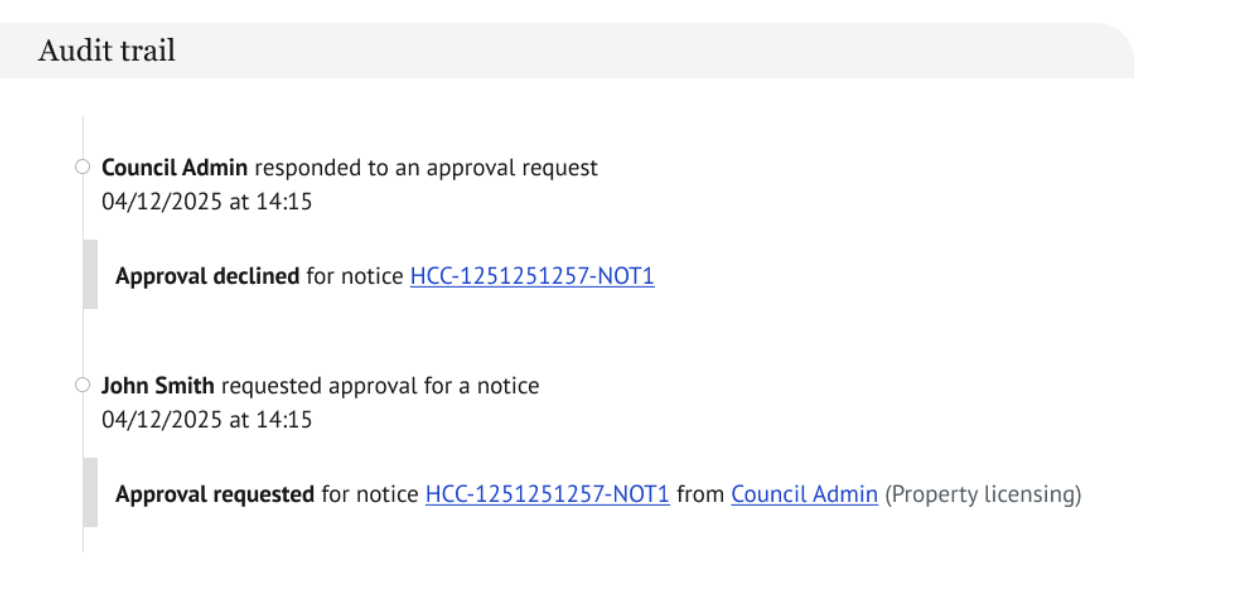
Every approval action is recorded in the service case audit trail:
- Approval requested, including who it was requested from
- Approval approved
- Approval declined
- Approval cancelled
Each entry records the officer who performed the action, the related item, and the date and time.
NOTE: Approval actions appear in the service case audit trail only. They are not shown in the activity feed on the service case overview page.
Was this article helpful?
That’s Great!
Thank you for your feedback
Sorry! We couldn't be helpful
Thank you for your feedback
Feedback sent
We appreciate your effort and will try to fix the article