The notice process has been redesigned so that creating a notice and serving it are separate steps. You can now save a partly completed notice and return to it later, review a notice as a draft before serving, choose how it is served for each interested party, vary the notice after it has been served, and serve formal revocation notices.
Penalty notice letters follow the same approach, with separate steps for creating and sending draft and final letters.
In this guide you'll learn how to:
- Create a notice using the step-by-step form
- Save progress and continue later
- Review and edit a draft notice
- Serve notices and record methods of service and evidence
- Understand notice statuses
- Vary a notice after it has been served
- Revoke notices and serve revocation notices
- Manage notice templates in Settings
- Create and send draft and final penalty notice letters
1. Overview of the notice process
A notice now moves through clear stages:
- Create - complete the step-by-step form to create the notice. The notice starts with the status 'Draft'.
- Serve - serve the notice on the selected interested parties from the dedicated Serve notices page. The status changes to 'Served'.
- Vary (optional) - change the content or dates of a served notice and serve the varied version. The status moves to 'Variation draft' and then 'Variation served'.
- Revoke (optional) - revoke the notice for one or more interested parties and serve revocation notices.
At each stage you can request approval from a colleague before continuing. See the Approval requests guide for details.
2. Creating a notice
From the service case, open the Notices page and create a new notice. The form is split into three questions:
Question 1 - notice template
- Choose whether you want to use a notice template.
- Select 'Yes' to use one of your council's saved notice templates, then choose the template from the list. The notice is pre-filled from the template in the next question. Templates are managed in Settings (see section 10).
- Select 'No' to start with a blank notice.
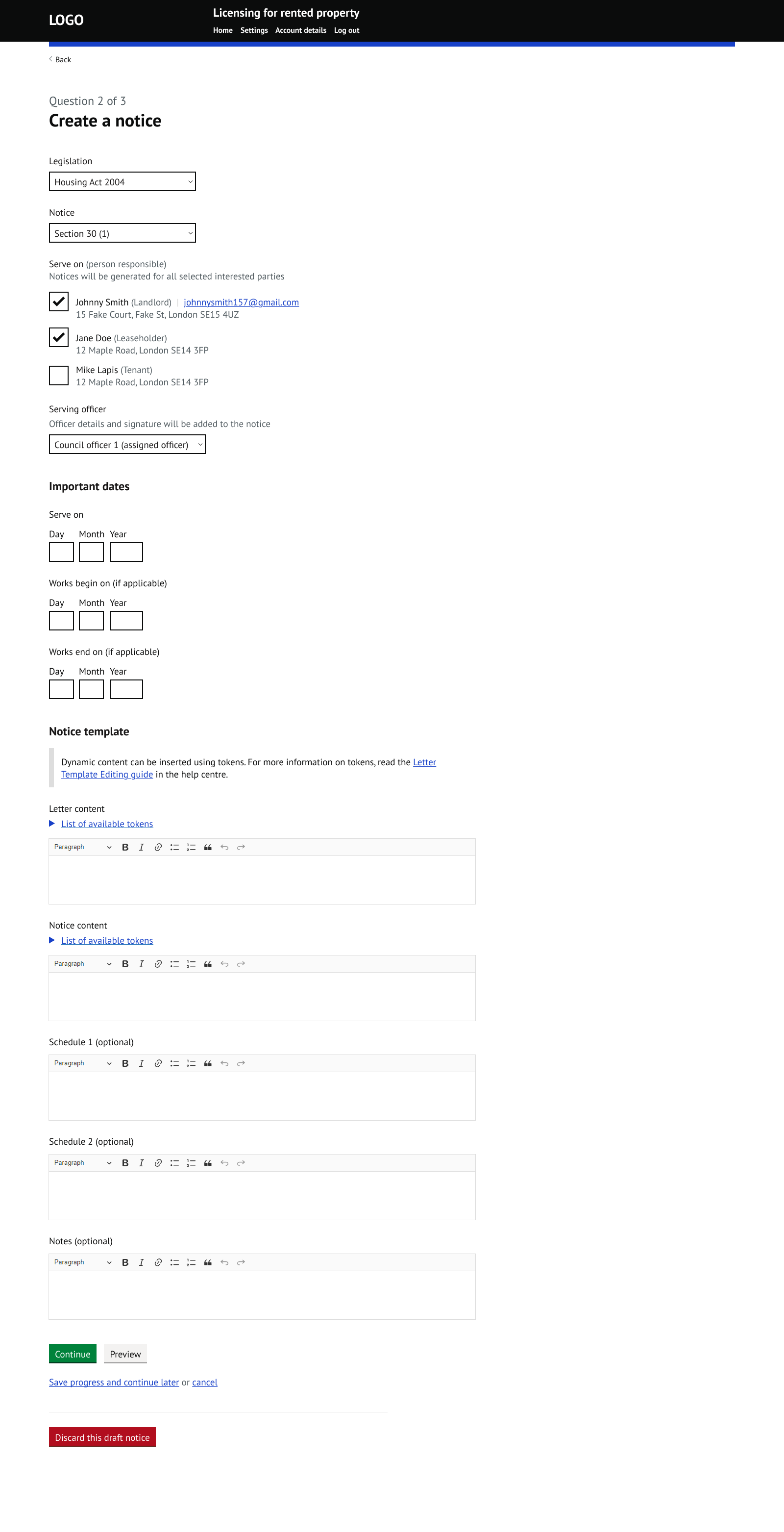
Question 2 - notice details, dates and content
- Choose the legislation and the notice.
- Choose who to serve the notice on. Interested parties are shown as checkboxes, with landlords first, then other parties such as freeholders and leaseholders, and tenants last. A notice will be generated for each selected party.
- Choose the serving officer. The officer's details and signature will be added to the notice.
- Enter the important dates: Serve on, Works begin on (if applicable) and Works end on (if applicable).
- Complete the notice template: Letter content, Notice content, Schedule 1 (optional), Schedule 2 (optional) and Notes (optional). Letter content and Notice content are required.
- Dynamic content can be inserted using tokens. Select 'List of available tokens' above each editor to see what is available. For more information on tokens, read the Letter Template Editing guide in the help centre.
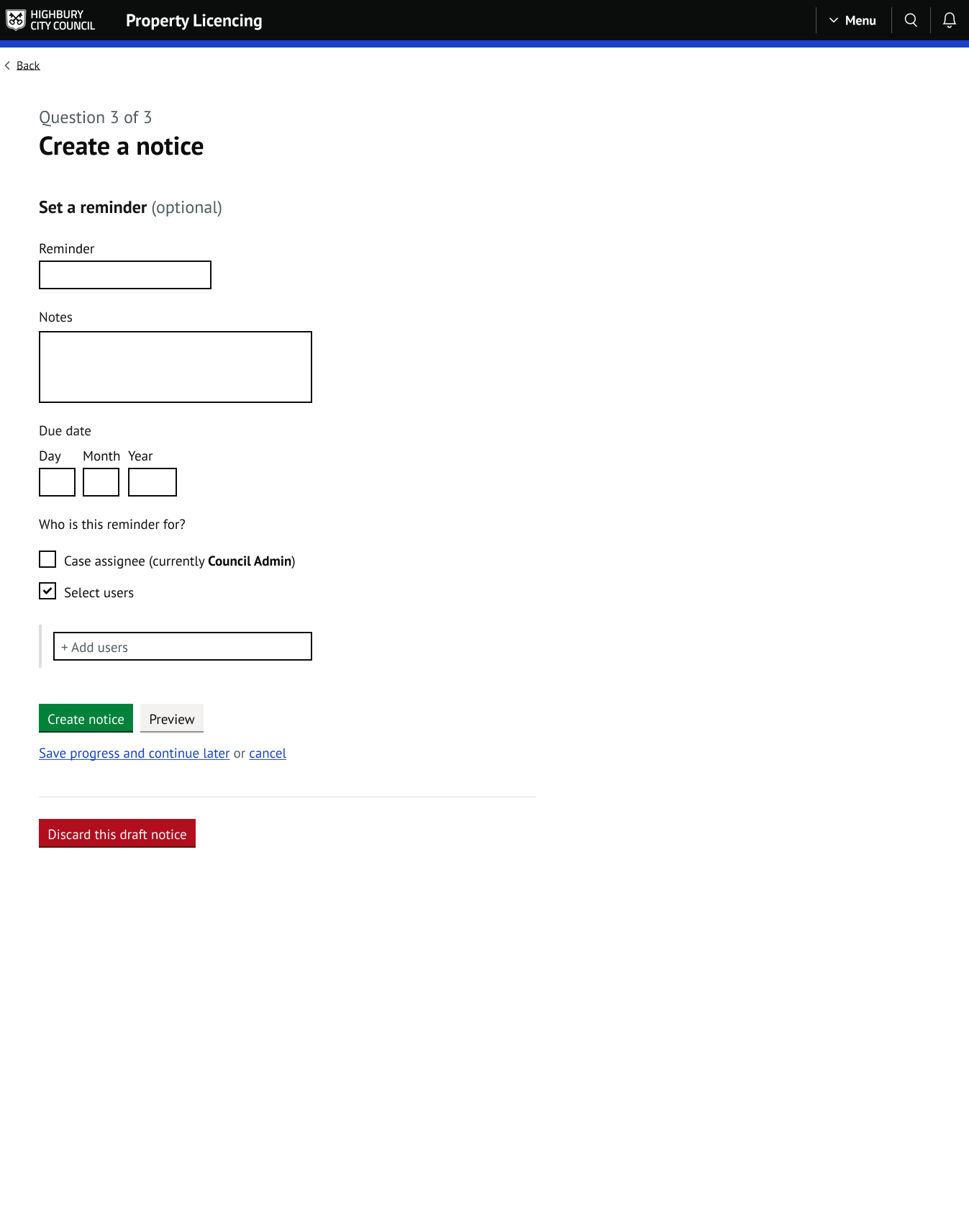
Question 3 - reminder (optional)
- You can set a reminder for the notice. If you leave all the fields blank, no reminder is created. If you fill in any field, the remaining required fields must be completed.
Each step has the following options:
Continuemoves to the next question. On the final step, this becomesCreate notice.Previewshows a preview of the notice, where available.Save progress and continue latersaves the notice as a draft so you can return to it (see section 3).cancelcloses the form. If you cancel before saving any progress, nothing is created.
When you complete the final step, the notice is created with the status 'Draft' and you are taken to the notice page. A PDF is generated for each selected interested party, but nothing is sent at this stage.
3. Saving progress and continuing later
You can select Save progress and continue later on any step. This saves everything you have entered so far, even if some fields are incomplete, and creates the notice with the status 'Draft'.
To continue, open the notice from the notice list. You will be taken back to the step where you left off.
Once you have saved progress, a red Discard this draft notice button appears at the bottom of the form. Selecting it deletes the incomplete notice entirely.
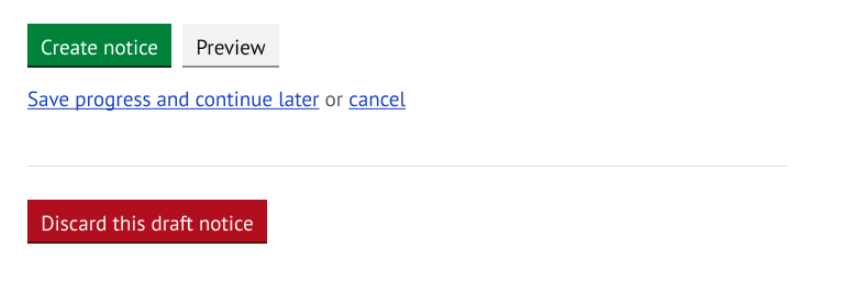
NOTE: Form fields are only validated when you press Continue or Preview. Saving progress skips validation, so you can save at any point.
4. The notice page (Draft)
After creating a notice, the notice page shows everything in one place:
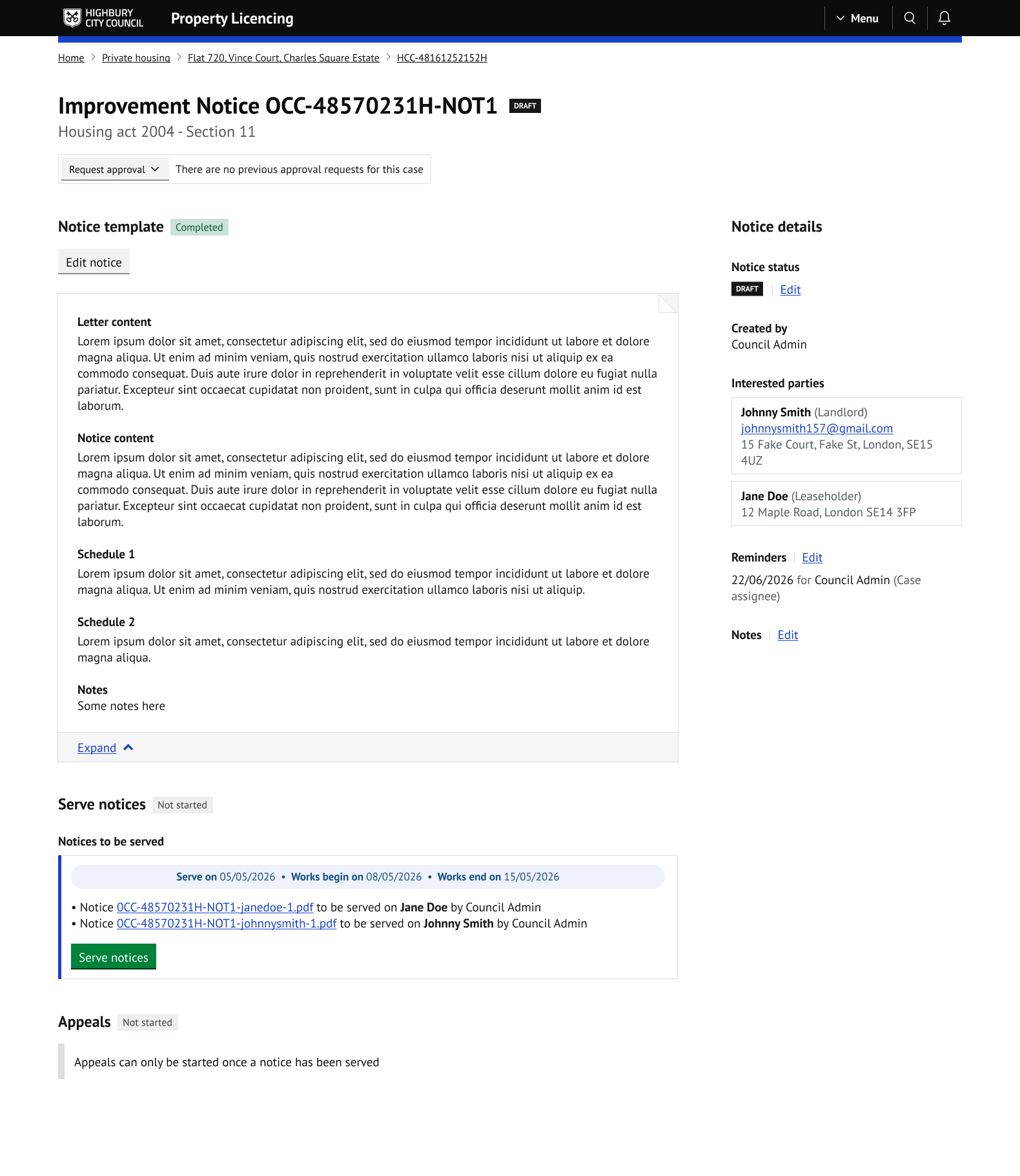
- Notice template - marked 'Completed', with an
Edit noticebutton and an expandable preview of the Letter content, Notice content, Schedules and Notes. - Serve notices - marked 'Not started'. 'Notices to be served' lists the important dates and the generated PDF for each interested party, with a
Serve noticesbutton. - Appeals - appeals can only be started once a notice has been served.
The sidebar shows the notice status ('Draft') with an Edit link, who created the notice, the interested parties, and any reminders and notes.
Editing a draft notice
Select Edit notice to change the important dates and the notice content. The options are Save changes, Preview and Cancel.
You cannot change the legislation, the notice, who it is served on, or the serving officer after the notice has been created. If these need to change, discard the notice and create a new one.
NOTE: Saving changes regenerates the notice PDFs for all interested parties.
5. Serving notices
Select Serve notices on the notice page to open the Serve notices page.
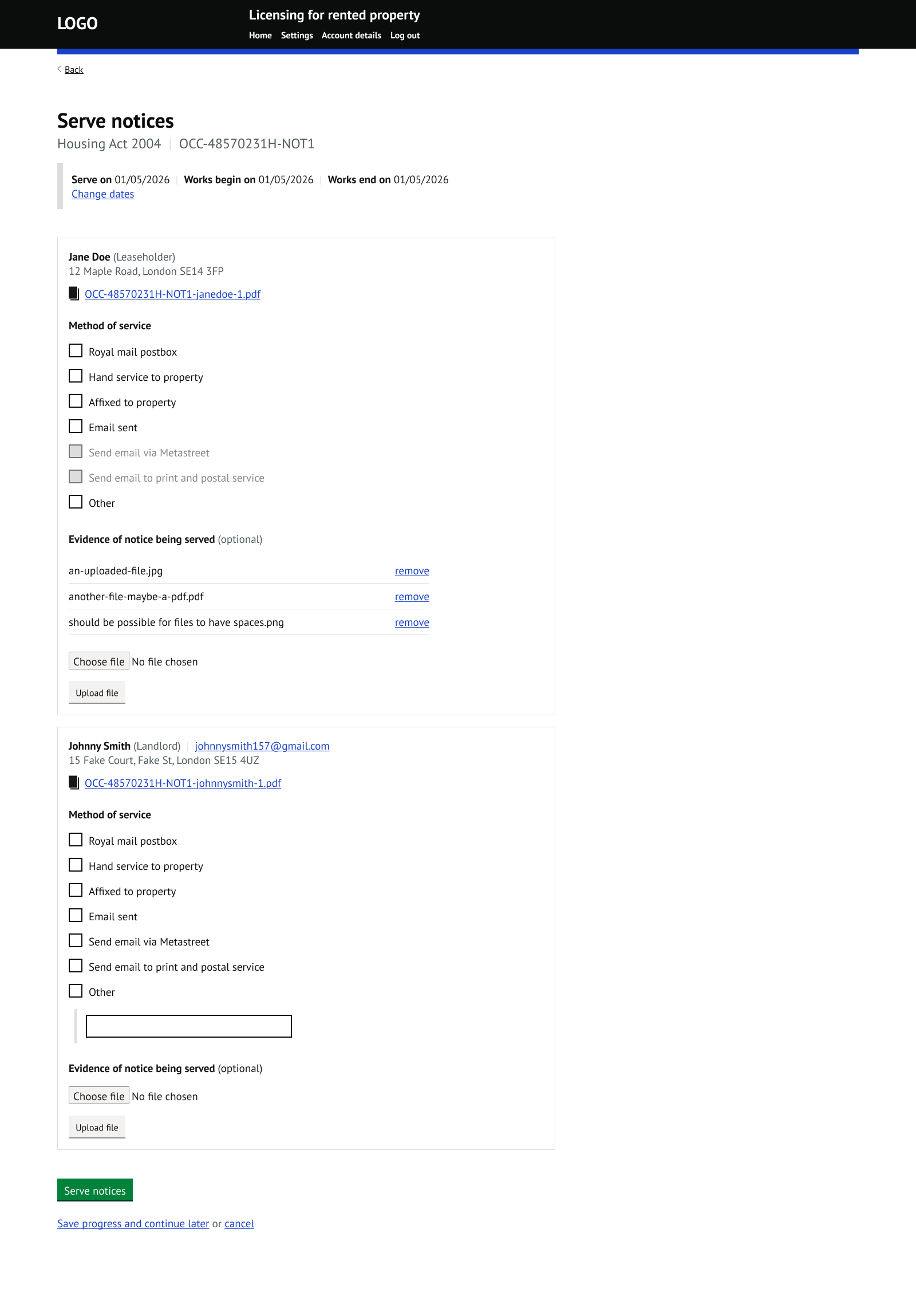
At the top, the page shows the important dates with a Change dates link.
For each interested party, the page shows their name, type, email address and postal address, the generated notice PDF, and the following options:
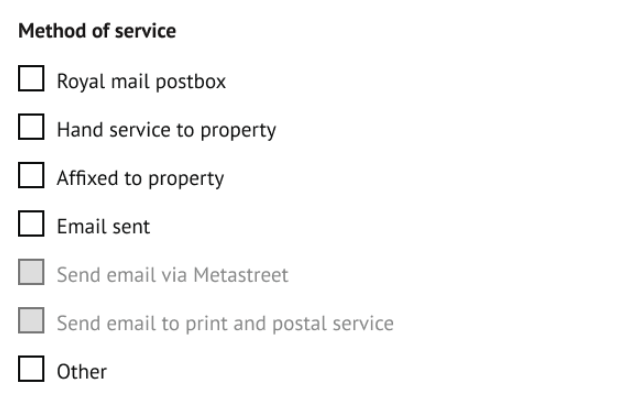
Method of service
Tick the methods used to serve the notice on this party:
- Royal mail postbox
- Hand service to property
- Affixed to property
- Email sent
- Send email via Metastreet
- Send email to print and postal service
- Other - selecting this shows a text box where you can describe the method
Most of these options are for record keeping only. The exceptions are:
- 'Send email via Metastreet' sends an email to the party with the notice PDF attached.
- 'Send email to print and postal service' sends the notice to your print and postal service.
If the party has no email address, both email options are disabled. Hovering over them shows the message 'Interested party has no email address'.
Evidence of notice being served (optional)
You can upload evidence files, for example a photo of the notice affixed to the property. Uploaded files are listed with a remove option. Evidence is for internal council use only and is not sent to the interested parties.
When you have finished, press Serve notices. You can also use Save progress and continue later or cancel.
NOTE: If the 'Serve on' date is in the past, the Serve notices button is disabled and a message asks you to amend the date before serving.
6. The notice page after serving (Served)
Once the notices have been served:
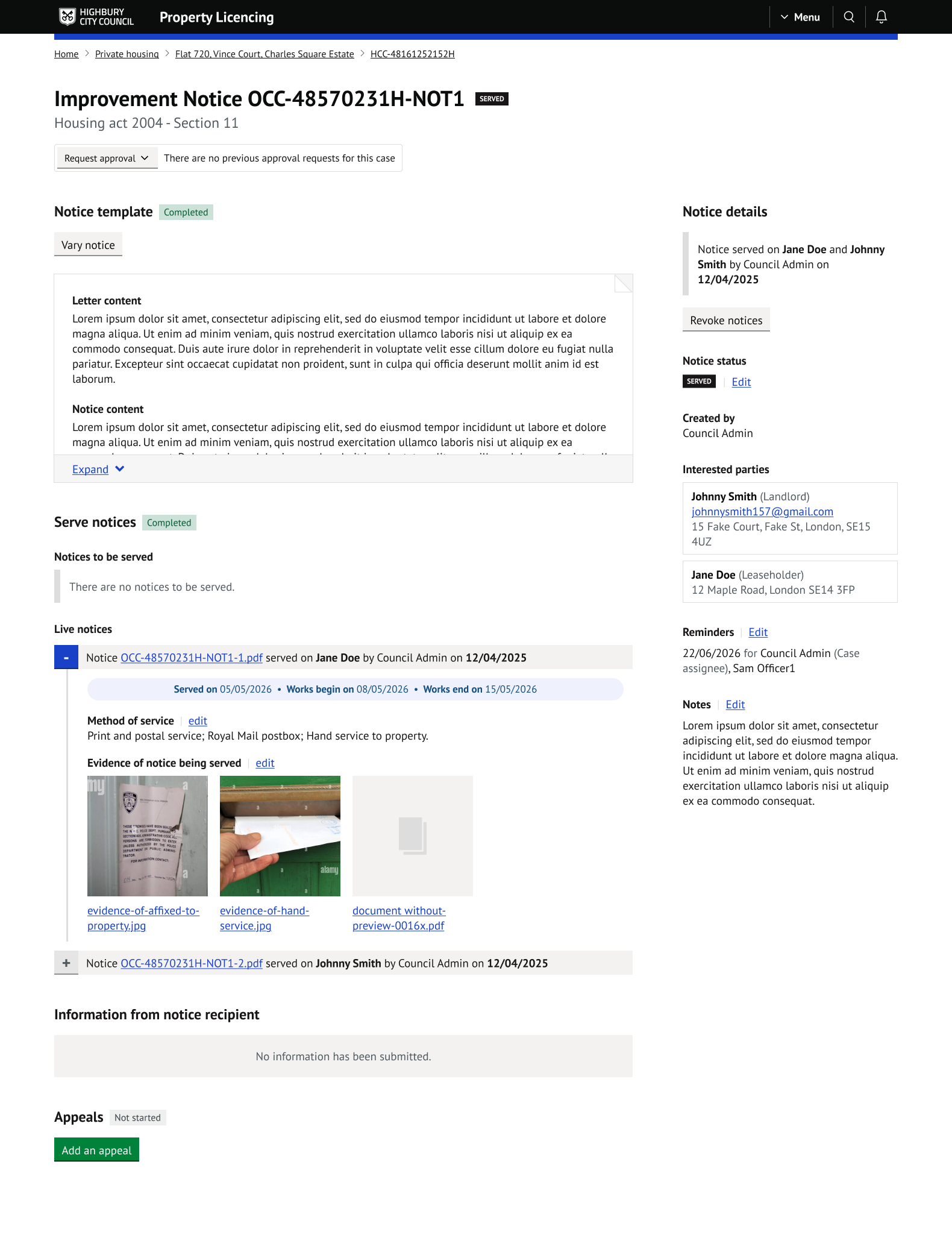
- The notice status changes to 'Served'.
- The
Edit noticebutton is replaced byVary notice(see section 8). - The Serve notices section is marked 'Completed' and 'Notices to be served' shows 'There are no notices to be served.'
- A Live notices section lists each served notice, showing the PDF, who it was served on, the serving officer and the date. Use the
+and-controls to expand each entry and see the dates, the method of service and the evidence files. Image files are shown as thumbnails. - Each expanded entry has
editlinks for the method of service and the evidence, so you can update the record after serving. These edits are for record keeping only. Nothing is re-sent, and the change is logged in the audit trail. - An Information from notice recipient section shows any documents and notes submitted by the recipient.
- The Appeals section now shows an
Add an appealbutton.
The sidebar shows a summary such as 'Notice served on Jane Doe and Johnny Smith by Council Admin on 12/04/2025', along with a Revoke notices button and an 'Add an extension' link. The summary always shows the most recent action, and earlier actions remain in the audit trail.
7. Notice statuses
A notice can have one of the following statuses:
- Draft
- Served
- Variation draft
- Variation served
- Complied
- Not complied
- Closed
- Revoked
'Draft', 'Served', 'Variation draft' and 'Variation served' are set automatically by the system as you create, serve and vary the notice. The remaining statuses are set manually.
Editing the status
Select the Edit link next to the status tag in the sidebar to open the Edit status page.
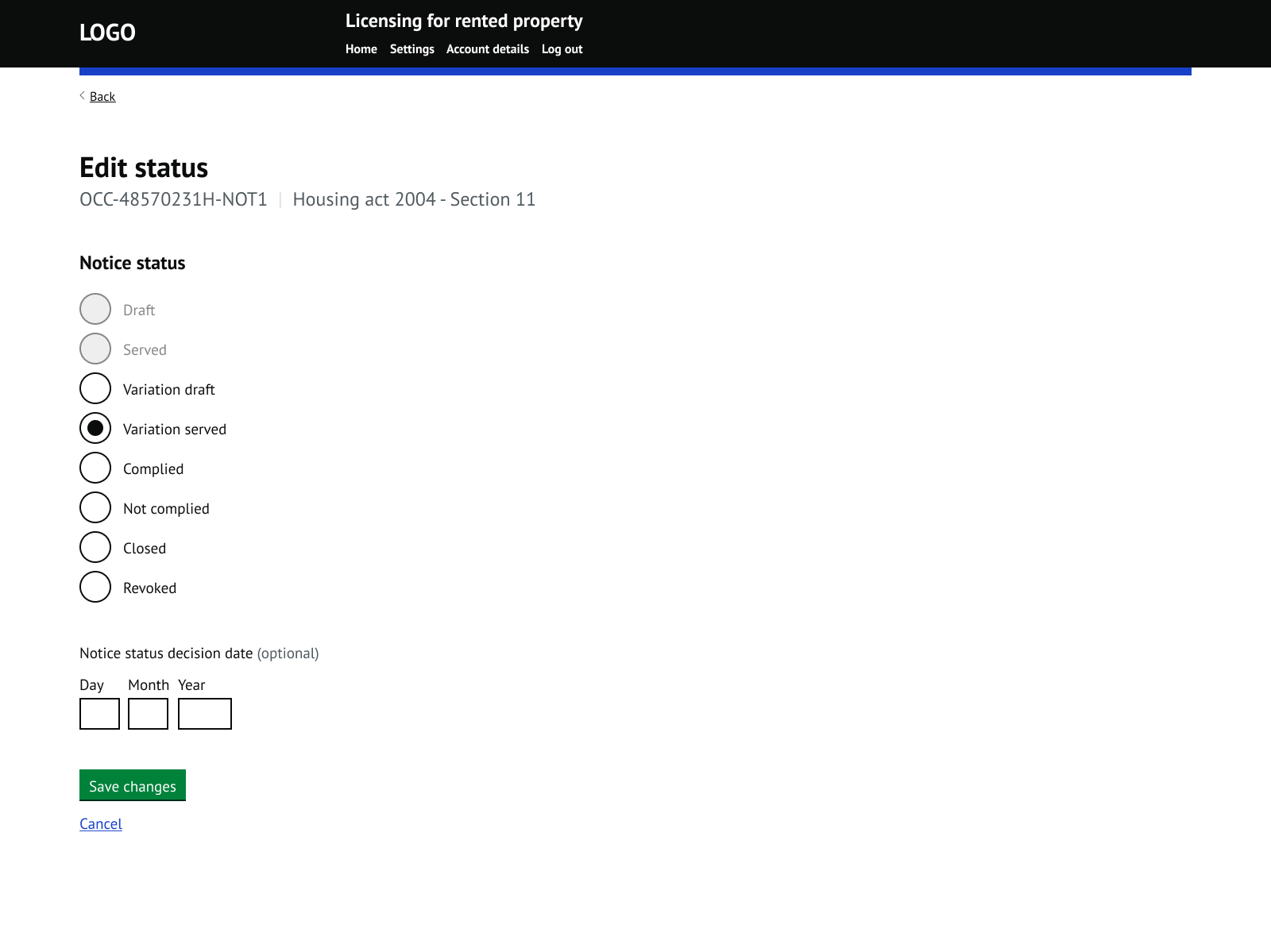
Choose a status, optionally enter a 'Notice status decision date', and press Save changes.
Some transitions are not allowed:
- Once a notice has been served through the system, it cannot be moved back to 'Draft'.
- Once a variation has been served, it cannot be moved back to 'Draft' or 'Served'.
NOTE: If the status is manually set to 'Served' but the notice has not actually been served through the system, the status tag is shown in red as a warning.
8. Varying a notice
Use a variation to change the content or dates of a notice after it has been served. Previous versions are kept as true copies for legal traceability.
On a served notice, select
Vary notice.Update the important dates and the notice content as needed. You cannot change the legislation, the notice, who it is served on, or the serving officer.
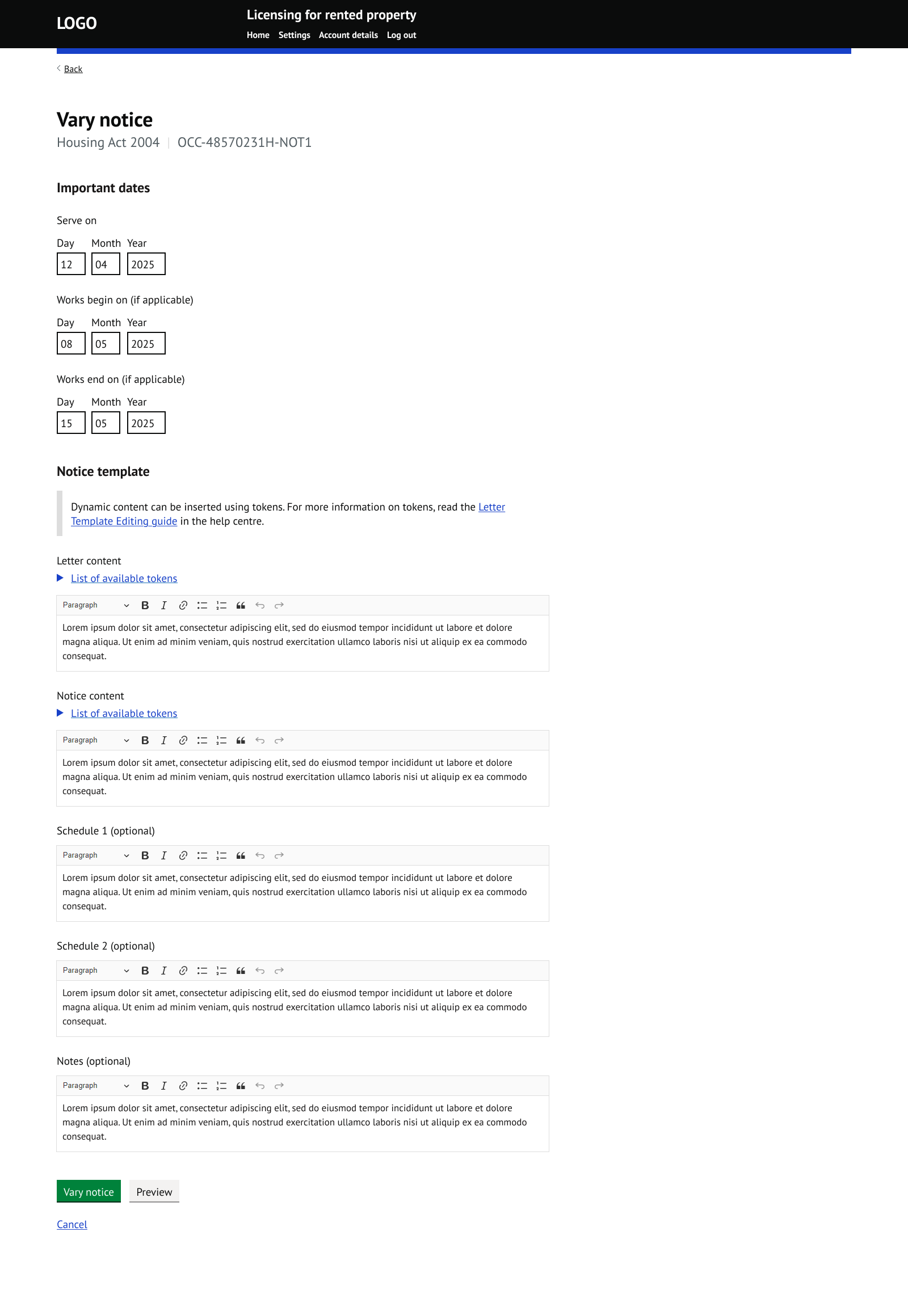
- Press
Vary noticeto save the variation.
Variation draft
The notice status changes to 'Variation draft' and the notice page shows a warning: 'Notice was varied on [date] but hasn't yet been served.' with two links:
Serve varied noticestakes you to the Serve notices page.revert changesremoves the pending variation.
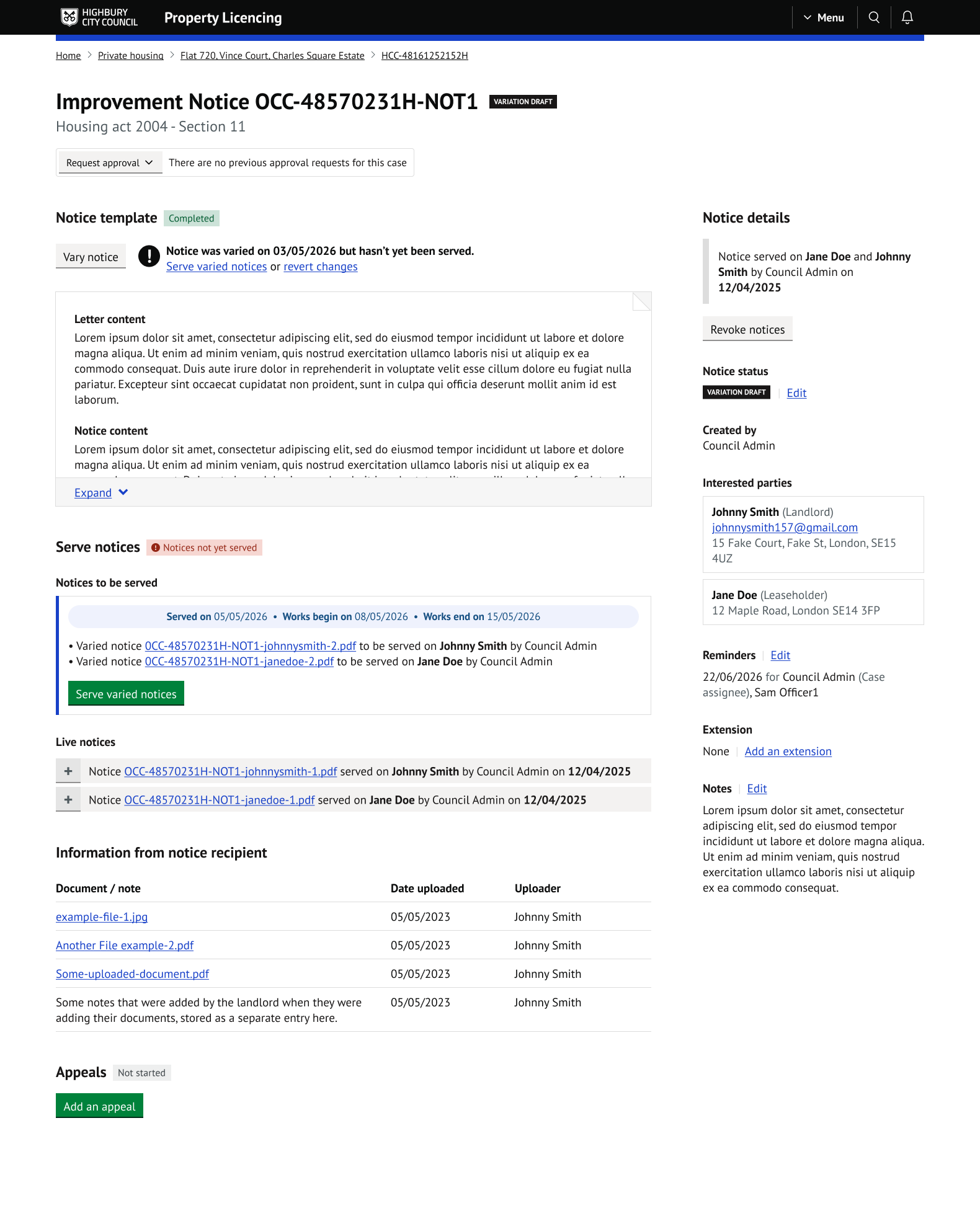
The Serve notices section shows a red 'Notices not yet served' tag, and the new varied PDFs are listed under 'Notices to be served' with a Serve varied notices button. The previously served notices remain listed under Live notices until the variation is served.
Reverting changes
Selecting revert changes asks you to confirm. Confirming removes the pending variation and returns the notice to its previous status ('Served' or 'Variation served').
Variation served
Serving the varied notices works in the same way as serving the original notice (see section 5). Once served:
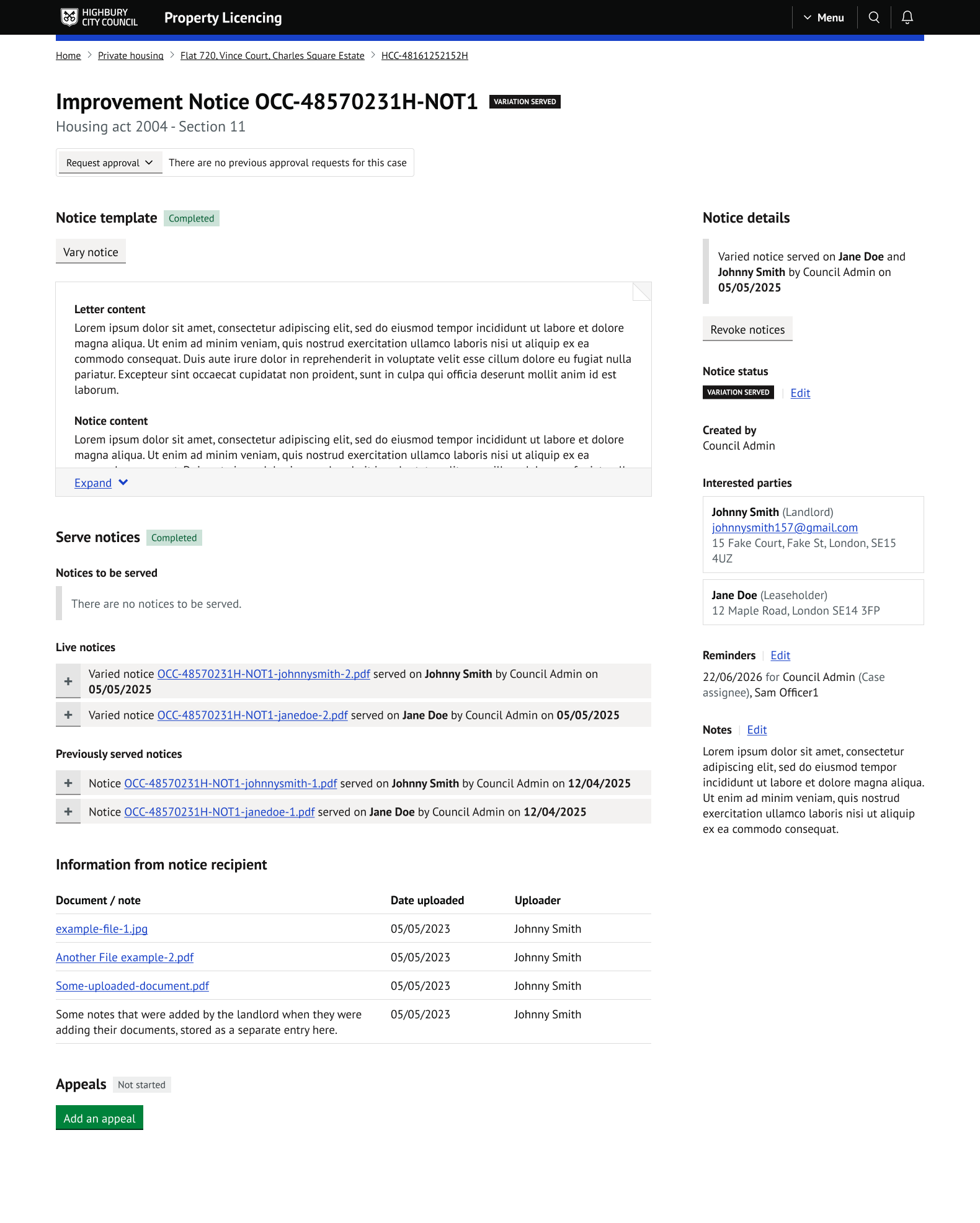
- The status changes to 'Variation served'.
- Live notices shows the newly served varied notices.
- A Previously served notices section lists all earlier versions.
- The sidebar summary updates, for example 'Varied notice served on Jane Doe and Johnny Smith by Council Admin on 05/05/2025'.
A notice can be varied as many times as needed. Each variation follows the same steps.
9. Revoking notices
You can revoke a served notice for one or more interested parties and serve formal revocation notices.
Selecting who to revoke for
On a served notice, select
Revoke noticesin the sidebar.The Revoke notices page lists the interested parties as checkboxes, all selected by default. Untick any parties you do not want to revoke for.
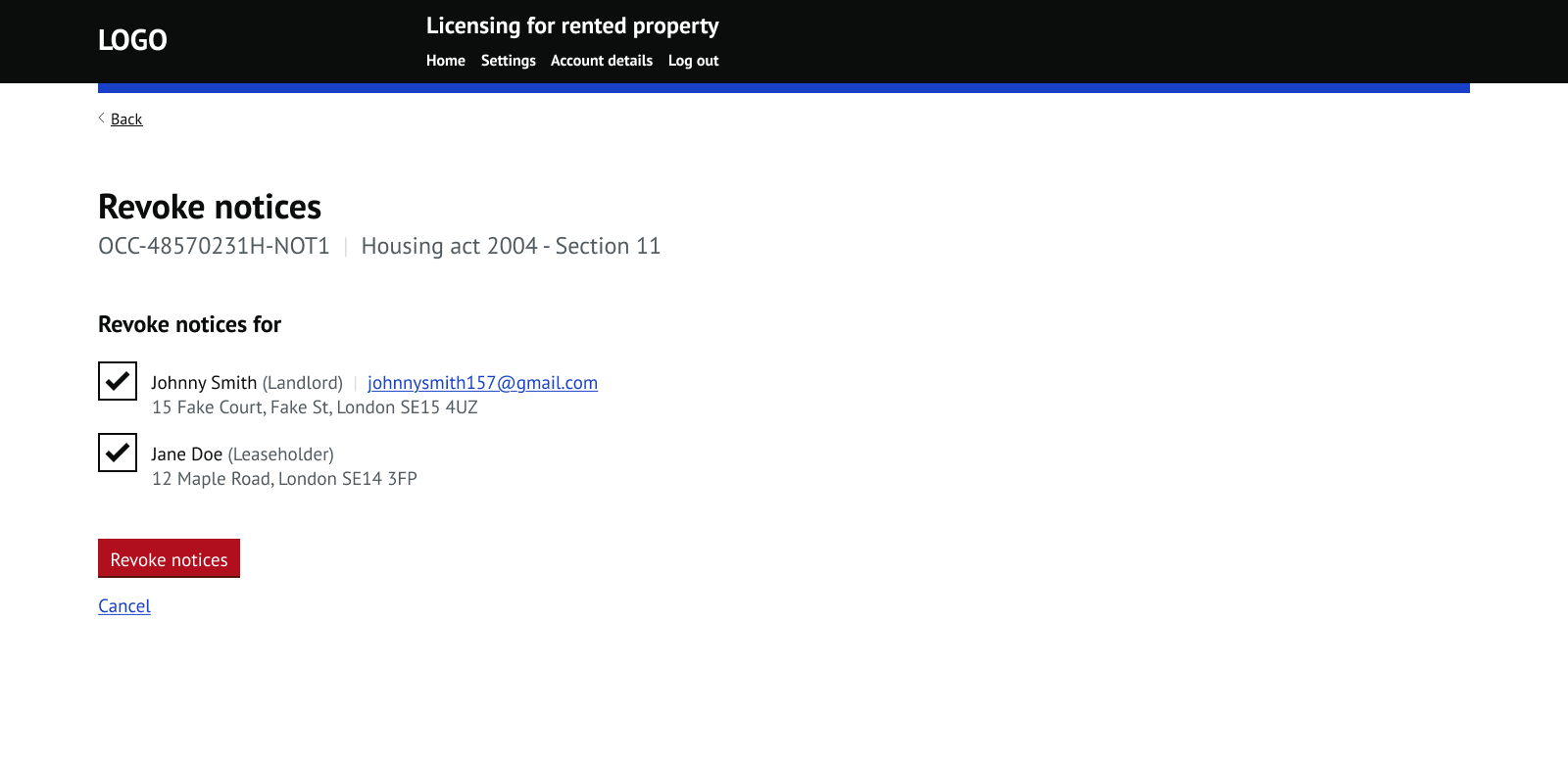
- Press the red
Revoke noticesbutton.
The notice page now shows a revocation notice to be served for each selected party, with a Serve revocation notices button and a Cancel revocation link. You can cancel the revocation at any point before the revocation notices are served.
Preparing the revocation notice
Selecting Serve revocation notices opens a template page where you can set the 'Serve on' date and complete the Letter content, Notice content and Notes.
If your council has a revocation template set up for this legislation and notice (see section 10), the content is pre-filled from the template.
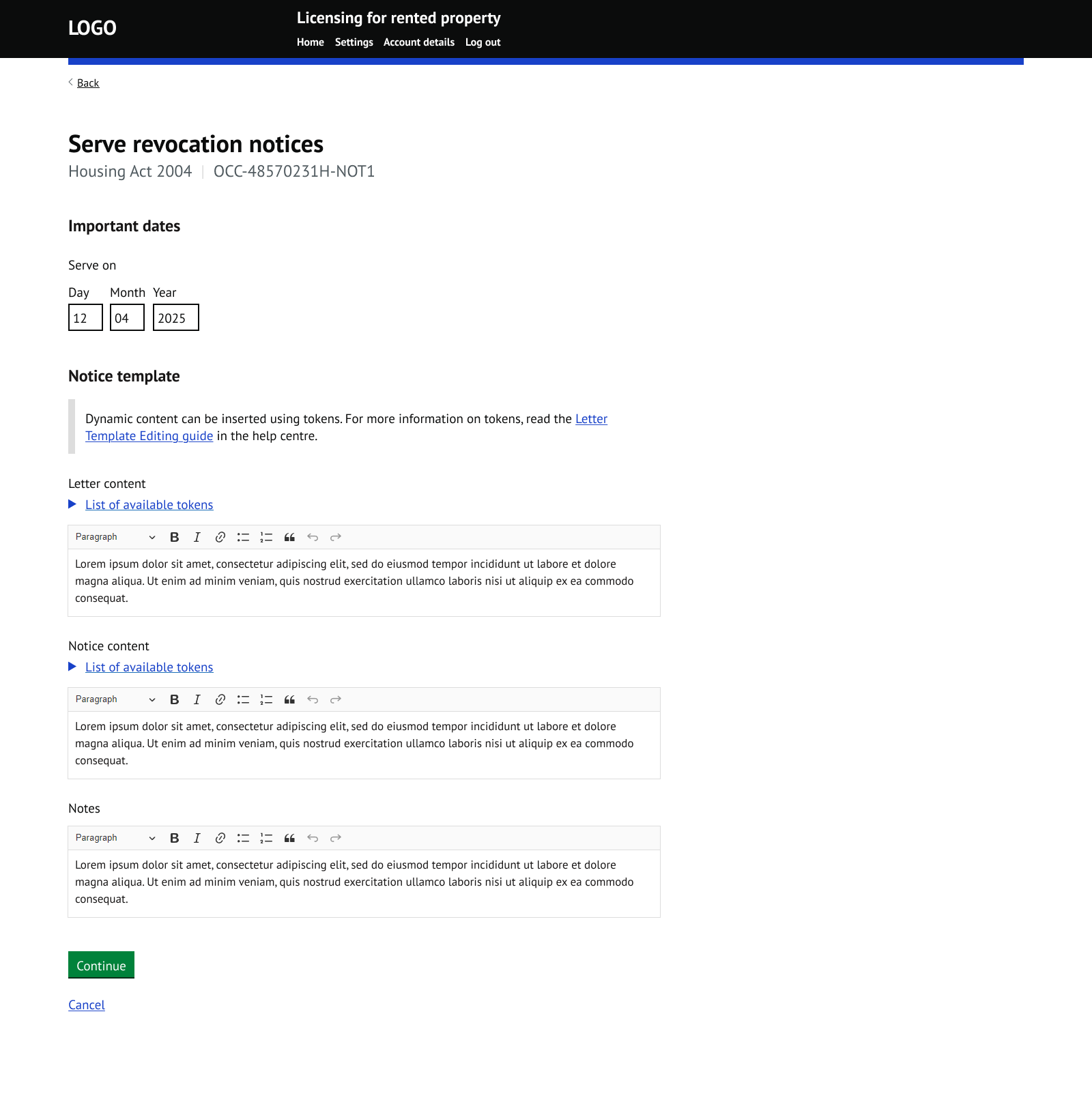
Press Continue to move to the serve page.
Serving the revocation notices
The serve page works in the same way as serving a notice. For each party being revoked, it shows their details, the generated revocation PDF, the method of service checkboxes and the optional evidence upload.
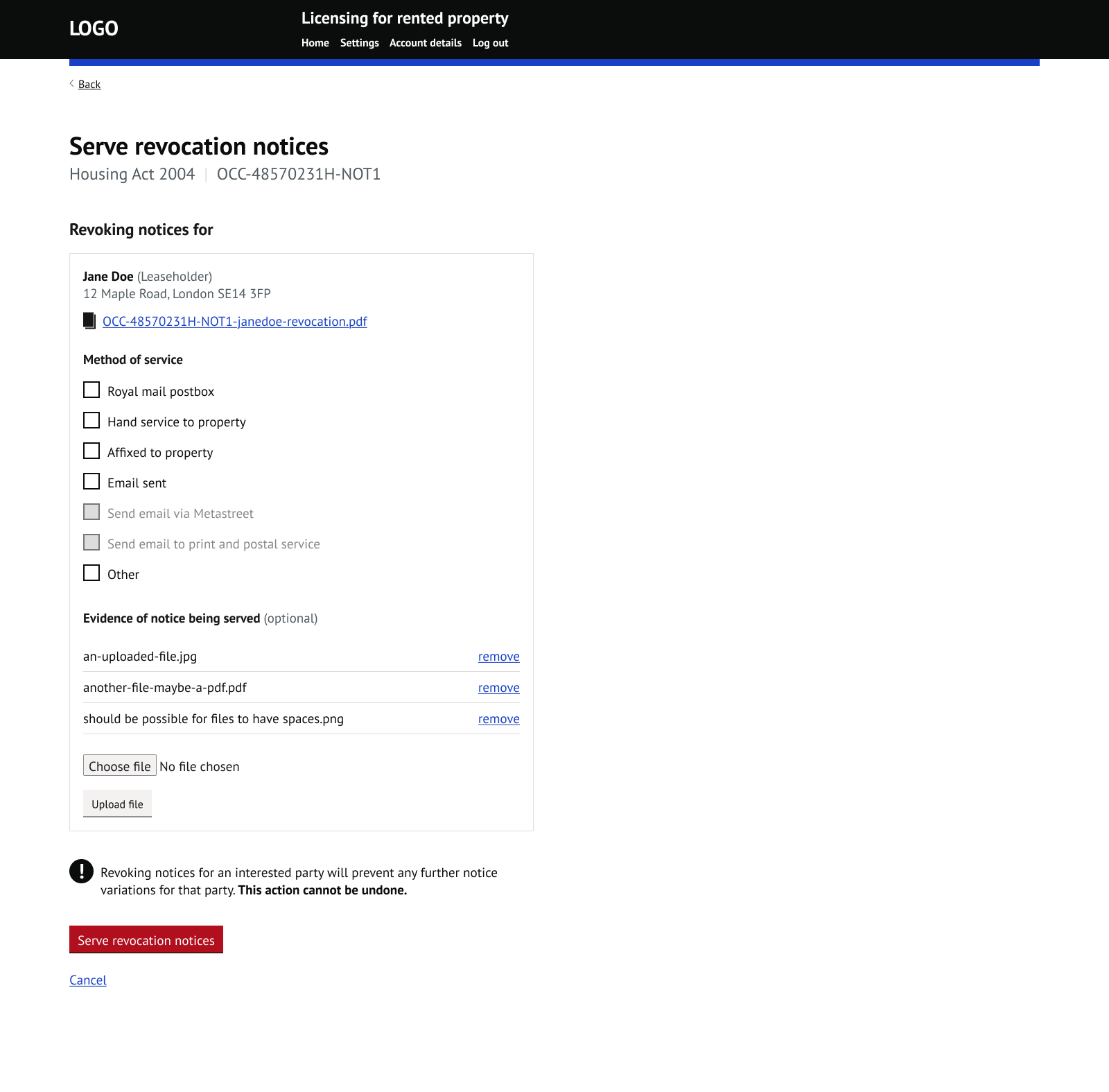
A warning is shown before you serve: 'Revoking notices for an interested party will prevent any further notice variations for that party. This action cannot be undone.'
Press the red Serve revocation notices button to serve.
After revocation
- Revoked parties are no longer servees. If the notice is varied again, no PDFs are generated for them.
- Notices for revoked parties are tagged 'Revoked' in the Live notices and Previously served notices lists.
- The revocation notice appears at the top of Live notices.
- The sidebar shows the revocation summary with a red border, for example 'Revocation notice served on Jane Doe by Council Admin on 05/05/2025'.
- If all parties are revoked, the notice is effectively closed.
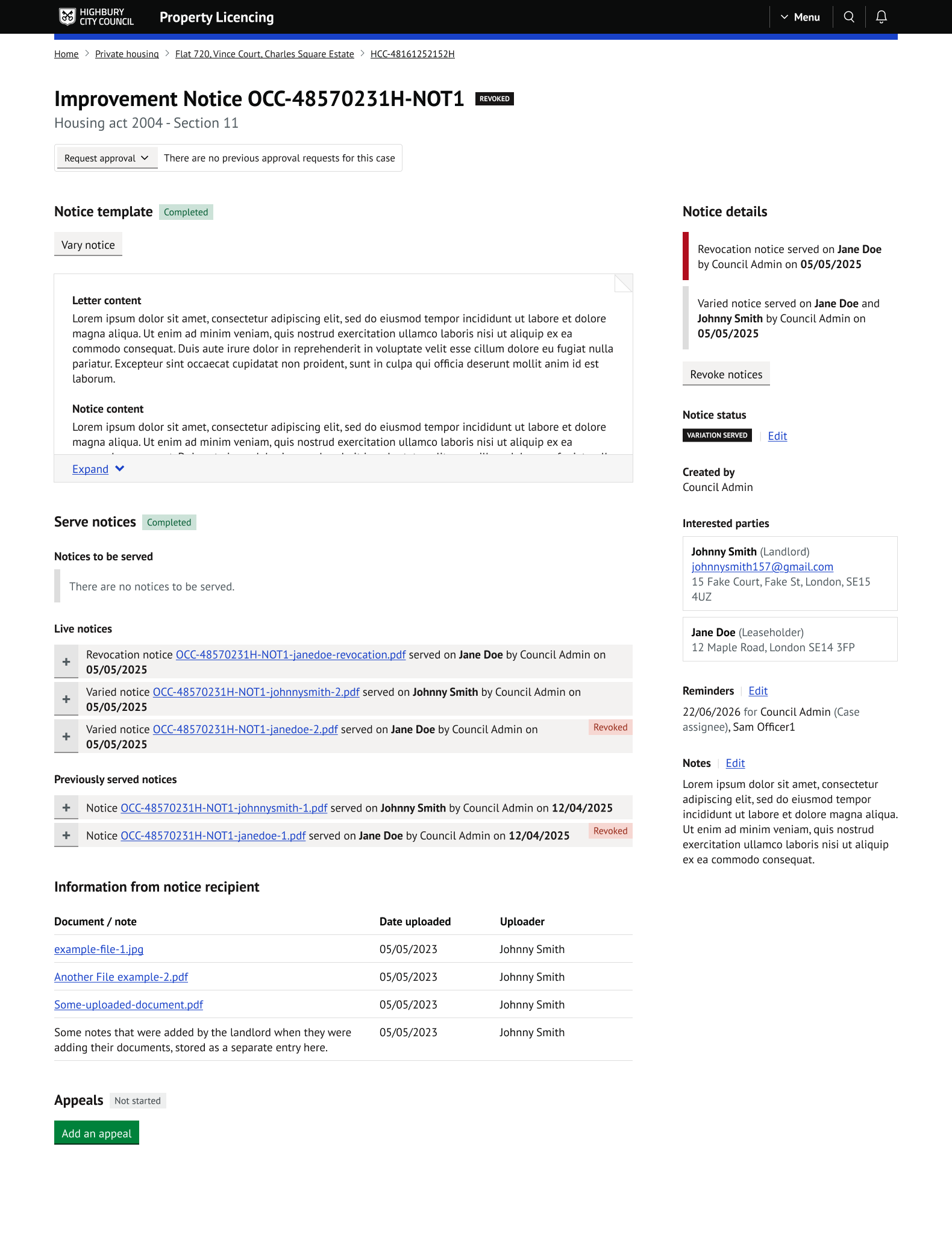
NOTE: Revoking notices does not automatically change the notice status to 'Revoked'. If you want the status to reflect this, change it manually using the Edit link next to the status (see section 7).
10. Notice templates in Settings
Notice templates can be found at:
Home > Settings > Correspondence > Letters > Notices
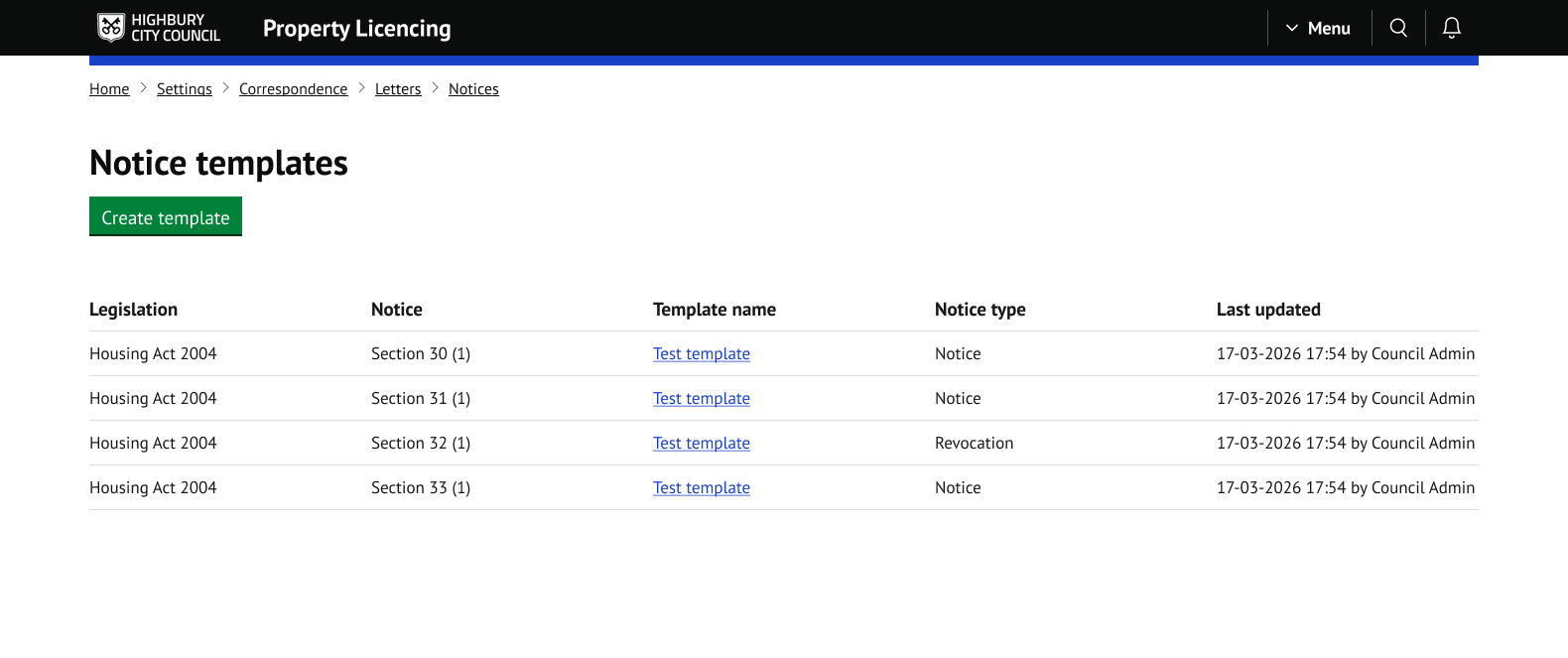
The template list shows the legislation, the notice, the template name, the notice type and when the template was last updated. There are two notice types:
- Notice - used when creating a notice.
- Revocation - used to pre-fill the revocation notice content when serving revocation notices.
To create a template, select Create template and complete the template name, council address, legislation, notice and notice type, followed by the Letter content, Notice content and the notes section.
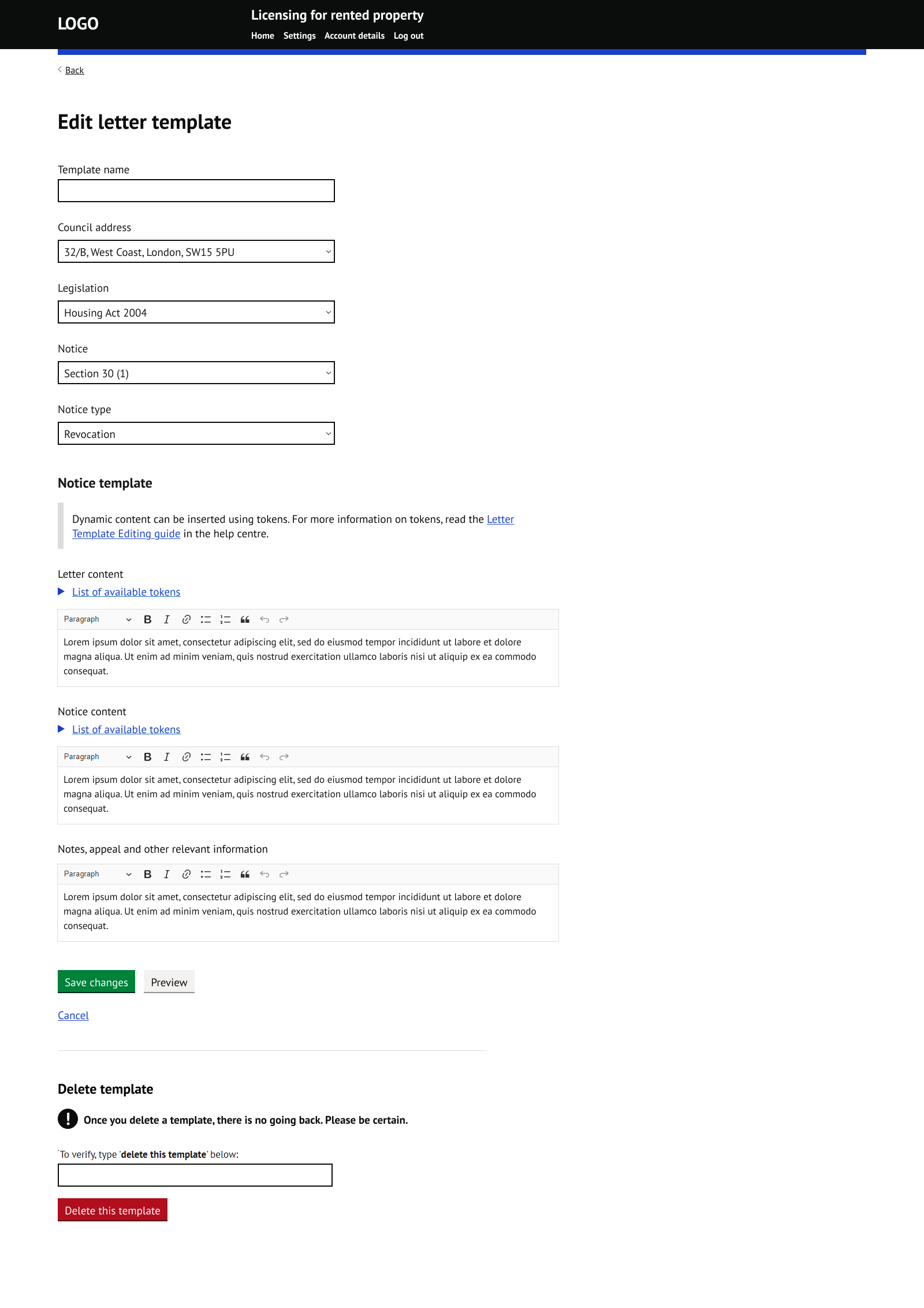
Only one revocation template can exist for each legislation and notice combination. If you try to create a second one, an error is shown at the top of the page.
To delete a template, type 'delete this template' in the confirmation box at the bottom of the edit page and press Delete this template. This action cannot be undone.
11. Audit trail
Every significant notice action creates its own entry in the service case audit trail, recording who performed the action and the date and time:
- Notice created
- Notice served (one entry per interested party)
- Variation served (one entry per interested party)
- Revocation served (one entry per interested party)
- Notice status changed automatically by the system (for example, from 'Draft' to 'Served' when a notice is served)
- Notice status changed manually by an officer
- Changes to the method of service after serving
- Information received from the notice recipient
Approval request actions are also recorded in the audit trail. See the Approval requests guide for details.
Was this article helpful?
That’s Great!
Thank you for your feedback
Sorry! We couldn't be helpful
Thank you for your feedback
Feedback sent
We appreciate your effort and will try to fix the article