1.Setting location
2. Form fields
3.Example of completed settings and front end form view
4.List of audit items
5.Archive
6.Default email template
The licence audit feature can be used to conduct a fully electronic audit of a licence by requesting information and documentation to assess the compliance of licence conditions.
This guide provides details on how to set-up the front-end form for the customer to supply the information required to assess compliance.
1. Setting location
The setting can be found here
Home > Settings > Configure forms > Licence audits.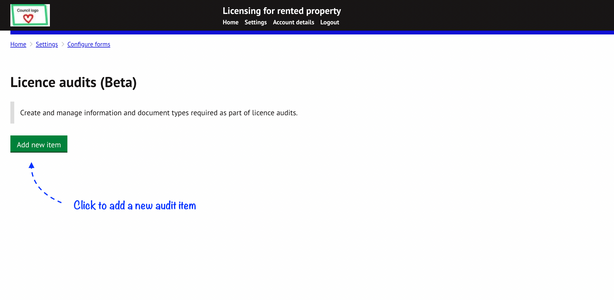
2. Form fields
You can create an audit item and specify the fields that are required for that specific item.
A file upload feature can be included for attachments of files. Additionally, data contained within the document to be supplied can also be requested separately by adding other fields in order to use this information for reporting and for data assessment purposes.
For example, if creating a Gas safety certificate as an audit item, you can set this item to require a file/attachment to be uploaded. You can also request the reference number and the expiry date to be specified by the landlord as well. This can help to inform future audits on expiry of documentation or allow analysis of this data for any relevant purpose.
2.1 Available fields
The following fields are available to be added to any document or information request item, should they be relevant.
These settings must be completed for each audit item separately.
- Check an attribute to include this as a field on the form
- At least one of the attributes shown below must be selected for each audit item created
- Check as many that apply for that audit item
- All fields that are included on the form will be mandatory and must be completed by the customer before each audit item will be marked as COMPLETE and the user can progress with submitting the form.
- Complete the fields below as required and press ‘save’ to store the new audit item
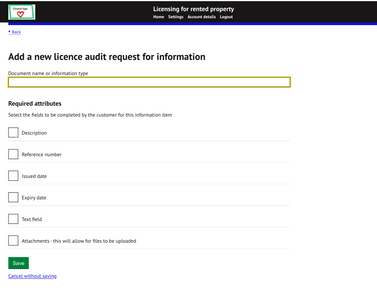
| Document name or information type | The name of the audit item i.e. document or information that is required to be supplied. This should be short, clear and concise for easy identification by the customer. The description field can be used to elaborate further. |
| Description | Describe the document / information required to ensure the customer understands what needs to be provided. |
| Reference number | Reference number related to the audit item (if applicable) |
| Issued date | The issue date of the document /certificate (if applicable) |
| Expiry date | The date of expiry of the document /certificate (if applicable) |
| Text field | A field to supply specific or additional information related to the audit item (if applicable). This field can also have bespoke text added should additional guidance be required for the customer on what is required here. |
| Attachments | File upload function to upload documentation/images etc (if applicable). |
3. Example of completed settings and front end form view
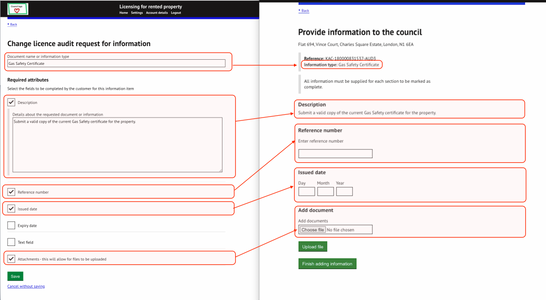
EXAMPLE A
- Image to left - Council settings for audit item
- Image to right - Customer view of audit item on online form
This example shows some of the fields selected in the settings. Fields that are not selected will not appear on the form to the customer.
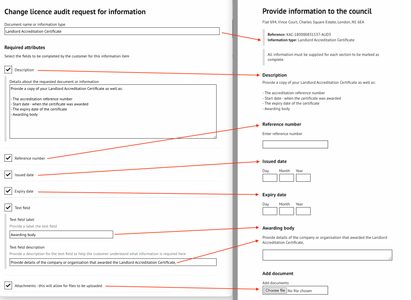
EXAMPLE B
- Image to left - Council settings for audit item
- Image to right - Customer view of audit item on online form
This example shows all of the fields selected in the settings.
4. List of Audit items
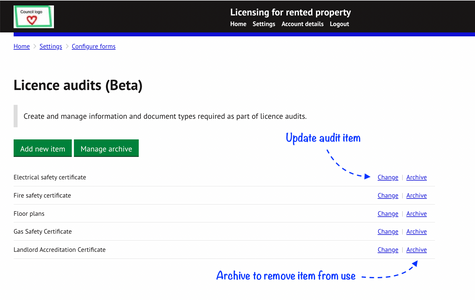
Any new audit items added will be shown on the Licence audit list where further items can be added or existing items managed.
- Click on ‘Update’ to edit field attributes for that item
- Archive items that are no longer in use.
5. Archive
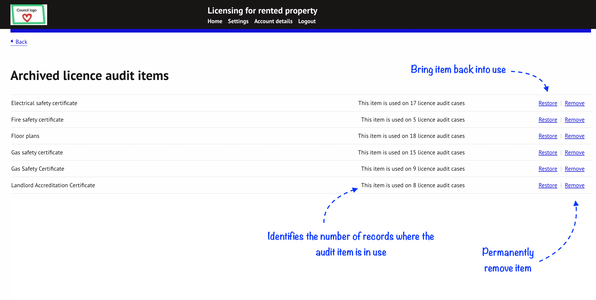
Archived items will not appear on the list of audit items an officer can request from a landlord on a new licence audit case.
- Items in the archive can be restored by clicking on corresponding `Restore` link
- Items can be permanently removed by clicking on `Remove`. A prompt will confirm this action before execution.
- Items that are identified as being 'in use' cannot be deleted.
6. Default email template
The standard text contained in the email sent to users can be edited to include text that is bespoke to your authority.
The template will also ensure consistency in the communication issued to customers related to licence audit.
The template can be located in the Settings:
Settings > Correspondence > Emails > Licence audit email templates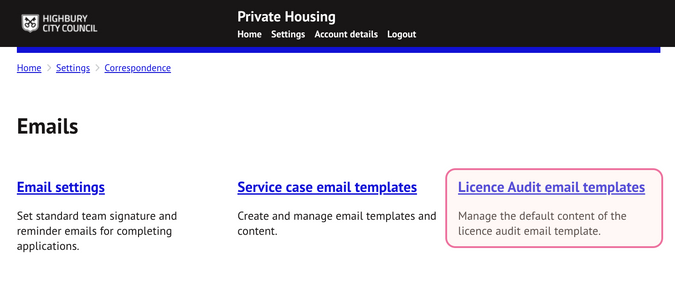
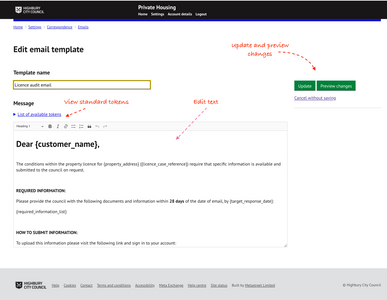
Edit text as required in the body of the email to be sent to customers.
Save and preview changes using the button on the right hand side of the page
Tokens
Tokens act as placeholders that auto insert live data within the email once sent.
The available tokens can be found by clicking on 'List of available tokens'.
The text next to each token provides a description of the data that will populate in its place once the email is sent.
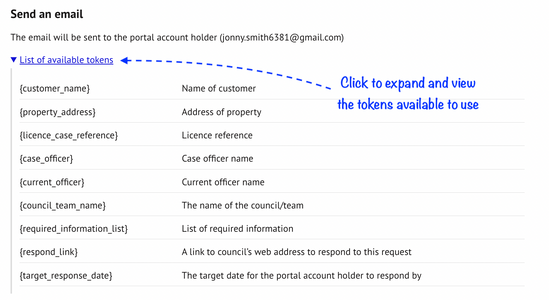
e.g.
{property_address_service_case} is the full property address the notice will relate to
{notice_reference} is the reference of the notice
{respond_link} is a unique link a customer can use to submit the specified information. The case officer will receive a notification by email when a response is received if this completed.
Inserting a token
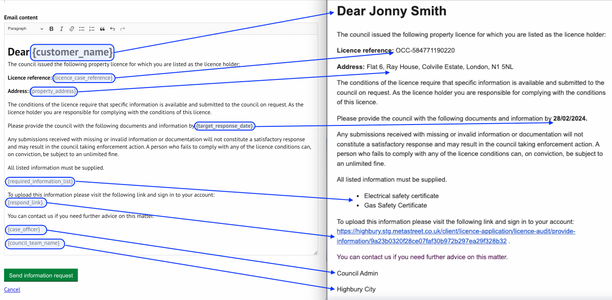
Copy the token required (in full, including the brackets) and insert this within the body of text in the specific position on the email you want this data to appear.
The following demonstrates how the tokens used (see image to left) will populate in the email sent (image to right) with the corresponding data for that record:
Was this article helpful?
That’s Great!
Thank you for your feedback
Sorry! We couldn't be helpful
Thank you for your feedback
Feedback sent
We appreciate your effort and will try to fix the article