Team management allows councils to organise officers into teams and assign cases based on team structure. Officers can be grouped by team category (e.g. 'Property licensing', 'PRS') and then into individual teams within each category (e.g. 'Selective licensing', 'Enforcement').
Admin users can set up and manage teams in Settings. All officers can use the Team management tab on the Private housing homepage to view workloads and manage case assignments.
In this guide you'll learn how to:
- Set up team categories and teams
- Add and remove officers from teams
- Edit and delete teams and categories
- Assign officers to cases using teams
- Switch officer availability
- Use the Team management tab to view workloads
- View individual officer pages and unassigned cases
- Filter cases by team
1. Setting location
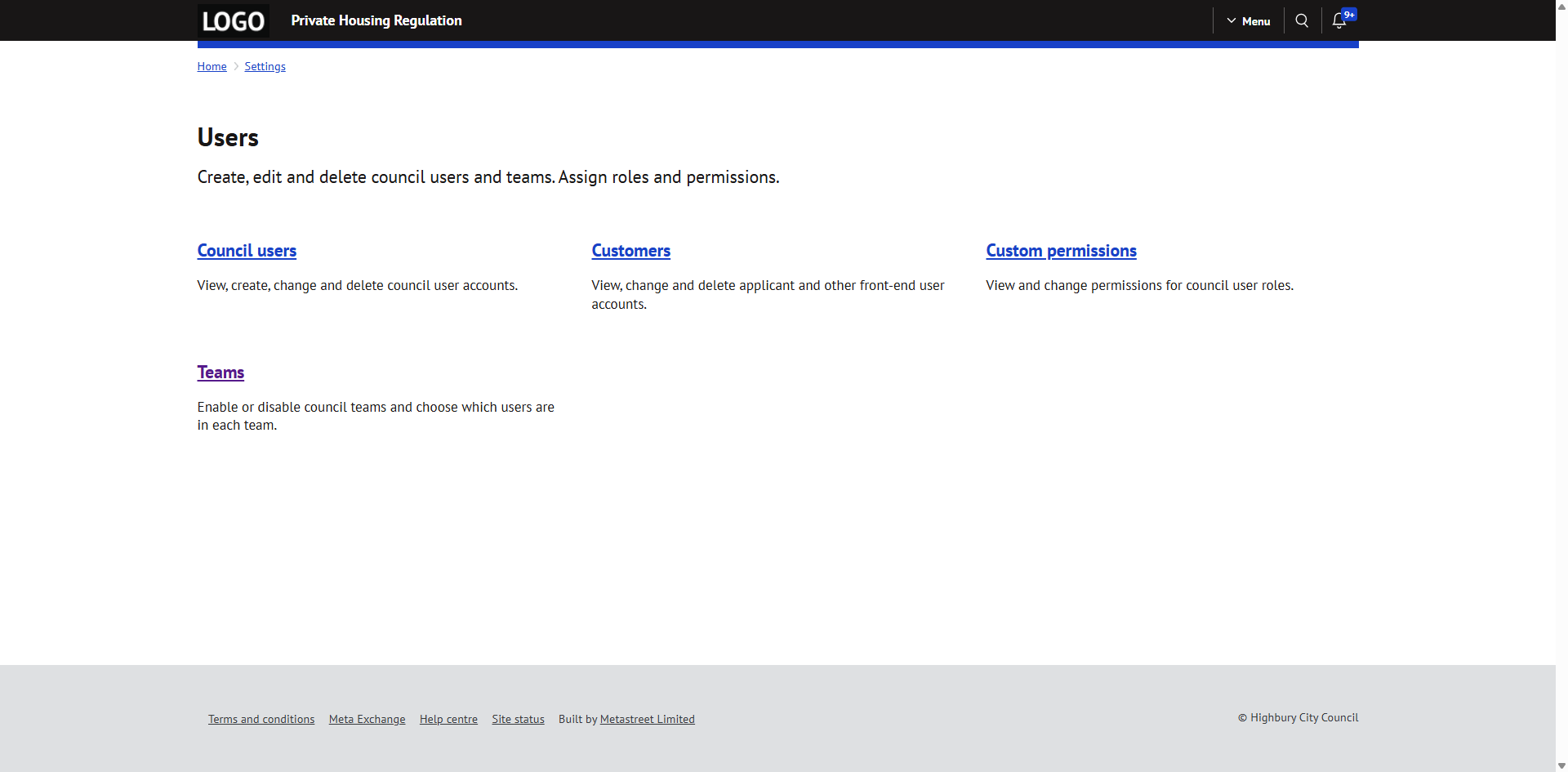
Team management settings can be found at:
Home > Settings > Users & teams > Teams
2. Understanding teams
Teams are organised into a two-level structure:
1. Team category – a broad grouping such as 'Property licensing' or 'PRS'
2. Team – a specific team within a category such as 'Selective licensing' or 'Enforcement'
Officers are then added to individual teams. An officer can belong to more than one team.
If you don't require separate groupings, you could create a single non-specific category, such as 'General' or your council's name.
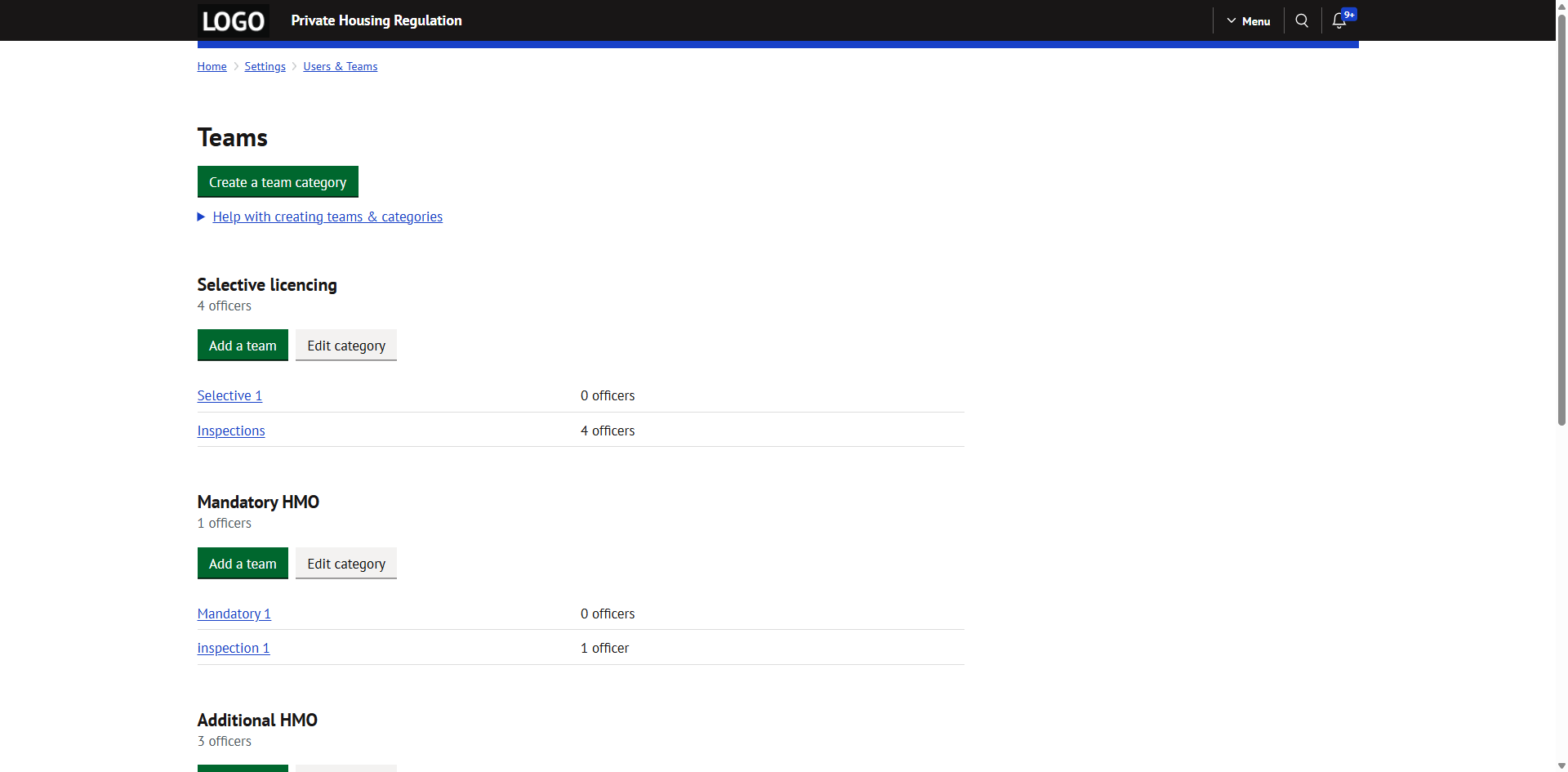
NOTE: Teams will be disabled until at least one category and one team have been created.
3. First-time setup
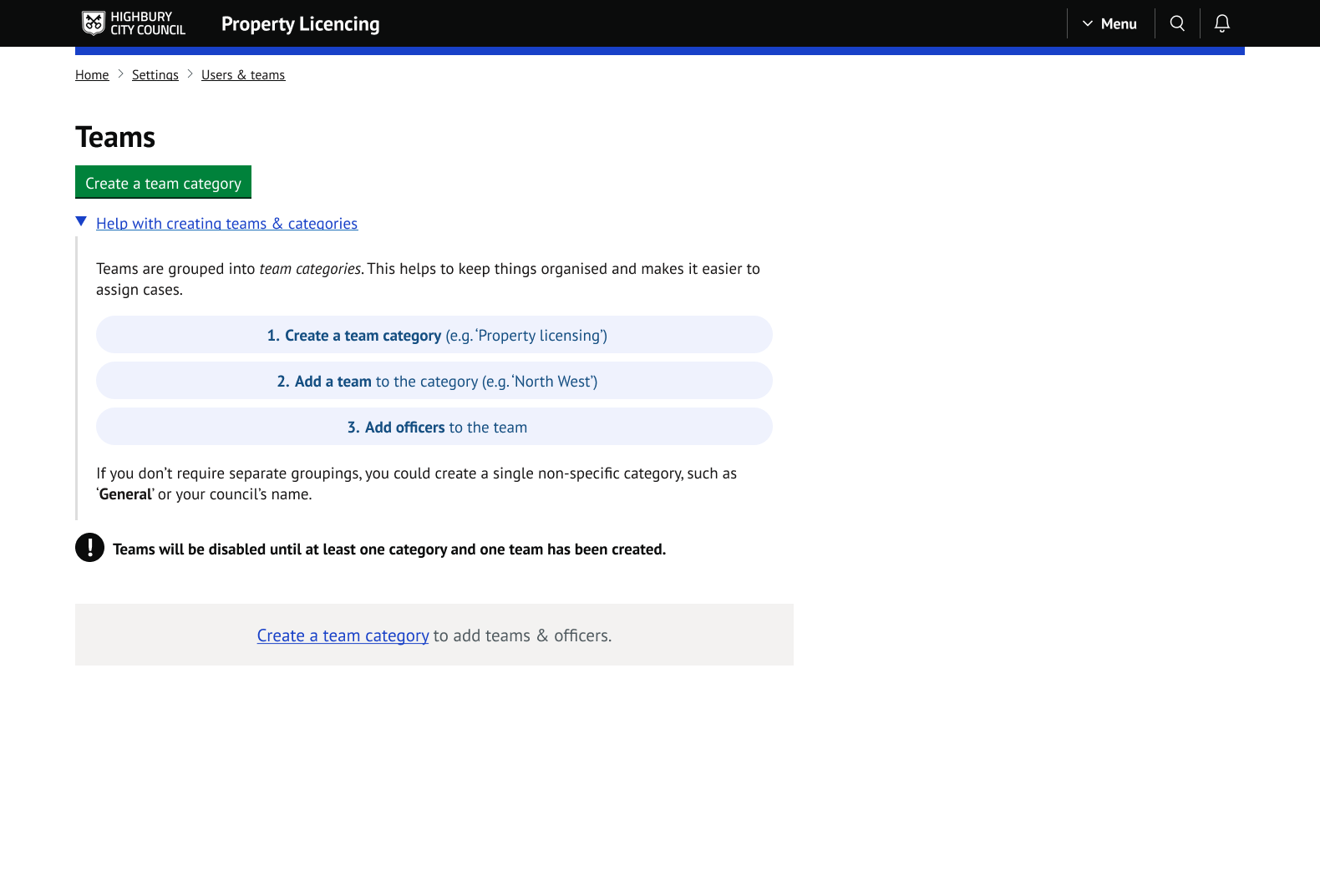
When no categories or teams exist, the Teams page will display an empty state with guidance on how to get started.
The setup follows three steps:
1. Create a team category (e.g. 'Property licensing')
2. Add a team to the category (e.g. 'North West')
3. Add officers to the team
4. Create a team category
Go to Home > Settings > Users & teams > Teams.
Select `Create a team category`.
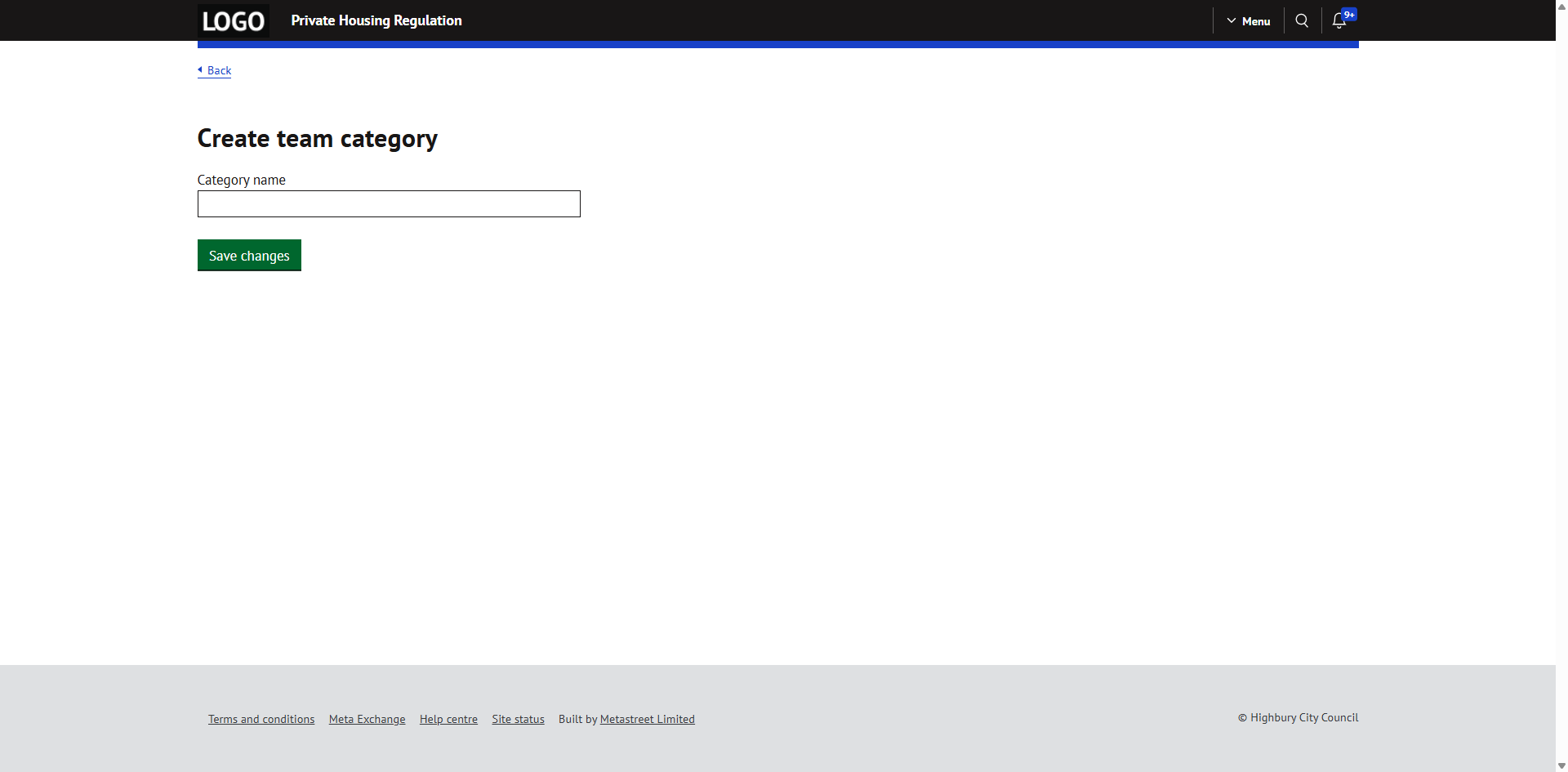
Enter the category name and press `Save changes`.
The new category will appear on the Teams page. You can now add teams within it.
5. Edit a team category
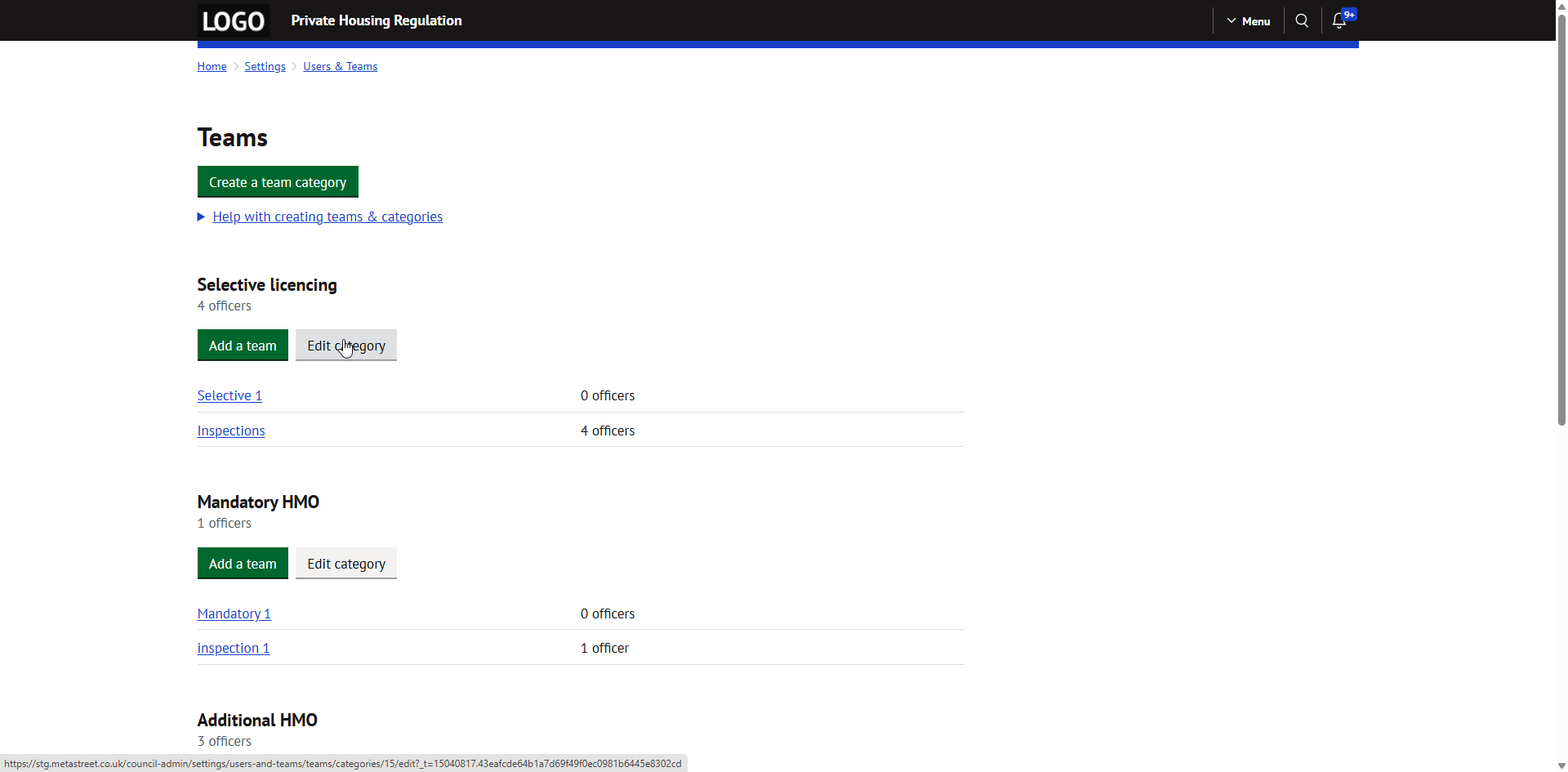
To edit a category name, click `Edit category` next to the relevant category on the Teams page.
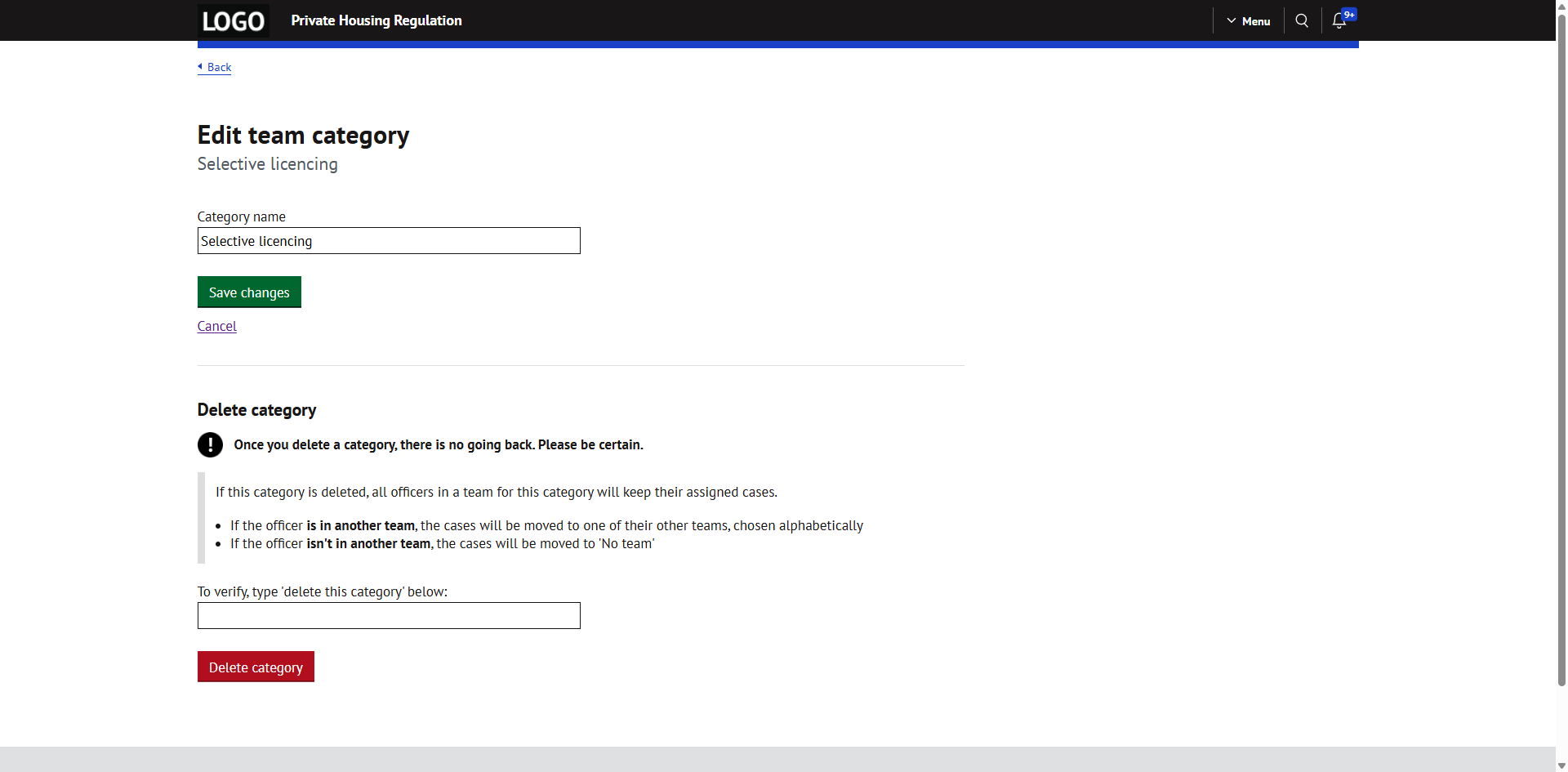
Update the category name and press `Save changes`.
6. Delete a team category
To delete a category, click `Edit category` next to the relevant category.
A 'Delete category' section is shown at the bottom of the page.
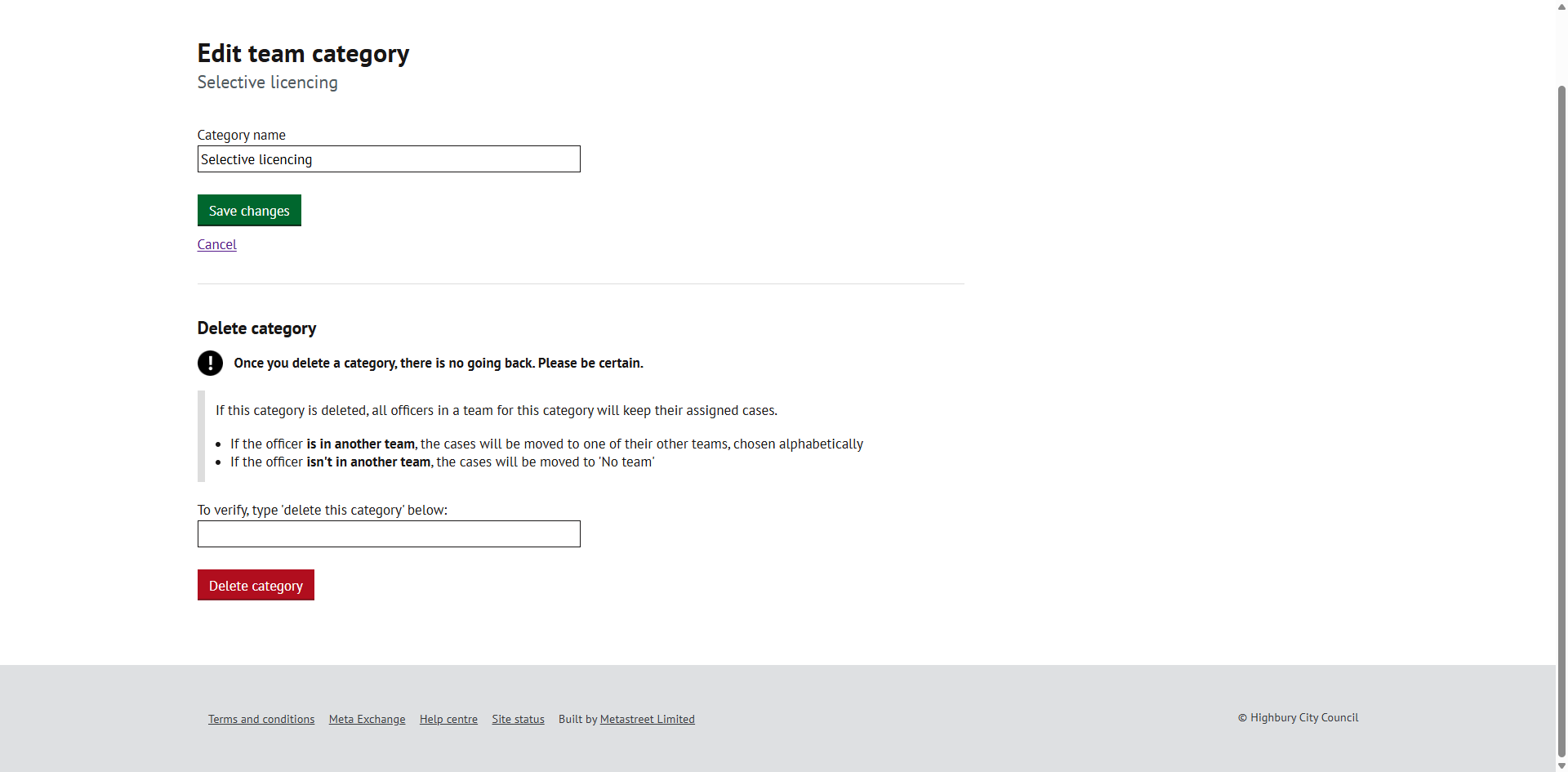
To confirm the deletion, type `delete this category` in the text box and press `Delete category`.
This action cannot be undone.
When a category is deleted:
- All officers in teams within this category will keep their assigned cases
- If the officer is also in another team, cases will be moved to one of their other teams (chosen alphabetically)
- If the officer is not in another team, cases will be moved to 'No team'
There is also an option to delete any auto-assign rules related to this category's teams.
7. Create a team
On the Teams page, select `Add a team` within the relevant category.
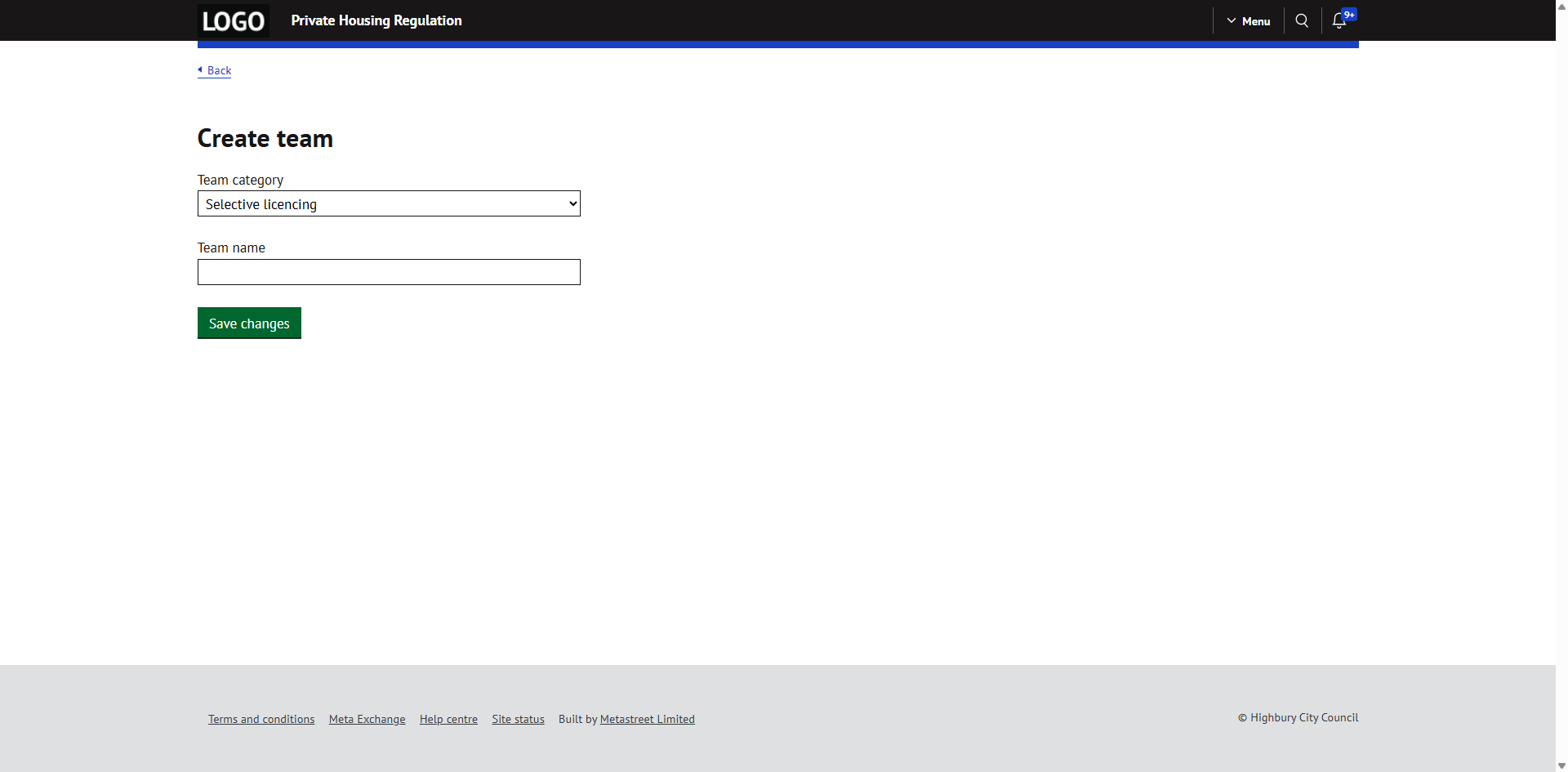
Enter the team name and press `Save changes`.
The new team will appear under the category. You can now add officers to it.
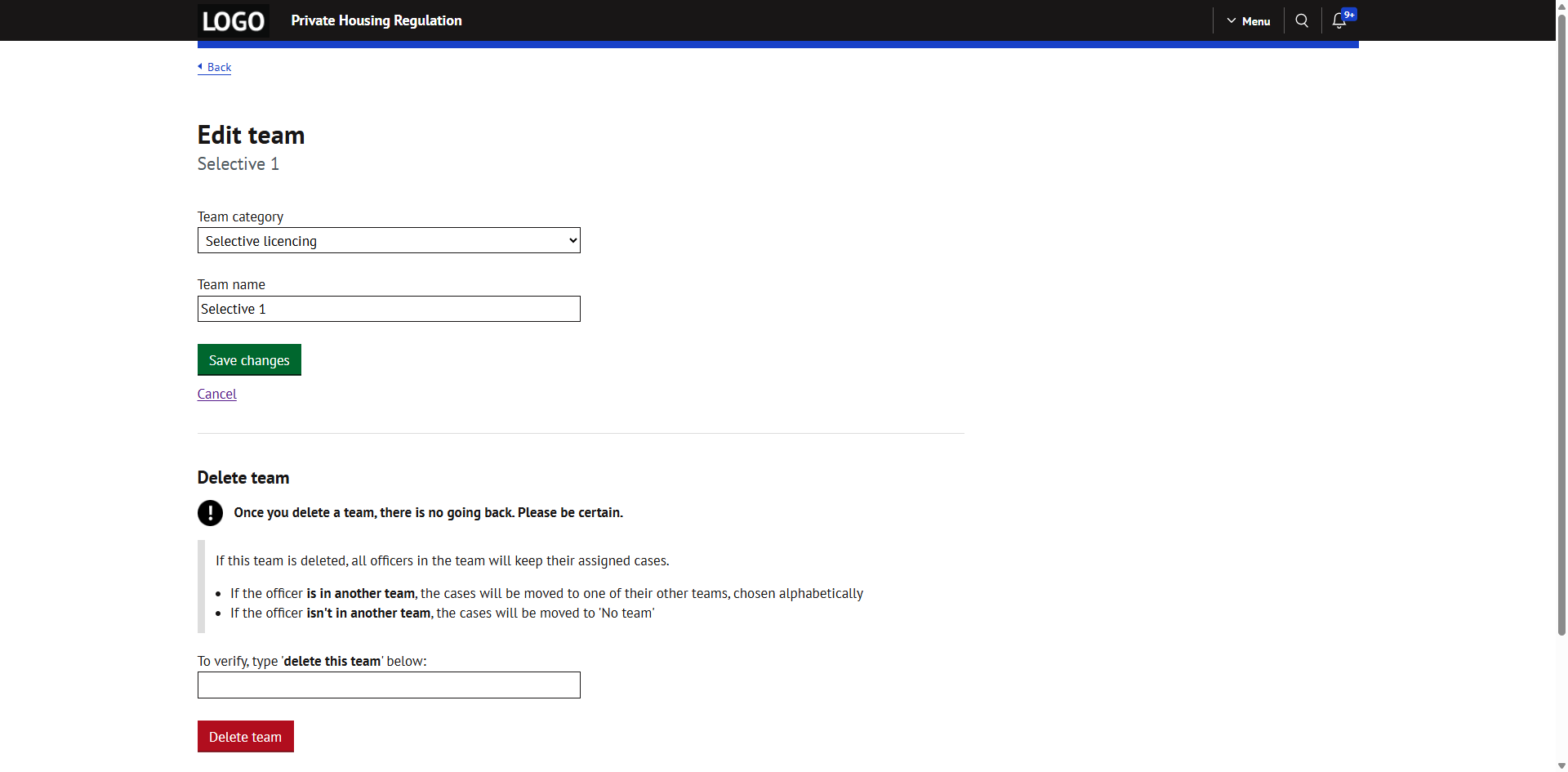
8. Edit a team
To edit a team name, go to the team's page and select `Edit team`.
Update the team name and press `Save changes`.
9. Delete a team
To delete a team, go to the team's page and select `Edit team`.
A 'Delete team' section is shown at the bottom of the page.
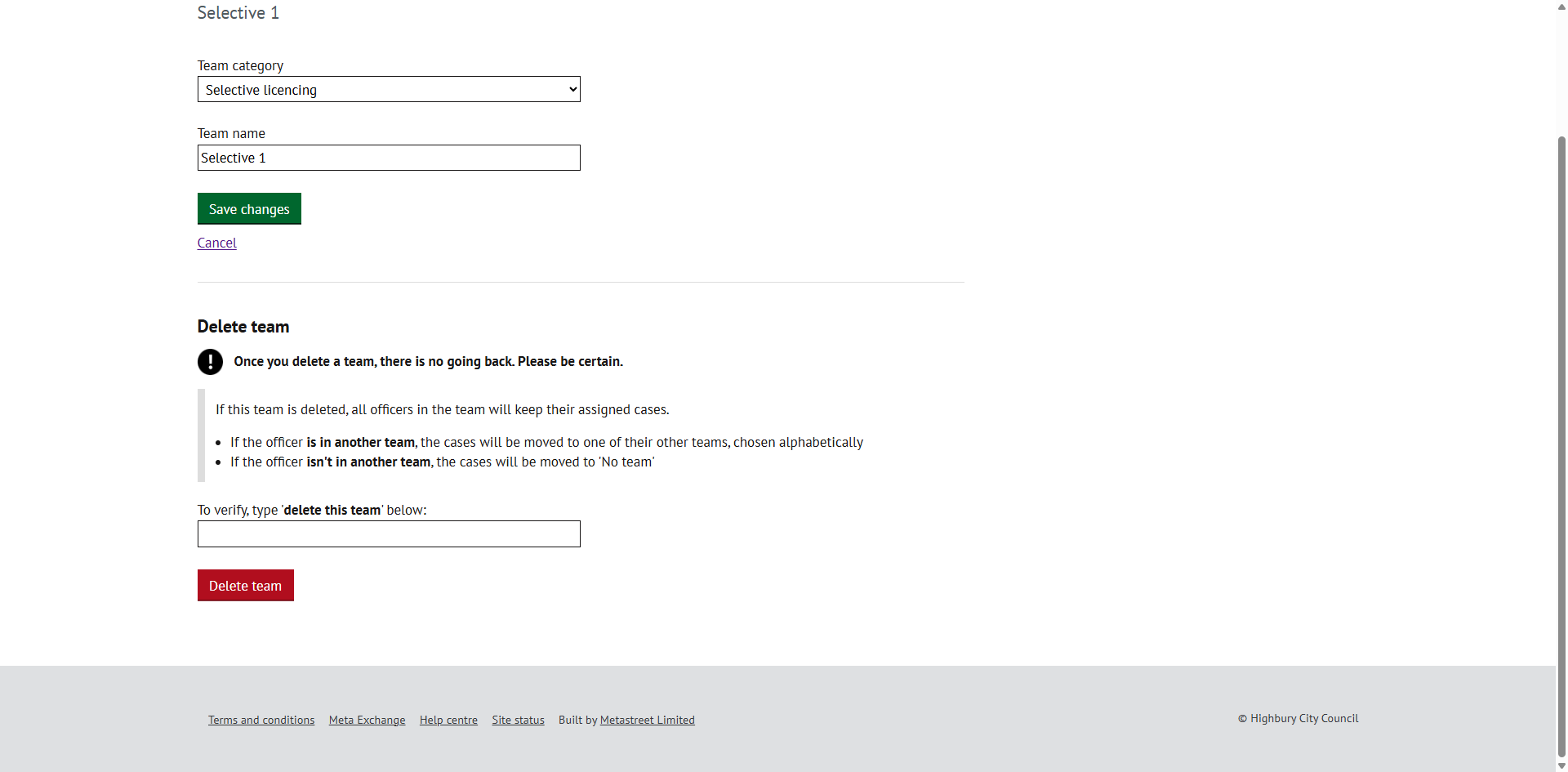
To confirm the deletion, type `delete this team` in the text box and press `Delete team`.
This action cannot be undone.
When a team is deleted:
- Officers who were only in this team will become unassigned officers. Their cases will remain assigned to them but will be shown under 'No team'.
- Officers who are also in other teams will keep their cases. The team will change to another of their teams (chosen alphabetically).
There is also an option to delete any auto-assign rules related to this team.
10. View a team and manage officers
Click on a team name from the Teams page to view it.
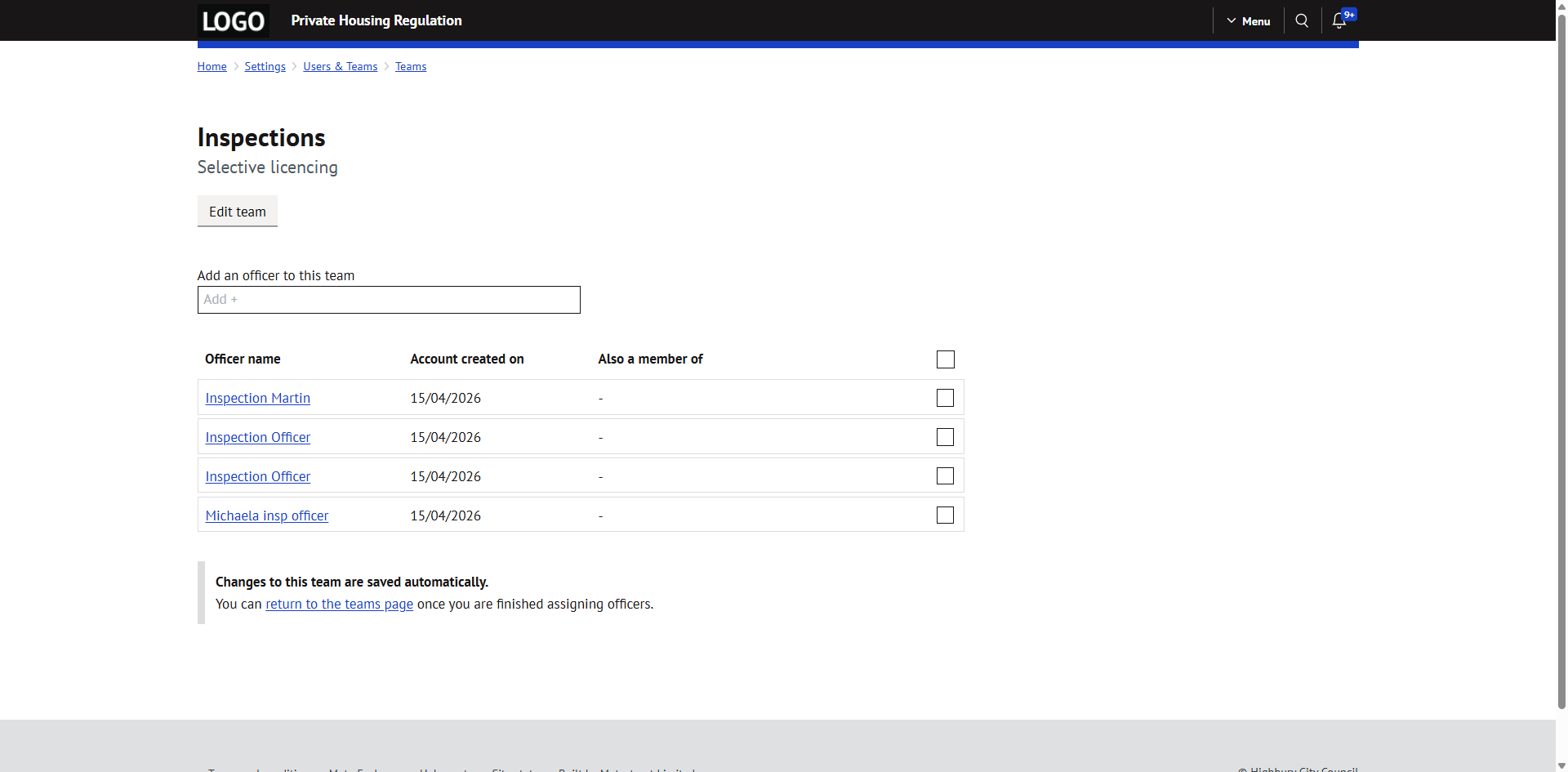
The team page shows:
- The team name and parent category
- A list of officers in the team
- The date each officer joined the team
- Other teams each officer is also a member of
Adding officers to a team
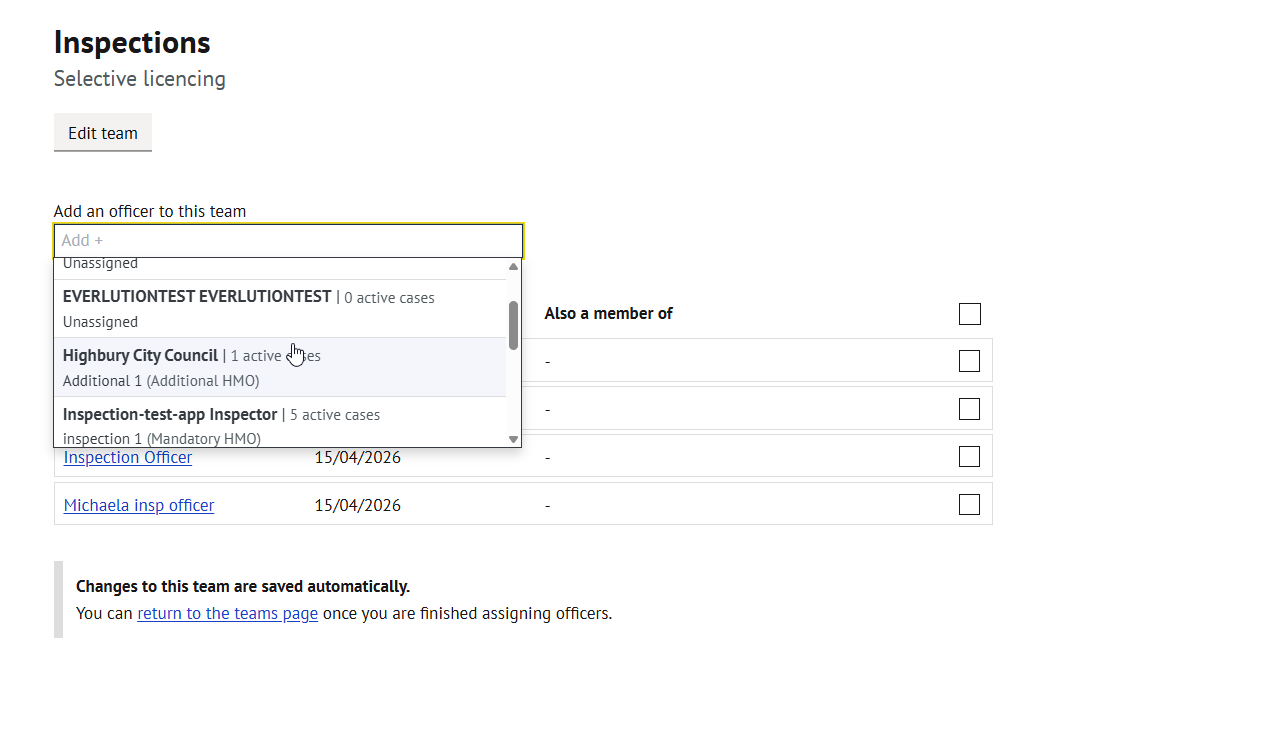
Use the `Add +` dropdown to select an officer to add to the team. Changes to this team are saved automatically.
Assigning officers to another team
To assign officers to another team, select the officers using the checkboxes, then use the `Actions` dropdown and select `Assign to…`. A popup will appear allowing you to choose one or more teams to assign the selected officers to.
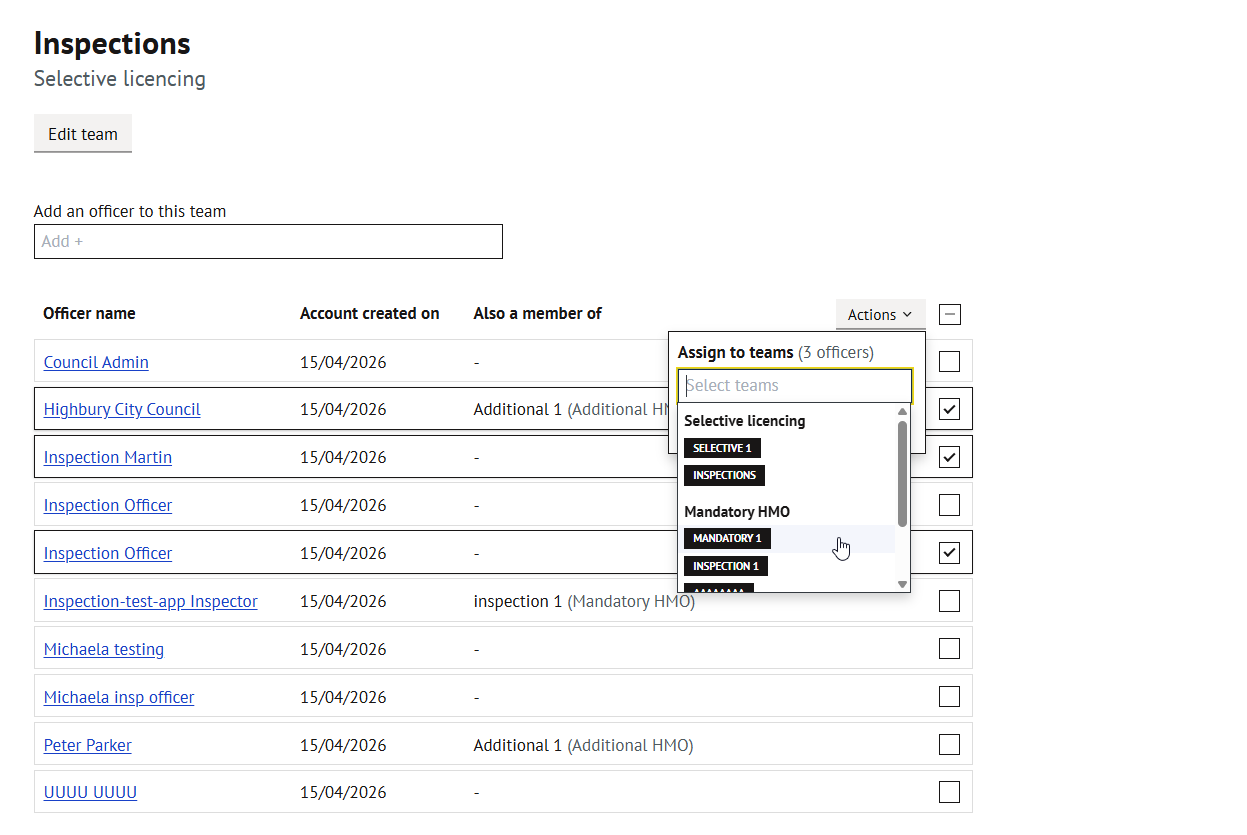
Removing officers from a team
To remove officers from a team, select the officers using the checkboxes, then use the `Actions` dropdown and select `Unassign`.
If the officer has no cases assigned in this team, they are removed immediately.
If the officer has cases assigned in this team, those cases will be moved to 'No team'. The officer remains assigned to the cases but is no longer part of the team. Once all 'No team' cases for that officer are reassigned, the officer is automatically removed from 'No team'.
11. Unassigned officers
Officers who are not assigned to any team appear in the 'No team' section at the bottom of the Teams page.
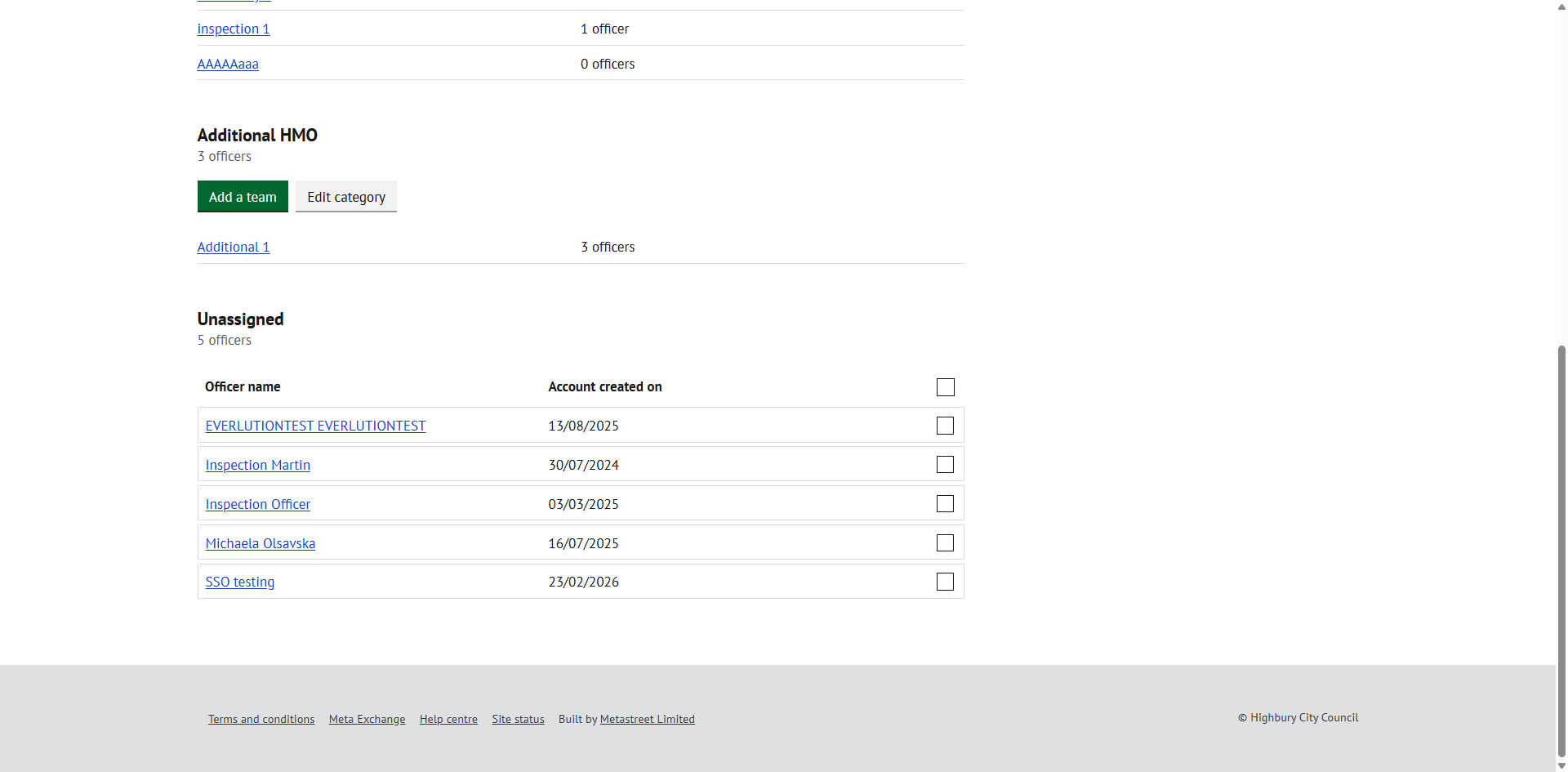
Unassigned officers can be selected and assigned to a team using the `Assign to…` dropdown.
12. Assigning officers to cases
Officer assignment now follows a Team → Officer flow. This is presented as a single 'Case officer' control across all areas of the system.
How it works
1. Click on the `Case officer` dropdown on a case
2. The dropdown shows officers from the currently selected team
3. To change the team, select `Change team` inside the dropdown
4. After selecting a team, the officer list updates to show officers from that team
5. Select an officer to assign them to the case
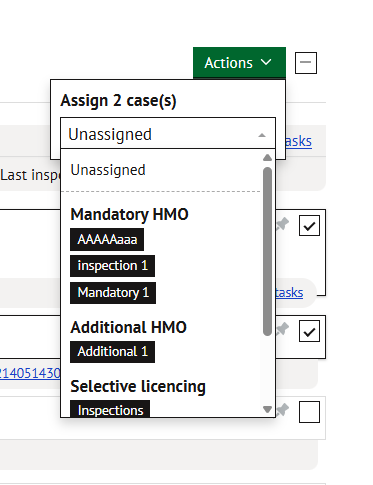
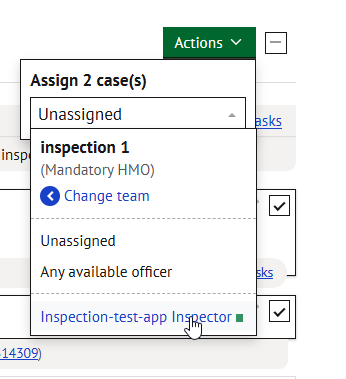
Team selection
The team list shows:
- Unassigned – at the top, for removing the current assignment
- Available teams grouped by team category
- No team – shown under 'Other' only when there are officers not assigned to any team. This option is hidden if all officers belong to at least one team.
Officer selection
The officer list for the selected team includes:
- Unassigned – to leave the case unassigned
- Any available officer – assigns the case to the available officer with the fewest active cases in the selected team
- Individual officers from the selected team
Only available officers can be selected. If a team has no available officers, this will be indicated.
Where this applies
The team-based officer assignment is used in all places where an officer can be assigned or changed, including:
- Properties list and Pinned cases tabs
- Property overview page
- Licence case overview and tasks
- Service case details, penalties and prosecutions
- Inspection cases and reassignment
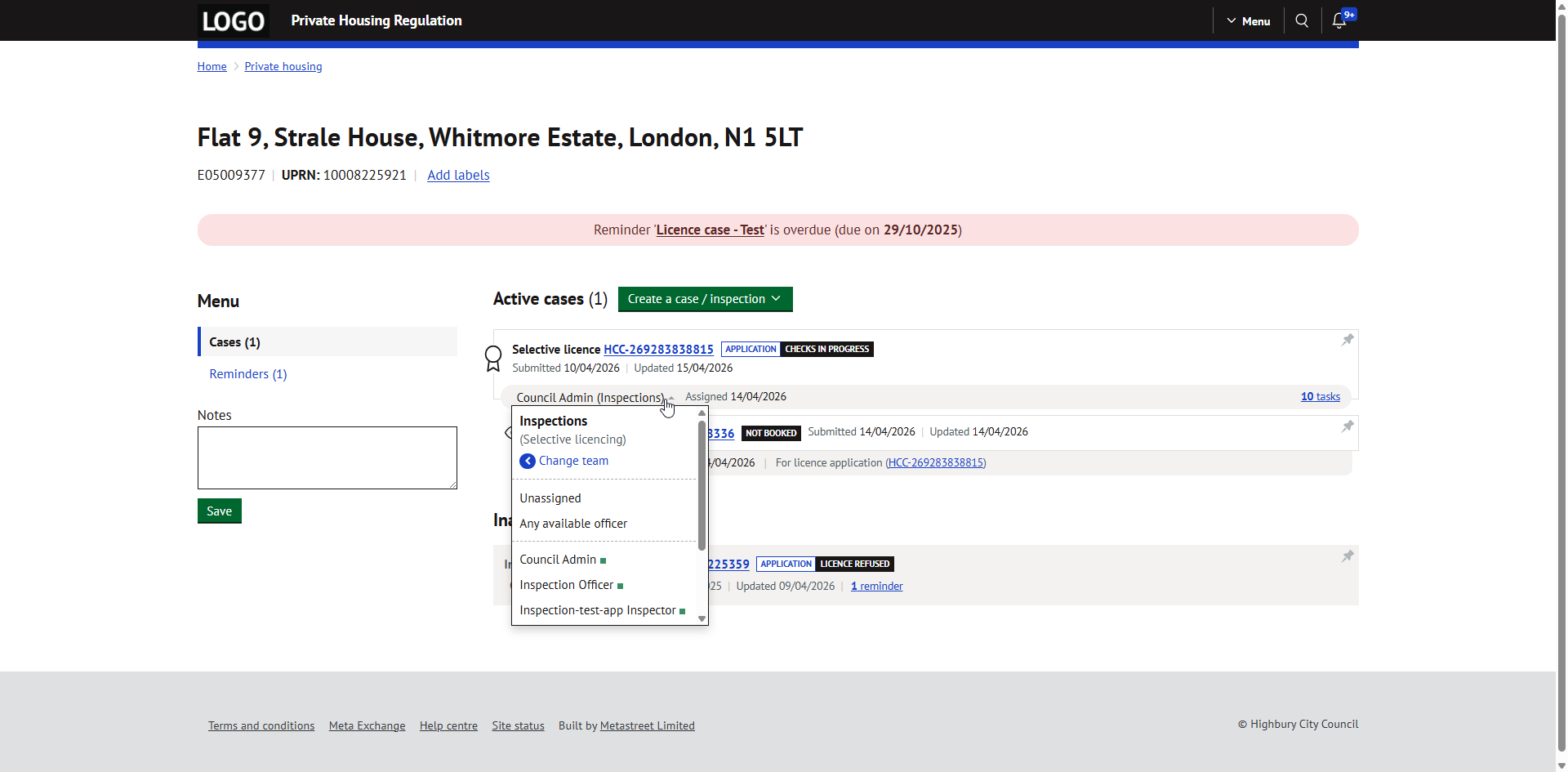
TIP: When a case is newly created, the dropdown will default to 'Unassigned'. Selecting a team first will display only officers from that team, making assignment quicker.
13. Switching availability
Officers can set their availability status per team. The status can be 'Available' or 'Unavailable' and affects whether the officer can be assigned cases through the 'Any available officer' option.
From the Menu
Go to Menu > Your account. If you are a member of one or two teams, each team will be displayed with its own availability dropdown. Change the status to 'Available' or 'Unavailable' as required. Changes apply immediately.
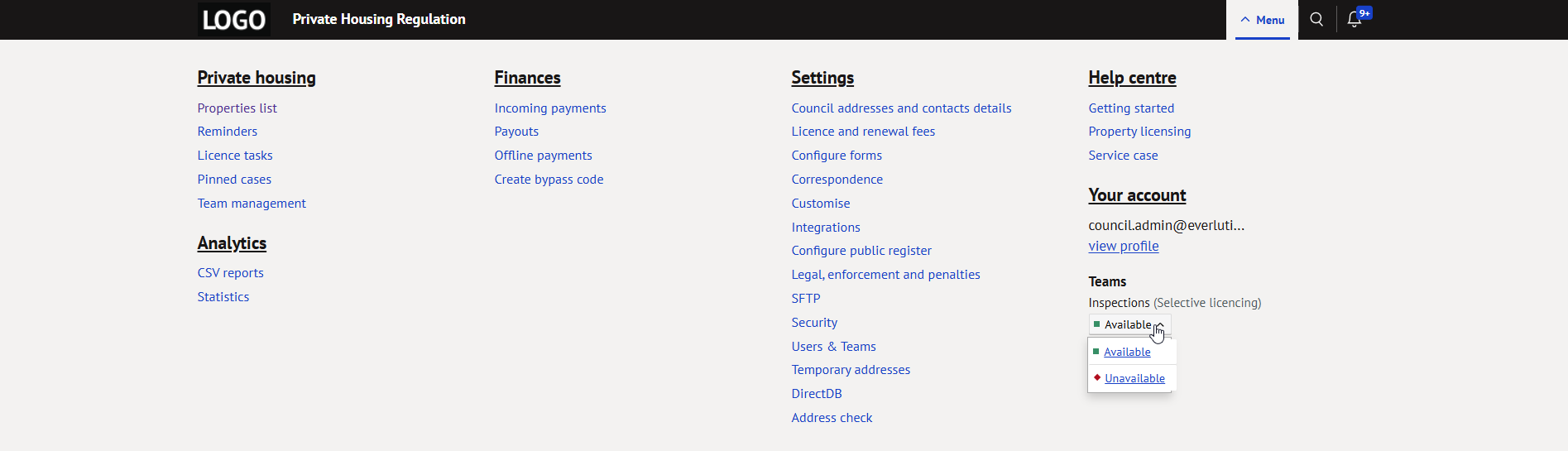
If you are a member of more than two teams, availability controls are not shown in the menu. Use the Team management tab or ask an admin to update your availability.
From the Team management tab
Availability can also be changed directly from the Team management tab next to each officer's name, or from the officer's individual page.
14. Team management tab
The Team management tab is located on the Private housing homepage and replaces the previous 'Team availability' tab.
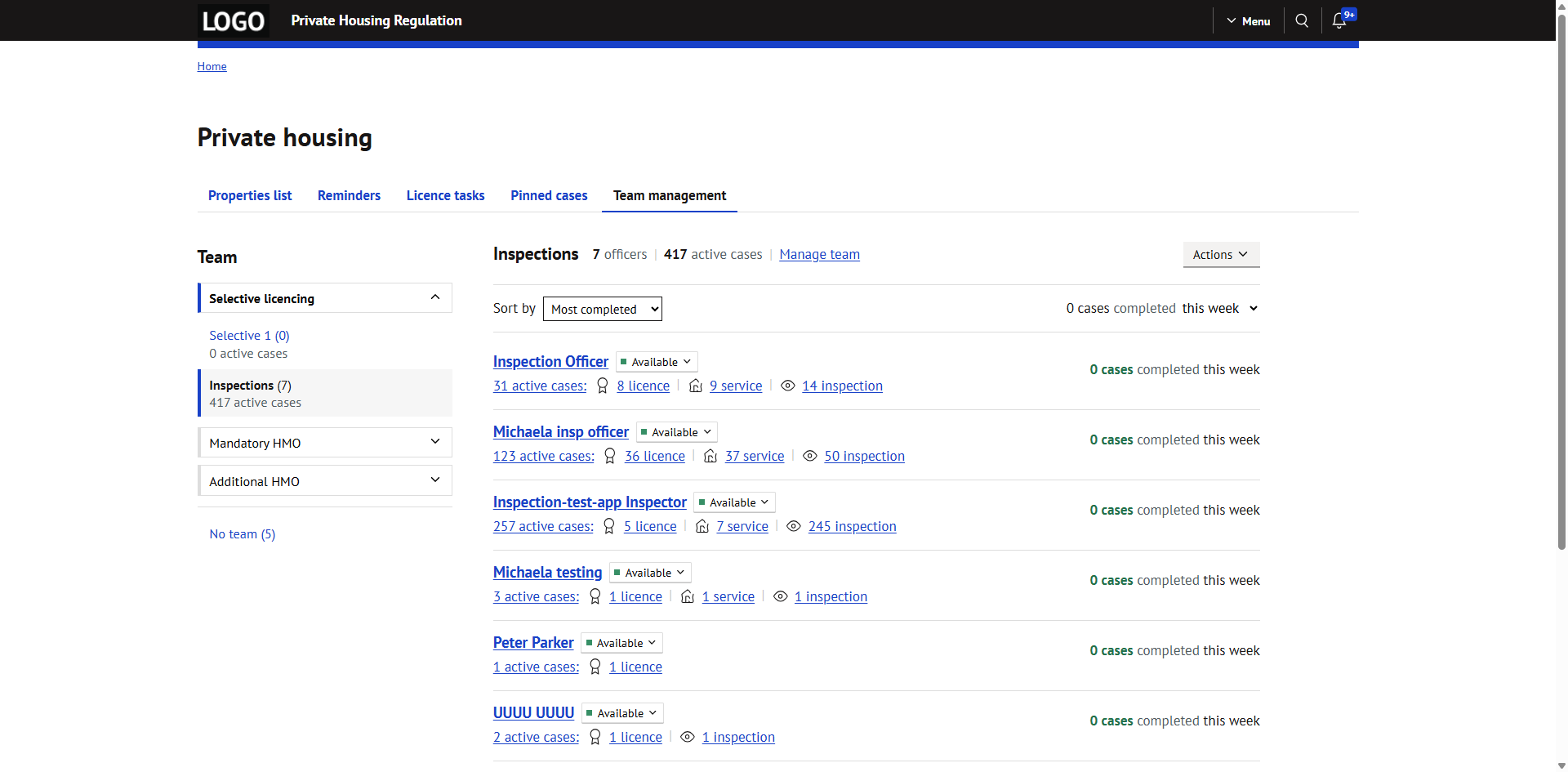
This tab provides an overview of officers and their workload for each team.
What is displayed
- A sidebar listing all team categories and teams with officer counts
- The selected team showing the number of officers and active cases
- Each officer showing availability status, total number of active cases (split by licence, service and inspection) and number of cases completed
Sorting
A dropdown is available to sort officers by: Most completed, Least completed, Most active cases, Least active cases, or Alphabetically (by first name).
Actions
The `Actions` button allows you to download team data as a CSV export.
Unassigned cases
Cases that are not assigned to any officer are shown under 'Unassigned' within the team view. Cases are automatically moved here when 'Any available officer' is used but no officers are available.
The `Manage team` link takes you to the Settings page for the selected team.
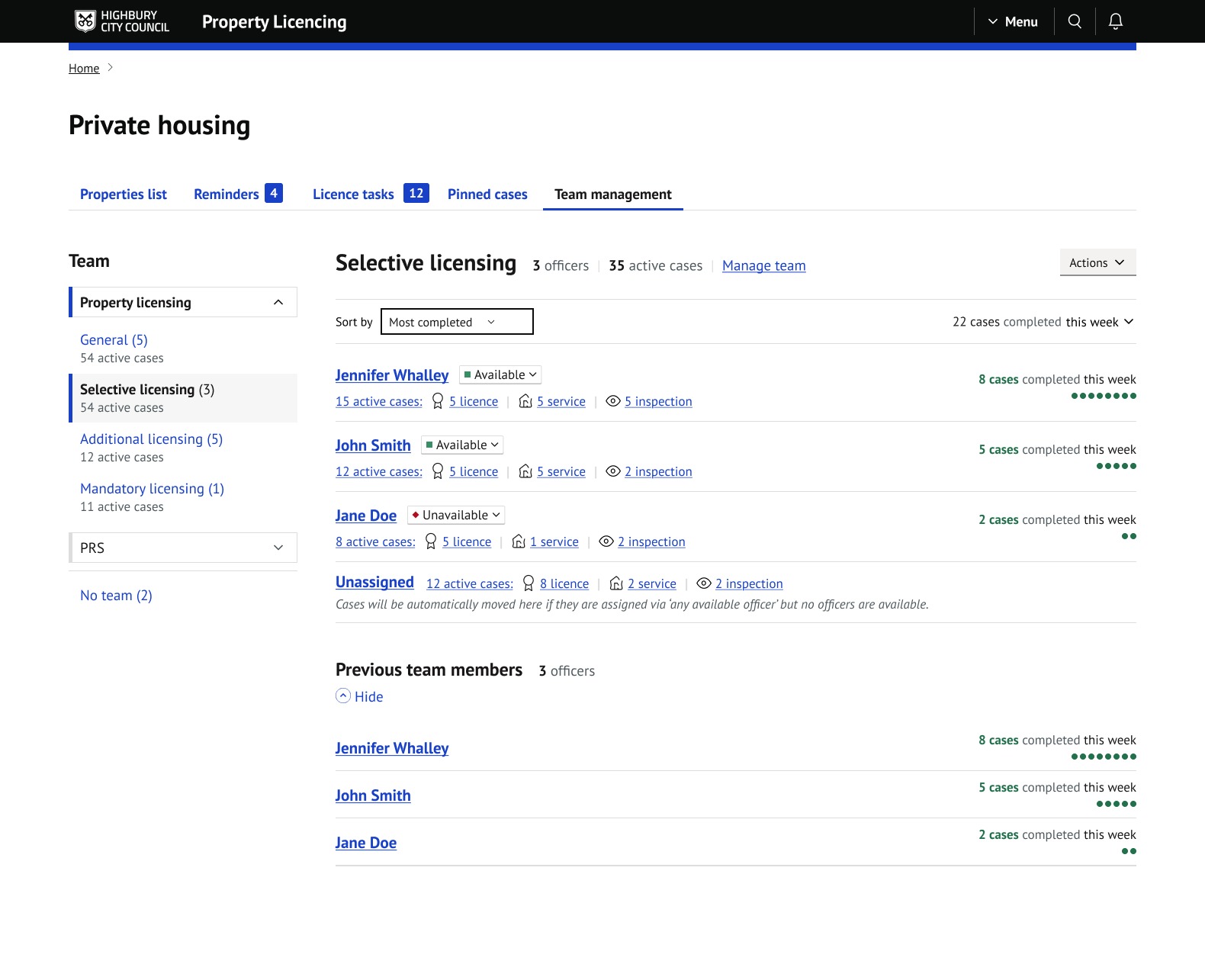
Previous team members
A 'Previous team members' section shows officers who were previously part of the team and completed cases while they were in it. Only officers who completed at least one case during that period are shown. Their completed cases are included in the team's total.
15. Officer page
Click on an officer's name in the Team management tab to view their individual page.
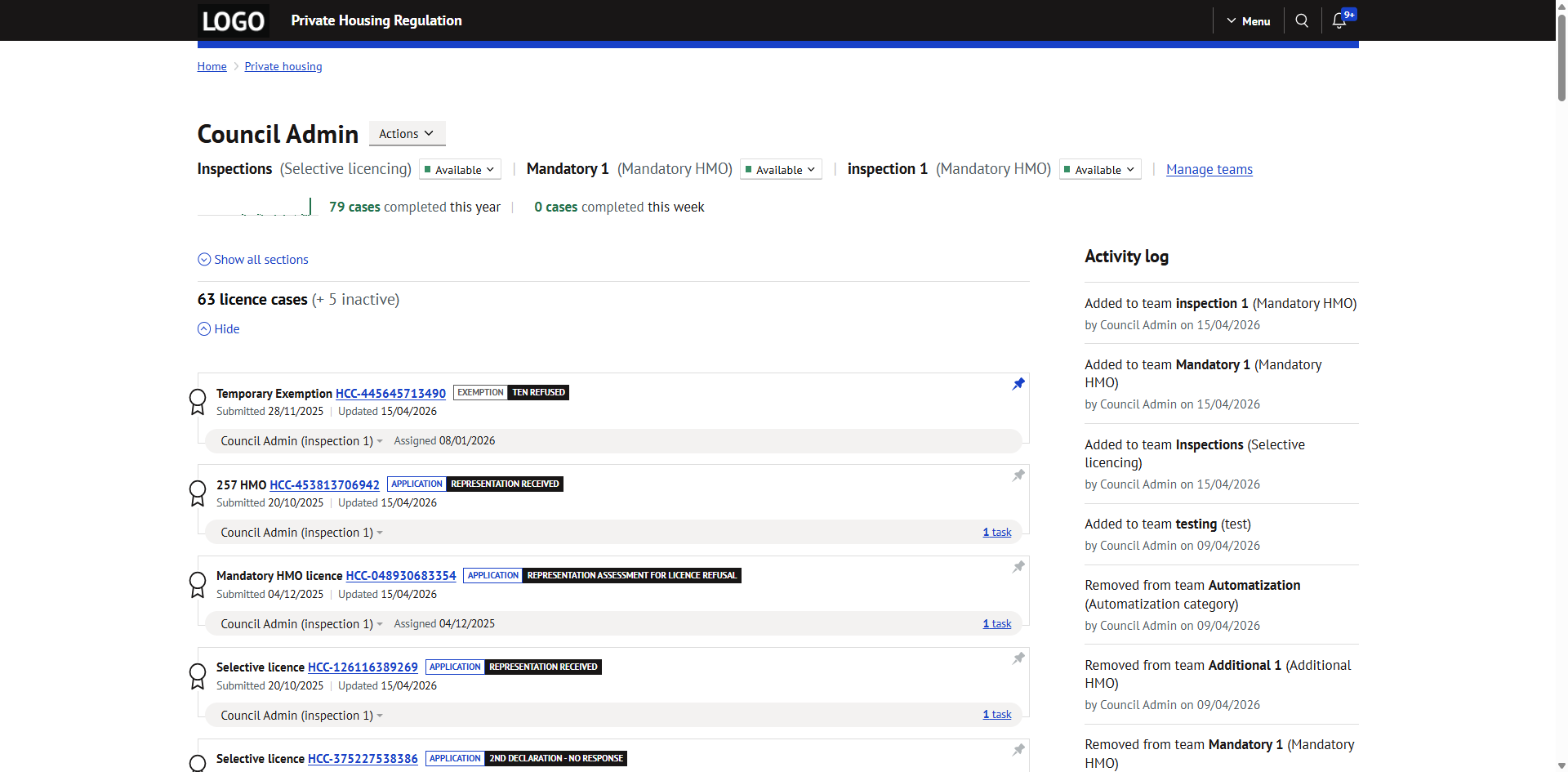
The officer page shows:
- Officer name and assigned teams
- Availability status per team
- Number of cases completed this year and this week
- Cases grouped by type (licence, service, inspection)
- Each case showing its status, reference, key dates and assigned officer
If the officer is not assigned to any team, this is displayed as 'Not assigned to a team'.
Inactive cases
Only active cases are displayed by default. A separate section below shows cases that became inactive within the last 30 days. This section is collapsed by default.
Pinning cases
A pin icon is available on each case. Clicking the pin will show a confirmation notification with an 'Undo' option. Pinned cases are specific to the currently logged-in user.
Actions
The `Actions` button provides options to download cases as CSV and download activity log as CSV.
Activity log
The activity log is shown on the right side of the officer page and records:
- Changes to availability status (including the team name, who made the change and the date)
- When an officer is added to a team
- When an officer is removed from a team
Select `Load more` to view additional entries beyond the first 20.
16. Unassigned cases page
Click on 'Unassigned' in the Team management tab to view all cases that are not assigned to any officer.
Cases are grouped by type (licence, service, inspection). Each group shows the number of active and inactive cases.
When an officer is assigned to a previously unassigned case, the case will automatically disappear from this page.
Sections can be expanded and collapsed using 'Show' and 'Hide'. A pin icon is available on each case.
17. Filtering by team
The sidebar filters on the Properties list tab now support filtering by assigned team as well as assigned officer.
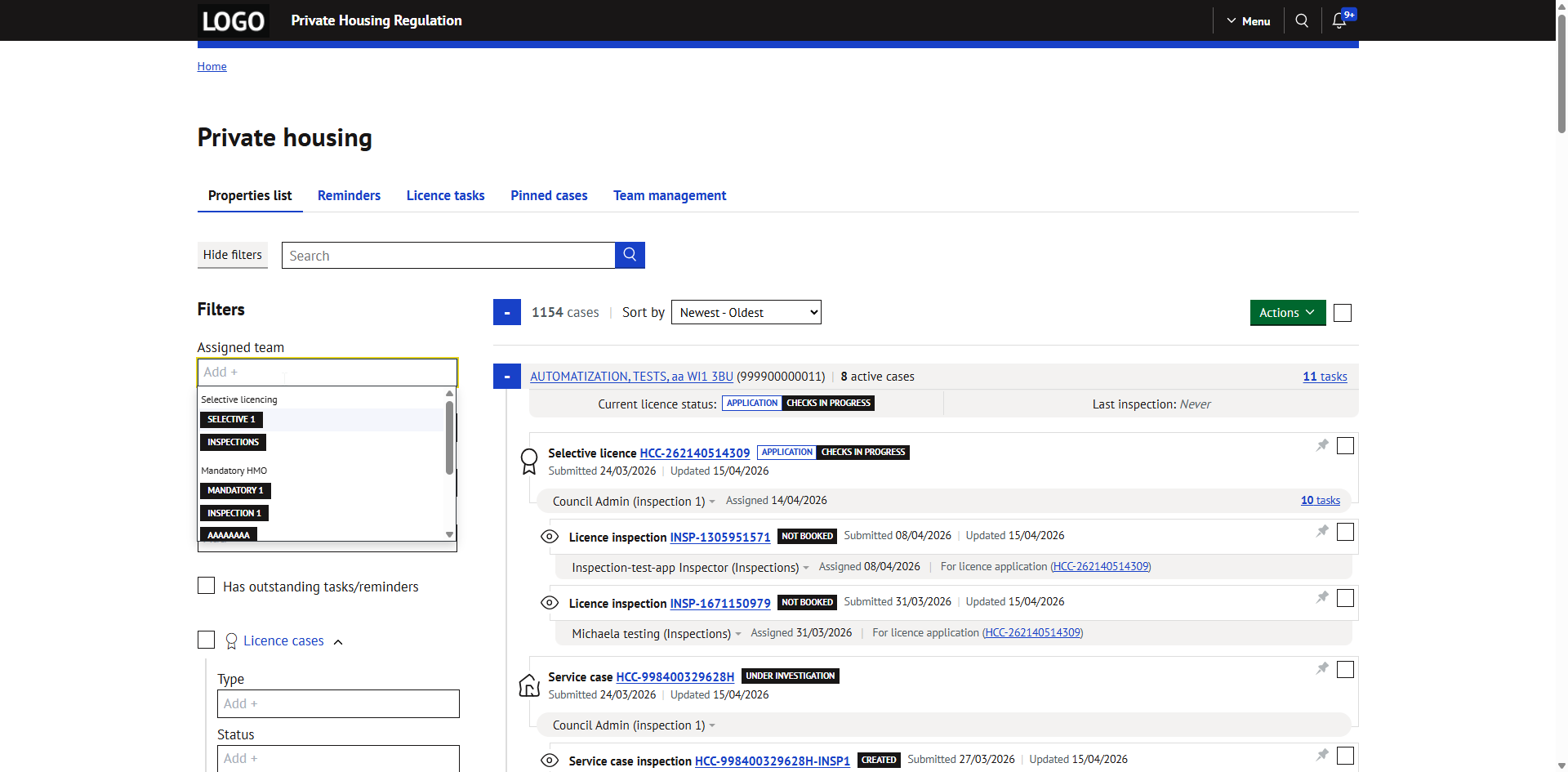
Both filters can be used together. Filters are combined using AND logic, so you can filter by team only, by officer only, or by both team and officer at the same time.
The team filter dropdown shows teams grouped by category, with a 'No team' option for cases that are not assigned to any team.
18. Audit trail
When an officer is assigned to a case, the audit trail will record the change of assigned officer and the change of assigned team.
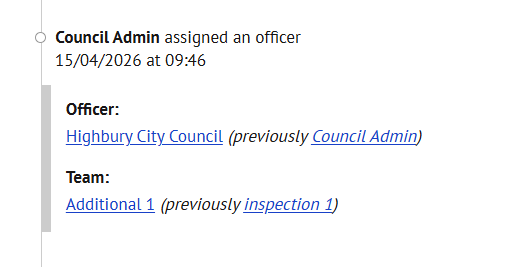
When auto-assign assigns an officer to a case, a separate audit trail entry is added to indicate this was done automatically.
Audit trail entries are also created when teams or categories are deleted, as this may affect the team assigned to a case.
19. CSV exports and reports
Team information is included in CSV exports across the system. Where an officer field exists, a corresponding team and team category field has been added.
This applies to exports from the Properties list tab, Pinned cases tab, Team management tab, and Analytics CSV reports (inspections, licence decisions, representations, caseload reviews, audit trail actions, fees and payments, hazards and ratings).
Each export includes the team assigned to the case, not all teams the officer belongs to. Where no team is assigned, the field will show 'No team'.
20. Councils without teams
If your council does not have teams enabled, all team-related features are hidden across the application. Officer assignment will show a flat list of officers without team selection, and no team filters or labels will be displayed.
To enable teams, go to Home > Settings > Users & teams > Teams and follow the setup steps described in section 3.
Was this article helpful?
That’s Great!
Thank you for your feedback
Sorry! We couldn't be helpful
Thank you for your feedback
Feedback sent
We appreciate your effort and will try to fix the article