DirectDB allows external tools such as Power BI to connect directly to your council's reporting database and create custom reports. Each council has its own dedicated DirectDB instance with SSL encryption enforced to protect data in transit.
This guide will walk you through connecting Power BI Desktop to your DirectDB instance.
In this guide you'll learn how to:
- Find your DirectDB connection details in Metastreet
- Install the required SSL certificate
- Connect Power BI Desktop to your DirectDB instance
- Load database tables and start building reports
1. Prerequisites
Before you begin, make sure the following are in place:
- Power BI Desktop installed on a Windows machine (latest version recommended)
- Network port access: Your council's IT team must open the required outbound TCP port on your network. The default port is 4376, but this may differ if your council has requested a custom port. Check your DirectDB settings in Metastreet to confirm.
- IP allow-listing: If your council has requested IP restrictions, your external IP address must be registered with Metastreet. Contact your account representative if you are unsure whether this has been set up.
2. Finding your DirectDB connection details
Your connection details can be found in Metastreet at:
Home > Settings > DirectDB
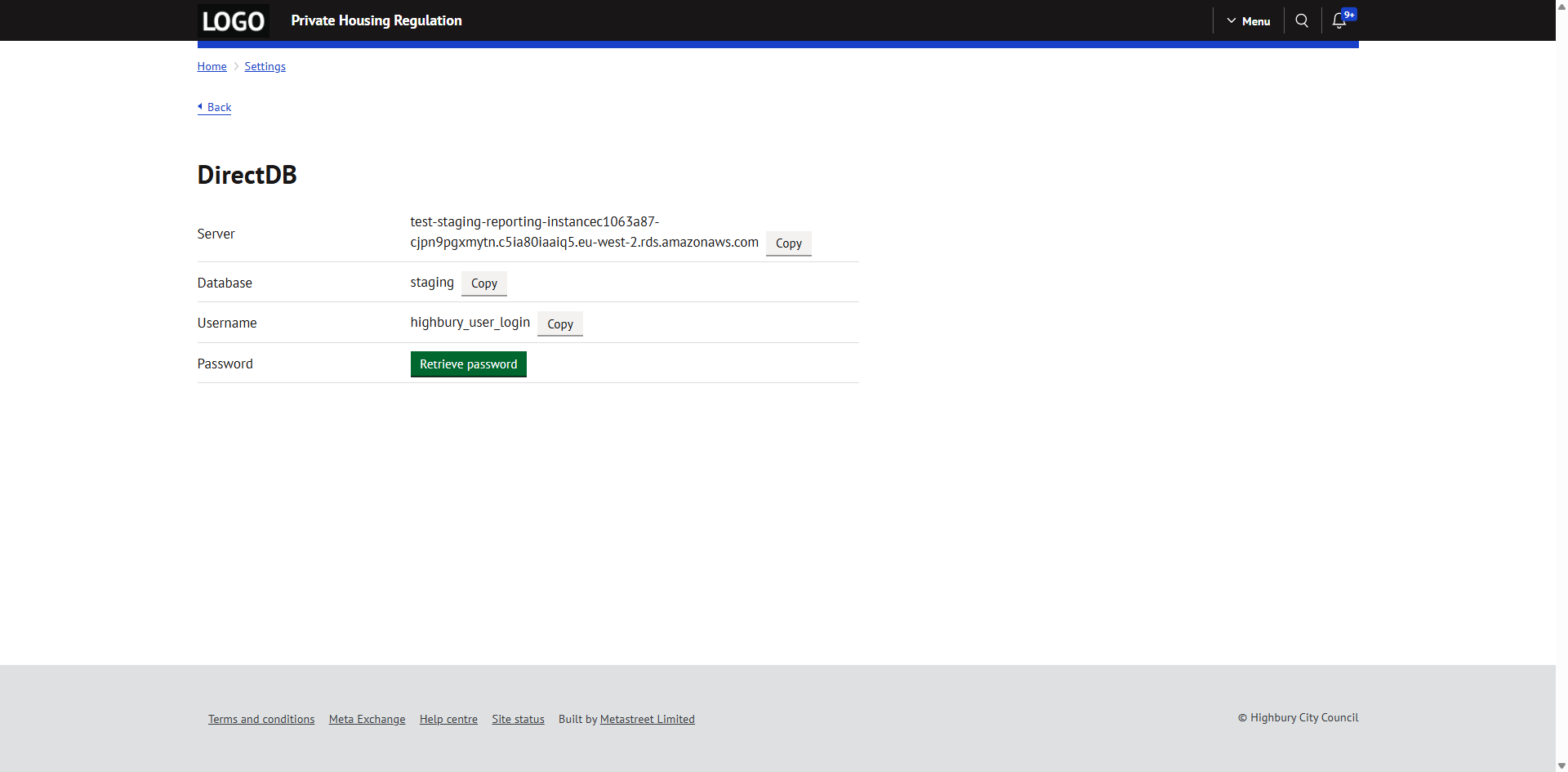
This page contains the following details you will need:
- Server URL and port number
- Database name
- Username and password
Keep this page open as you will need these details in the following steps.
3. Installing the SSL certificate
All DirectDB connections require SSL encryption. Before connecting Power BI, you must install the AWS RDS SSL certificate on your machine. This ensures the connection between Power BI and your database is secure.
If you attempt to connect without the certificate installed, the connection will be refused.
3.1 Download the certificate
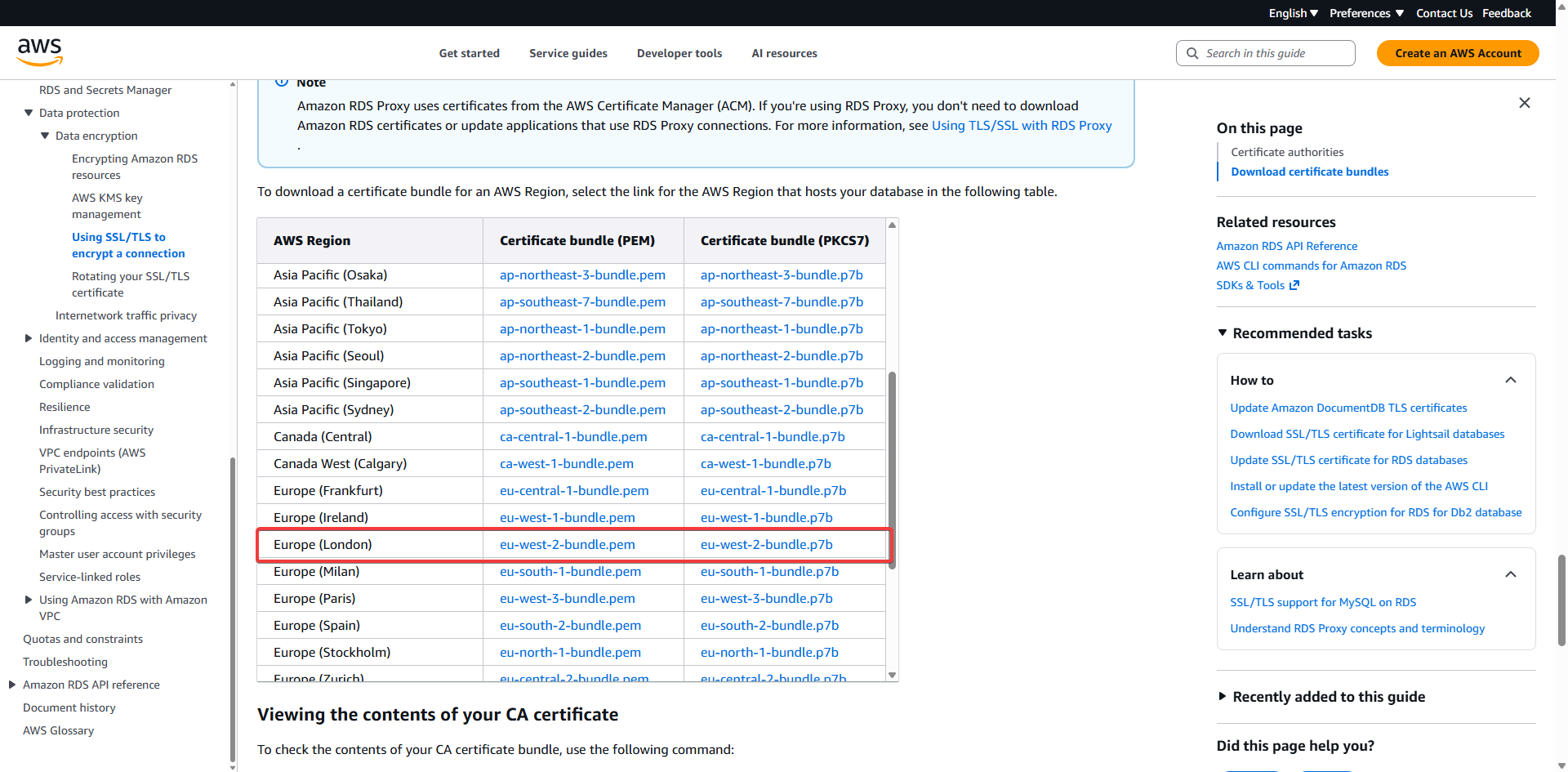
1. Visit the AWS documentation page: Using SSL/TLS to Encrypt a Connection to a DB Instance or Cluster
2. Scroll to the section titled Certificate bundles by AWS Region.
3. Find the row for Europe (London).
4. In the Certificate bundle (PKCS7) column, click the link to download the .p7b certificate file. Remember where you save it.
3.2 Import the certificate into Windows
The certificate must be imported into the Windows Trusted Root Certification Authorities store.
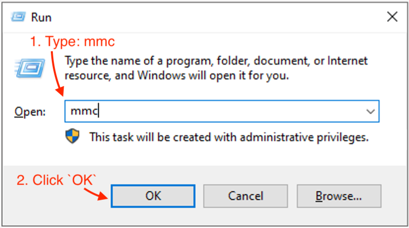
Open Microsoft Management Console (MMC):
1. Press Win + R on your keyboard, type mmc and press Enter.
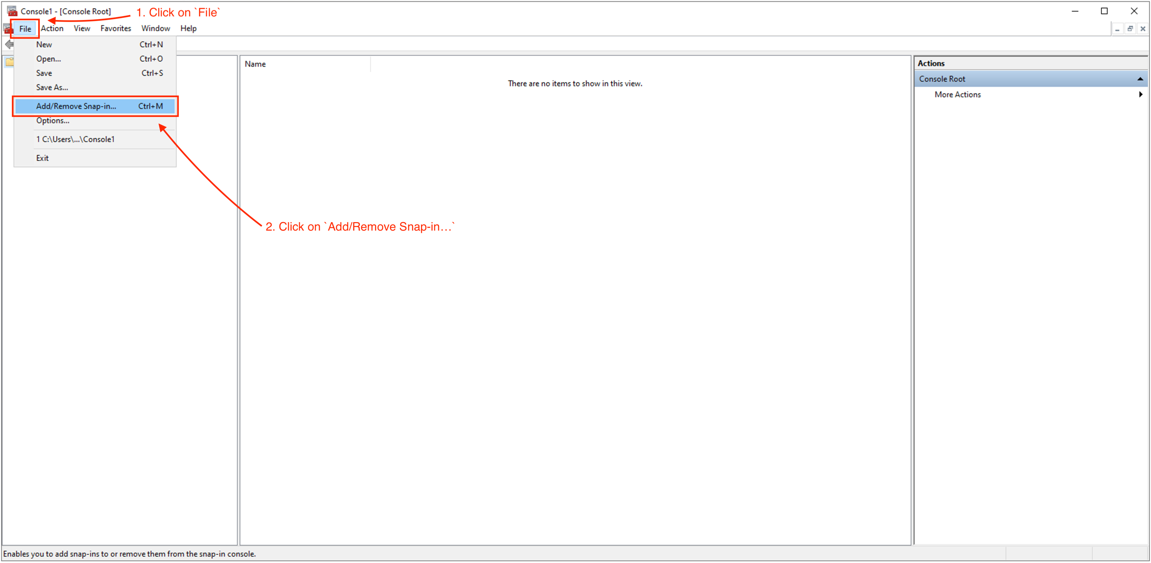
Add the Certificates Snap-in:
2. In MMC, go to File > Add/Remove Snap-in.
3. Select Certificates from the list and click Add.
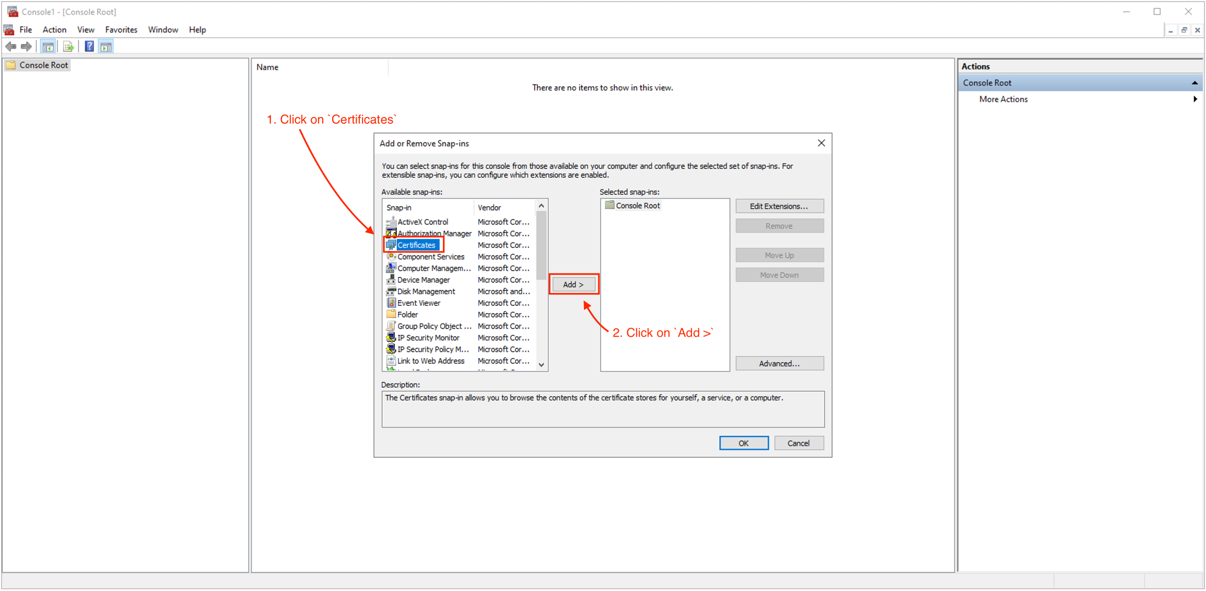
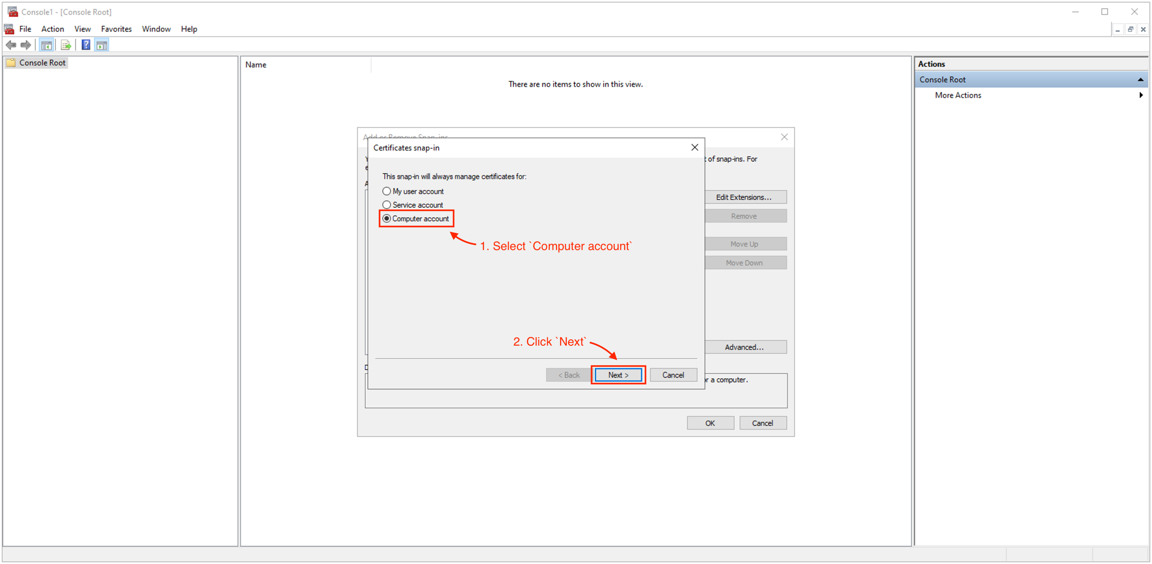
4. Choose Computer account and click Next.
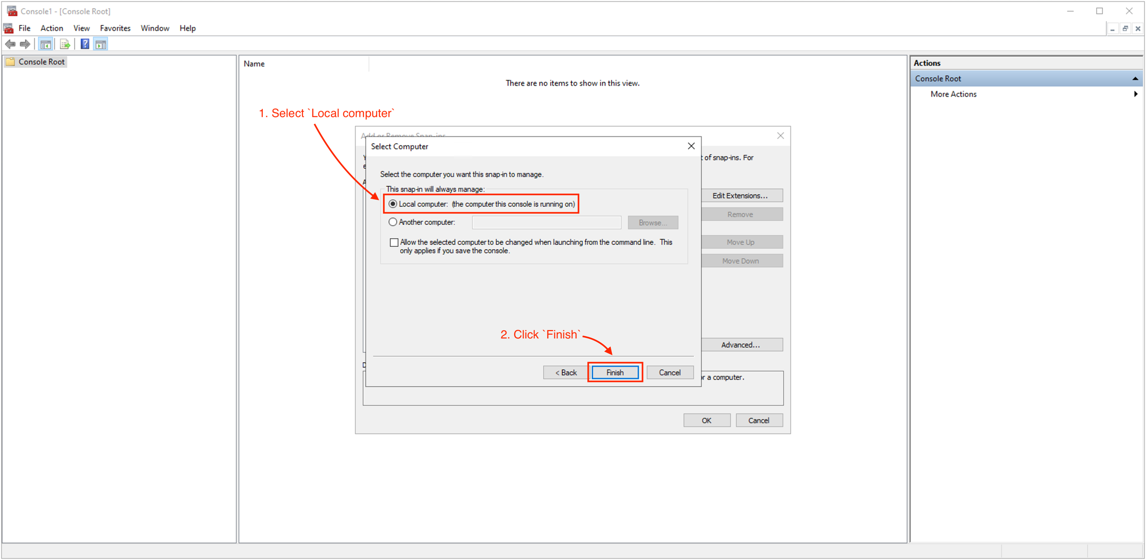
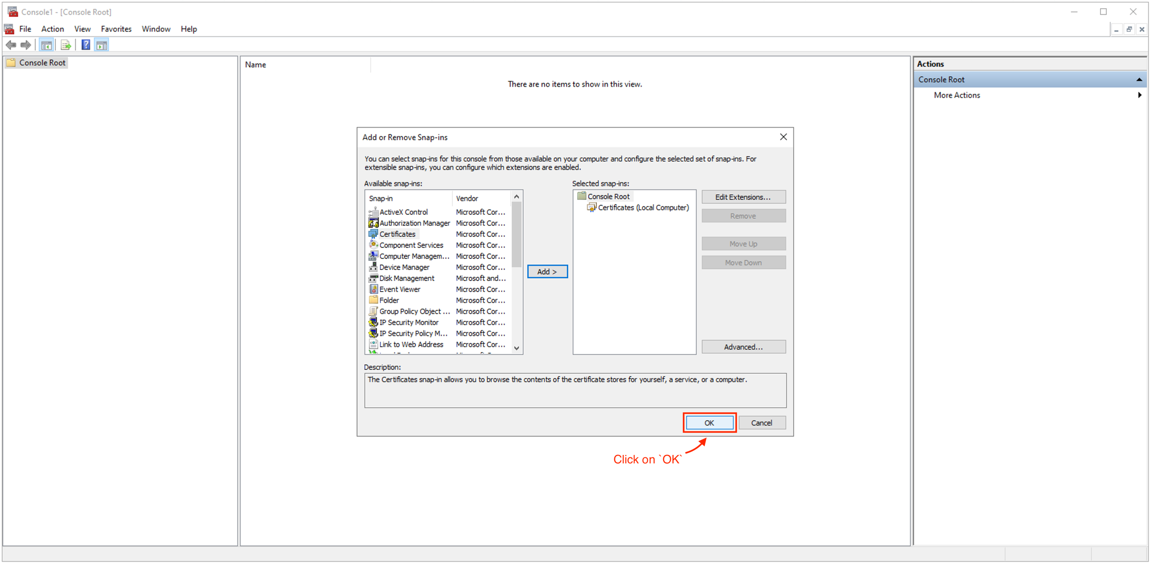
5. Select Local computer and click Finish, then click OK.
Import the certificate:
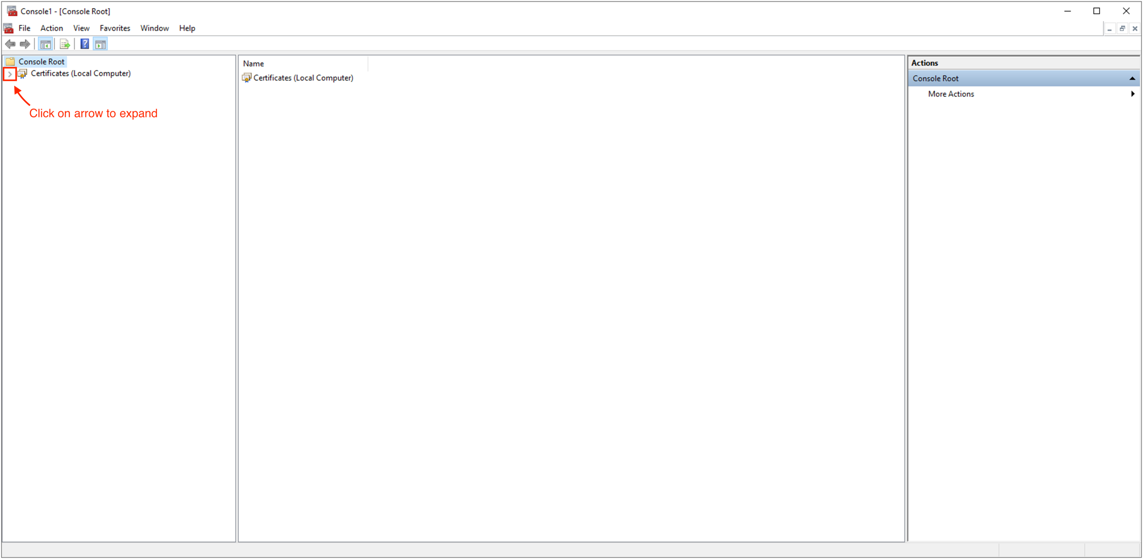
6. In the MMC console tree, expand Certificates (Local Computer) > Trusted Root Certification Authorities.
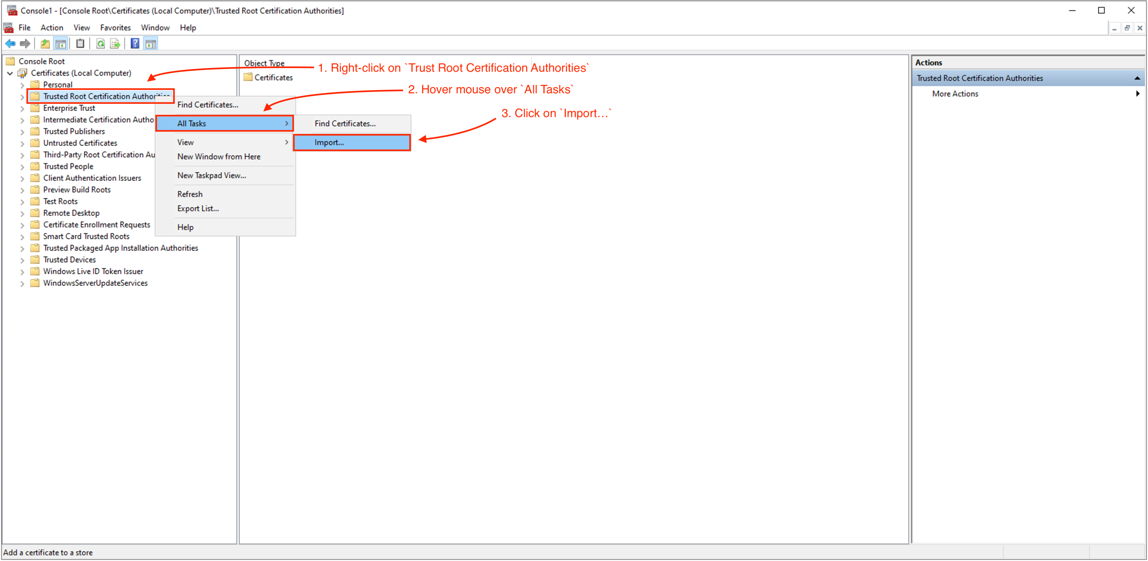
7. Right-click on Trusted Root Certification Authorities and select All Tasks > Import.
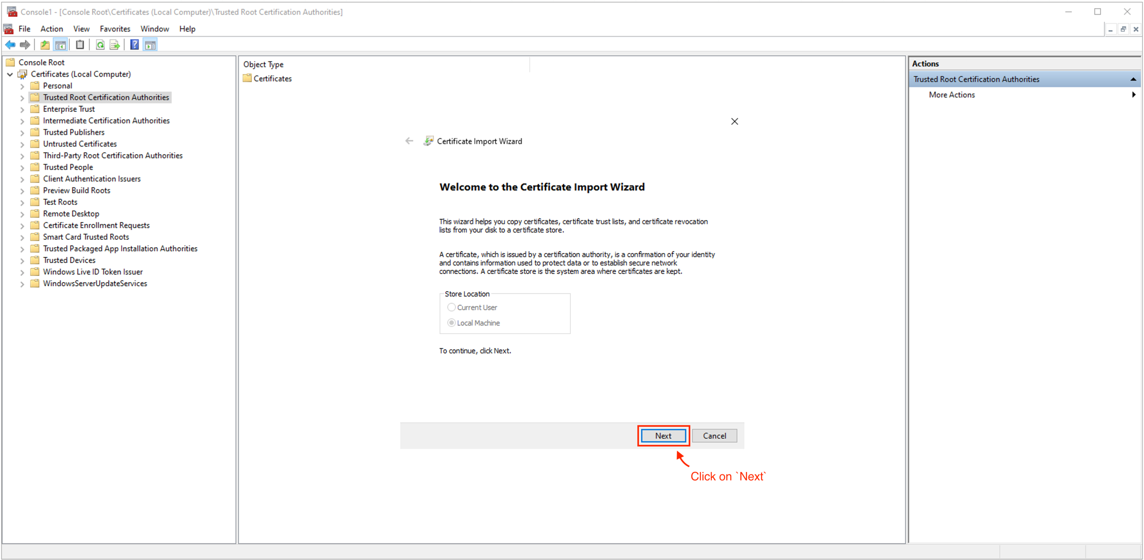
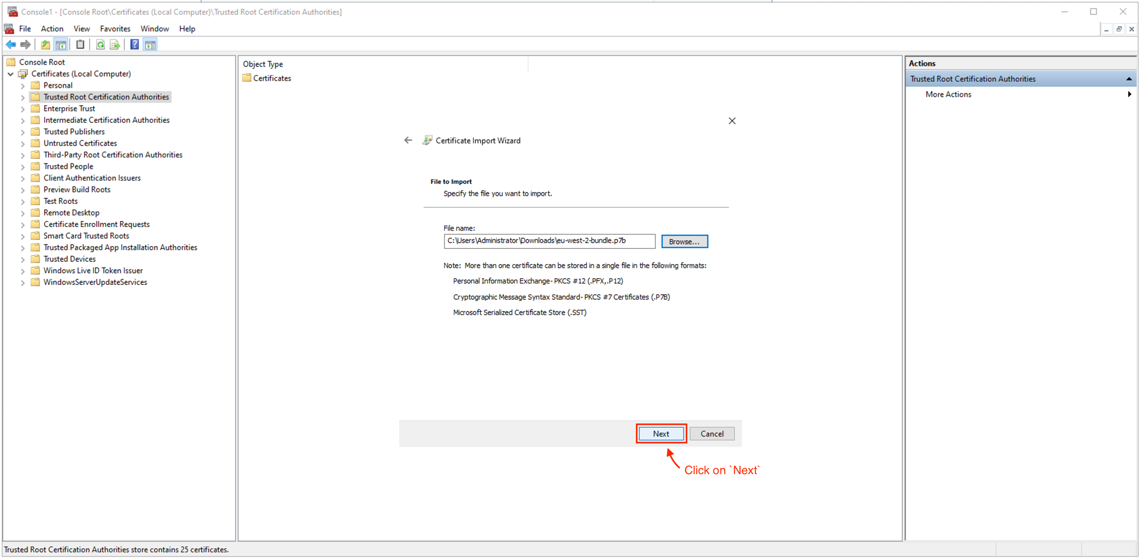
8. The Certificate Import Wizard will open. Click Next, then click Browse.
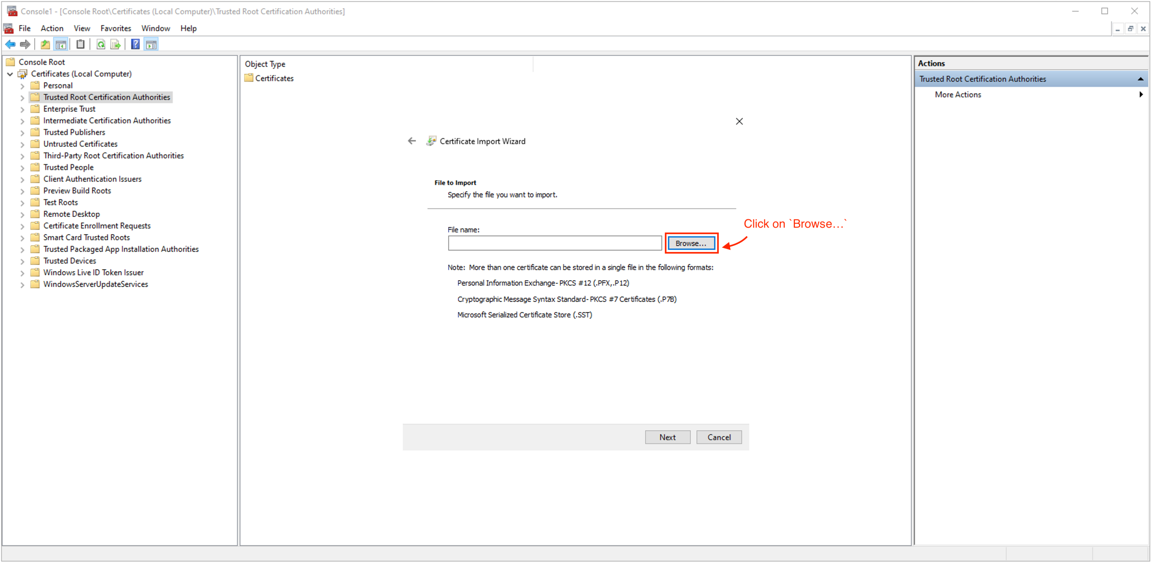
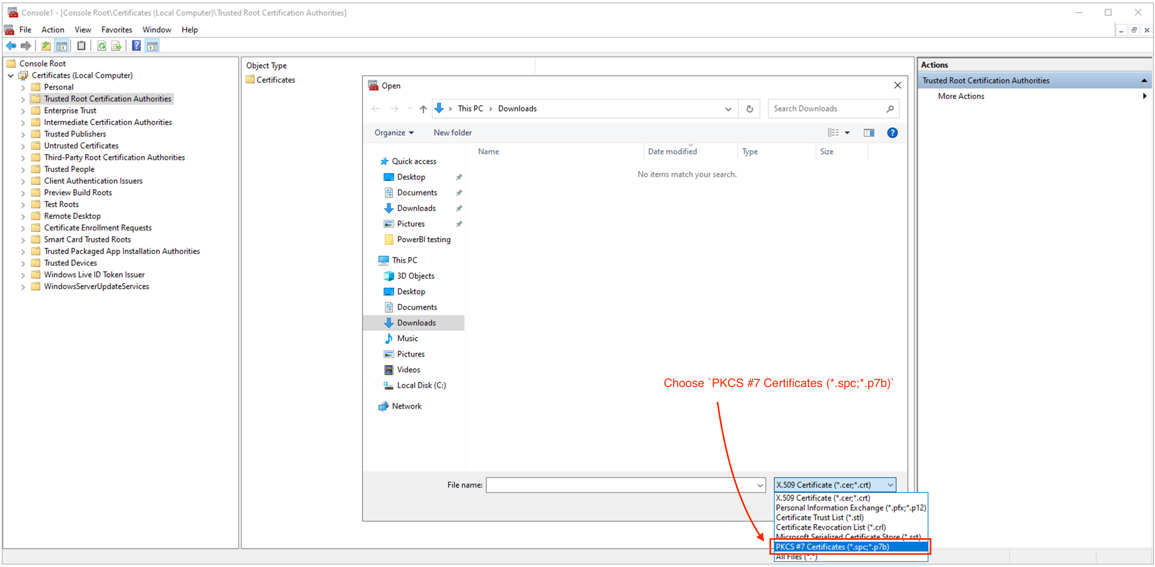
9. In the file browser, change the file type dropdown to PKCS #7 Certificates (*.spc;*.p7b).
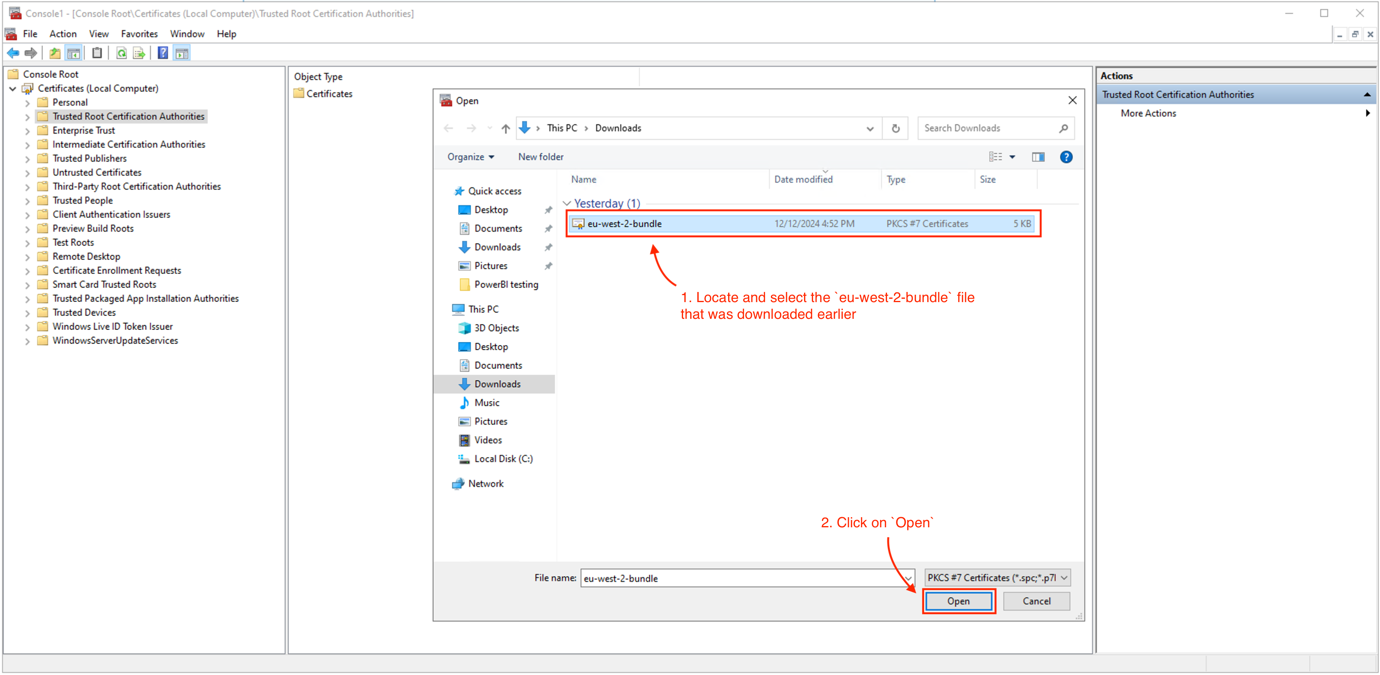
10. Find and select the .p7b file you downloaded earlier, then click Open.
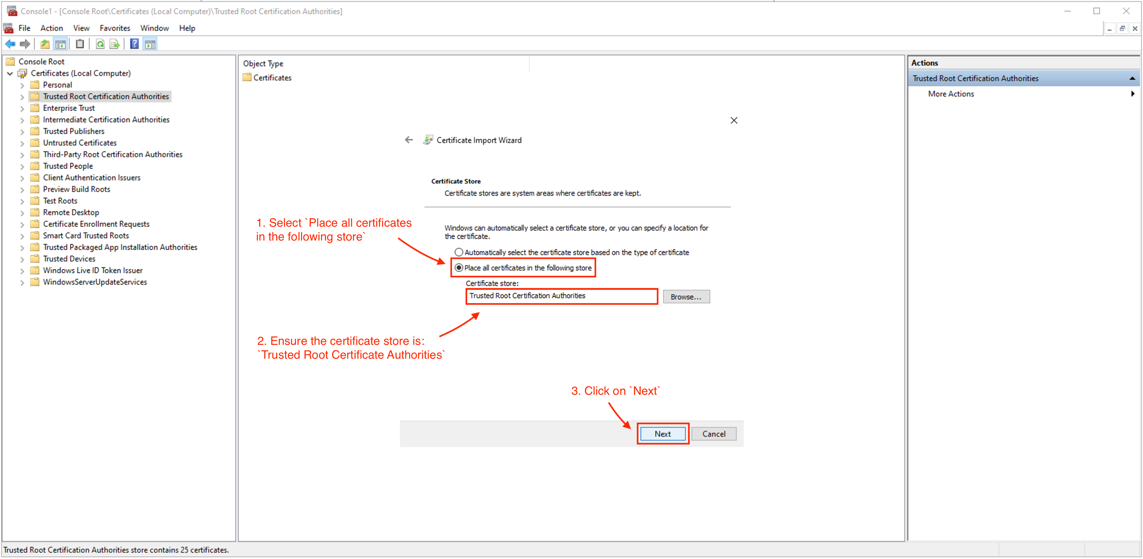
11. Click Next. Ensure the certificate store is set to Trusted Root Certification Authorities, then click Next again.
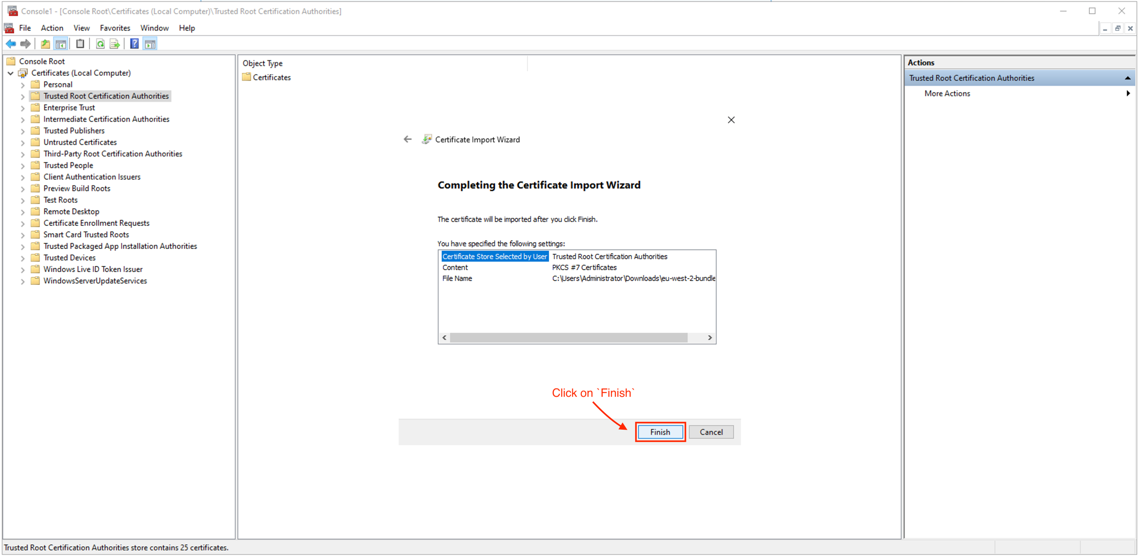
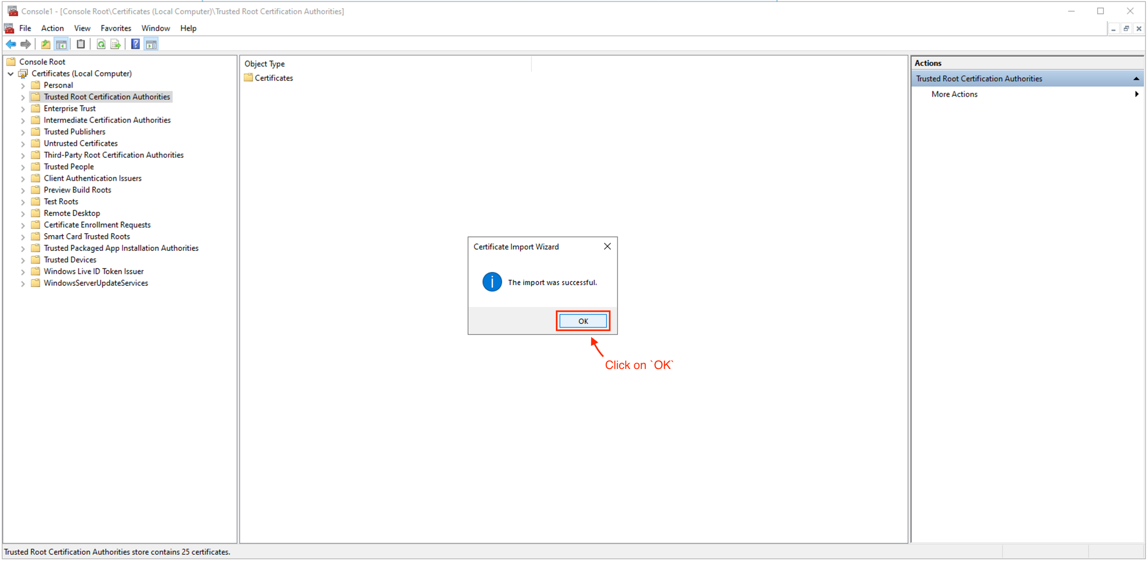
12. Click Finish. A confirmation message will appear. Click OK.
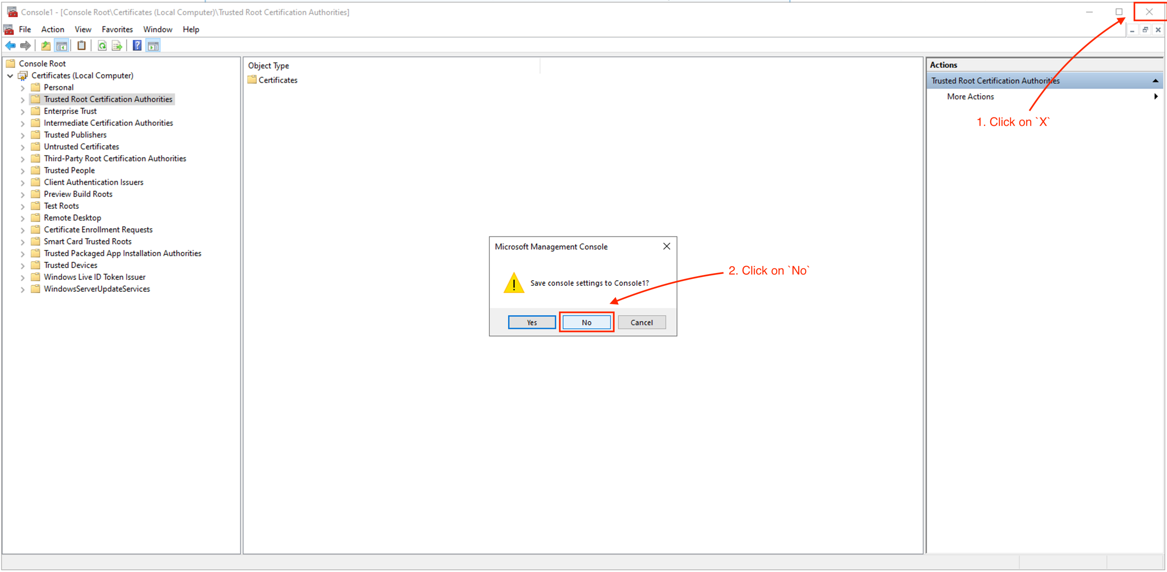
13. Close the MMC console. When asked if you want to save console settings, select No.
4. Connecting Power BI to your DirectDB instance
1. Open Power BI Desktop.
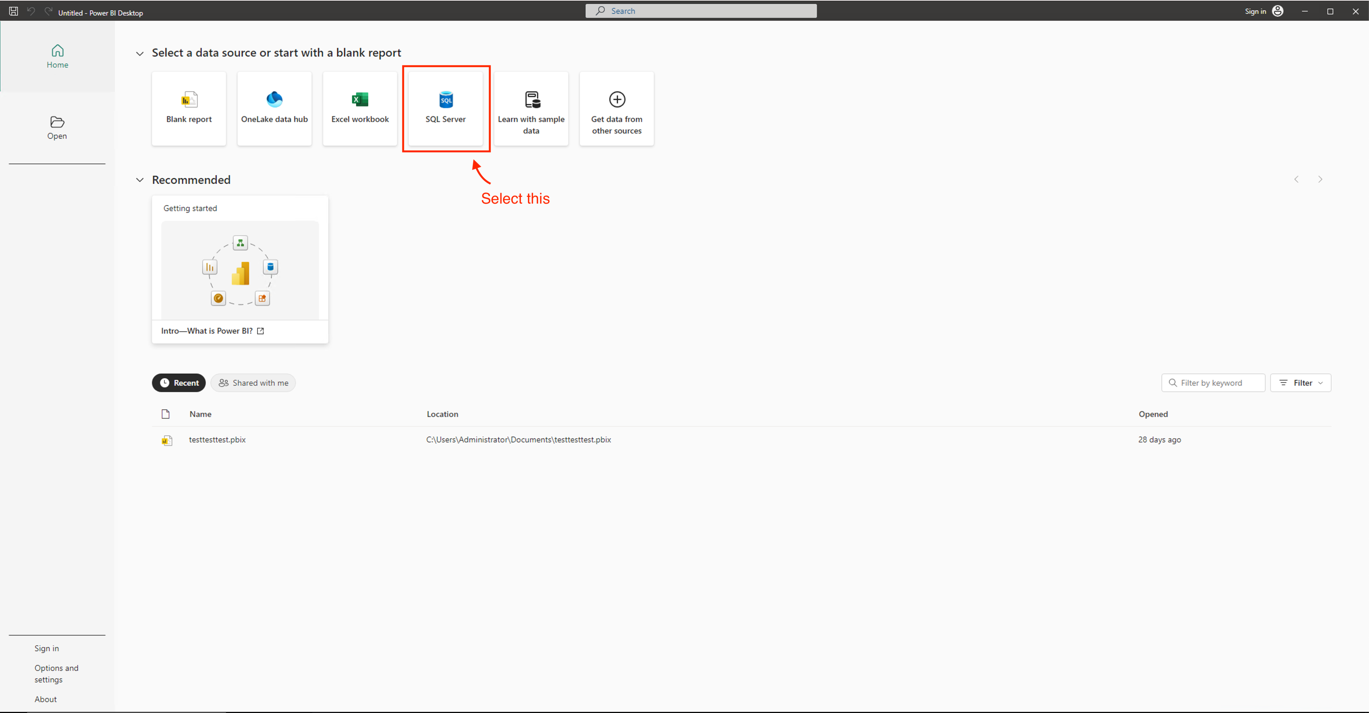
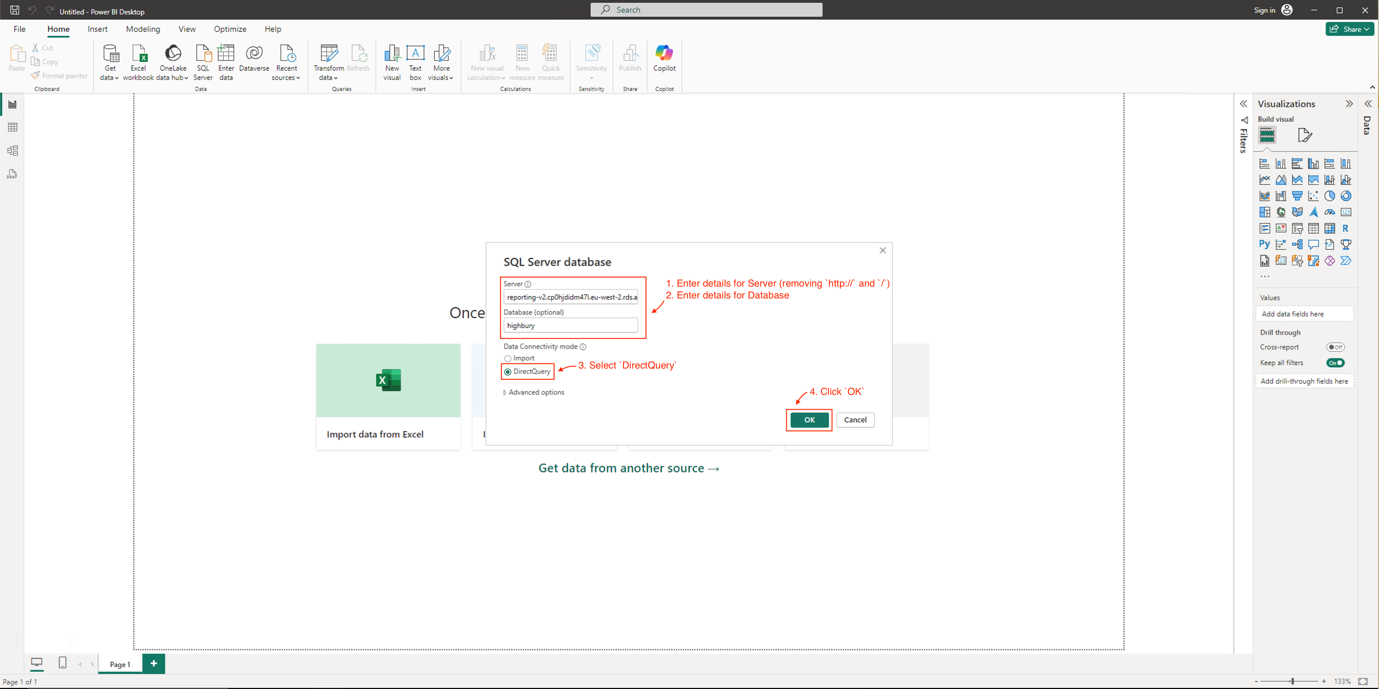
2. Under 'Select a data source or start with a blank report', click on SQL Server.
3. Enter the connection details from your DirectDB settings page:
- Server: Enter the server URL followed by a comma and the port number (e.g. your-server-url,4376)
- Database: Enter the database name
IMPORTANT: Make sure the server URL does not include http:// at the beginning or / at the end. Power BI may add these automatically when pasting. If this happens, remove them manually.
4. Under Data Connectivity mode, select DirectQuery.
5. Click OK.
6. When the credentials window appears, select Database on the left-hand side.
7. Enter the username and password from your DirectDB settings page.
8. Click Connect.
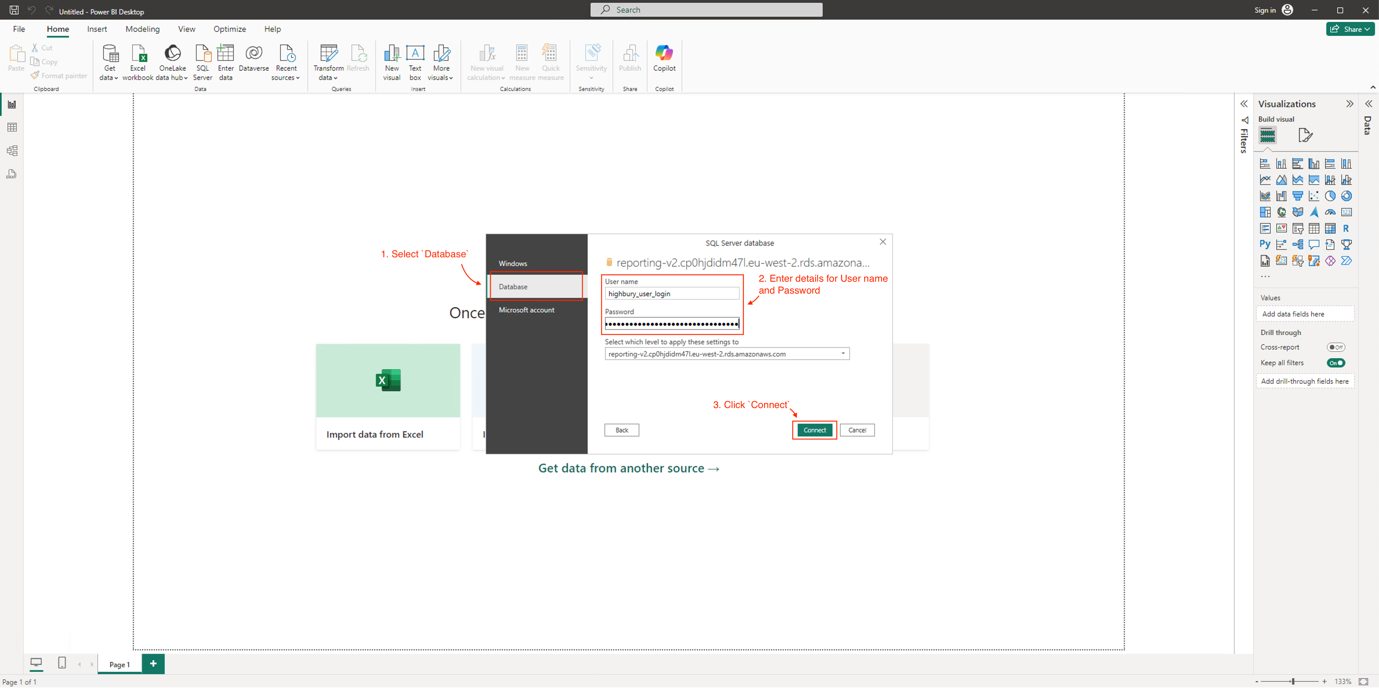
NOTE: If you see an encryption warning or the connection is refused, make sure you have completed the SSL certificate installation in section 3. Close Power BI, install the certificate, then reopen Power BI and try again.
5. Loading tables
1. When the Navigator window appears, select the tables you want to use. To select all tables quickly, click the first one, scroll to the bottom, hold SHIFT and click the last one.
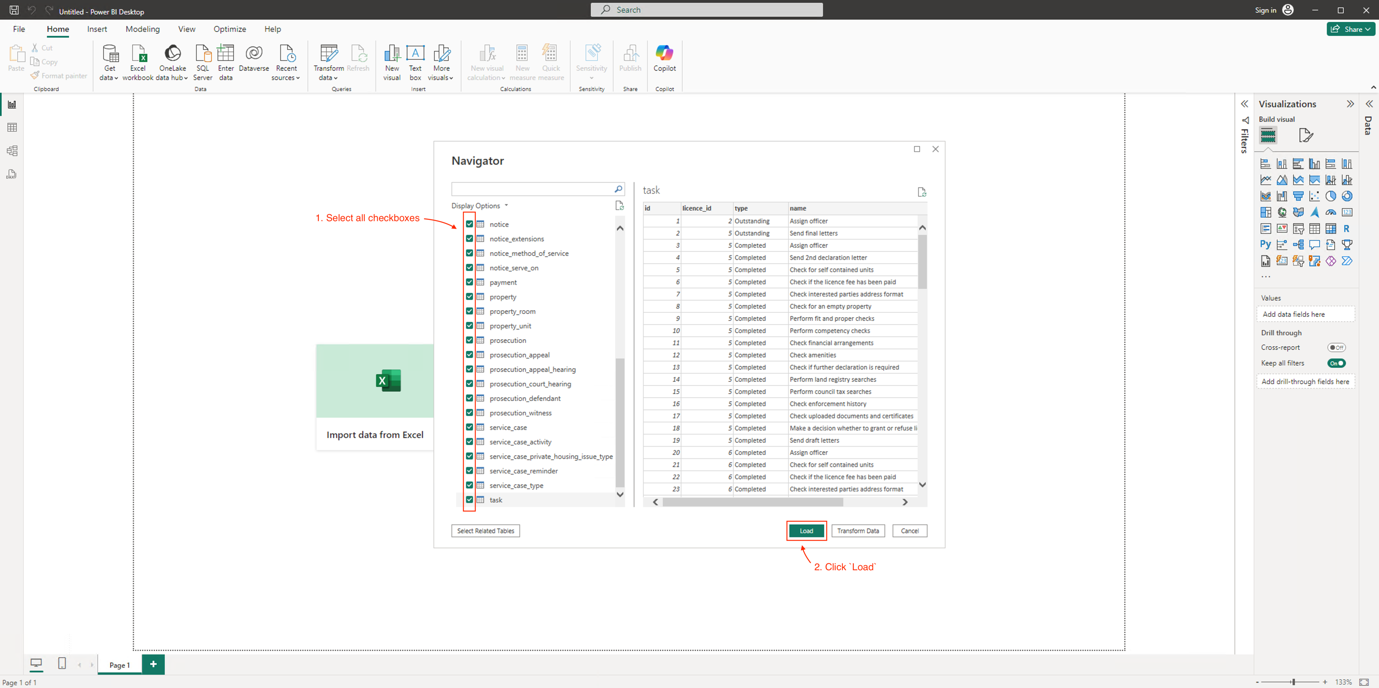
2. Click Load.
3. Wait for the connection to complete. This may take a moment.
You are now connected and ready to start creating reports.
6. Troubleshooting
Connection refused or encryption warning
SSL encryption is enforced on all DirectDB connections. If you see an encryption warning or the connection is refused, the SSL certificate has not been installed correctly. Close Power BI, follow the steps in section 3 to install the certificate, then reopen Power BI and try again.
Unable to connect (timeout)
If the connection times out, check the following:
- The correct outbound TCP port is open on your network (check your DirectDB settings page for the port number)
- Your external IP address has been registered with Metastreet (if IP restrictions are in place)
- The server URL does not contain http:// at the beginning or / at the end
- The port number is included after the server URL, separated by a comma (e.g. your-server-url,4376)
Contact your IT team to verify port and firewall settings. If the issue persists, contact your Metastreet account representative.
Incorrect credentials
If the username or password is not accepted, check the credentials shown on the DirectDB settings page in Metastreet (Home > Settings > DirectDB). Make sure you have selected Database (not Windows) on the left side of the credentials window.
7. Additional help and support
If you have any questions or need help with your DirectDB setup, contact your account representative or email us at team@metastreet.co.uk.
Was this article helpful?
That’s Great!
Thank you for your feedback
Sorry! We couldn't be helpful
Thank you for your feedback
Feedback sent
We appreciate your effort and will try to fix the article